 Loyal Receptionist
Team and roles
Three roles for the admin app: Owner, Office (admin), Field (crew). Owner and admin are the desk; crew are the people out doing the jobs. The server enforces every rule below — hiding a button is cosmetic, the API refuses regardless.
| Action | Owner | Admin | Crew |
|---|---|---|---|
| Sign in | ✓ | ✓ | ✓ |
| View dashboard | ✓ | ✓ | "My day" — their own jobs (see Dashboard) |
| Read contacts | ✓ | ✓ | Only ones they work with |
| Edit / delete contacts | ✓ | ✓ | — |
| See the jobs board | ✓ | ✓ | ✓ (whole board, "My jobs" filter) |
| Move / reschedule jobs | ✓ | ✓ | Own jobs only |
| Create / cancel / complete / assign jobs | ✓ | ✓ | — |
| Read quotes & invoices | ✓ | ✓ | Own jobs only |
| Create / edit / send invoices | ✓ | ✓ | Own jobs only (field invoicing) |
| Void / delete invoices | ✓ | ✓ | — |
| Reply in conversations / take over | ✓ | ✓ | Own only |
| Listen to call recordings | ✓ | ✓ | — |
| View analytics | ✓ | ✓ | — |
| Edit agent config / KB / services | ✓ | ✓ | — |
| Build automations | ✓ | ✓ | — |
| Invite team members | ✓ | ✓ | — |
| Remove other team members | ✓ | — | — |
| Manage telephony / integrations | ✓ | ✓ | — |
| Billing / plan changes / top-ups | ✓ | — | — |
| Delete the org / wipe all data | ✓ | — | — |
Crew creating and sending invoices for their own jobs is deliberate — it's how the "drive home with the day's invoices already sent" workflow works. See Time tracking & field invoicing.
The Team page
Settings → Team is home base: an Invite teammate button, a pending-invitations card, the members table, and — below it — the Smart Dispatch, Crew voice access and Operator agent cards.
The members table shows, per person: Name (with a presence dot), Contact, Role, Skills (badges), Cost £/hr (visible to owners only — it's payroll data, and the server strips it for everyone else), Joined, and a Remove button.
The presence dot comes from the crew app's GPS heartbeat: green for online (pinged in the last 5 minutes), amber for recently active (last 30 minutes), grey-paused when tracking is paused, grey when offline.
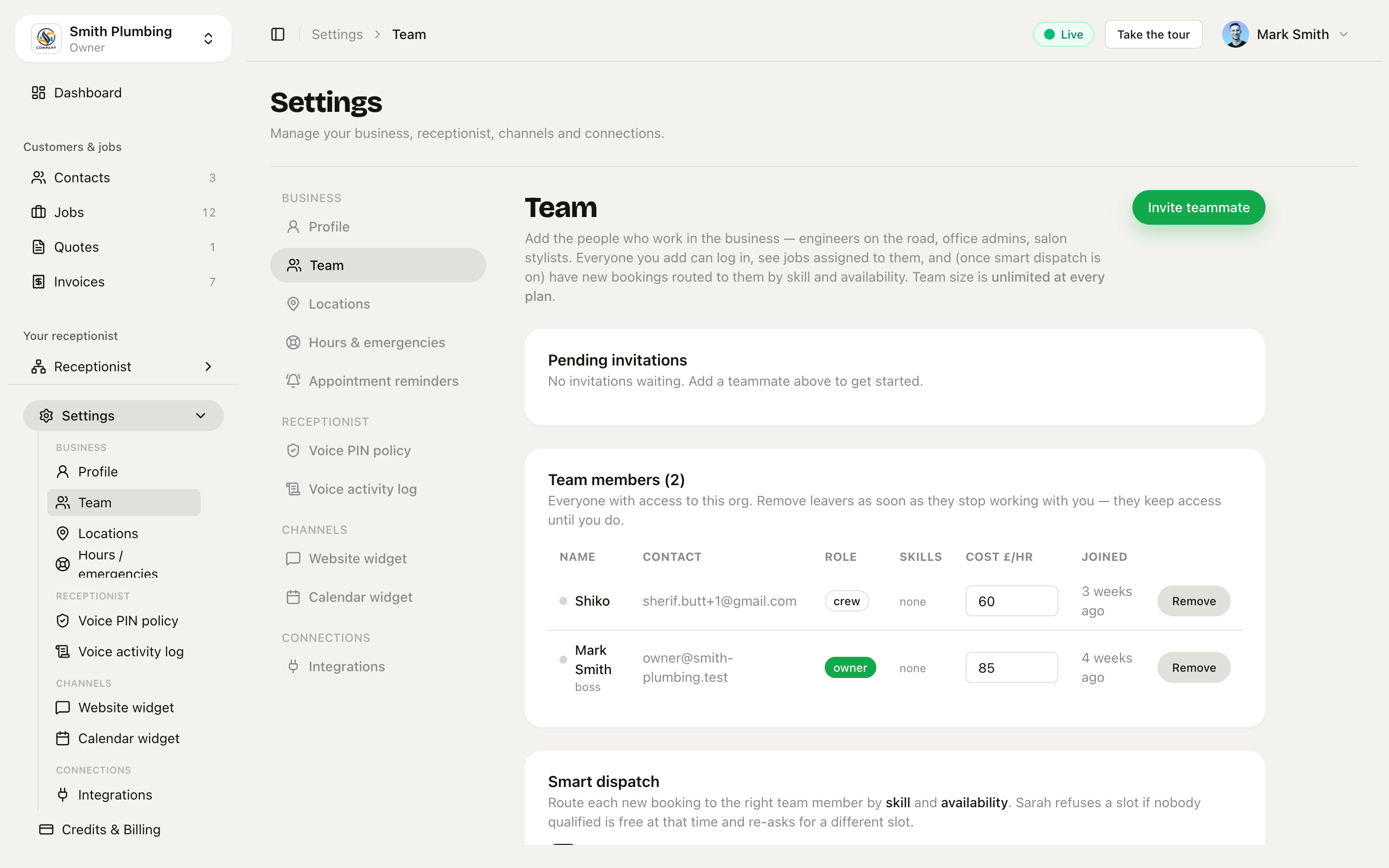 Settings → Team. Invite teammate, members table with presence dots, Skills and Cost £/hr columns, and the Smart Dispatch / Crew voice access / Operator agent cards.
Inviting someone
Invite teammate opens a modal with one "Email or UK mobile" field plus a role picker — Field (engineer / stylist), Office (admin) or Owner. The server detects what you typed and picks the right delivery channel — no toggle to remember:
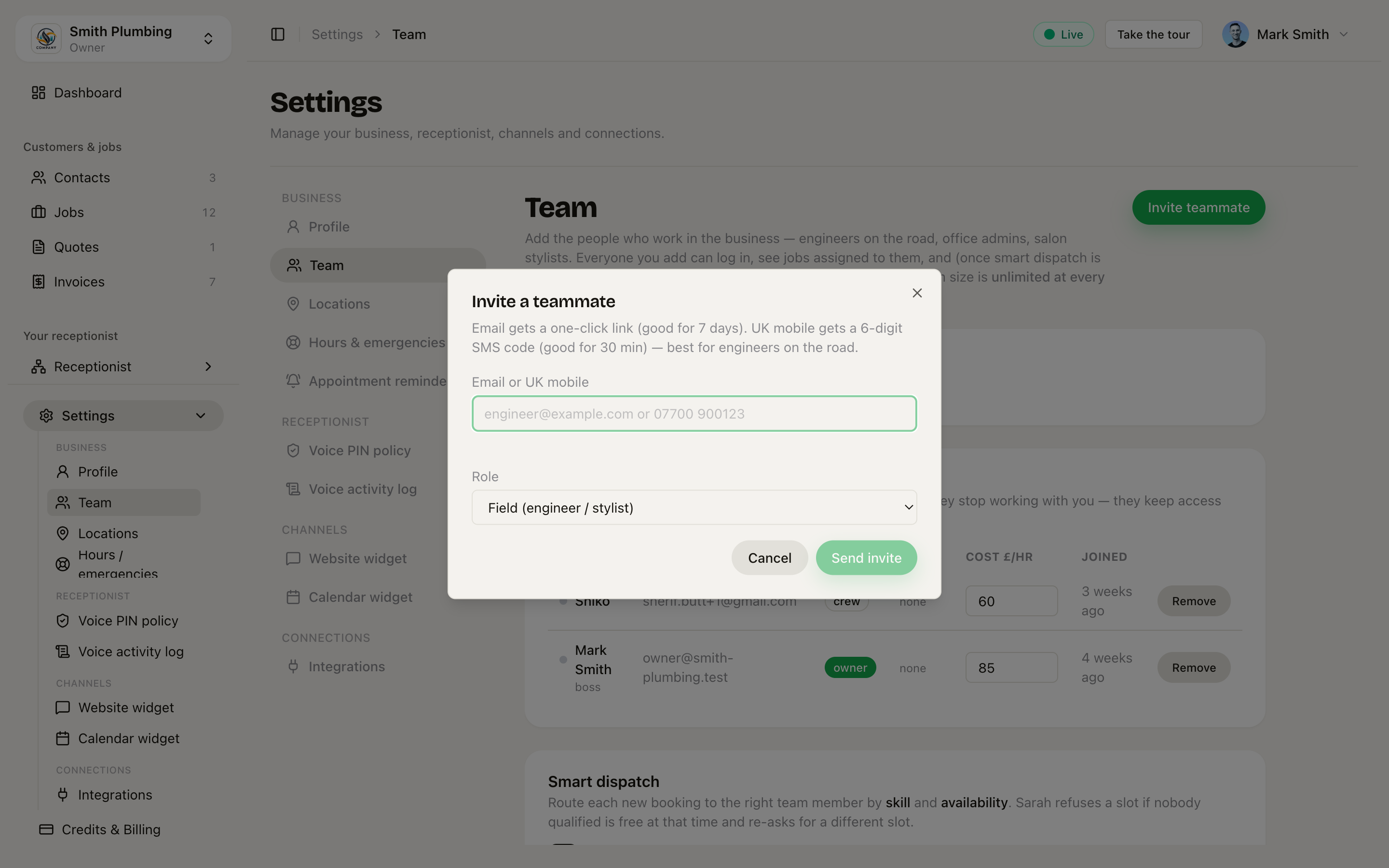 One field for email or UK mobile, plus the role picker.
- Type an email → they get a magic link, 7-day expiry, lands at
/accept-invite?token=…where they set their name (and optionally a password) to join. - Type a UK mobile (
07700 900123or+447700 900123) → they get a 6-digit SMS code, 30-minute expiry, opens/joinwhere they enter phone + code + their name.
Pick the path that fits the person:
- Email for office staff and salon team members who live in their inbox.
- SMS code for engineers on the road who'll never check their email — the field-service trades reality. The code path is the one we built for that audience.
Team size is unlimited at every plan — invite as many as you need. The plan tiers gate features (smart dispatch, custom AI agent personas, integrations), not headcount.
Resending or revoking
The Pending invitations card on the same page lists every invite that hasn't been accepted yet. Each row has a Revoke button — it invalidates the link/code immediately. To resend, just invite the same address again; the previous pending invite is auto-revoked first so the old link stops working.
Brute-force defence (SMS path)
Six-digit codes are short, so two guards run:
- Per-invite attempt counter — after 5 wrong codes for the same phone, the invitation is locked. Owner has to send a fresh one.
- Per-IP rate limit — 10 attempts per 15 minutes across
/accept-invite,/join, and the legacy magic-link endpoint. Catches the "hammer many phones from one device" pattern.
Both kick in silently — a locked invite shows the same invalid_code error to the attacker as a missing one, so they can't tell they triggered the lock.
Signing back in after logout (phone-OTP users)
Members who accepted via the SMS code path don't have a password or a real email — just their mobile. To sign back in:
- Go to
/login→ "Sign in with your mobile instead →" (link beneath the email/password form). - Or go directly to
/login/phone. - Enter the same UK mobile you were invited on → 6-digit code lands by SMS in seconds → enter it → in.
Codes expire after 5 minutes (shorter than the invite OTP because this is a re-login, not first-touch). The same brute-force defence applies — 5 wrong codes locks the code, 10 attempts per IP per 15 min locks the route.
The request endpoint returns the same 204 response whether or not your mobile matches a user — that's deliberate, so an attacker can't enumerate who's on the system just by trying numbers.
"I lost my phone"
Phone-OTP users can't self-recover. Ask the owner to revoke + reinvite you by email — that gives you a path back in via a magic link, and once you're in you can add a password (Profile → set password) for future self-service. Building a phone-loss recovery flow as a backdoor would create a security hole worse than the friction it removes; we don't.
Operator mode access
Whether someone can ring your line and run the business by voice follows their role:
- Owners and admins always have full operator mode. Each person sets their own personal mobile and voice PIN on their own Settings → Profile page — the mobile is the caller ID that flips them in.
- Crew get it only when you switch on Crew voice access (run their own day) on this page — off by default. When on, a crew member calling from their registered mobile can check and reschedule their own jobs and text customers about delays. Invoices, payments, revenue and other teammates' jobs stay owner/admin-only, always.
- The Operator agent (who answers staff) card lets you pick a different persona for staff calls than the one customers hear — default is "Same as customers".
The org-wide PIN rules — length, lockout, whether operational tools need a PIN at all, the invoice ceiling — live under Settings → Voice PIN policy. Full detail at Voice PIN & operator mode.
"View as teammate" (read-only)
Before you hand crew access to someone, you can see exactly what they'll see. The org switcher in the sidebar has a View as entry: owners can preview anyone; admins can preview crew. While previewing, an amber "Viewing as Shiko (read-only)" banner sits in the top bar with an Exit button, and the server refuses every write — it's a faithful, look-don't-touch preview. Each view-as session is audited.
What crew see
Crew get a trimmed app, not a broken one: the sidebar shows My day (their dashboard), Contacts, Jobs, Quotes, Invoices, Activity, and a settings subset (Profile, Team, Hours & emergencies, Voice PIN policy, and the Voice activity log — their own actions only). Agents, playbooks, knowledge, billing, analytics, automations and integrations don't appear — and the API blocks them server-side too.
Removing someone
Each member row has a Remove button. Only owners can remove other people; anyone can remove themselves. Removal deletes their membership and they lose access immediately.
You can't remove the only owner — the server refuses until the org has another one.
Skills (Smart Dispatch)
Each member's profile lists the skills they can do — gas-safe, colourist, bathroom, whatever your business uses. The picker offers a catalogue seeded from your trade's defaults plus every tag already used across your team, and you can add your own.
Skills only matter once Smart Dispatch is on (the card on this page). When it is, new bookings are routed to a team member who:
- Has the skill the service needs (set per-service in Services → Required skill)
- Isn't already booked at that time
- Is nearest to the job's postcode (based on crew-app GPS or their depot postcode fallback)
- Has been assigned least often this week — round-robin tie-break inside the proximity bucket
- Is the contact's preferred team member (set per-contact) — if they pass the other gates
See Smart Dispatch for the full routing model.
Multi-org membership
A user can be a member of multiple orgs (e.g. a contractor working with three different trade firms). The org switcher in the top bar lets them flip between orgs without re-login. Each org has its own role, settings, data — RLS guarantees that data from Org A is invisible while they're scoped to Org B.