 Loyal Receptionist
Dashboard
The first screen owners and admins see when they sign in. Built for a 5-second look while you're holding a coffee.
Two exceptions: a brand-new owner who hasn't finished onboarding is sent into the Setup wizard instead, and crew see a different screen entirely — their own My day view.
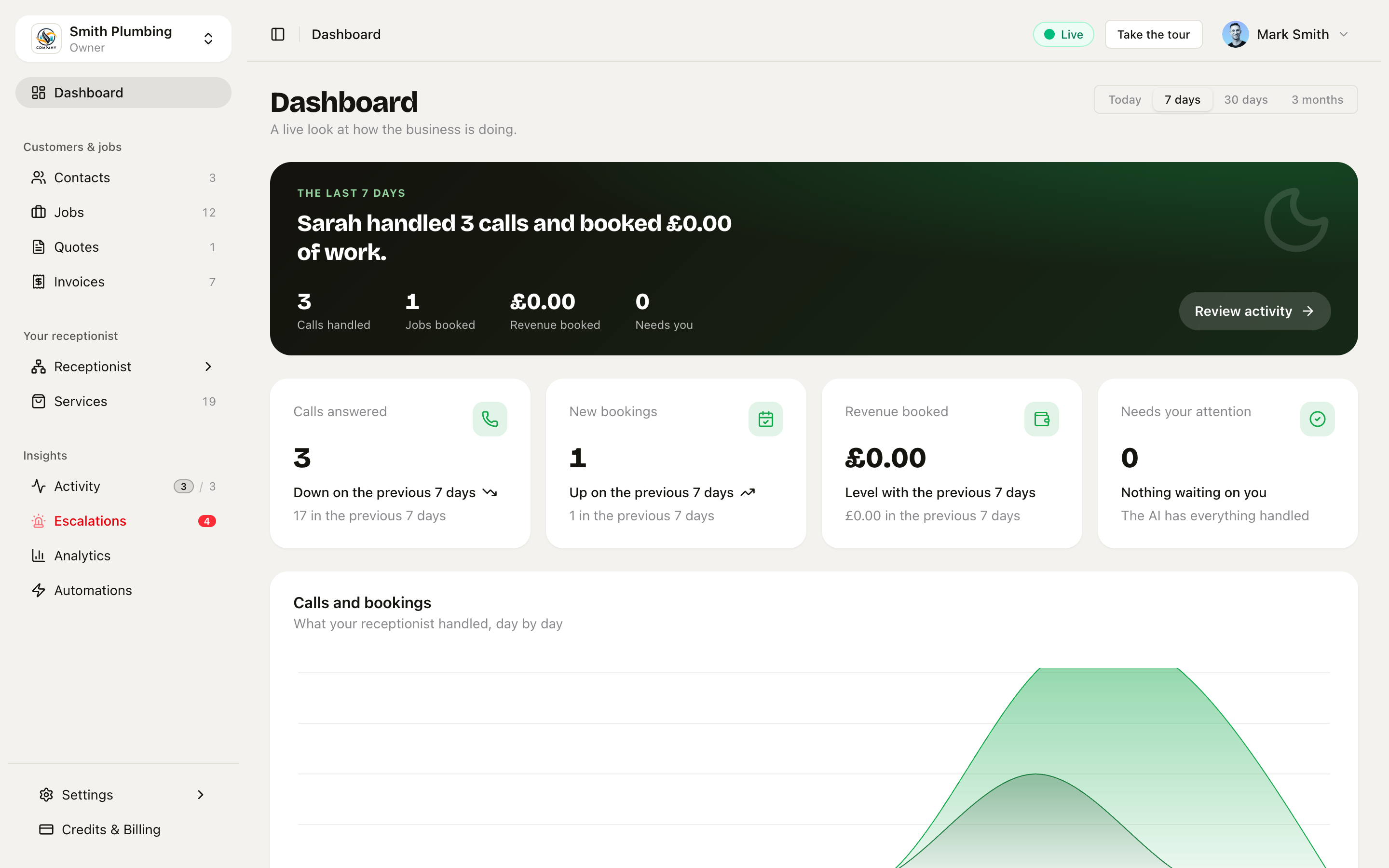 Hero banner, four stat cards with real trends, the activity chart, and today's schedule split into one column per crew member.
Live status (topbar)
A pill in the topbar reflects your org's status — Live (green) once onboarding is done and your AI is answering, Finish setup (amber) until then. Click the amber pill to jump back into /setup. Crew don't see the "Take the tour" button — the tour is an owner thing.
"You're live" banner
The first time you land here after completing the Setup wizard's Go live step, a one-time green banner confirms it:
You're live. Your receptionist is answering calls. Add a phone number from Settings when you're ready to take real traffic — until then, test from the Agents page.
Dismiss with the X. It doesn't come back.
The hero banner
A dark banner across the top tells you the outcome in one sentence — "Sarah handled 12 calls and booked £1,840 of work" — with four inline stats (Calls handled, Jobs booked, Revenue booked, Needs you) and a Review activity button that jumps to the Activity feed.
Range switcher
Top-right of the page: Today / 7 days / 30 days / 3 months. It drives the hero, the stat cards and the chart. The schedule section is always today — your crew's day doesn't have a range.
The stat cards
Four cards under the hero:
| Card | What it counts | Click to open |
|---|---|---|
| Calls answered | Inbound calls the AI picked up in the selected range. | Activity |
| New bookings | Jobs created in scheduled status — usually straight from a voice booking or the public booking page. | Jobs |
| Revenue booked | Sum of quoted value on jobs created in the range; once a job completes with a final price, that figure takes over. | Invoices |
| Needs your attention | A live count of conversations marked for a human — the AI escalated, or its confidence dropped. | Activity |
The first three carry a real period-over-period trend in the footer ("12 in the previous 7 days") — the deltas are computed from your data, never invented. Needs your attention is a live queue depth, not a windowed metric, so it gets a status badge instead: green when nothing's waiting, red with the count when something is. See Conversations & activity for what to do with an escalated conversation.
The activity chart
An interactive area chart of calls + bookings over the selected range — hourly bars on Today, daily on the longer ranges. Useful for spotting patterns: Monday morning is always busy, Friday afternoon is dead.
Today's schedule
The day, split into one column per crew member — avatar, name, and a one-line summary ("2/3 · next 15:00"), with their shift as a vertical timeline underneath: done jobs filled green, in-progress amber, upcoming hollow. Scroll horizontally to compare everyone's day at a glance.
- Jobs nobody's been assigned yet collect in an amber Unassigned column, sorted last — that's your dispatch backlog.
- Each job card shows time, title, customer, address and price, plus an Emergency pill when the priority warrants it and a Paid / Invoiced / Complete billing pill once the job's done.
- Click a job to open it in the job drawer on the Jobs board (
/jobs?selected=…) — see Contacts & jobs. - View all jobs → in the section header jumps to the full board. If you're routing work by skill and proximity, Smart Dispatch is what fills these columns for you.
My day — what crew see
Crew don't get the business dashboard — they get My day: just their own shift, nothing to configure.
- A route chip summarising the day's travel (first → last postcode area, e.g. "CF10 → CF24").
- Two cards: Jobs today (with a "done" count and how many are still to go) and Next stop (time, a relative "in 40 min" badge, customer and area).
- The same shift timeline — done jobs filled green, the current one amber, the rest hollow — each row opening the job on the Jobs board.
The sidebar renames "Dashboard" to My day for crew, and trims everything they don't need. Who counts as crew, and what they can and can't touch, is covered in Team & roles.
Viewing as a teammate
When an owner (or admin) previews the app as a teammate, an amber "Viewing as Shiko (read-only)" chip appears in the topbar with an Exit button. Everything you see is what they'd see — including this page turning into their My day if they're crew. All writes are refused while the preview is active. See Team & roles for how to start a preview.
What to do every morning
- Read the hero sentence. If today's looking quiet by 10am, expect a slow afternoon.
- Check Needs your attention. If it's red, those conversations are waiting on you.
- Scan the schedule columns — anything in the amber Unassigned column needs a person before the day starts.
- Open Activity if you want to listen back to overnight calls.
That's it. The dashboard isn't somewhere you live; it's somewhere you glance.