 Loyal Receptionist
Some owners want every booking in the diary before they put the phone down. Others want to see Sarah get it right first. You pick, and you can change it at any time. Nothing already booked is lost when you do.
Go to Settings › Hours. The card is What Sarah does with a call.
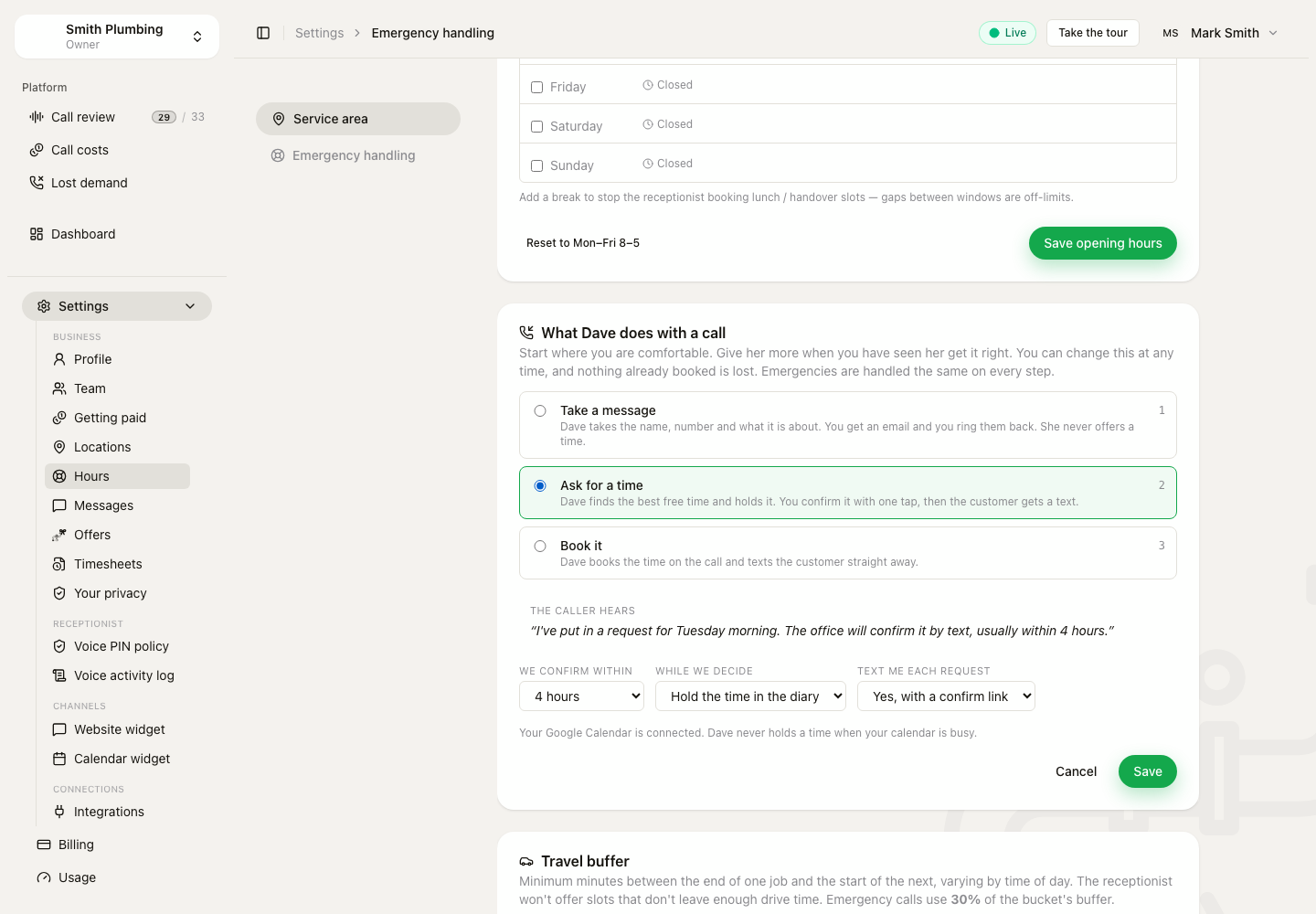 Ask for a time is picked. The card shows what the caller hears and when you confirm.
Emergencies are handled the same way on every step. A gas smell still gets the gas line first.
1. Take a message
Sarah takes the name, the number, what it is about and the address if the work is at one. She never offers a time.
- Send messages to. One inbox for every message. Leave it empty and the message goes to everyone who gets urgent alerts.
- Also text me. A text as well as the email.
- Sarah says you ring back. Say nothing about time, today, or within 2 hours. She promises only what you pick here.
Each message is on Calls › To-do. The email and the text carry an I've rung them link. Press it after you ring, or tick the call off in the app. If you promised a time and nobody has rung by then, you get one reminder.
While Sarah only takes messages, the diary cards below the card go grey. They are not used, and they apply again when you move up.
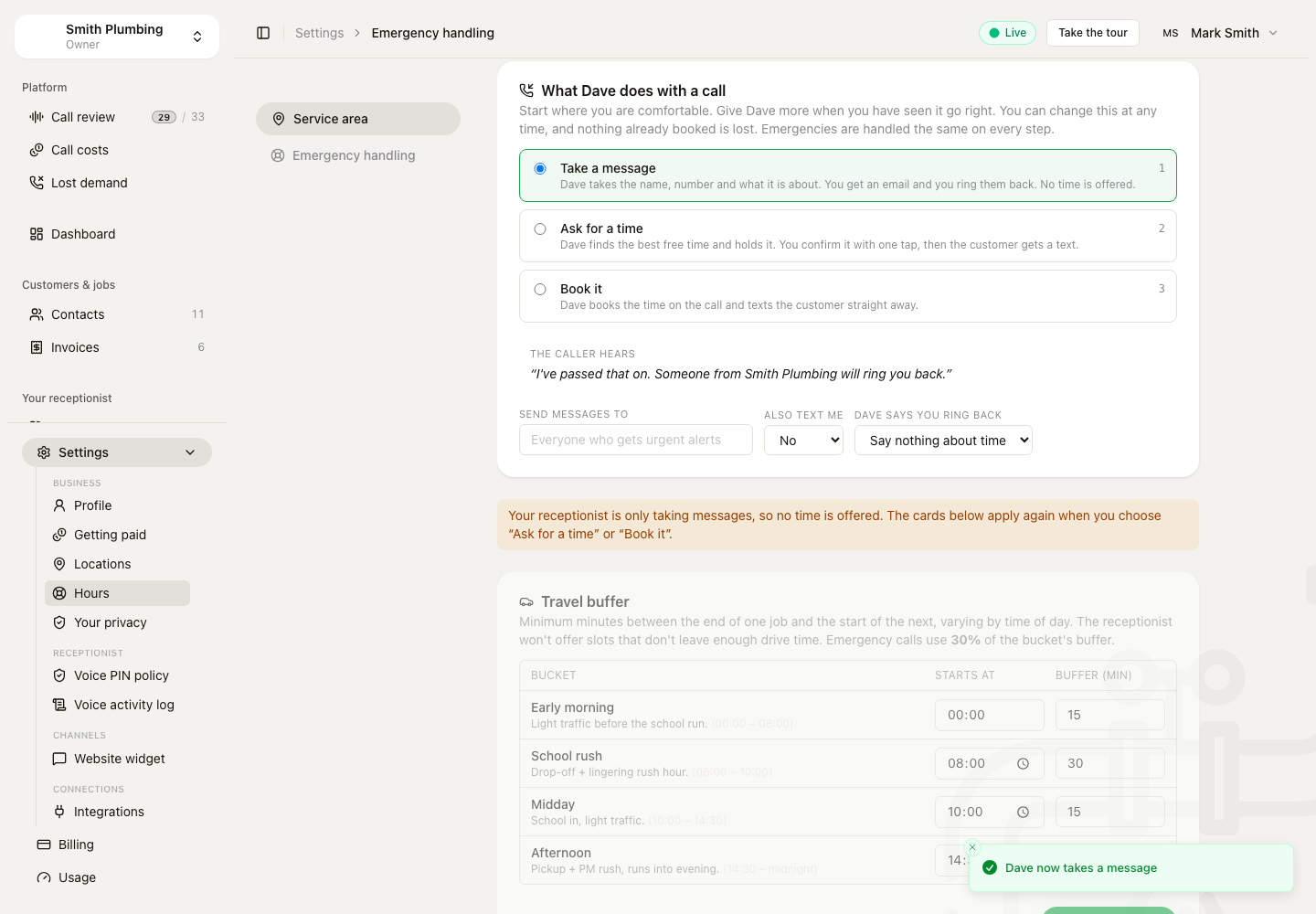 On Take a message the diary cards go grey, with the reason.
2. Ask for a time
Sarah finds the best free time, the same way she does when she books. Then she asks you for it. The caller hears "I've put in a request for Tuesday morning. The office will confirm it by text." She never says booked.
- We confirm within. 1 hour, 4 hours, or the same day. Sarah tells the caller this.
- While we decide. Hold the time in the diary, so nobody else can take it, or only suggest it.
- Text me each request. A text with a link. One tap confirms, with no sign-in, from the van.
The job shows To confirm on the board, and there is a count beside Jobs in the menu. Open the job and the first thing on it is the request:
- Confirm. The customer gets their confirmation text, and any payment link, now.
- Change the time. Pick another time and confirm it, or press We can't do it. That texts the customer that the time does not work and asks them to ring you.
Nothing is confirmed or released by itself. If nobody answers by the time you promised, you get one reminder.
3. Book it
Sarah books the time on the call and texts the customer straight away. This is how she has always worked.
A different step for one line
Each playbook can set its own step. You might ask for a time on repairs and book viewings straight away.
Open the playbook on Receptionist › Playbooks. Under When a caller wants a time, pick:
- Same as the business. The setting on Settings › Hours. This is the default.
- Ask for a time. You confirm it, then the customer gets a text.
- Book it on the call.
Sarah uses the step of the playbook the caller is on when she books. If a call moves from viewings to repairs, the repair is a request.
Take a message is for the whole business only. While it is on, no line offers a time.
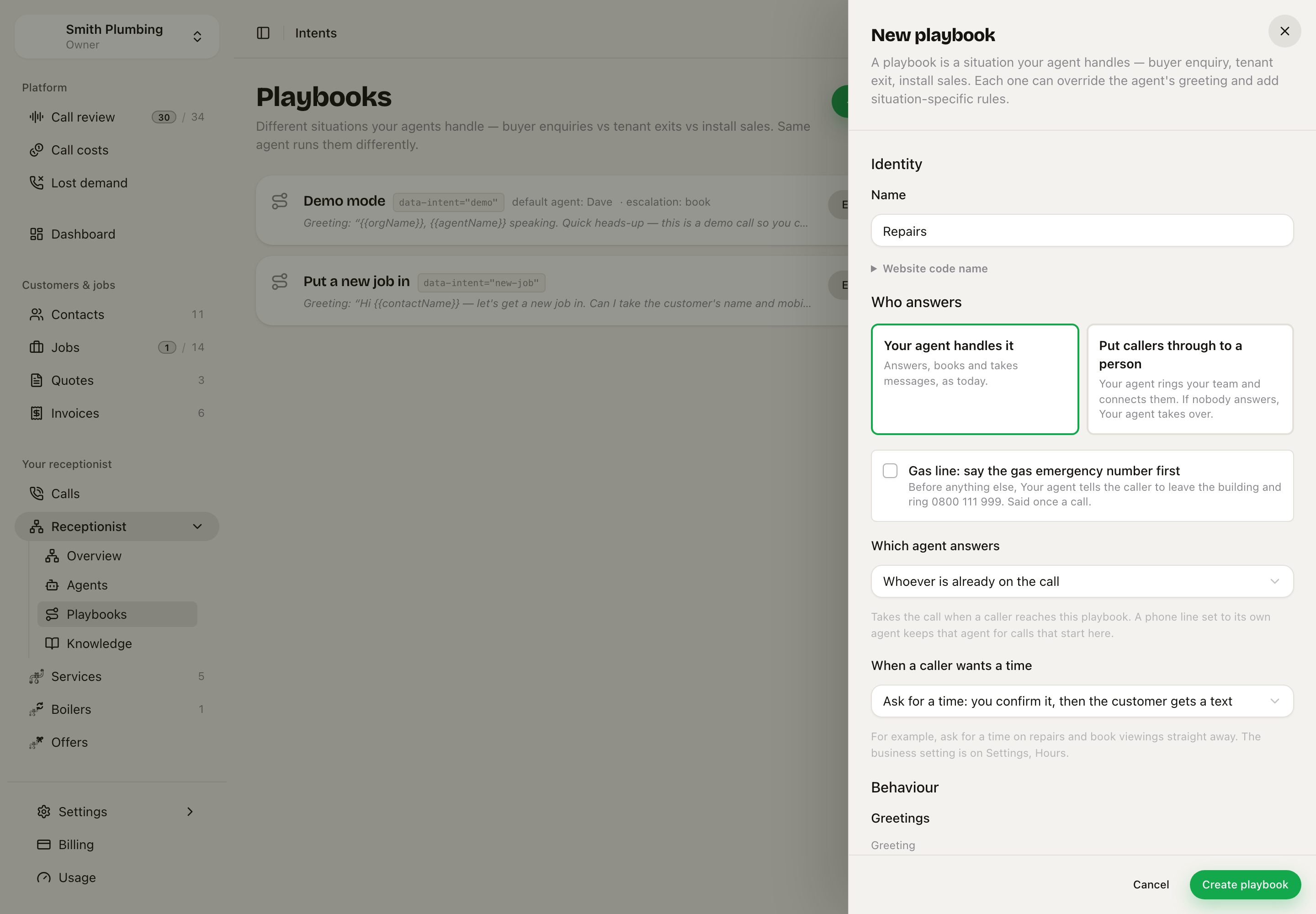 A Repairs playbook set to Ask for a time.
Moving up
After 20 requests, the card shows your last 50: how many you confirmed as Sarah picked, how many you moved, and how many you refused. If you kept nearly all of them, press Let Sarah book. Moving up is always your tap. The card only suggests it.
If your Google Calendar is connected, Sarah never holds or books a time when your calendar is busy.
On the Messages plan
The Messages plan takes messages only. Ask for a time and Book it come with Solo, £20 a month more.