 Loyal Receptionist
A cancellation at 9am for a 2pm appointment used to mean an empty chair, or twenty minutes of somebody at the desk ringing round. With the waiting list switched on, the people waiting for an earlier time are texted within a minute or two, and the first one to take it gets the slot. It goes on your diary like any other booking.
This is for businesses people come to for an appointment: clinics, salons, solicitors and the like. If you go out to your customers, you will not see it.
It is part of the Empty slots fill themselves add-on. Without the add-on there is no Waiting list page and nothing is texted.
Switch it on
Go to Settings → Messages and find Fill cancellations from your waiting list. Turn it on, pick how much notice someone needs (one hour, two hours, four hours or a day), and save.
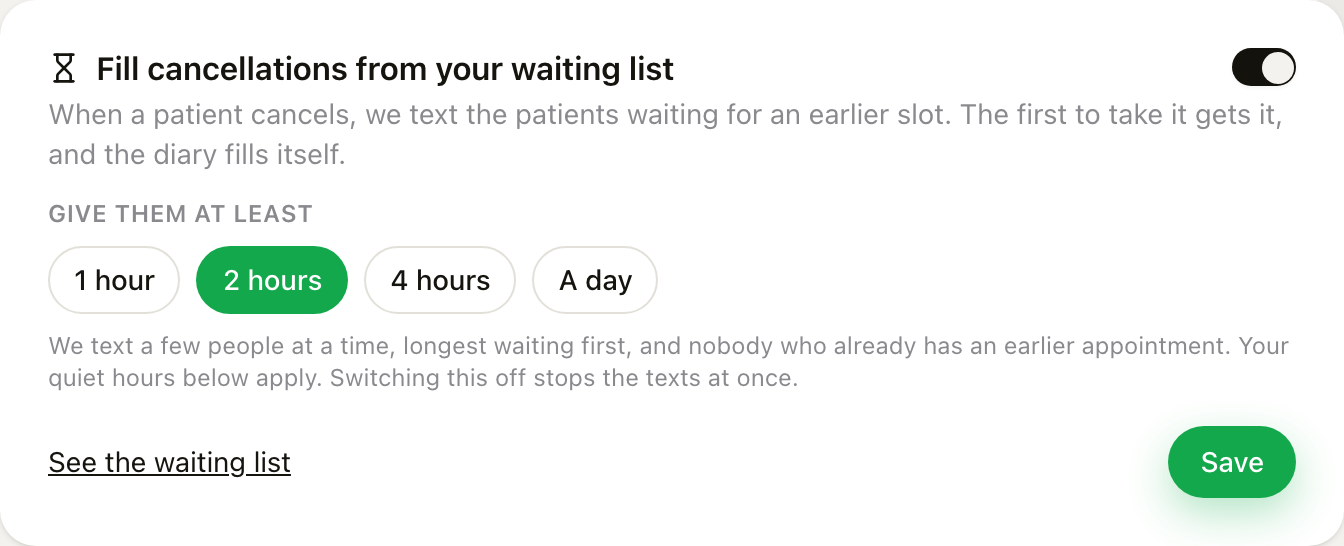 Settings → Messages: on or off, and how much notice someone needs.
The notice is how close to the appointment we will still offer it. With two hours, a 2pm slot that frees up at 12:30 is not offered: nobody can rearrange their afternoon in half an hour.
Your quiet hours on the same page apply. A cancellation at 10pm is held and offered when quiet hours end, if there is still time.
Pause it
The Offering cancellations switch at the top of the Waiting list page does the same as the one in Settings, so you can pause without leaving the page. Paused, nobody new is texted. Anyone who already has a link sees "This slot is no longer being offered". Switch it back on and the next cancellation is offered as normal.
The Waiting list page
Waiting list sits in the sidebar under your appointments. It is laid out like your other lists: a line at the top, then two tabs.
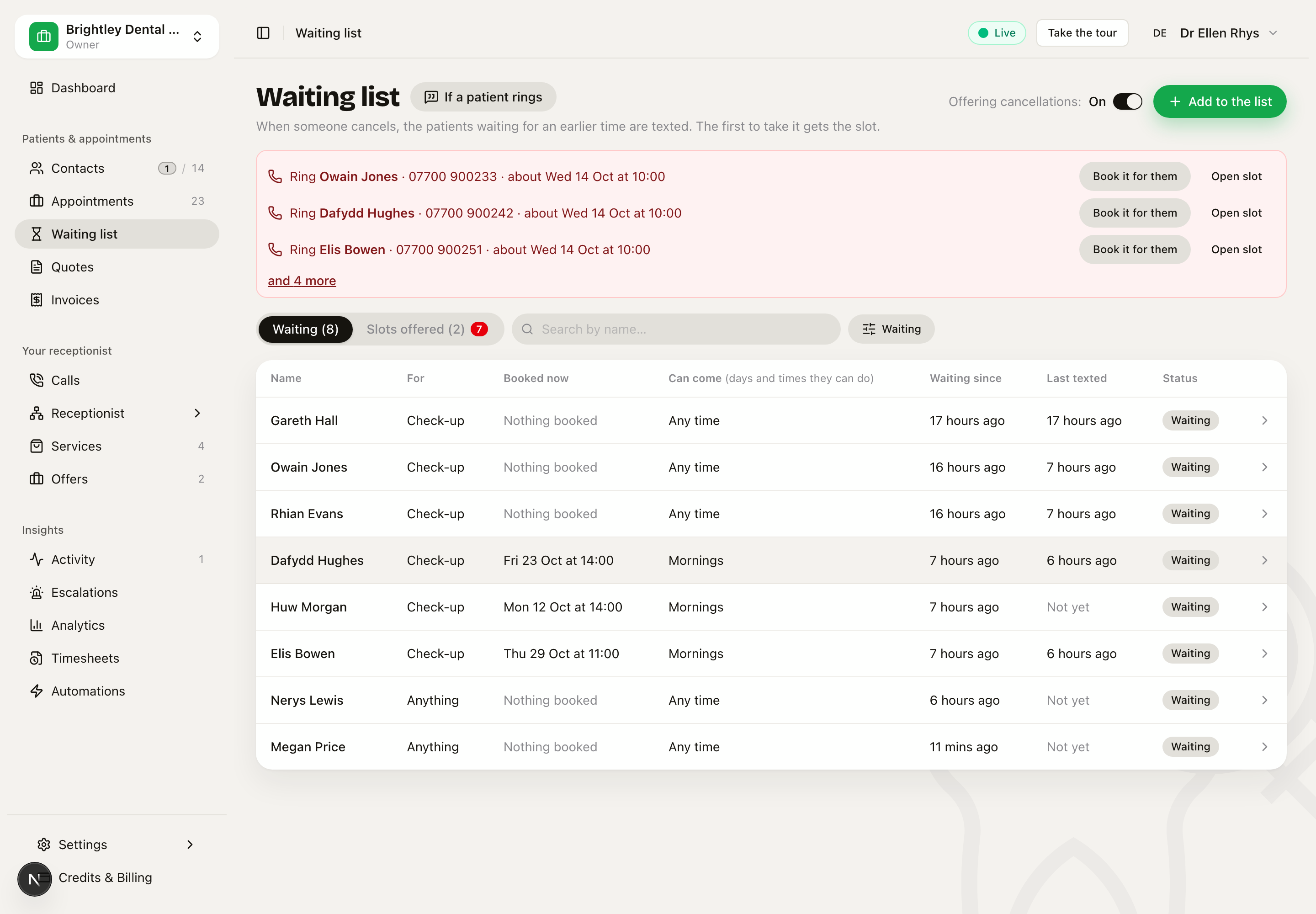 The Waiting list page. The red strip is who to ring now; the Waiting tab is everyone on the list.
Who to ring
When a text could not reach somebody, or they have no mobile, a red strip at the top says so: Ring Owain Jones · 07700 900233 · about Wed 14 Oct at 10:00. Each line has Book it for them, for when they say yes on the phone, and Open slot, which shows everyone that slot went to. The strip shows three people and and N more. It is empty when there is nobody to ring.
The Waiting tab
Everyone on the list: what for, what they have booked now, when they can come, how long they have waited, when they were last texted, and where they are up to. Search by name, and switch between Waiting and Came off to see the people who were booked earlier, expired or were taken off.
Click a row to open their sheet.
The Slots offered tab
Every cancelled time that was offered out. Each row says when, what, with whom, how many were texted and how many texts failed, who still needs a call, and who took it. A red count on the tab says how many people need ringing.
Filter it to Being offered (the default), Needs a call or All slots, and pick Last 30 days, Last 90 days or All time.
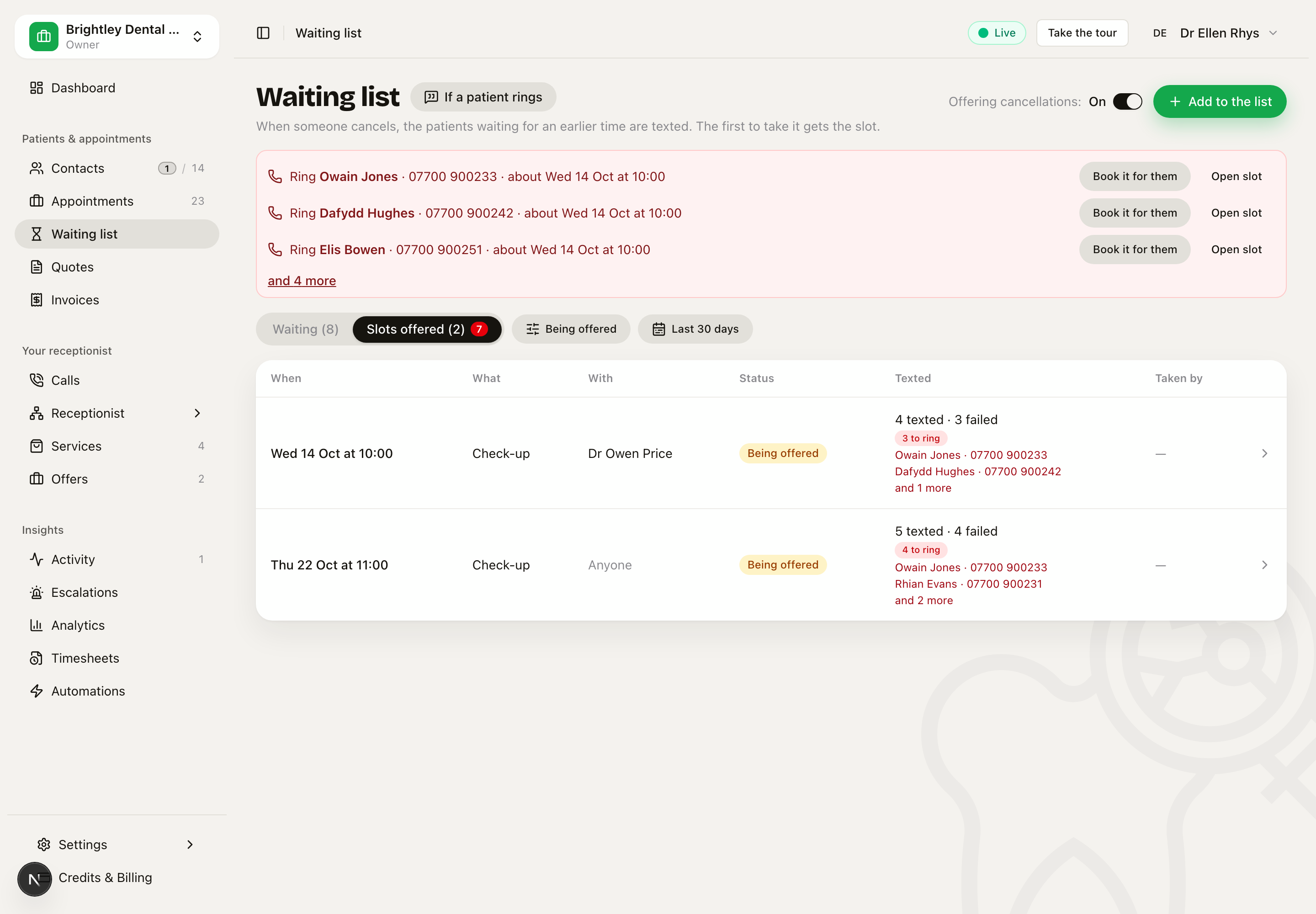 Slots offered: what each cancellation became, and who still needs ringing.
Click a row to open the slot.
If a patient rings
A patient may ring about a text rather than tapping the link. The If a patient rings button beside the page title shows the two lines to say:
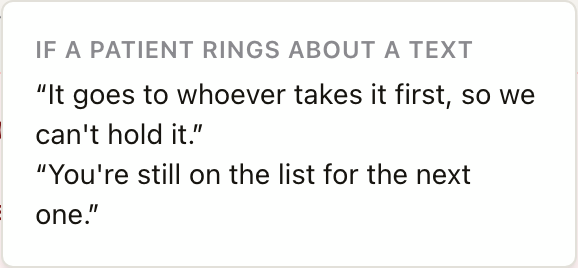 The same two lines appear on every slot.
Someone's place on the list
Open a row on the Waiting tab and their sheet slides in from the right. The header names them, and under it is what they are waiting for and who with.
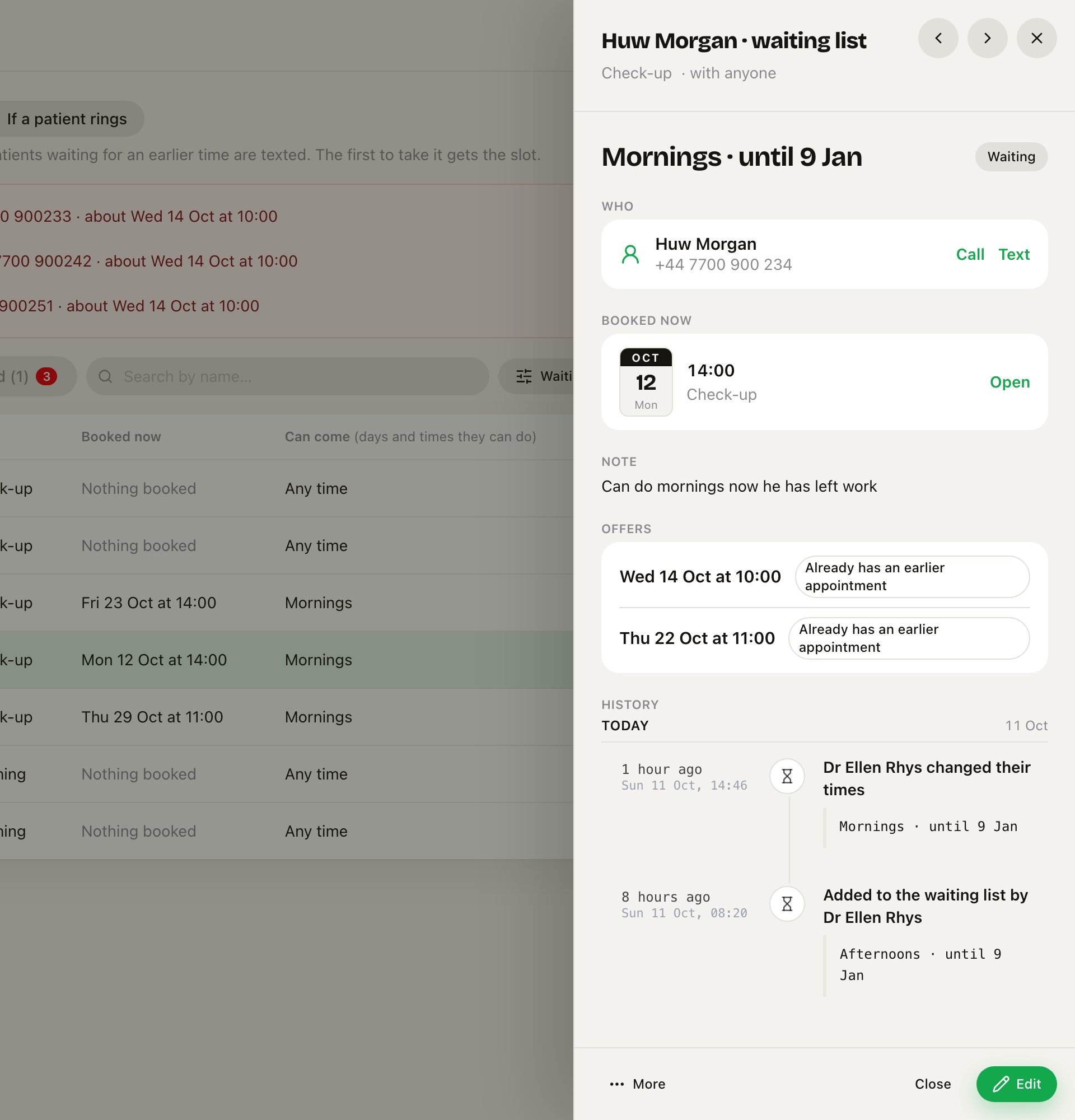 Huw Morgan's place on the list: when he can come, his booking now, the offers he was considered for, and the history.
The sheet shows, top to bottom:
- When they can come, and how long they stay on the list, with where they are up to (Waiting, Booked earlier, Expired, Taken off or Came off).
- Who, with Call and Text.
- Booked now: the appointment they already have. Open takes you to it. If they have nothing booked, taking an offer books a new one.
- Note, if there is one.
- Offers: each slot they were considered for and what happened (texted, took it, said no, too late, or why they were not texted).
- History: everything that happened, newest first, each line with the date and time.
At the bottom, Edit changes what it is for, who with, the days, the times, how long they stay on, and the note. More has Print the history and Take off the list.
The < and > arrows beside the close button step to the previous and next person in the table, in the order it is showing (after your search and filter). The row you are looking at stays marked in the table behind. The slot sheet does the same through the Slots offered tab.
Putting someone on the list
There are three ways.
- On a call. If none of the times Sarah can offer suit, she books the best one that is free and offers to text them if something earlier comes up. A caller who already has a booking and wants it sooner can keep their booking and go on the list. Sarah never puts someone on the list without a booked time: a guaranteed appointment beats a maybe.
- From an appointment. Open it, press More, then Text them if earlier frees up.
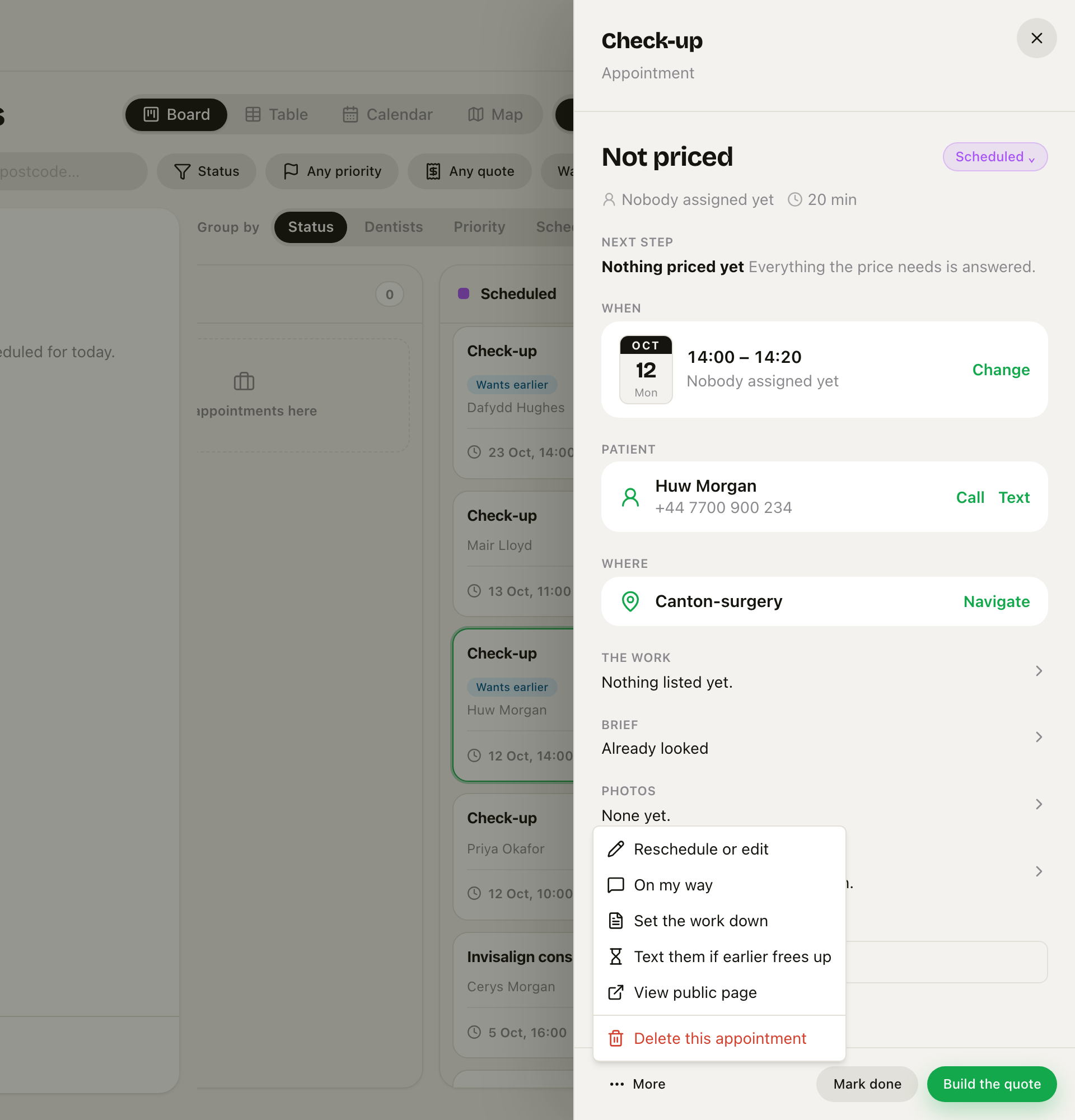 On an appointment: More → Text them if earlier frees up. The patient stays booked and goes on the list.
- From the Waiting list page. Press Add to the list.
When you add from the page, only the person is needed. Search by name or number. If they are not on your contacts yet, press + New patient, type their name and, if you have it, their mobile. They are added as a contact and put on the list in one go.
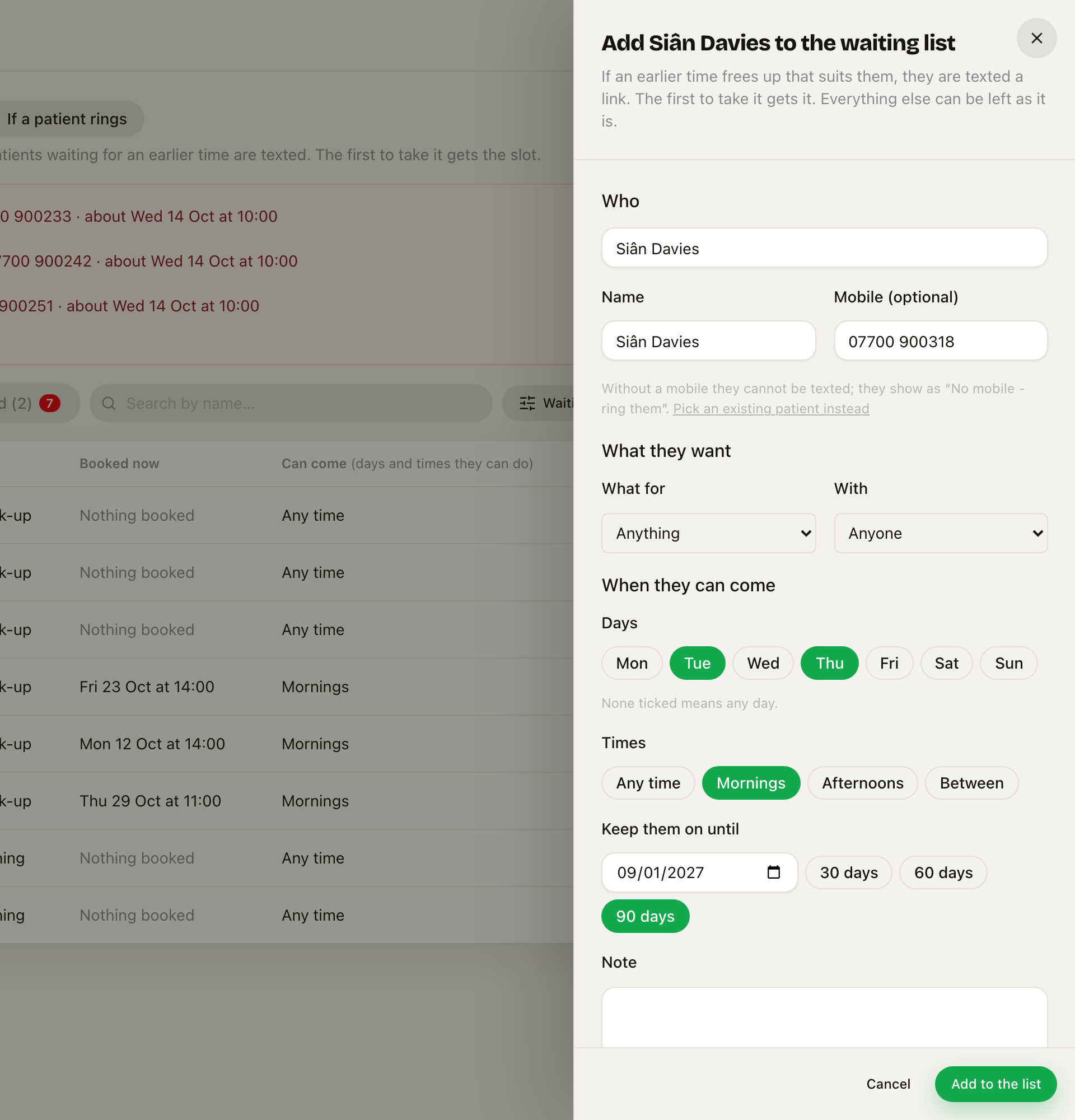 Adding someone who is not a contact yet. Only the name is needed; everything else can be tidied later.
Everything else starts as "anything, with anyone, any day, any time, for 90 days". Without a mobile they cannot be texted; they show on a slot as No mobile - ring them.
People stay on the list for 90 days unless you choose 30 or 60. After that they show as Expired. We do not text them about it.
What happens when someone cancels
It does not matter how the appointment was cancelled: on a call with Sarah, from the link in a reminder, by you on the diary, or because a payment never came through. Moving an appointment to a later time frees the old one too.
- Within a minute, we look at who is waiting. A person is a match when the slot is the same kind of appointment (NHS and private are never swapped), long enough, with the person they asked for if they named one, at the branch they asked for, and on a day and at a time they said they can do.
- The longest-waiting matches are texted first, three at a time. If nobody takes it, the next three are texted twenty minutes later. When the slot is close, the waves get bigger and closer together so everyone is reached in time.
- The first person to tap Take this slot gets it. Everyone else who was texted is told it has gone, and they stay on the list for the next one.
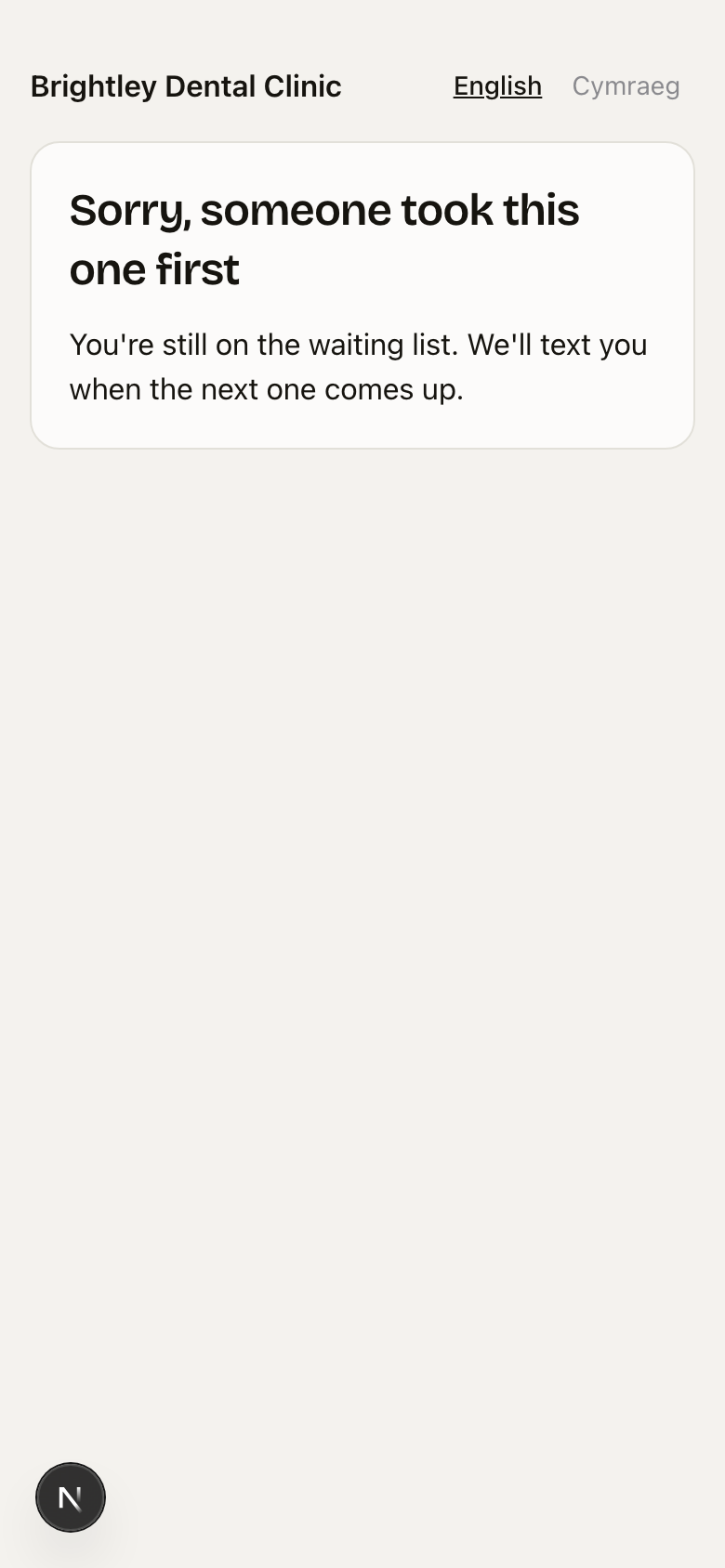 Too late: someone took it first, and they are still on the list.
If the person who takes it already had a later appointment, it moves to the earlier time, and their old time is offered to the next person on the list.
What the text says
The text does not name the treatment, the person they would see, or their current appointment. A family often shares one mobile, so those details are only on the page they open:
Brightley Dental Clinic: an earlier appointment has come free, Wed 14 Oct at 10:30. The first to take it gets it: (link) or ring (your number) Reply STOP to opt out.
Someone who would rather not tap a link can ring you instead. The number is your business number from your profile, or the number your receptionist answers on.
The page shows what it is, who with, where, and, if they already have an appointment, that taking it moves that one. It always books the person who is on the list, whoever is holding the phone.
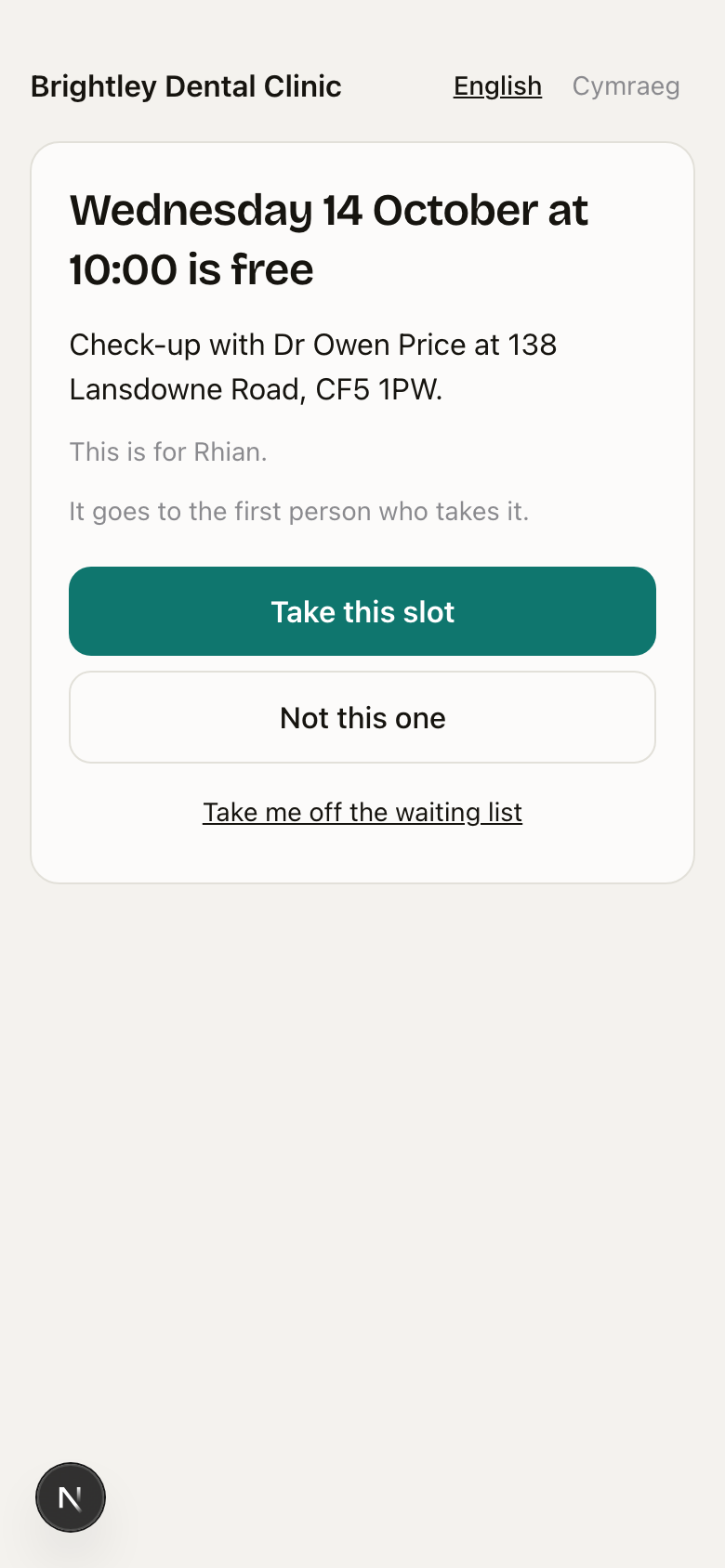 What the patient sees when they tap the link.
Texts and the page are in Welsh for anyone whose language is set to Welsh, or when your receptionist answers in Welsh first. Your own screens stay in English.
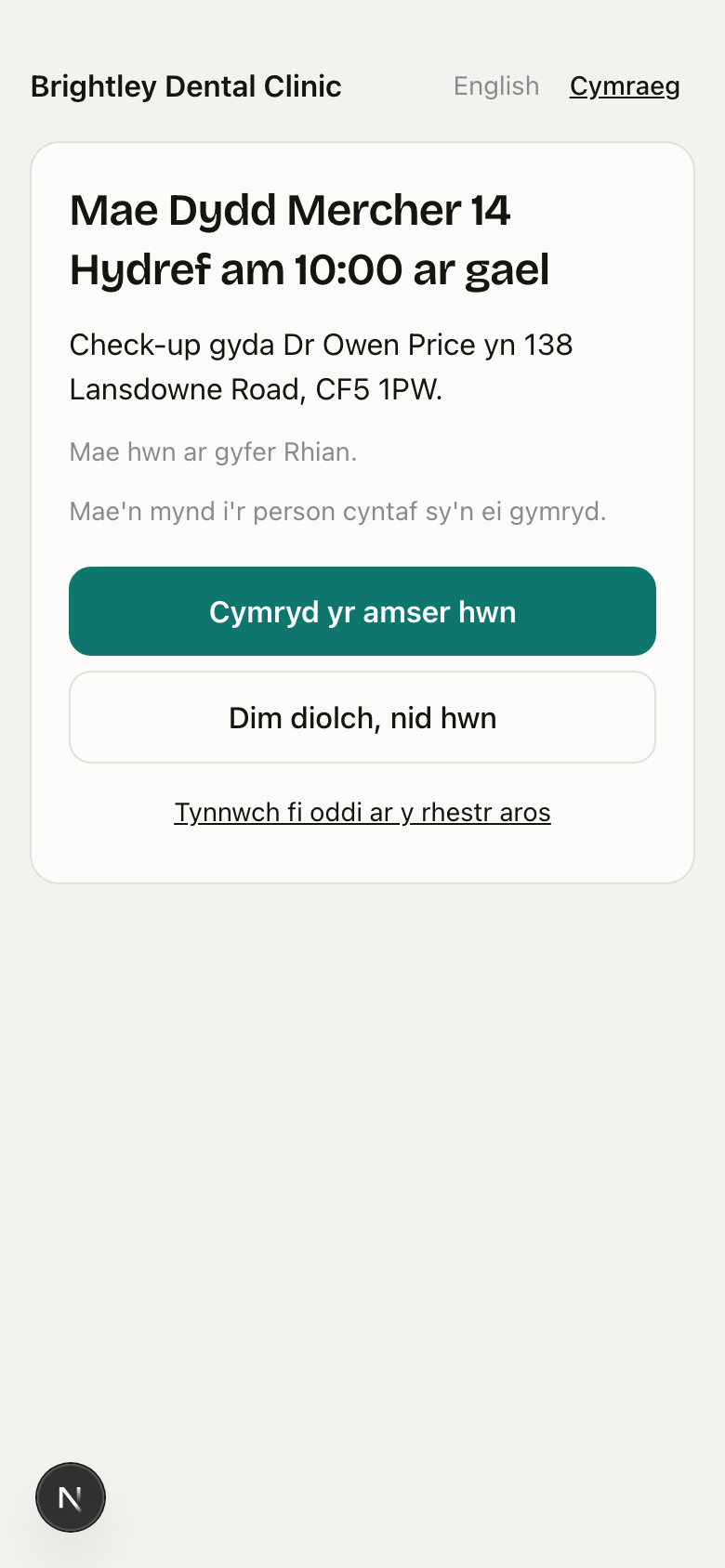 The same page in Welsh. The patient can switch language at the top.
Who is not texted
Some people are a match but are not texted. You see each of them on the slot with the reason:
- No mobile - ring them. They have no mobile number we can text.
- Asked not to be contacted.
- Already has an earlier appointment.
- Outside the times they can do.
- Has another offer open. They will be considered again in the next wave.
- Text failed - ring them. Their phone could not take the text (a landline, or a number that no longer works). The next person on the list is texted in their place, and their number goes in the red strip for you to ring.
We never text someone about the slot they have just cancelled.
A slot, and booking it for someone
Open a slot from the Slots offered tab, from Open slot in the red strip, or from its block on the calendar. The sheet shows when it is, what, with whom and how long; how many were texted and how many texts failed; the two lines to say if somebody rings; and everyone it went to.
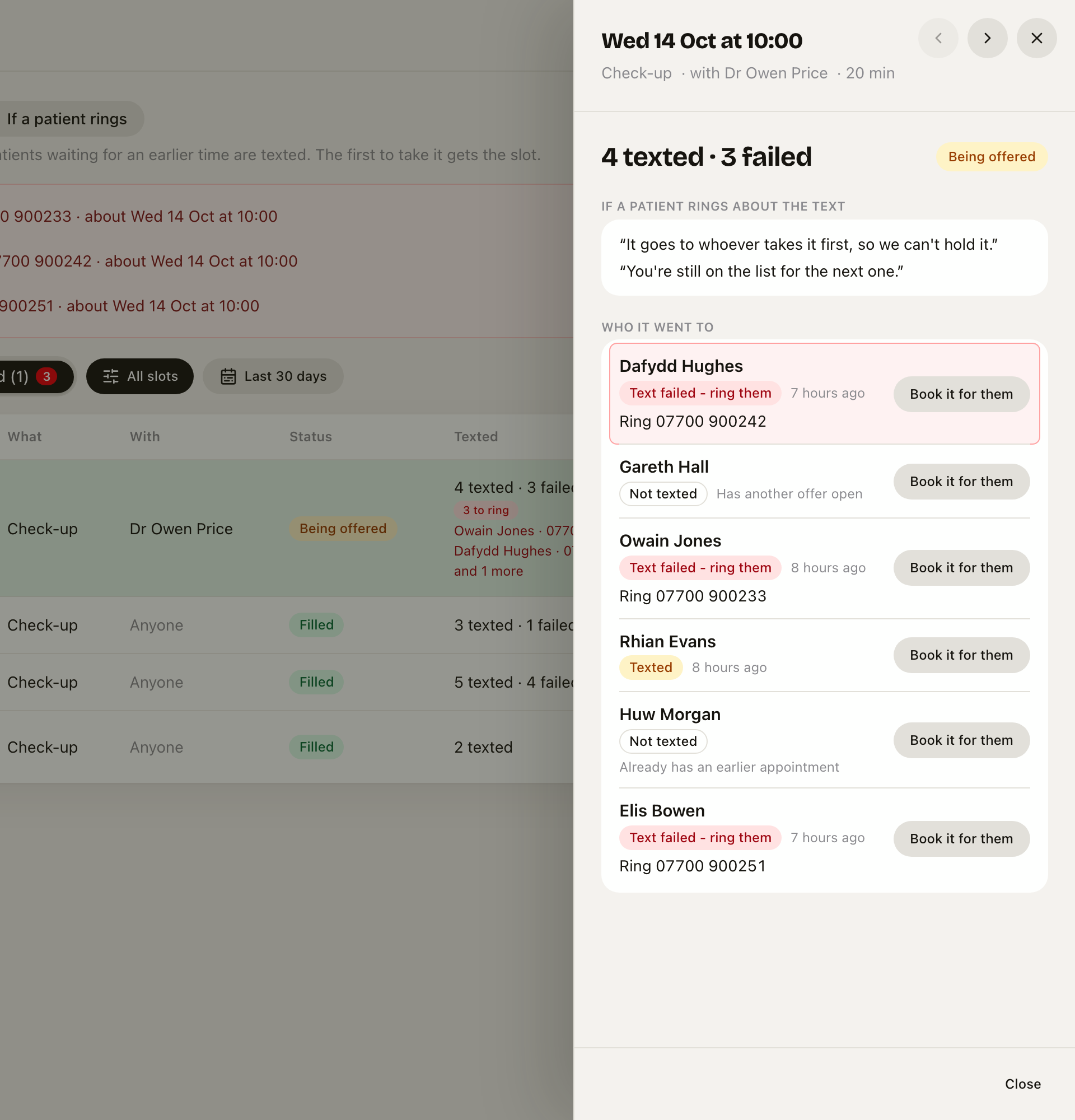 Opened from the red strip: the person you came to ring is first and outlined.
Opened from the red strip, the person you came to ring is at the top, outlined in red.
If someone rings instead of tapping, or says yes when you ring them, press Book it for them next to their name. It is on every row while the slot is still being offered. It is the same booking the link makes, so the slot cannot go to two people, and everyone else who was texted is told it has gone.
Once someone takes a slot, the sheet says who and how: Taken by Gareth Hall · new booking, or moved from Thu 22 Oct if their old appointment moved. The old time is then offered on its own.
On the diary
On the calendar, a cancelled time that is being offered shows as a hatched Being offered block, so nobody fills it by hand. Click it to open the same slot sheet.
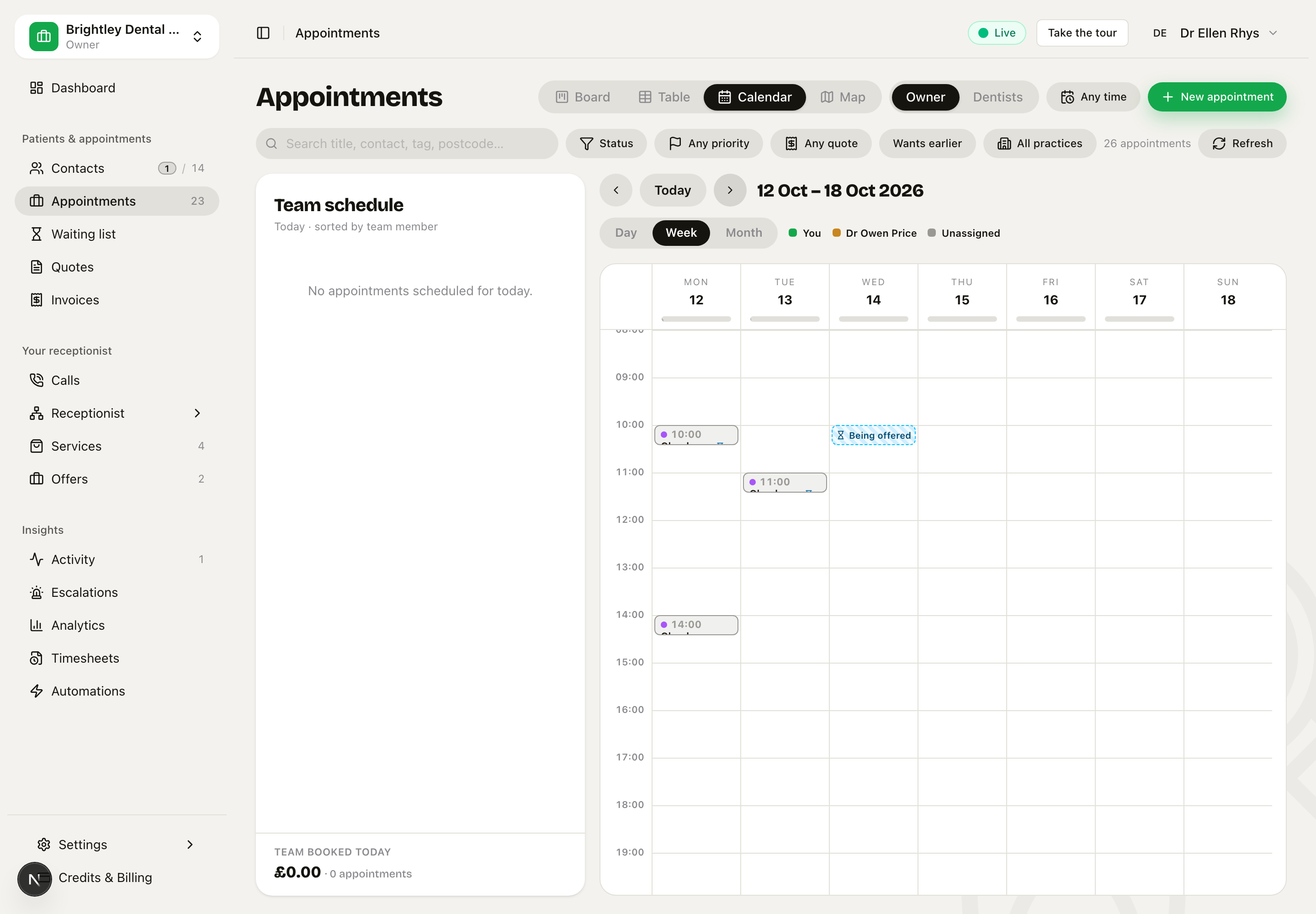 Wednesday at 10:00 is being offered to the waiting list. Appointments with an hourglass came from the list or are waiting for something earlier.
On the board, in the table and on the appointment's peek card, an appointment whose patient wants something earlier says Wants earlier. The board can be grouped by Waiting list: who wants earlier, who came from the list, and everyone else.
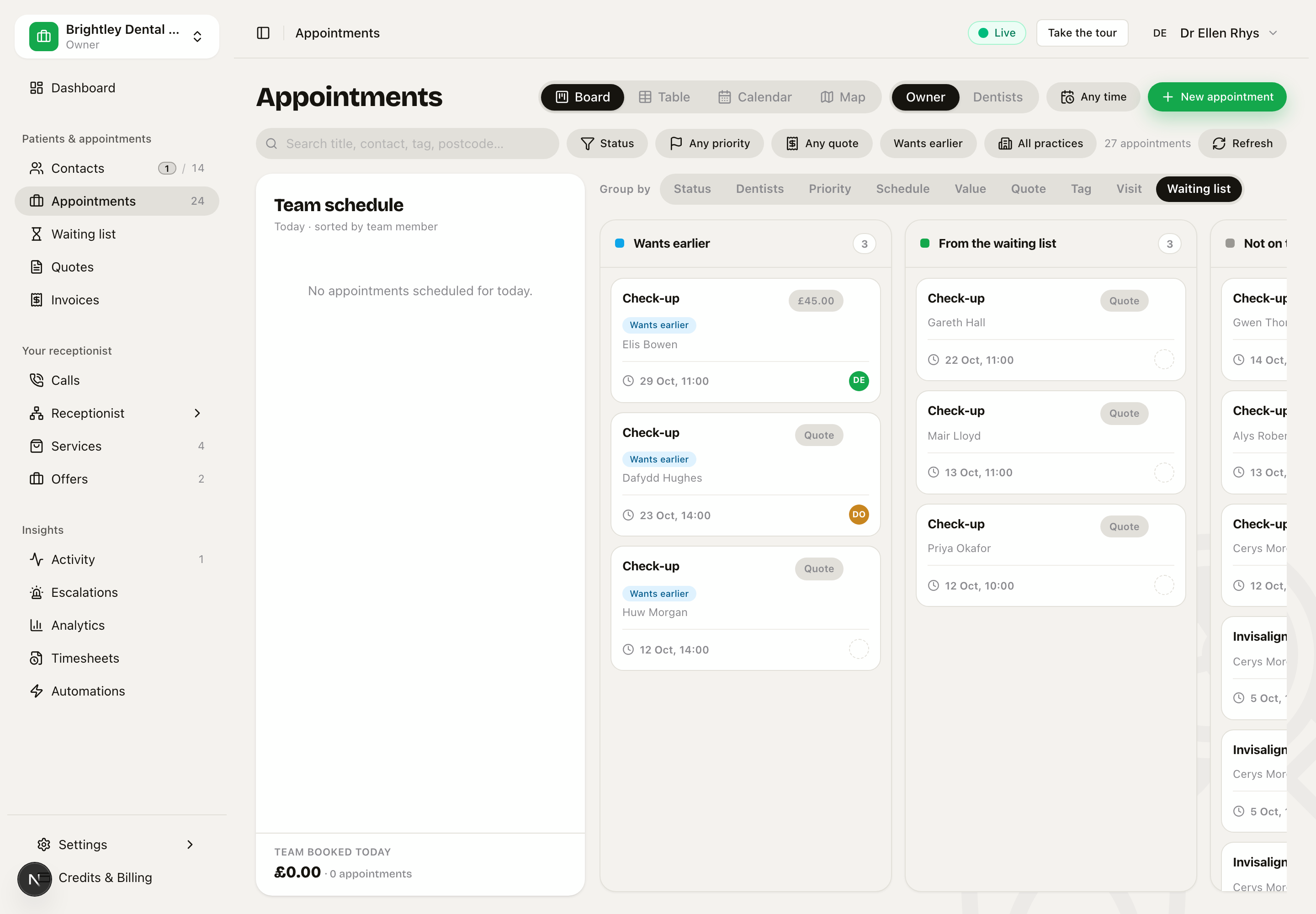 Group by → Waiting list. Each card that wants earlier carries the pill.
Wants earlier in the toolbar narrows the table to just those appointments.
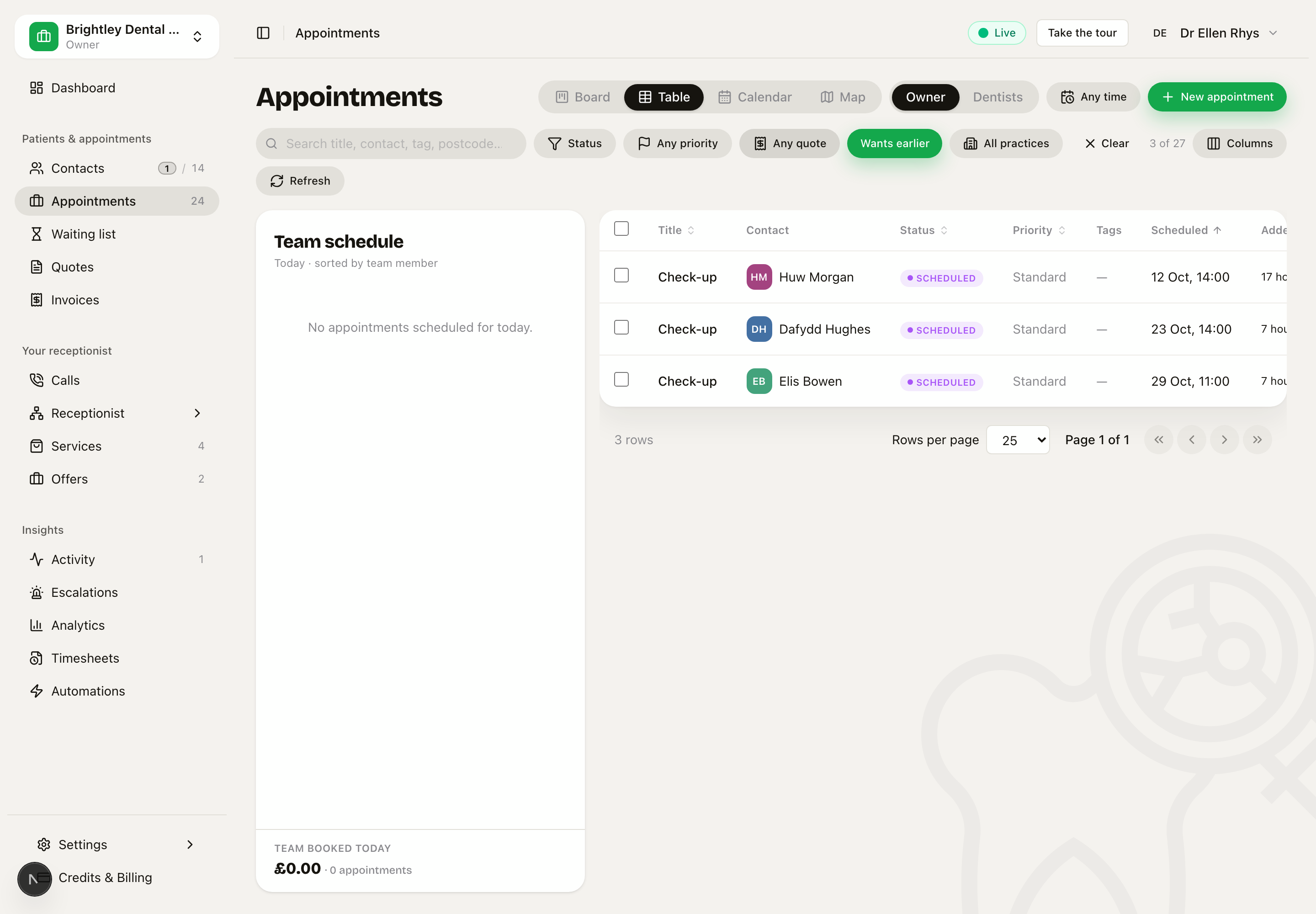 The Wants earlier filter on the table.
Click one and the peek card says what they are waiting for.
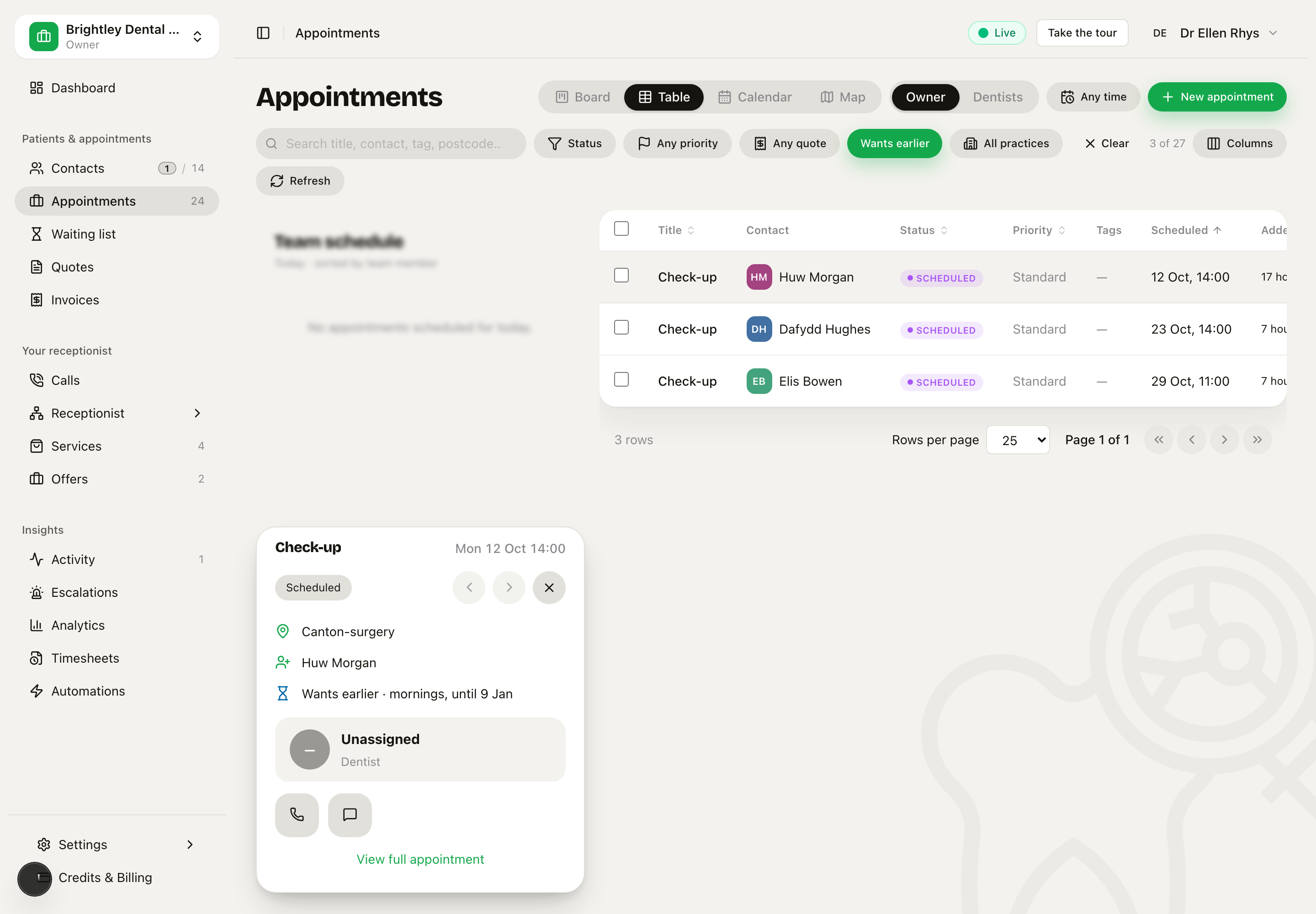 Wants earlier · mornings, until 9 Jan.
The same information is on the appointment itself, under Waiting list: whether it is waiting for something earlier, and, if it was cancelled, who its slot went to. Click the line to open their place on the list.
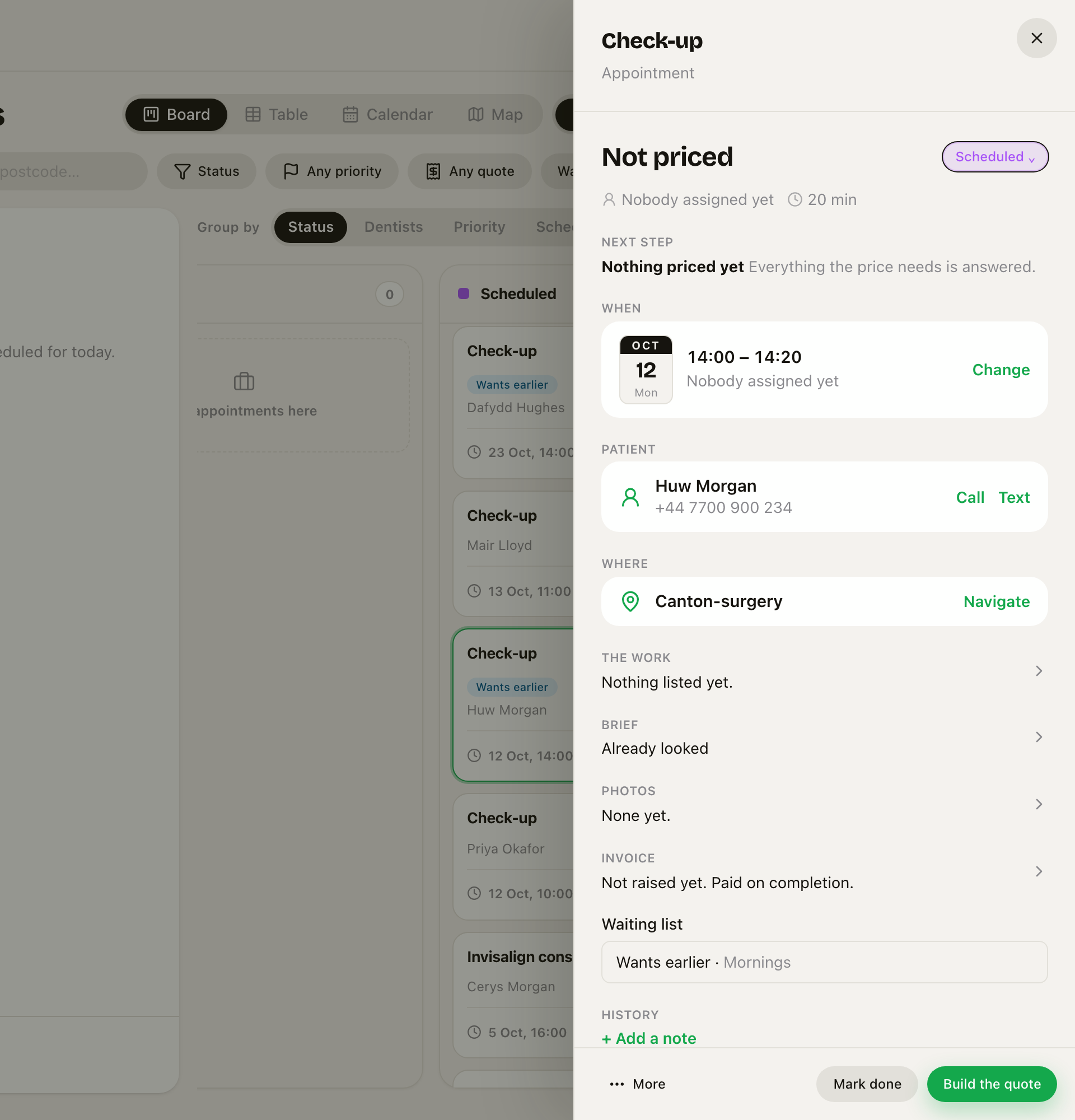 On the appointment: Wants earlier, and when they can come.
For a business people come to, these screens say Appointments and patients (or your own words) rather than jobs and customers.
Who sees what
- Owners and admins see the Waiting list page, the slots, the names and the history, and can add, change, book and take people off.
- Your team see the Being offered block on the calendar so nobody books over it, without the names and without the people it went to. They cannot open the waiting list or book from it.
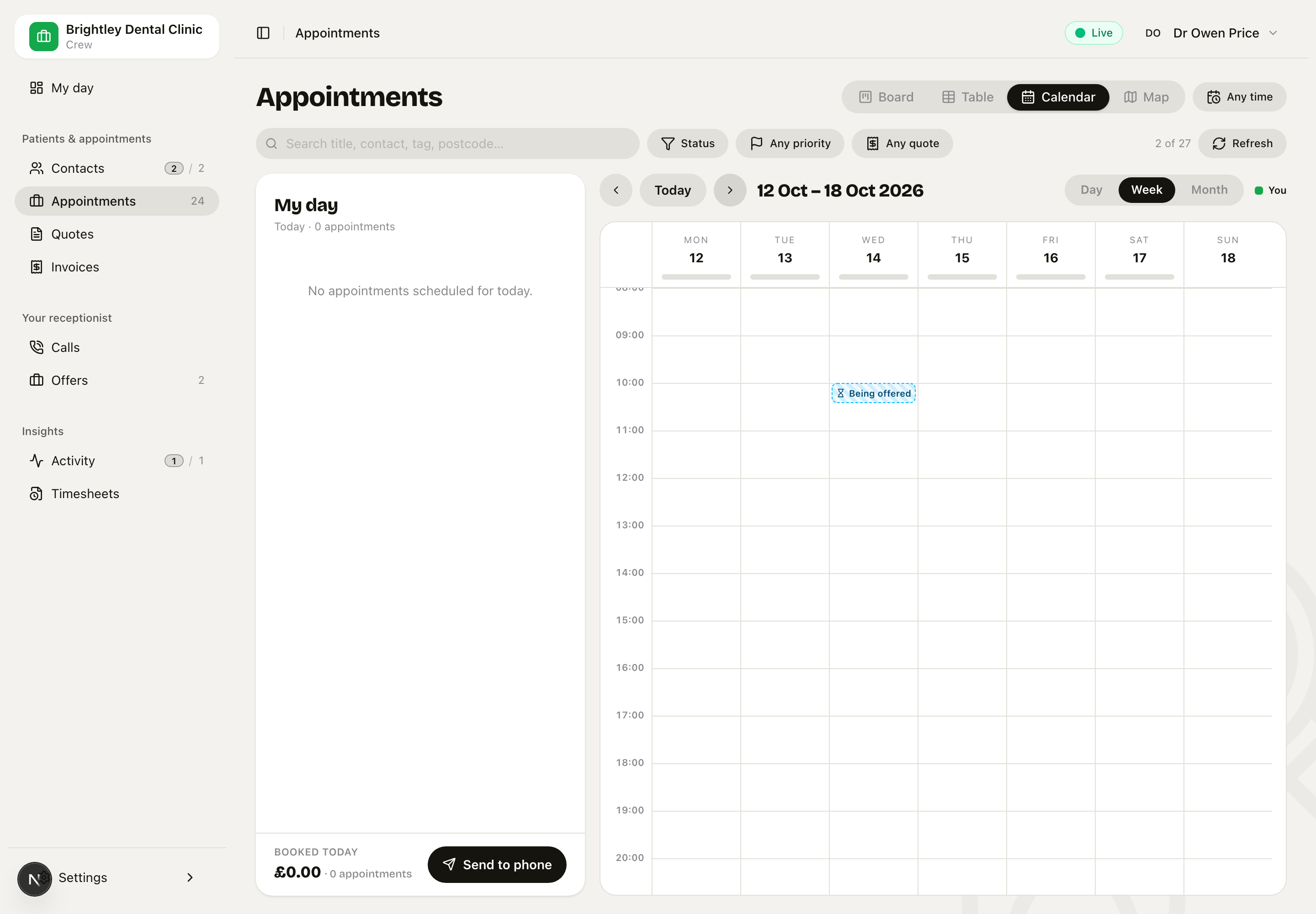 What your team see: the time is marked so nobody books over it, with no names.
History
Everything that happens to someone on the list is recorded with who did it and when: added by you or by your receptionist on a call, the times changed, texted about a slot, the text failed, took it, someone else took it first, said no, asked to come off, replied STOP, came off when the date passed.
You see it in their sheet, on their contact record and on their appointment, every line with the date and the time. Print the history (in the sheet's More menu) gives you a clean page of it. The Activity page shows only the things you might need to act on.
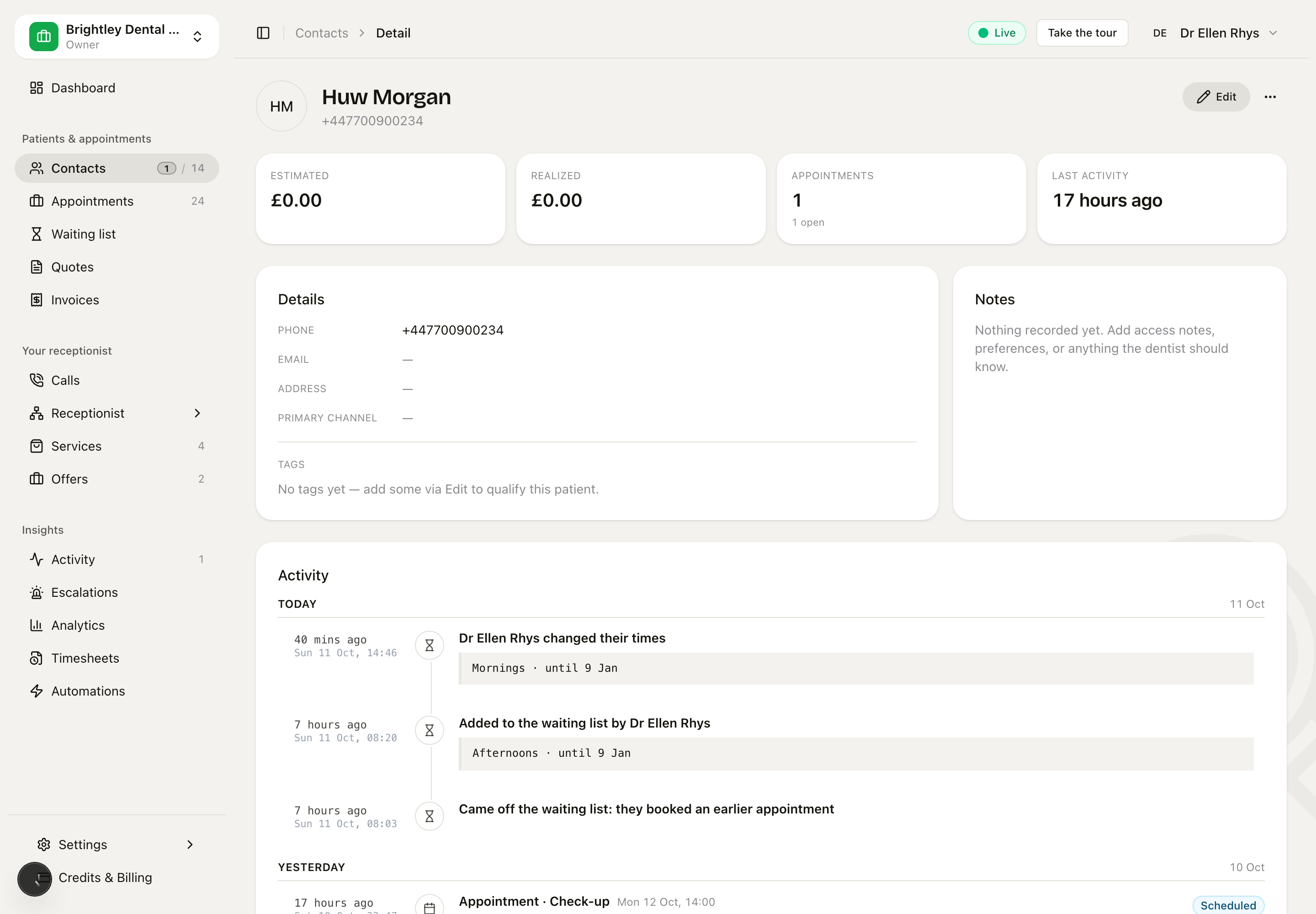 On the contact record: who did what, and when.
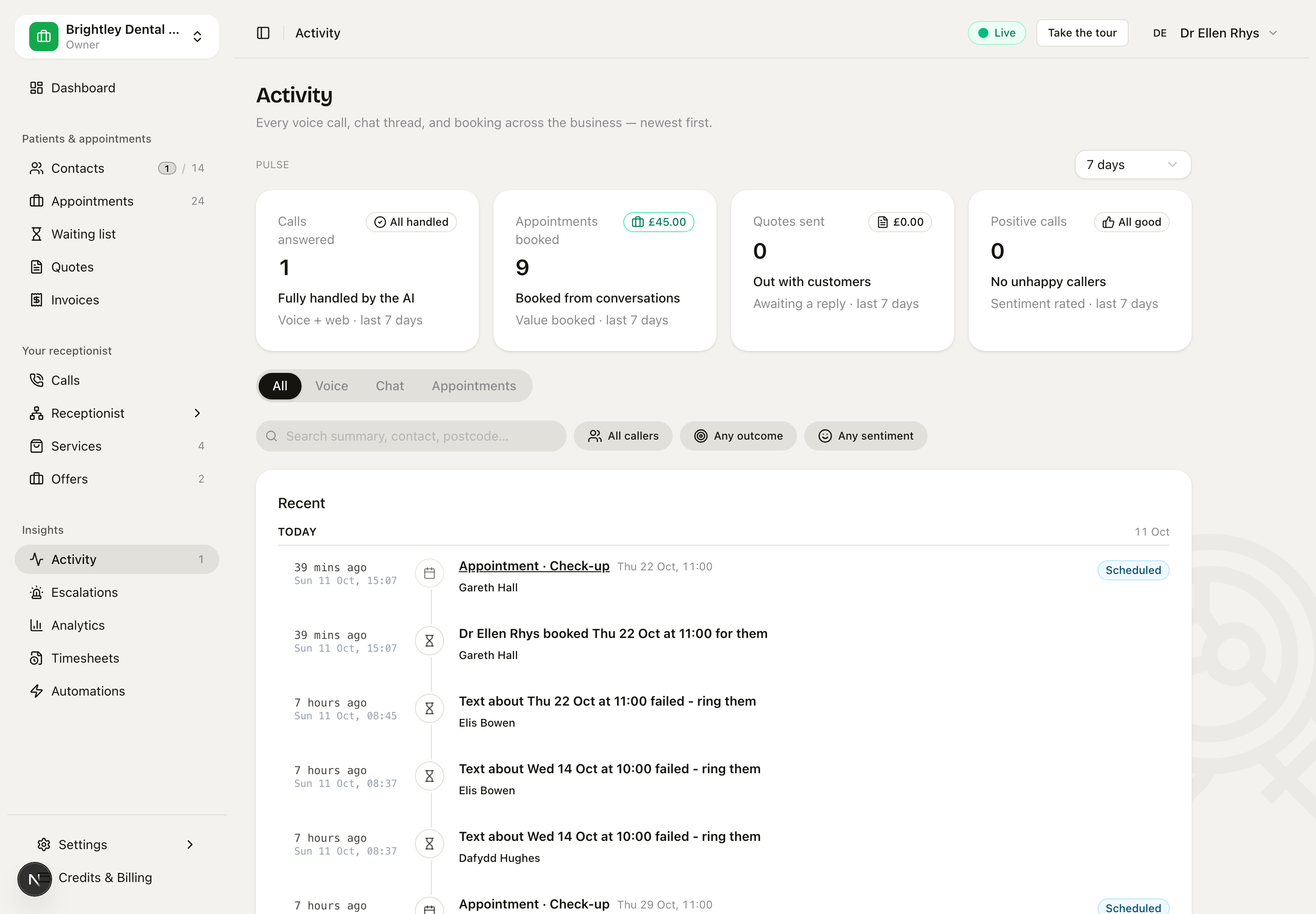 The Activity page: only the outcomes worth knowing about.
Deleting a contact removes everything the waiting list held about them.
If someone replies STOP
A reply of STOP stops your texts reaching that phone straight away. The next time we would have texted them, we see that and take them off the waiting list, and it shows in their history as replied STOP.
They are not marked "do not contact" for everything else: their appointment reminders and the rest are your decision. If you want them on the list again, check with them first.
Good to know
- A freed slot is not held while the texts are out. If somebody rings and books it first, the people with links are told it has gone.
- Every offer, every booking from the list and everyone taken off it is recorded, and each filled slot keeps how much time it put back on the diary.
Related
- Contacts & jobs: the board, table, calendar and peek where Wants earlier and Being offered show.
- Appointment reminders: a cancellation from a reminder link is offered to the waiting list straight away.
- Clinics: NHS and private: an NHS slot only goes to someone waiting for NHS work, and private to private.