 Loyal Receptionist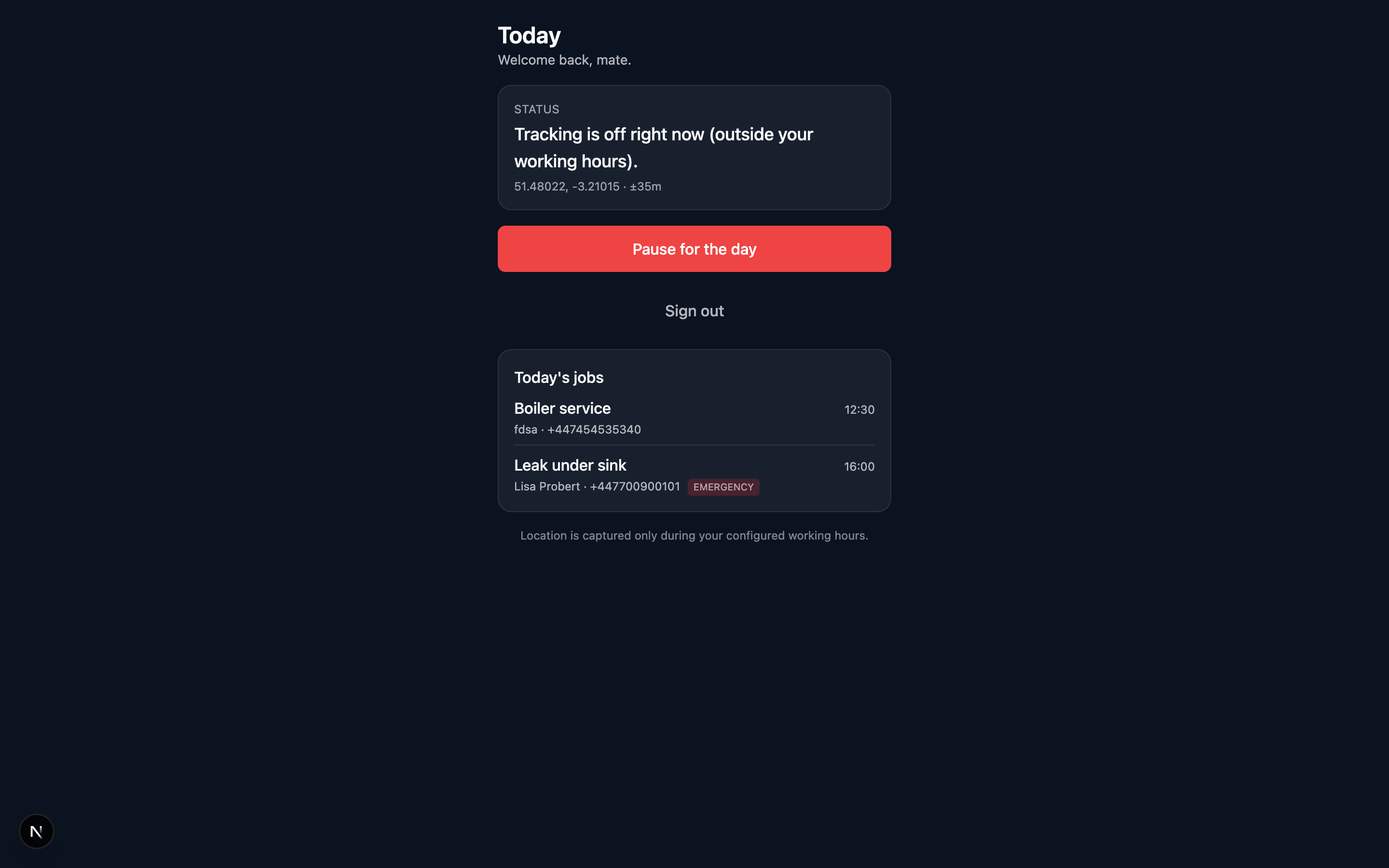
Smart Dispatch
The moat. Your AI doesn't just answer the phone — it's the foreman. It books the right engineer for the job at the right time, then keeps the next customer informed when the day overruns.
Two halves to it. The routing half decides who gets each new booking. The execution half watches the day unfold via Crew PWA location sharing and texts customers as the crew move between jobs.
Routing new bookings — how Sarah picks who gets the job
Turn it on at Settings → Team → Smart Dispatch. With the toggle off, Sarah books jobs as before (no auto-assignment). With it on, every new booking runs through six gates.
1. Skill match
Each service that needs a specialist gets a Required skill tag (on /services → edit, e.g. gas-safe, colourist, bathroom). Each team member's profile lists their skills (Settings → Profile → Skills, picked from the skills catalogue). Sarah only considers members whose skills include the tag the service needs. Services with no required skill skip the gate — anyone can take them.
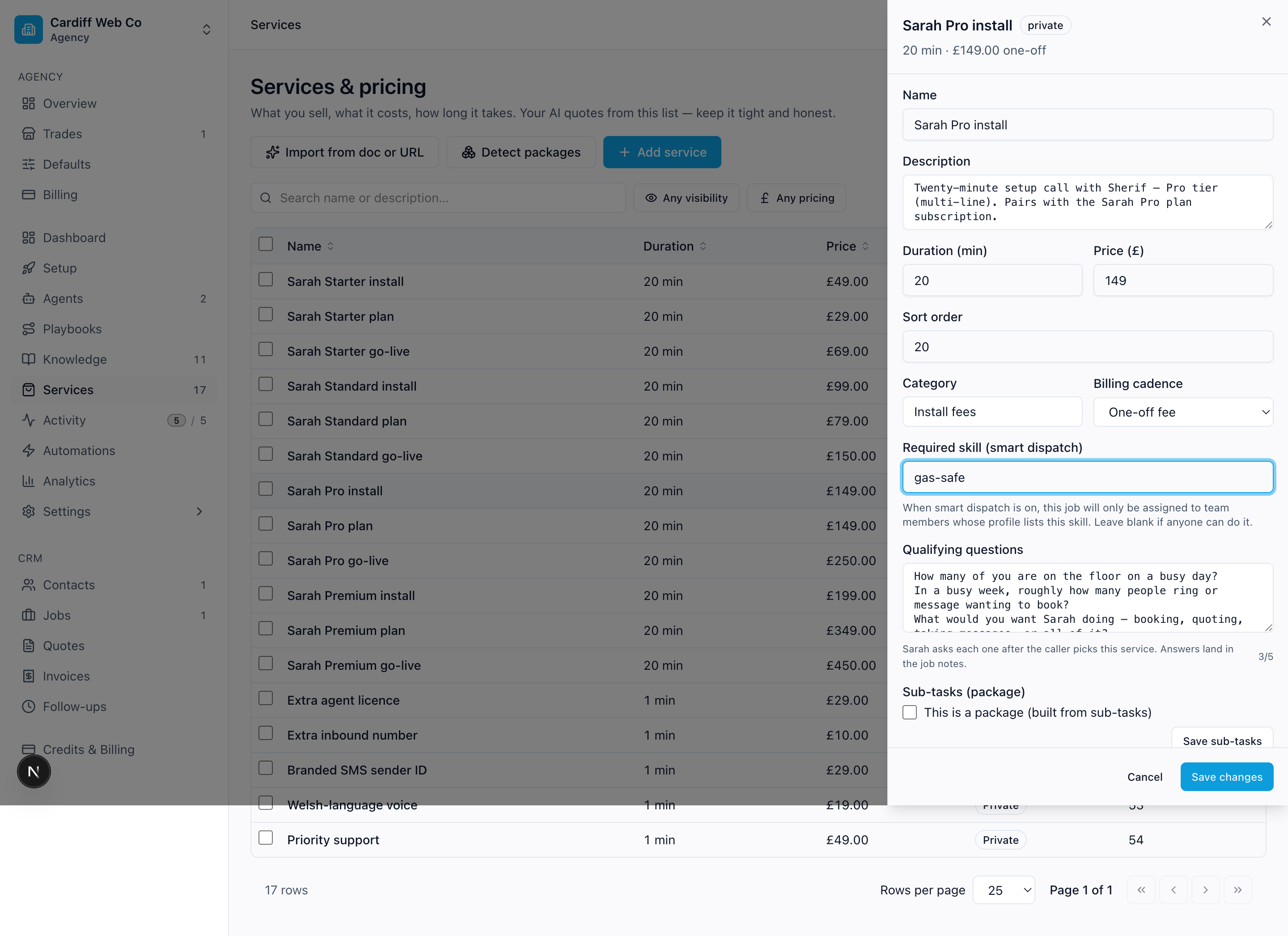 The Required skill tag on a service — only members with a matching skill are considered.
2. Availability
The eligible set shrinks again: only members with no overlapping job in the slot window (existing pending, scheduled, enroute, or in_progress jobs block). Cancelled / completed jobs don't block.
If no one qualified is free, Sarah refuses the slot with "I don't have anyone with the right skill free at that time — let me grab a different slot." and re-asks for a fresh candidate. Safer than booking with someone who can't do the job. There's a second safety net at the moment of booking itself — if the slot got taken while the caller was deciding, Sarah says "That time just stopped working on our side — let me grab a different slot." rather than double-booking.
3. Crew before office
Field work goes to the field. Members with the crew role always outrank owners and admins — a free crew member beats a closer owner. Owner/admin are the fallback so a solo owner-operator still gets assigned. See Team & roles for what the roles mean.
4. Nearest to the job
When the booking has a postcode, Sarah ranks the survivors within each role tier by how close they are to it:
- Most recent Crew PWA GPS location wins (live working-hours position).
- Falls back to the Base depot postcode on the member's profile (Settings → Profile) if there's no live position.
- Falls back to no distance if neither — the member is still eligible but ranks last.
Distance buckets are 2 miles wide — a 4.2-mile-away vs 4.7-mile-away tie isn't decided by proximity, it's decided by the next gate. And if the job's postcode can't be resolved at all, Sarah doesn't refuse — she just falls back to crew-first + fair rotation.
5. Fair rotation
Inside a distance bucket, the least-recently-assigned member wins. Sarah counts each member's assigned jobs over the last 7 days; lowest count rises. The senior engineer doesn't get hammered just because the depot's slightly closer to most callers.
6. Customer's preferred team member
When a contact has a Preferred team member set (in the contact drawer — /contacts → edit), Sarah promotes them to the front of the eligible list regardless of proximity or fairness. The salon use case: "I always see Sarah for my colour." The trades equivalent: "Mark's always done my boiler."
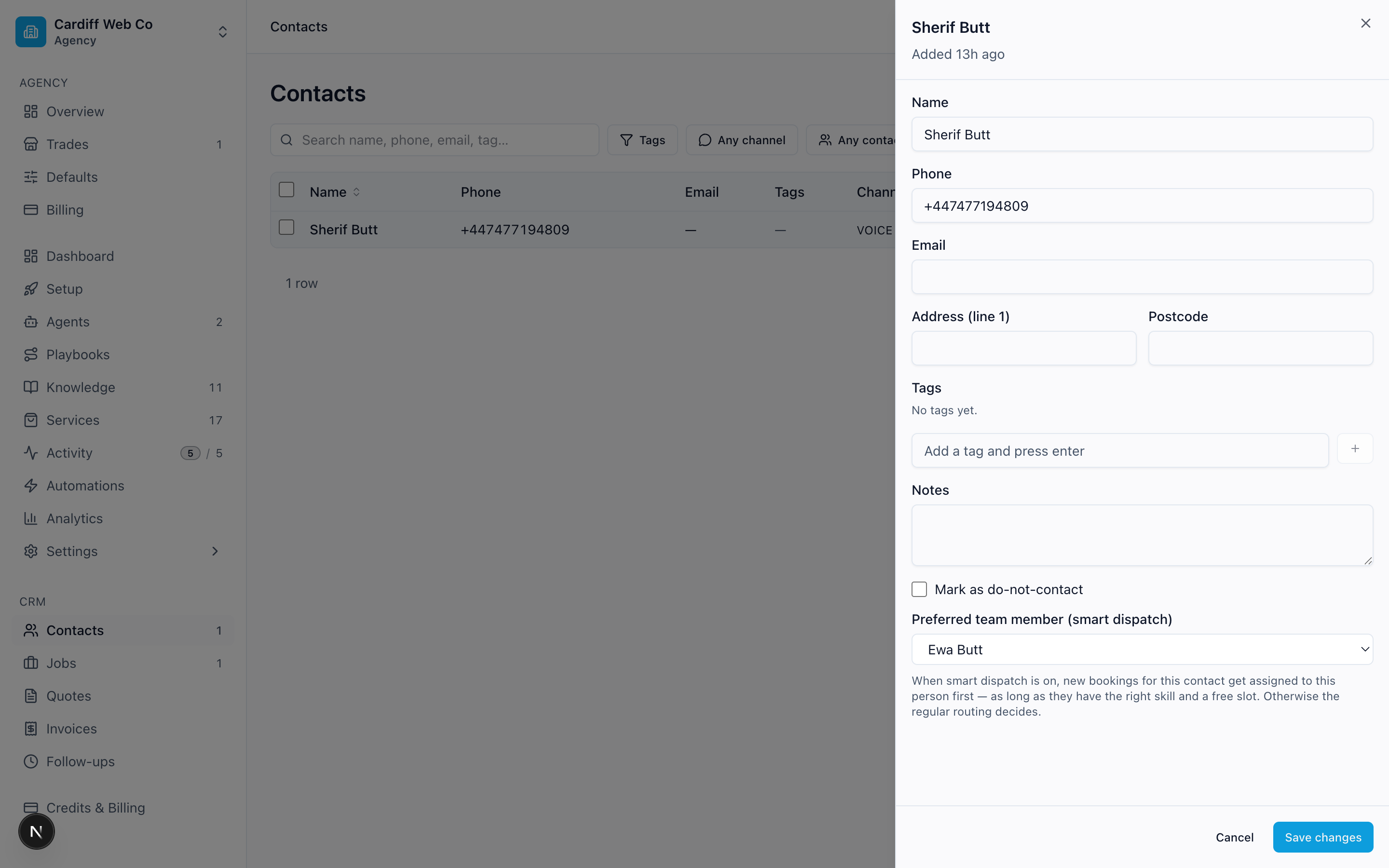 Set a sticky preference on the contact — Sarah books them with that person whenever she can.
If the preferred member fails gates 1 or 2 — wrong skill or already booked — Sarah silently falls back to the ranked picks. The owner sees who actually got it on the job.
Where the assignment lands
The booked job is assigned to the chosen member, and the job drawer (open any job on /jobs) shows an Engineer card — initials avatar + name, or Unassigned if nobody's on it yet. Crew members see their own jobs first across the app, and the board has a "My jobs" filter (see Contacts & jobs). Existing jobs booked before you turned the flag on stay unassigned until someone manually picks them up.
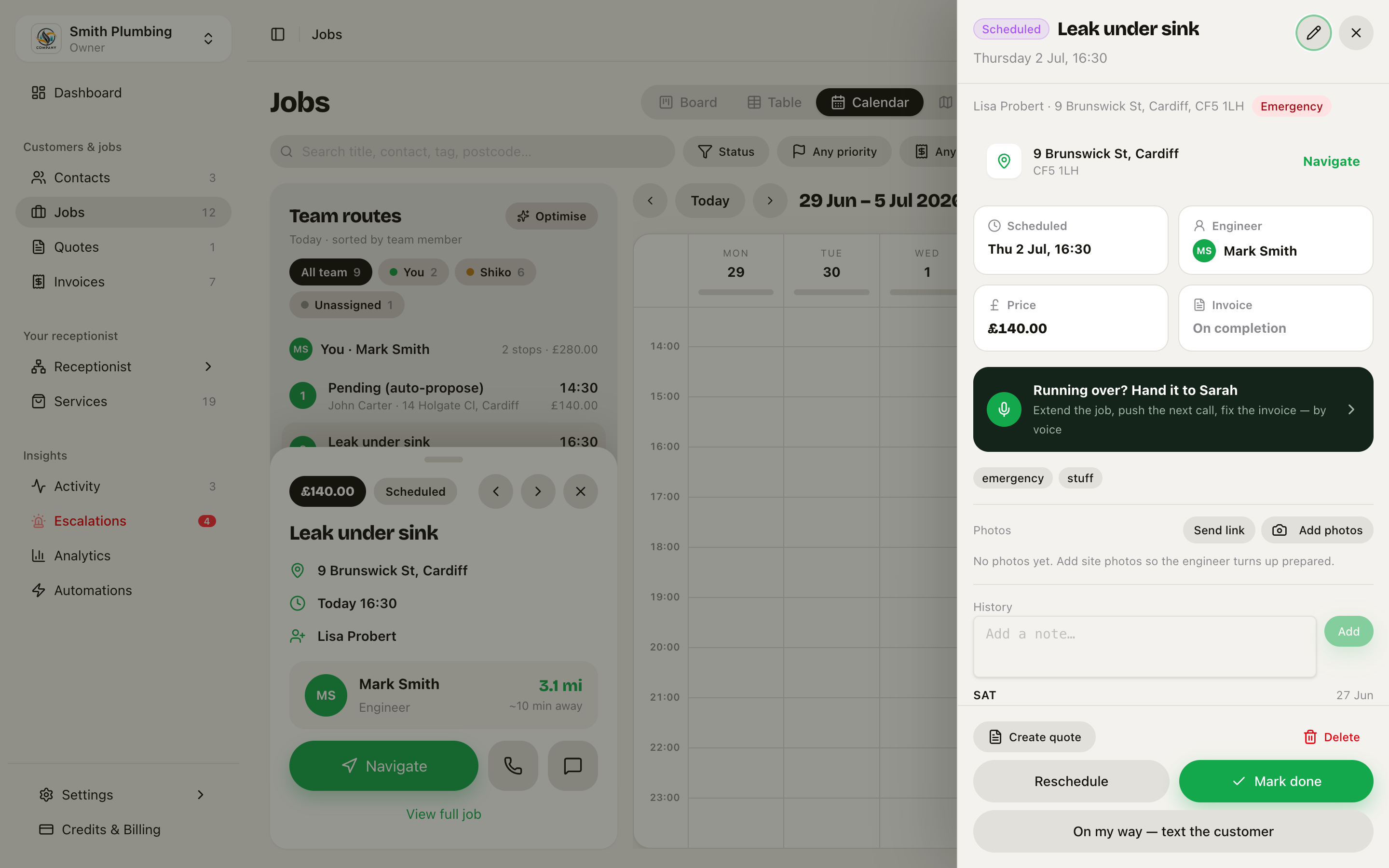 Booking automatically routed to the right engineer — visible on the job detail drawer.
Configuring it
The toggle plus the team's Skills column live at Settings → Team (the Smart Dispatch card is at the bottom of the page).
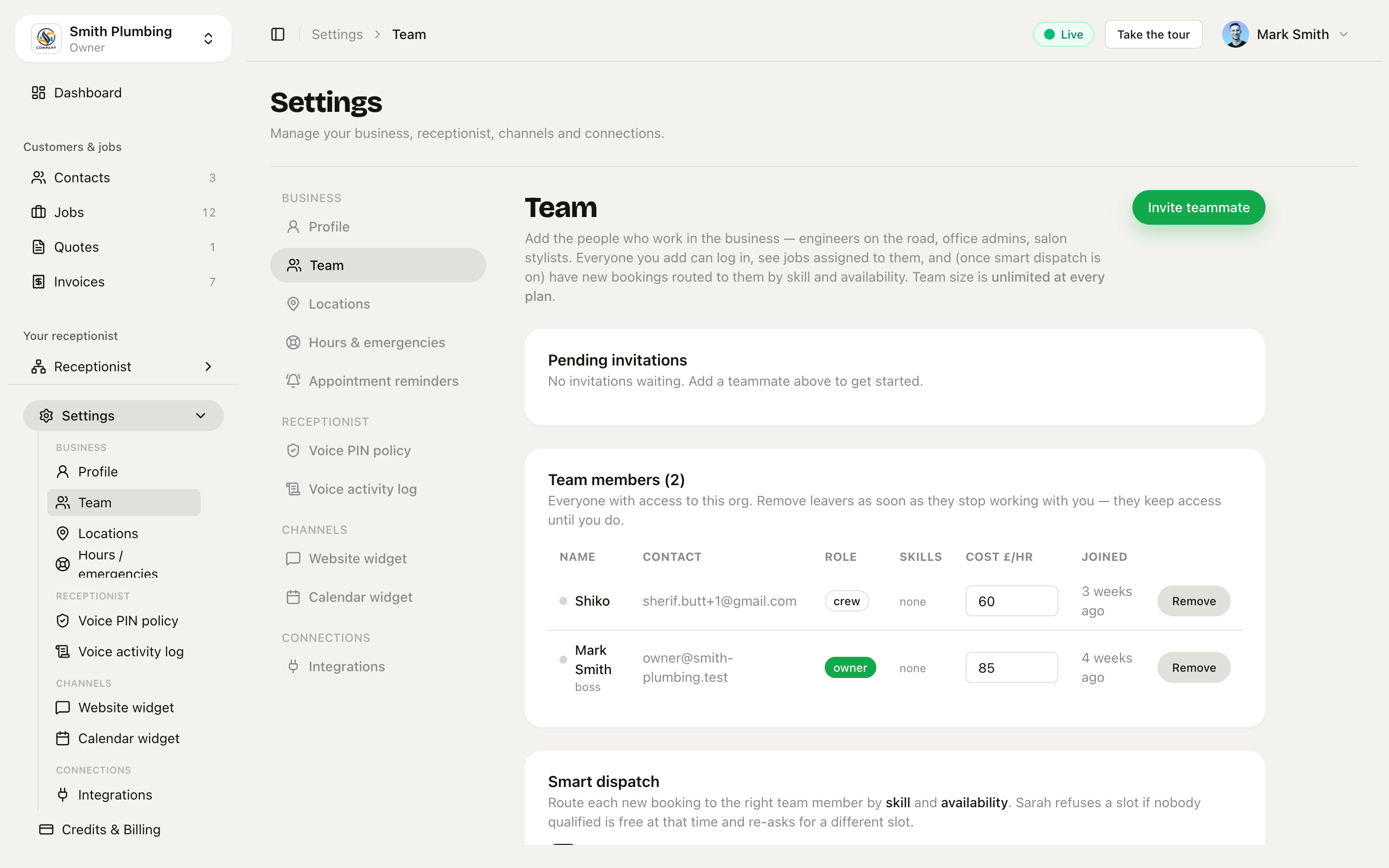 Team page: members table (with Skills column) and the Smart Dispatch toggle card.
Each member's Skills and Base depot postcode are edited on their own Settings → Profile page.
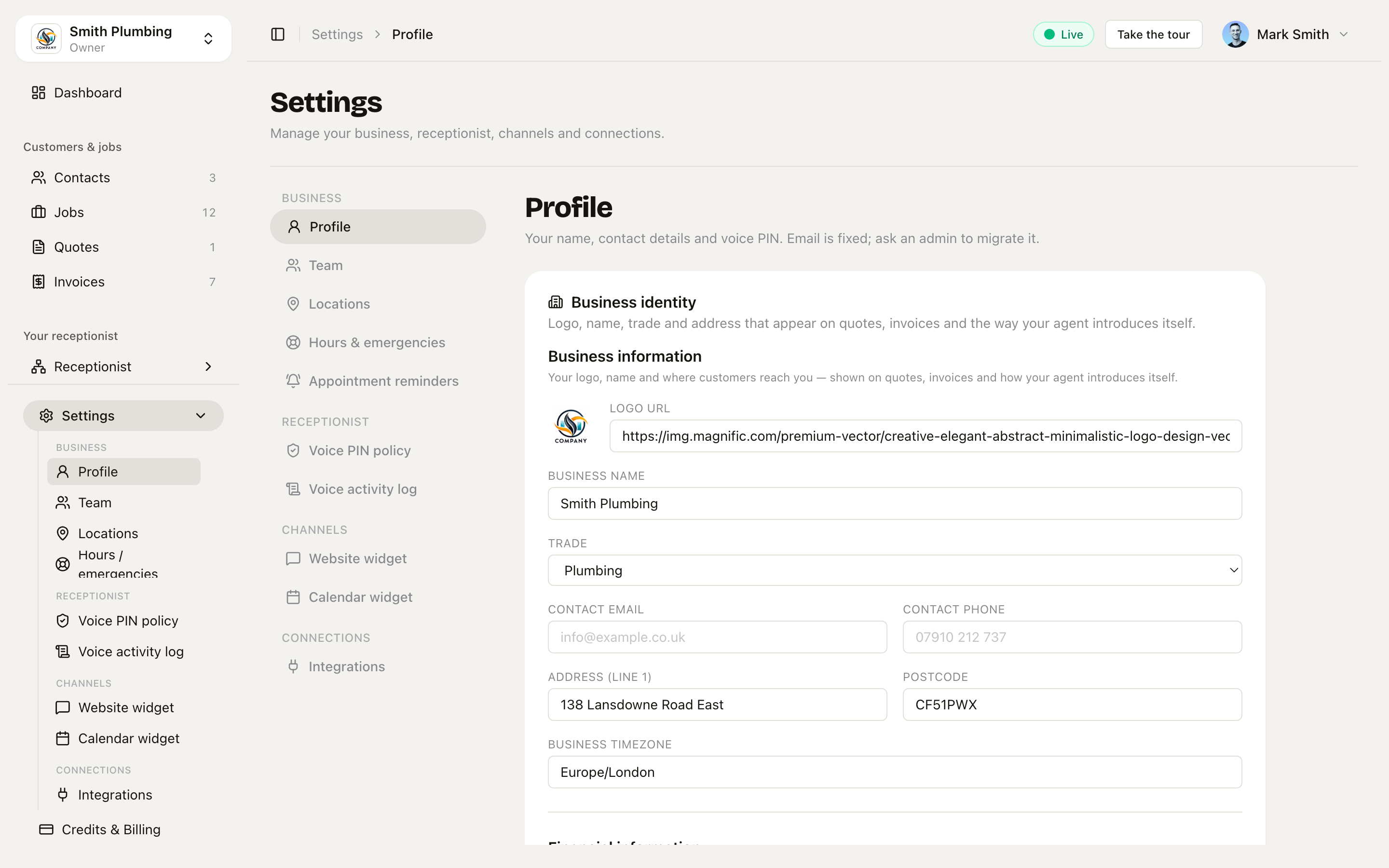 Skills (catalogue picker) and Base depot postcode live on the member's profile.
Execution — the texts customers get as the day unfolds
When a crew member has location sharing enabled and opens the Crew PWA during their working hours:
- The PWA shares their live position with the API (continuous, driven by the phone's own GPS — only while in working hours)
- The API runs each position through the day's job geofences (a circle around each job address — 100m by default; geofences are created while dispatch is on)
- Crossing into a job's geofence can text that customer an arrived message
- Leaving a geofence with another job still on today's list can text the next customer an on-the-way message
- If the numbers say the engineer will miss the next slot, a running-late apology goes out before the customer starts wondering (see below)
Which texts are on by default
There are four notification kinds, each individually on/off per business:
| Kind | Default | Default message |
|---|---|---|
on_the_way | On | "Hi Lisa — we're on the way, ETA shortly. — Smith Plumbing" |
running_late | On | "Hi Lisa — running about 15 min late. Sorry. — Smith Plumbing" |
arrived | Off | "Smith Plumbing has arrived." |
job_complete | Off | "Job done — invoice on the way. — Smith Plumbing" |
Each kind fires at most once per job per day — a crew member driving in and out of a geofence twice doesn't double-text the customer. Message wording is customisable per business (with {{name}}, {{owner_name}}, {{eta}} and {{signature}} placeholders — via the API today), and a member's personal SMS signature from their profile is appended automatically, so "Bryn (Gas Safe 12345)" arrives signed.
Note the automatic on-the-way text carries no ETA — it's a "we're moving" nudge. For a real ETA, use the On my way button:
The "On my way" button — a real ETA, on demand
On any job's drawer there's an "On my way — text the customer" button. Tap it and the customer gets a text with a real driving ETA (computed from the crew's live position to the job's postcode) plus a link to their job page where they can track or reschedule. This works whether or not the Smart Dispatch toggle is on — it's the deliberate, human-initiated version of the automatic geofence texts, and it's how arrival windows get narrowed from "morning" to "about 25 minutes away".
Route optimise — the best order for the day
The Team routes rail on /jobs (Map view and friends) has an Optimise button (the sparkles icon) per member. It re-orders that member's day into the shortest sensible route — and it's window-aware: a job promised to the customer as "afternoon" won't get shuffled into the morning just because it's geographically convenient. See Arrival windows for how the promise works. Crew members can optimise their own day only; owners and admins can optimise anyone's.
What the engineer carries — the crew app
The crew phone app — My Day with the location-sharing card at the top.
The field surface is the crew phone app — My Day, the route map, the on-site timer and field invoicing, with a location-sharing toggle right at the top of My Day. The whole crew side is documented in its own handbook, starting at The crew app; the privacy rules as the crew see them are in Location & privacy.
Two things matter for dispatch:
- Sharing is opt-in per member — until a member's sharing is enabled, every position their phone sends is dropped; nothing is stored.
- The app's toggle pauses sharing immediately and the office stops seeing them; the voice command below does the same server-side for the rest of the day.
There is also a lightweight browser fallback (the Crew PWA, crew.loyalreceptionist.co.uk — Add to Home Screen) that shares location and lists today's jobs. Its pause is per-session — closing and reopening the page resumes sharing — so prefer the app where possible.
Privacy — the hard rules
Location is special-category PII under UK GDPR. These rules are not optional:
| Rule | Where it's enforced |
|---|---|
| Capture only during working hours | PWA pre-flights; the API silently drops out-of-hours positions |
| Sharing is opt-in per member | No enabled sharing row → every position dropped, nothing stored |
| "Pause" stops pings within ≤30s | PWA button (per-session) and the voice command (server-side, rest of day) |
| Pause is absolute — no audit trail of "user paused near X" | Positions during a paused window are dropped, not recorded |
| Owner cannot see member real-time location by default | Opt-in per member; never enabled retroactively |
| Raw positions retained 30 days max | Nightly retention purge (03:00), per-member retention window, default 30 days |
| Derived job visits retained for job lifetime | Kept so analytics + customer disputes can be resolved |
Working hours
Working hours control when the PWA is allowed to share location. They're auto-seeded from your business hours when a member's location sharing is turned on — no separate setup page. Outside those hours the PWA shows "Tracking is off right now (outside your working hours)" and nothing is sent.
"Stop tracking me" — by voice
If you're using operator mode, you can pause from the cab:
"Stop tracking me."
The agent calls set_location_tracking and confirms first — "I'll pause tracking for the rest of the day. Confirm?" — then pauses server-side for the rest of the day. "Resume tracking" works the same way, with the same confirm step.
What customers see
Each dispatch SMS goes via your Loyal Receptionist number, so replies thread back into the same conversation. The customer can reply STOP and the contact is flagged do-not-contact — every future dispatch SMS skips them, even from a different rule. See /docs/automations for the STOP behaviour.
Late-predict — the "before they ask" SMS
A worker runs every 60 seconds looking for trouble. For each member actively sharing location (a position in the last 5 minutes) with a next job coming up, it estimates whether they'll miss the slot by more than your late threshold (configurable per business, default 10 minutes) — and if so, fires the running-late apology to the next customer with the new ETA. The travel estimate is a rough fixed figure today; a live traffic ETA is on the roadmap.
This is the moat. Customers will wait happily if you tell them; they leave 3-star reviews when you don't.
What's on the analytics page
/docs/analytics covers the two metrics Smart Dispatch produces:
- Time on job (avg) — derived from arrive/leave geofence events, grouped by service
- Dispatch notifications (30 days) — count of texts by kind (
arrived,on_the_way,running_late,job_complete)
What's not here yet
- Live-traffic ETA for late-predict — the automatic late check uses a rough estimate; the manual On my way button already sends a real driving ETA.
- Notification wording UI — templates and per-kind toggles are per-business settings, editable via the API today; a settings page is a polish step.
- Geofences are 100m by default — per-job adjustment is a polish step.