 Loyal Receptionist
Public booking page
Your customers can self-book without picking up the phone — and the job lands on your board like any other.
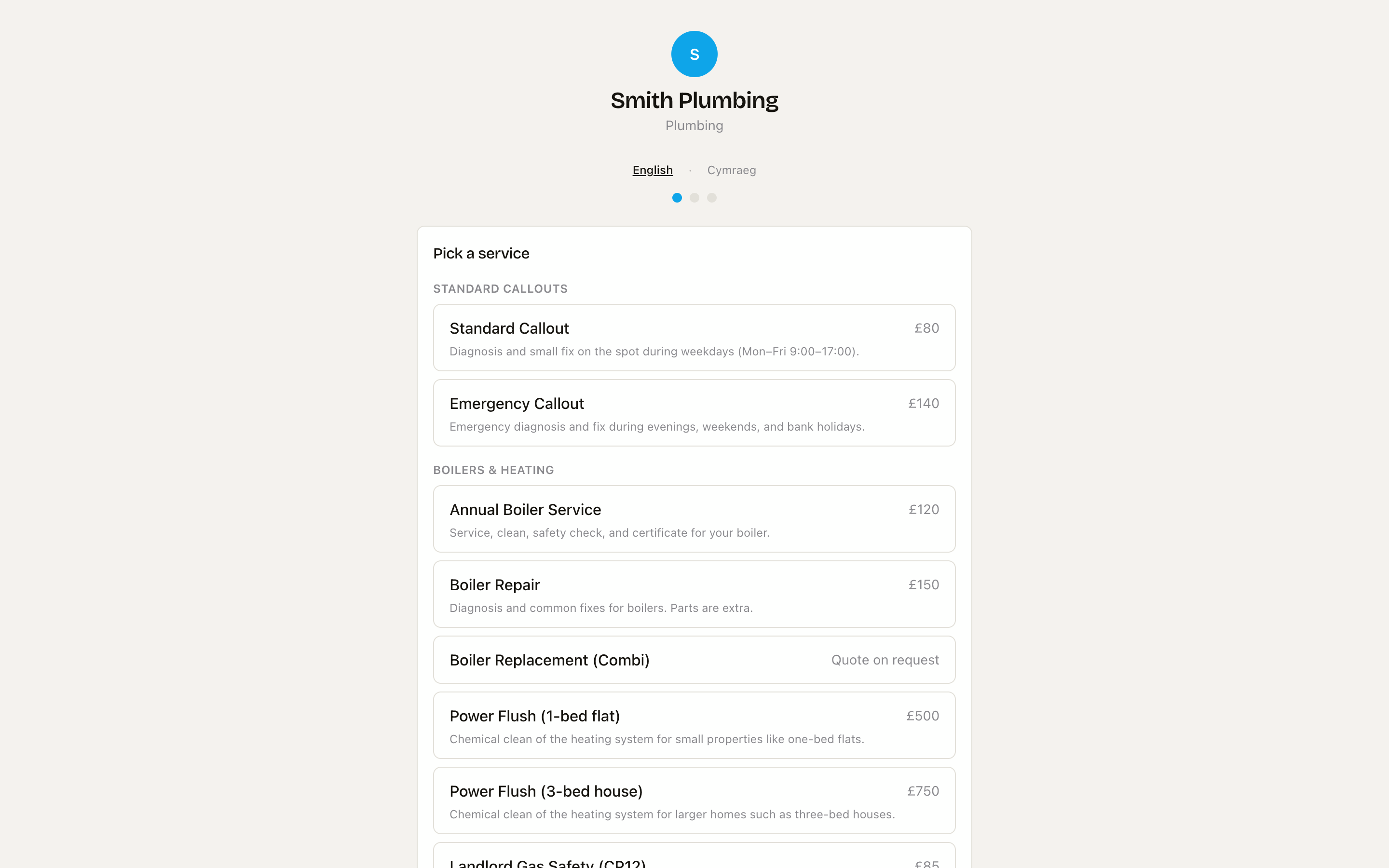 Step one — your services rendered with their price and a one-line description.
Where it lives
Hosted at http://localhost:3200/book/<your-slug> (local) or book.loyalreceptionist.co.uk/<your-slug> (prod). Put the link in your email signature, your Google Business profile, your website's "Book now" button — anywhere a customer might be ready to commit.
What the customer sees
If you run more than one branch, the page opens with a "Which location?" chooser first (see Locations & venues). Then it's three steps, tracked by the dots at the top:
1. Pick a service
Only services you've marked public appear (set that on the services catalogue — see Agents & services). Each shows its name, one-line description and price — or "Quote on request" for services that need a quote first.
- When your catalogue has two or more categories, services group under category headings, with uncategorised ones in an Other bucket at the end.
- No public services yet? The customer gets a "General enquiry, 30 min" button instead — you still capture the booking.
2. Pick a time — or a window
What this step shows depends on your How customers book you setting (see Arrival windows):
- Exact times — the next 7 days, with 30-minute start times computed from your Opening hours (timezone-aware, honours your travel buffers, the service's duration, and split days like "9–12 and 2–5"). Slots already booked simply don't appear.
- Arrival windows — each day is a card with Morning / Afternoon (or three windows) buttons, the time range on the right ("9am–12pm"), and the note "We'll text you a closer time on the day."
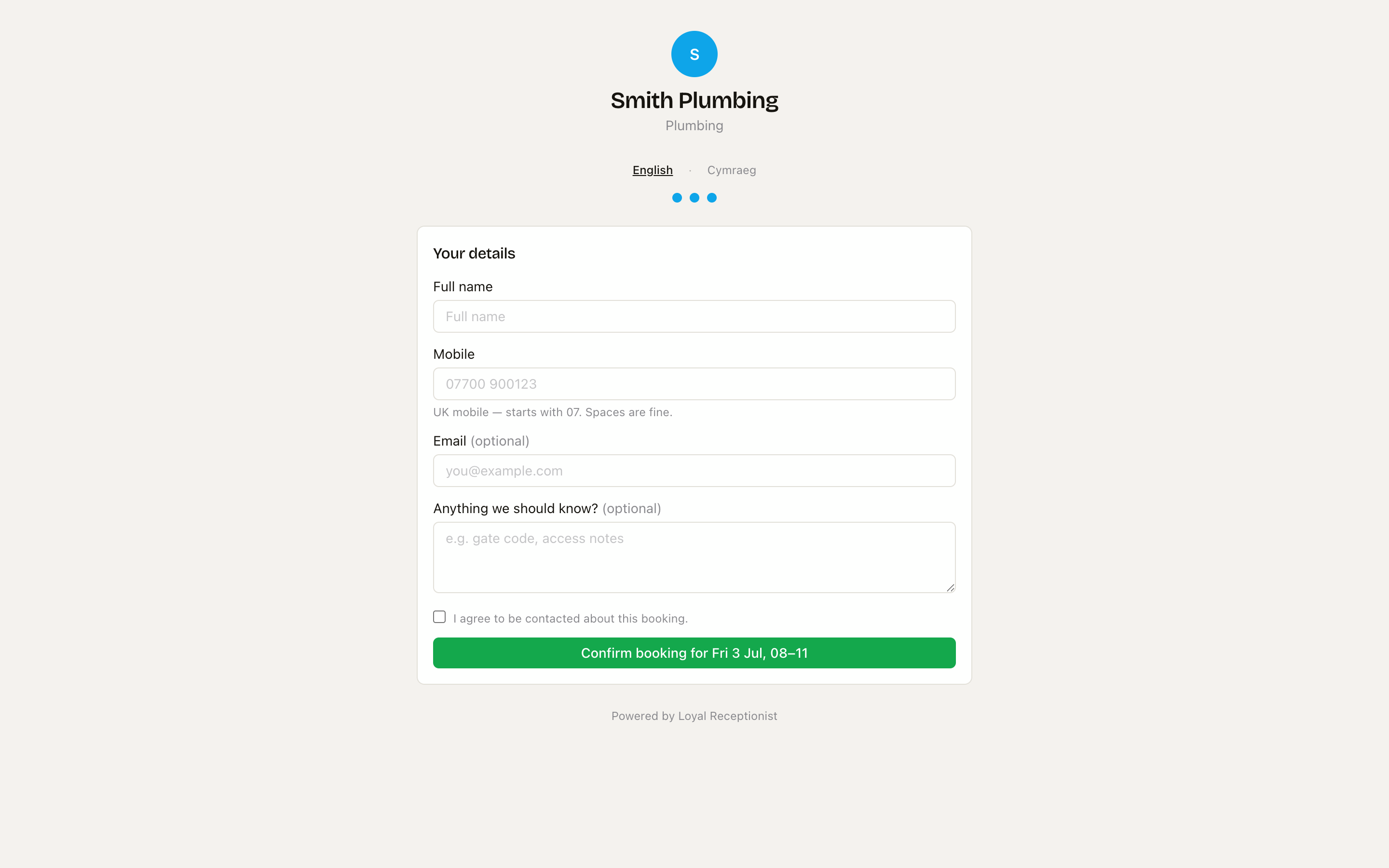 With arrival windows on, customers pick a window per day instead of hunting for an exact slot.
Opening hours live on Hours, emergencies & service area — change them there and the booking page follows.
3. Your details
Name, UK mobile (must start 07 — the field says "Spaces are fine"), optional email, optional notes ("e.g. gate code, access notes"), and a consent checkbox. The confirm button reads back exactly what they're committing to — "Confirm booking for Fri 4 Jul, 8–12" for a window, or the exact time otherwise.
What happens on submit
- A contact is created or matched by phone number
- A job lands in scheduled, tagged as coming from the public booking page
- If they gave an email, a confirmation email goes out with a
.icscalendar attachment (installs into Google / Apple / Outlook calendars) - On screen they see: "You're booked. We've saved your slot." — plus "A confirmation is on its way to your inbox" when they left an email
If you've turned on appointment reminders, they'll also get a text before the visit with a one-tap link to confirm or move it.
Slot taken between picker and submit?
If somebody else books the same slot in the seconds between picking and confirming, the customer is returned to step 2 with "That slot just got taken — please pick another." No double-bookings, no cleanup for you.
More than one branch?
- Multi-branch orgs get the "Which location?" chooser before step 1; the chosen shop shows as a pill — "Booking at Cardiff shop · change" — for the rest of the flow.
- Share a per-branch link with
?branch=<id>on the end and the chooser is skipped — handy for each shop's own Google listing. - One branch? It's selected silently; customers never see a chooser.
Bilingual — English + Cymraeg
An English · Cymraeg toggle sits in the header of every booking page — no setup needed. Welsh-speakers tap Cymraeg and every label flips ("Dewiswch wasanaeth" for "Pick a service", end to end).
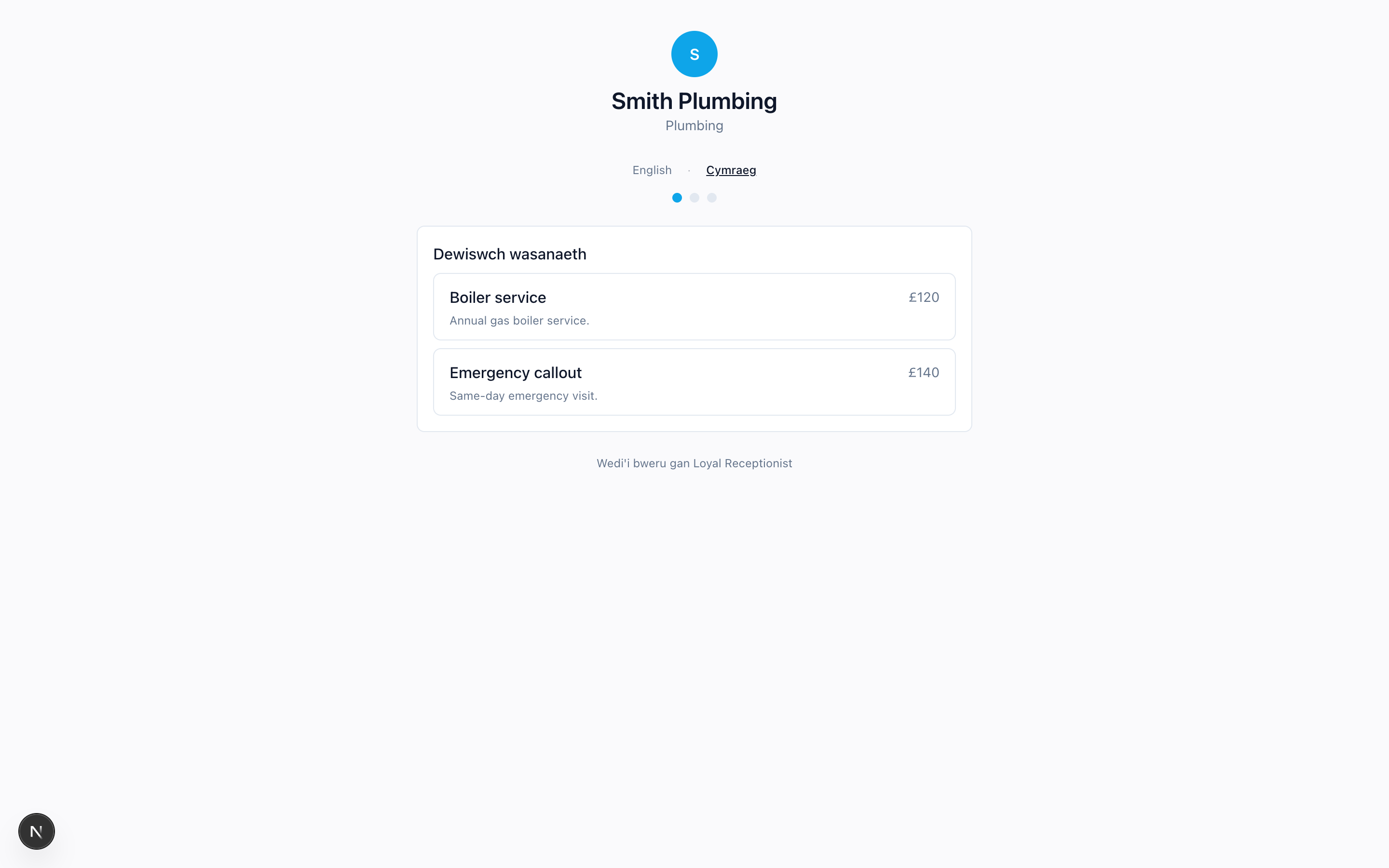 Welsh-speakers see Dewiswch wasanaeth instead of Pick a service, end-to-end.
Branding
Your business identity lives on Settings → Profile. The booking page header shows your business initial in a circle of your primary colour, and that colour drives the step dots, the selected buttons and the Confirm button. A "Powered by Loyal Receptionist" footer appears on every booking page.
What customers see on different devices
The page is mobile-first and works on every phone. On desktop it sits centred at a comfortable single-column width so it doesn't look stretched.
What we capture vs. what we don't
Captured at submit:
- Name, phone, optional email, optional notes
- Each booking attempt is logged (IP, slot, outcome) for audit and rate-limiting
Not captured: anything about the visitor before they typed it in. No analytics cookies on the page.
Rate limiting
The endpoint accepts 30 attempts per minute per IP. A bot trying to enumerate slots hits the limiter; legitimate customers won't notice.
Related
- Arrival windows — exact times vs windows, and how the on-the-way text keeps a window honest.
- Locations & venues — branches, the location chooser and per-branch links.
- Appointment reminders — the text before the visit with one-tap confirm / reschedule / cancel.
- Agents & services — marking services public and setting prices.