 Loyal Receptionist
Automations
The follow-ups you mean to send and never do, sent automatically. Four templates ship out of the box; install the ones you want and walk away.
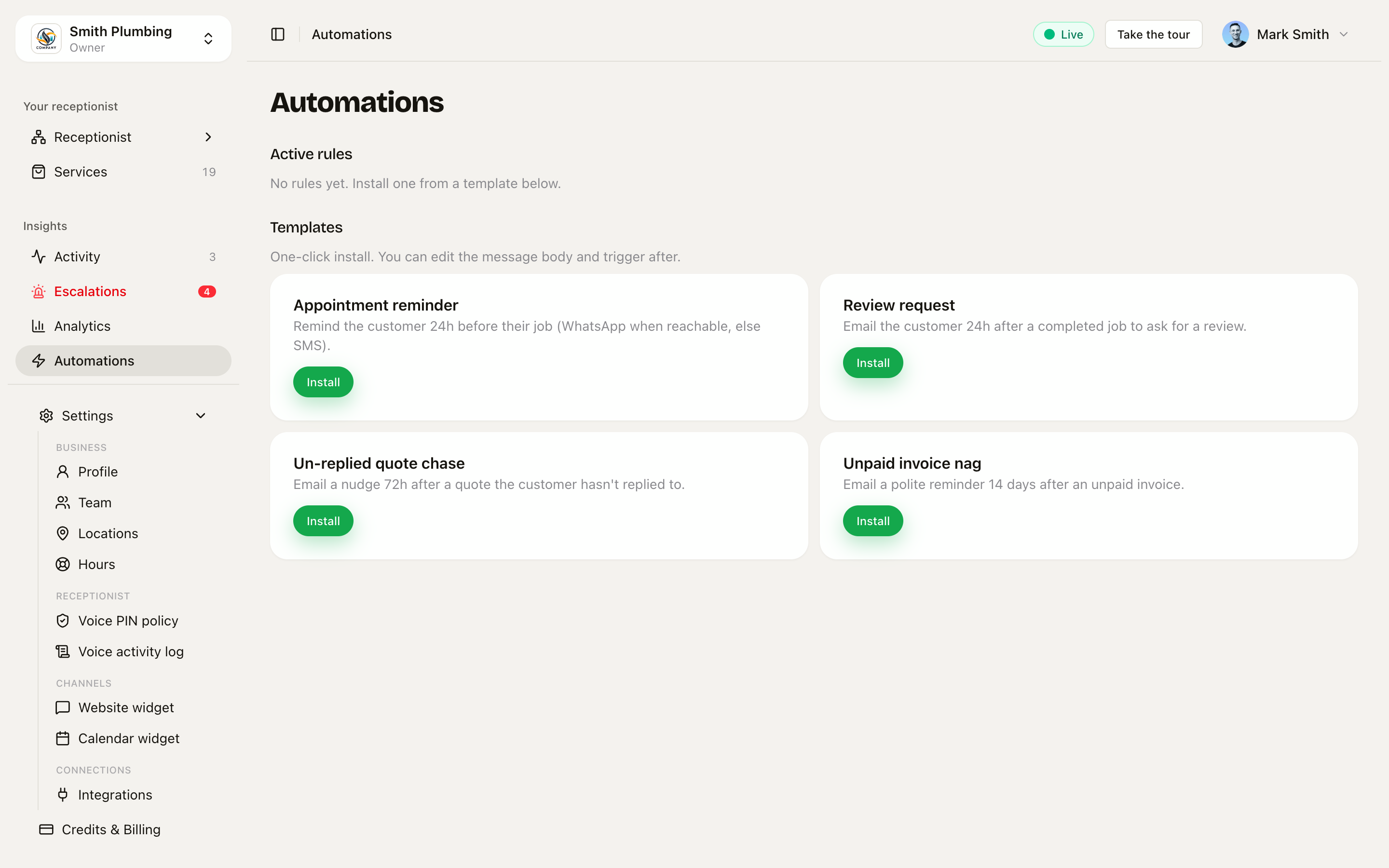 Active rules at the top, templates underneath. Install with one click.
The four templates
| Template | Trigger | Channel | Default body |
|---|---|---|---|
| Appointment reminder | 24 hours before a scheduled job | WhatsApp if reachable, else SMS | "Hi — quick reminder we're booked in tomorrow at . Reply STOP to opt out." |
| Review request | 24 hours after a job is completed | "Hi — thanks for your business. If we did a good job, would you mind leaving us a quick review? " | |
| Un-replied quote chase | 72 hours after a job enters quoted | "Hi — just wanted to check if you had any questions about the quote we sent. Happy to chat. — " | |
| Unpaid invoice nag | 14 days after an invoice is sent and still unpaid | "Hi — just a polite reminder that invoice for is still outstanding. Pay here: " |
Template variables you can use in any body or subject: {{contactName}}, {{contactPhone}}, {{slotTime}}, {{orgName}}, {{invoiceNumber}}, {{amount}}, {{paymentLink}}, {{reviewUrl}}. Anything the rule can't resolve for a given send is left blank.
How a rule actually fires
Two services run on a 60-second cron:
- Trigger evaluator — scans for
(automation.trigger, target)pairs where the trigger condition is true now and an action hasn't already fired for this target. - Action runner — interpolates
{{var}}against the target's fields, then picks the channel automatically: appointment reminders are urgent, so they go WhatsApp (when the customer's in the 24h window) or SMS; reviews, chases and nags are non-urgent, so they go by email (falling back to SMS if there's no email on file).
The rule fires at most once per target. Re-installing the template won't double-send.
Installing a rule
Click Install on a template card. The rule lands in Active rules as enabled and starts evaluating on the next cron tick.
There's no edit form yet — each active rule shows its trigger as raw JSON, with two controls:
- Enable / Disable — a disabled rule keeps its history but is skipped on subsequent ticks. Reversible.
- Delete — removes the rule. Already-sent messages stay in the conversation thread.
To change a rule's wording or timing today you'd delete it and add a replacement via the API; a proper editor is on the roadmap.
Booking reminders? Use Settings → Reminders instead
The Appointment reminder template predates the first-class appointment reminders feature, and they overlap. For reminding customers about bookings, Settings → Reminders is the better tool — it sends the reminder with a one-tap confirm / reschedule / cancel link, not just a text. Use automations for the follow-ups reminders don't cover: quote chases, review requests, invoice nags. Don't run both reminder paths at once or customers get texted twice.
When to write your own
The four templates cover 90% of trade scenarios. Roll your own when:
- You want a different cadence (e.g. 7-day un-replied chase instead of 72-hour)
- You want SMS + email together
- You want a different channel only — e.g. WhatsApp instead of SMS for Pro orgs
Authoring custom rules in the app is on the roadmap — currently you'd add a row via the API directly.
STOP keyword respect
If the recipient ever replies STOP to any of your numbers, the contact is flagged do-not-contact and every automation skips them — across SMS, WhatsApp and email. This is enforced at the action runner before any send.
How automations interact with the AI
Automations are deterministic — they don't talk to the LLM. The LLM-driven follow-ups (the AI texts the next customer when you're running late) live in Smart Dispatch, not here. See /docs/smart-dispatch.