 Loyal Receptionist
Quotes
A spoken price on a call wins the small jobs. The bigger ones — a bathroom, a boiler swap, a rewire — need a number in writing the customer can sit with, show their partner, and say yes to. This page is how you raise that quote, send it, and chase it home.
This is the written quote workflow. For how Sarah quotes a number out loud on a call, see Pricing & quotes.
Where a quote comes from
You raise a quote from a job — not from a blank page. Open a job (from the Jobs board or a contact) and click Create quote. That keeps the quote tied to the customer and the brief, so nothing gets re-keyed.
The Quotes page (/quotes) is where you then manage, track and chase every quote you've raised.
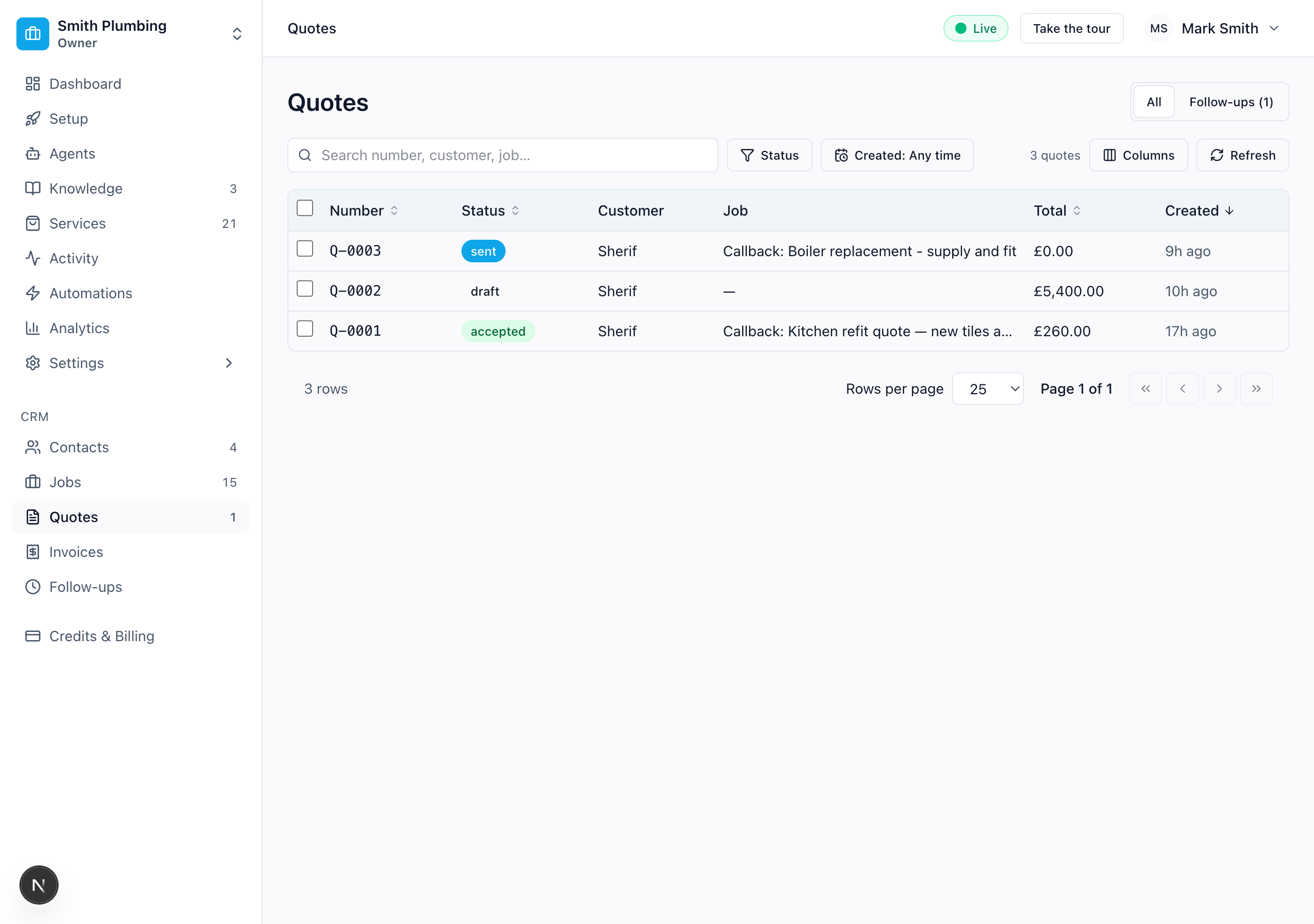 Every quote with its status — draft, sent, accepted — plus a Follow-ups tab for the ones that need a nudge.
Building the quote
The builder is one dialog. Each line either comes from your Services catalogue (pick it, the price fills in) or is a Custom line you type. Set the quantity and unit price; the line and the running total update as you go.
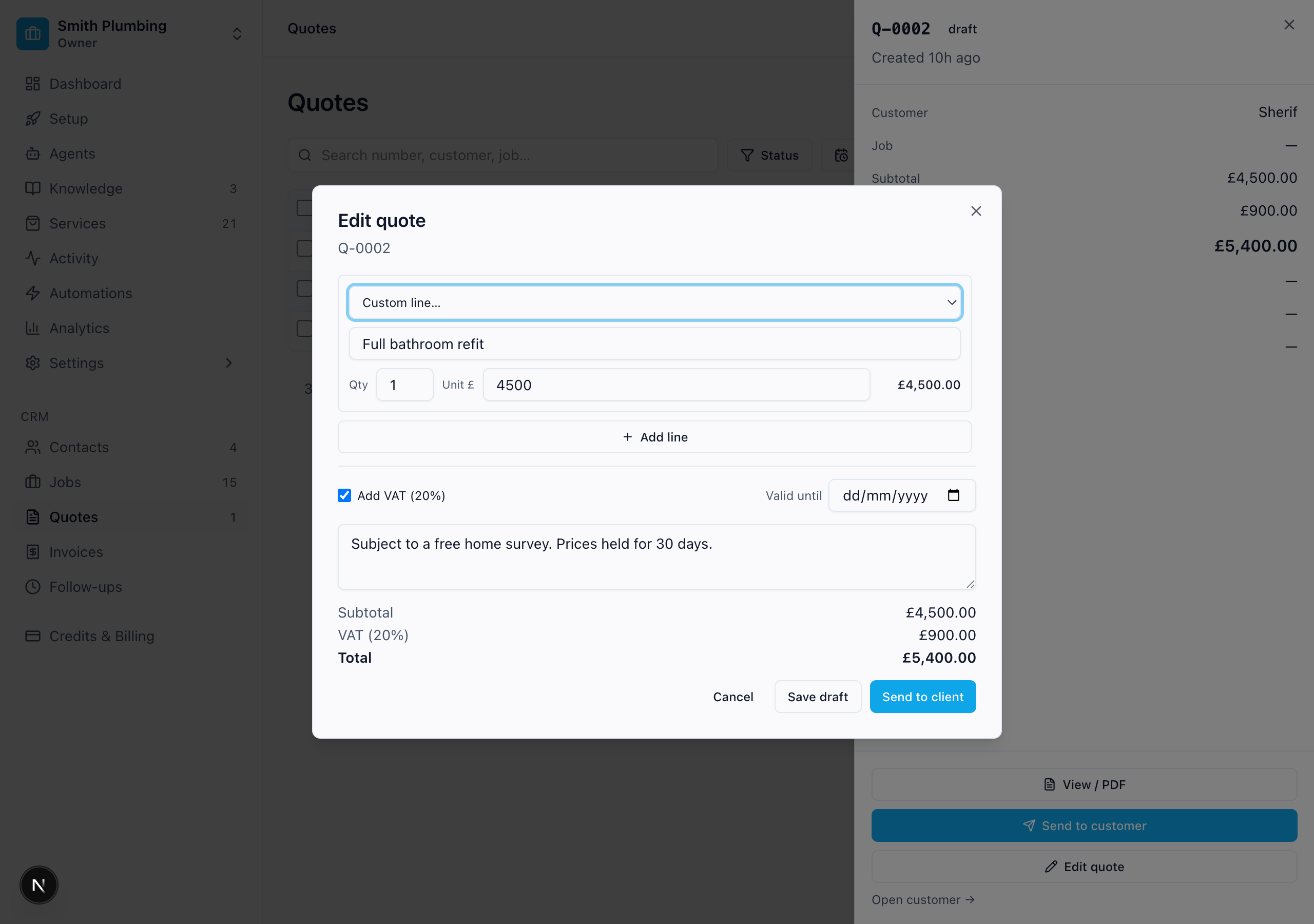 Pull lines from your catalogue or type custom ones. VAT, validity date and terms are one toggle and two fields.
| Control | What it does |
|---|---|
| Line picker | Choose a service to pre-fill its name and price, or Custom line… to write your own. |
| Qty / Unit £ | Quantity times unit price = the line total. |
| Add VAT (20%) | Toggles VAT on the whole quote. Off for non-registered traders. |
| Valid until | Optional expiry shown to the customer ("prices held until…"). |
| Terms / notes | Free text on the quote — "Subject to a free home survey.", deposit terms, exclusions. |
Draft with AI
When you create the quote from a job, Draft with AI proposes the line items for you — read from the job brief, what was said on the call, and your services catalogue. If the job is for a package (e.g. "Bathroom install"), the AI expands it into its component lines so the customer sees the breakdown, not one opaque number. Review, tweak, and you're done — it's a starting point, never auto-sent.
Save it as a draft while you're still working on it, or go straight to Send to client.
Sending it — and what the customer sees
Send to client turns the quote into a branded web page on a private link (and a downloadable PDF). No login, no app — they tap the link in their text or email and see your business name, the lines, the total, your terms, and three buttons: Accept quote, Decline, Download PDF.
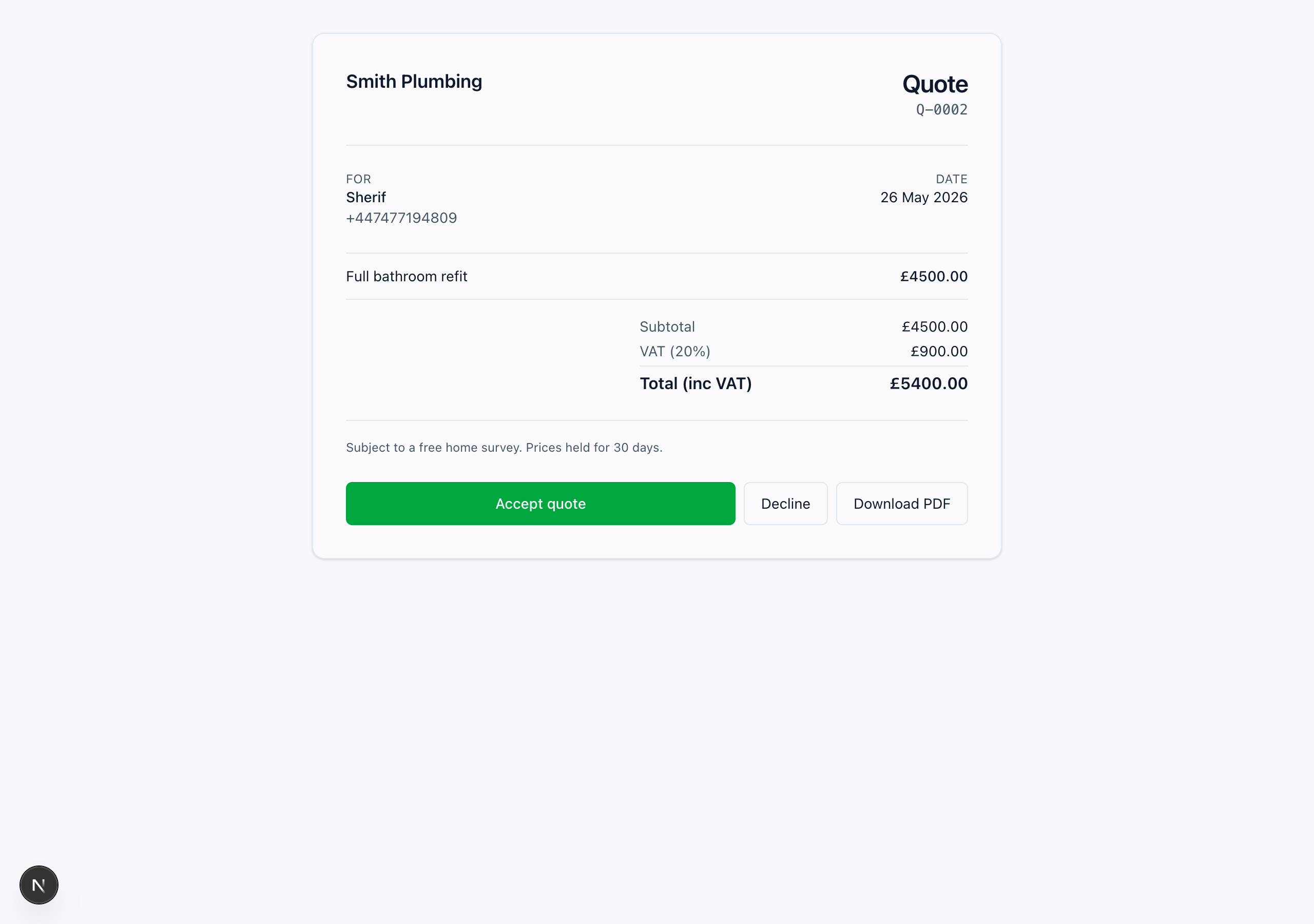 What the customer opens — your branding, the breakdown, and a one-tap Accept.
When they accept, the quote flips to accepted on your side and lands in your Activity feed. No phone tag, no "did you get my email?" And when you then book the job in, the customer's booking confirmation goes out email-first — calendar invite (.ics) attached, pay link included — see Contacts & jobs.
The lifecycle — and chasing the quiet ones
Every quote moves through clear states, shown as a badge in the list:
| Status | Meaning |
|---|---|
| draft | Being built. Not sent. Only you can see it. |
| sent | Delivered to the customer. The clock starts. |
| opened | They've viewed the link (your own previews don't count). |
| accepted / declined | They've decided. |
The detail drawer shows the timeline — when it was sent, when it was opened, when it was decided — plus the actions for that state.
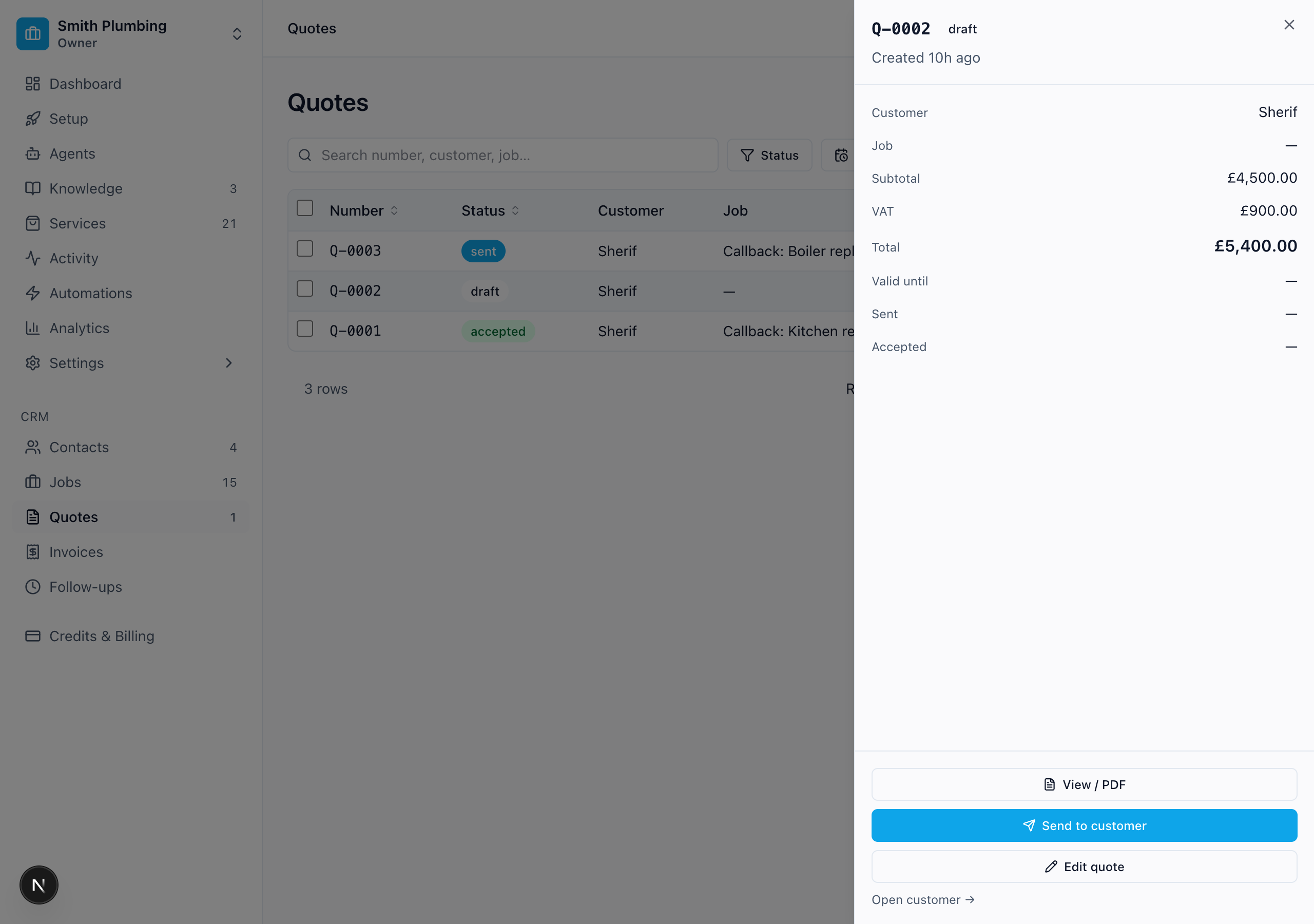 Open any quote for its totals, its sent/opened/accepted timeline, and the right action for where it is.
The money is in the follow-up. The Follow-ups tab on the Quotes page is your chase worklist, split into the two that matter:
- Not opened — sent but never viewed. The link may be buried; a quick "did that come through?" text often does it.
- Opened, no reply — they looked and went quiet. This is the one to ring. A same-day nudge wins most of these; a week's silence loses them.
From the drawer you can Resend the same quote, or Revise it — which issues a new quote (a fresh number) from the old one as a starting point, so you keep a clean record of what was offered when.
Quotes don't move your Jobs board on their own
Accepting a quote records the decision and logs it to Activity — it doesn't drag the job to "Scheduled". That stays your call, because an accepted quote and a booked-in date aren't the same thing.
Where to look when something's off
| Symptom | First place to check |
|---|---|
| Customer says the total looks wrong | Open the quote — was VAT toggled the way you meant? |
| "I never got it" | Follow-ups → Not opened, then Resend |
| You want to change a sent quote | Don't edit it — Revise to issue a clean new version |
| Quote total is £0 | It has no lines yet — add lines or run Draft with AI |
What's next
- Before you price — the questions behind the number, answered by whoever is standing at the job
- Keeping a quote up to date — what happens when the crew find something after you priced it
- Pricing & quotes — how Sarah quotes a number out loud on a call
- Packages & sub-tasks — quote a big job from the parts you already sell
- Contacts & jobs — the job a quote is raised from
- Activity & conversations — where accepted and declined quotes land