 Loyal Receptionist
A patio is not one job. It is waste removal, then a drainage channel, then the paving, then the decking. Each part is done on a different day, sometimes by a different person. Now the job shows each part as its own step, so everybody can see what is done and what is next.
A piece is a line of work
Every line in The work on a job is a piece. A piece has three things:
- Its finish word. The word you say when it is finished: "Laid", "Delivered", "Fitted". Set it on the service, under When it is finished, we say. With no word, it says Done.
- Its person. Pick who does it from the menu on the line. The job's person does this is the default.
- Its place in the order. Pick After and the piece it waits for. Any time means it can start now.
Tick a piece when it is finished. The tick says your finish word, for example Done: Paving.
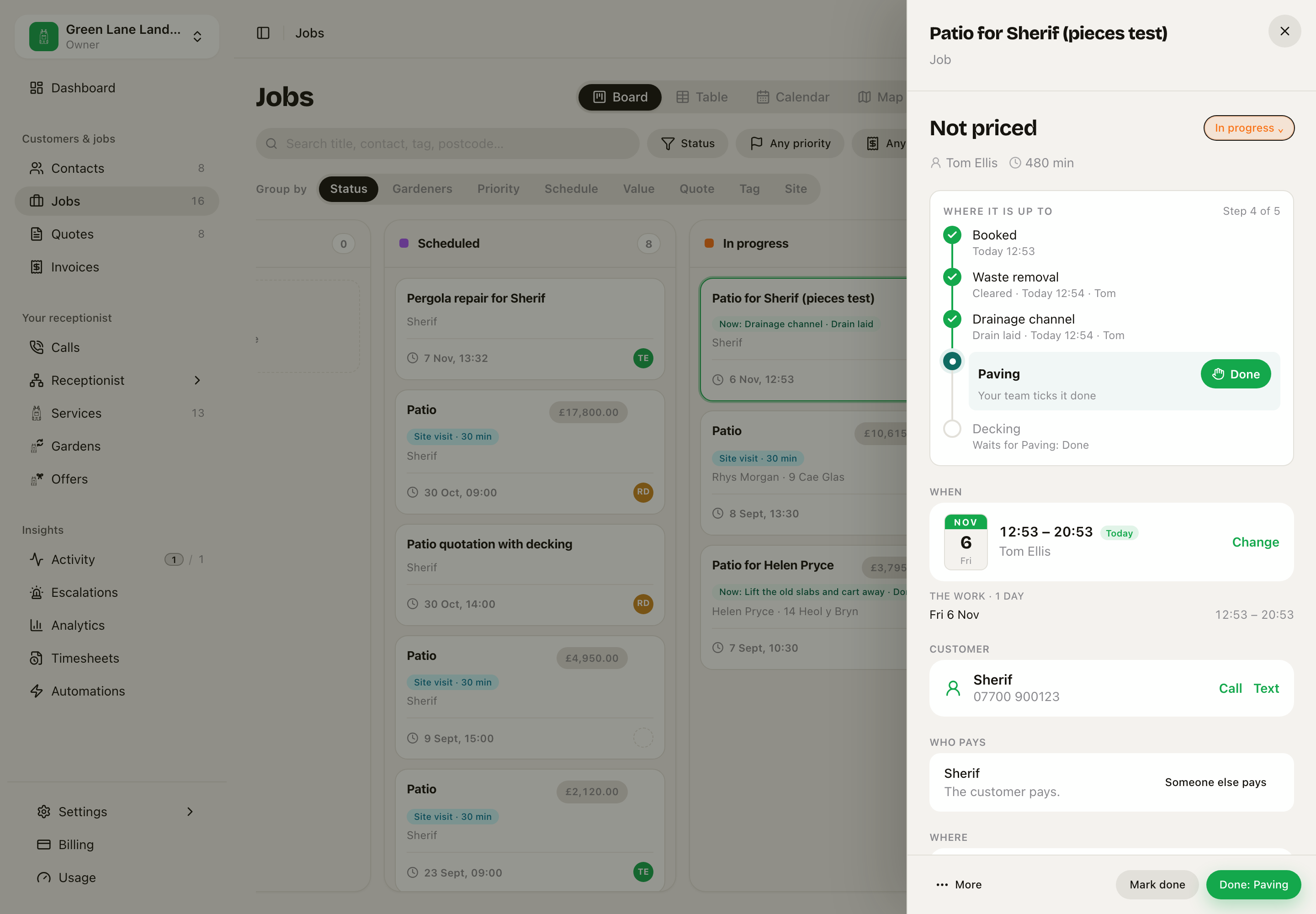 Waste removal and the drainage channel are done. Paving is next. Decking waits for Paving.
The pieces become the steps
Add + Add its pieces to a service's Stages. Then each job on that service shows one step for each piece, between your other steps. The customer's link shows the same steps, so they can see the drain went in without ringing you.
When you tick the last piece, the sheet asks if you want to mark the job done. It never marks the job done by itself.
The board says where each job is up to
A job that is under way carries a Now: pill on its card, for example Now: Drainage channel · Drain laid. It shows the last step that was reached.
If you drag a card to Completed while some pieces are not ticked, the board asks first and names the open pieces. Press Mark it complete to move it anyway, or Cancel and tick the pieces first.
The status words (Enquiry, Quoted, Scheduled, In progress, Completed and the rest) do not change. The status is the short answer. The steps are the long answer.
A survey is a job of its own
Some work starts with a look. A patio starts with a survey, and a breakdown starts with a tow. Each one has its own day, its own fee and its own end, so each one is its own job.
To set this up, open the package on Services, for example Patio. Add the survey as a part and tick Own job. That is all.
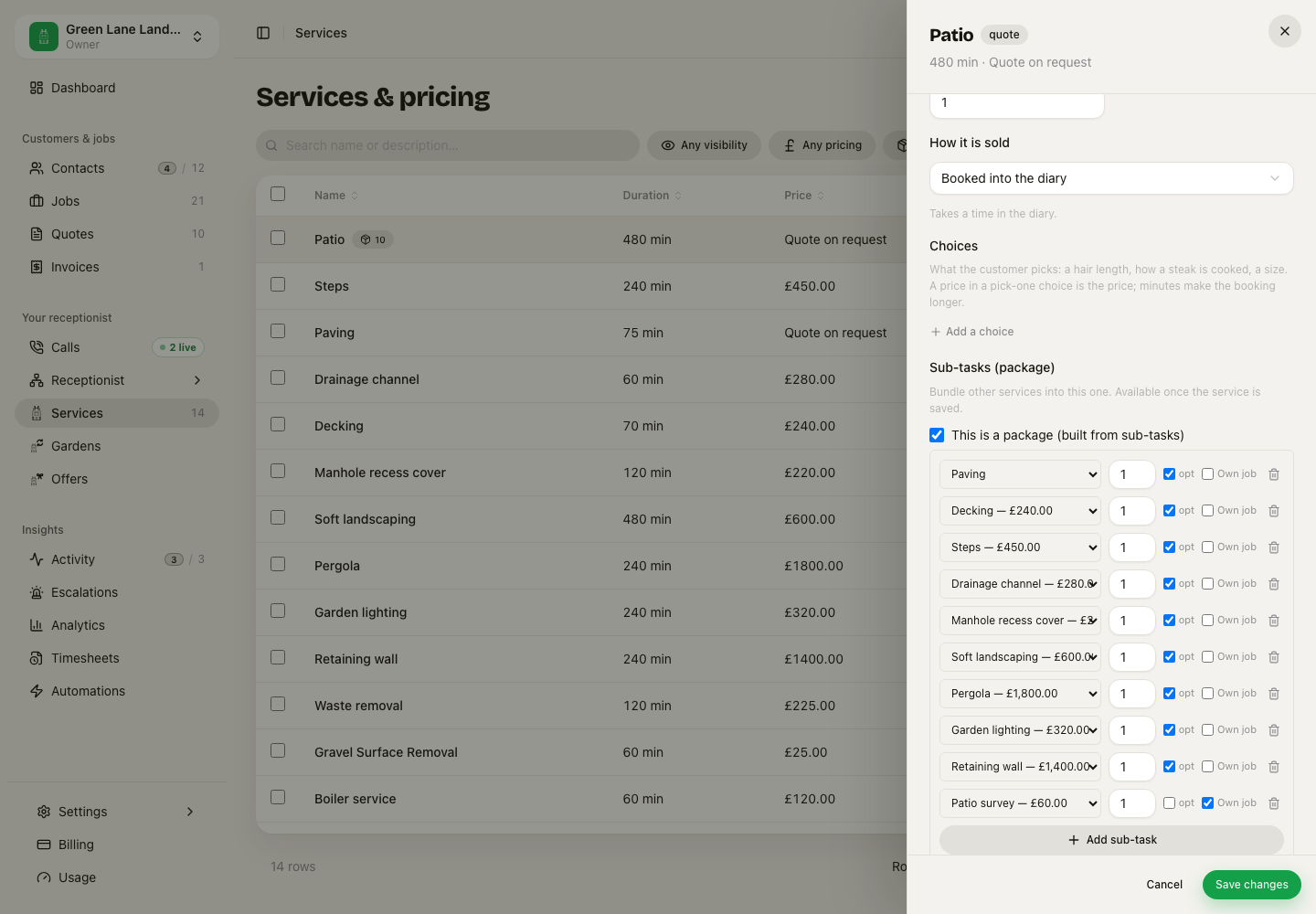 Patio survey comes first and is its own job. The other parts make the patio job.
Now, when somebody books the Patio package, by phone, on your booking page or at your desk, you get two jobs:
- Patio survey, with a time in the diary.
- Patio, with no time, waiting for the survey.
Parts ticked Own job always come first. A service with no ticked part books the way it always did.
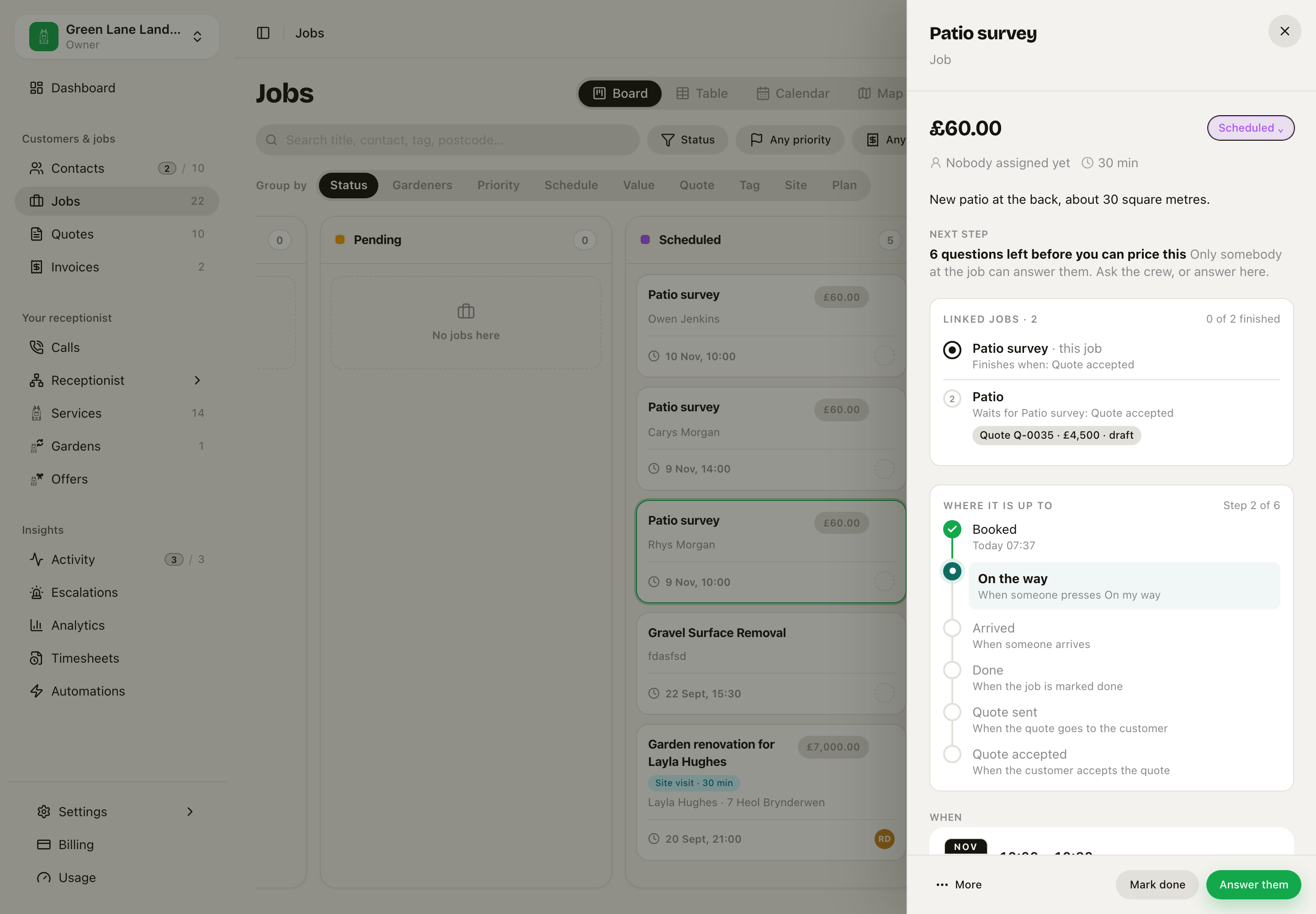 The survey is its own job. It has its own price, time and steps, and the patio waits below it.
The survey has its own price and its own time. The questions you ask before you price are the same list on both jobs, so an answer given at the survey is already on the patio.
If the patio is priced by a quote, the survey finishes when the customer accepts the quote. Mark done on the survey means the visit is done. It does not finish the survey, because the quote is still to come.
The quote sits on the patio job, because it prices the patio. The survey's sheet takes you there with one press. When the quote goes out, the survey's steps move on to Quote sent, and its board card says Now: Quote sent.
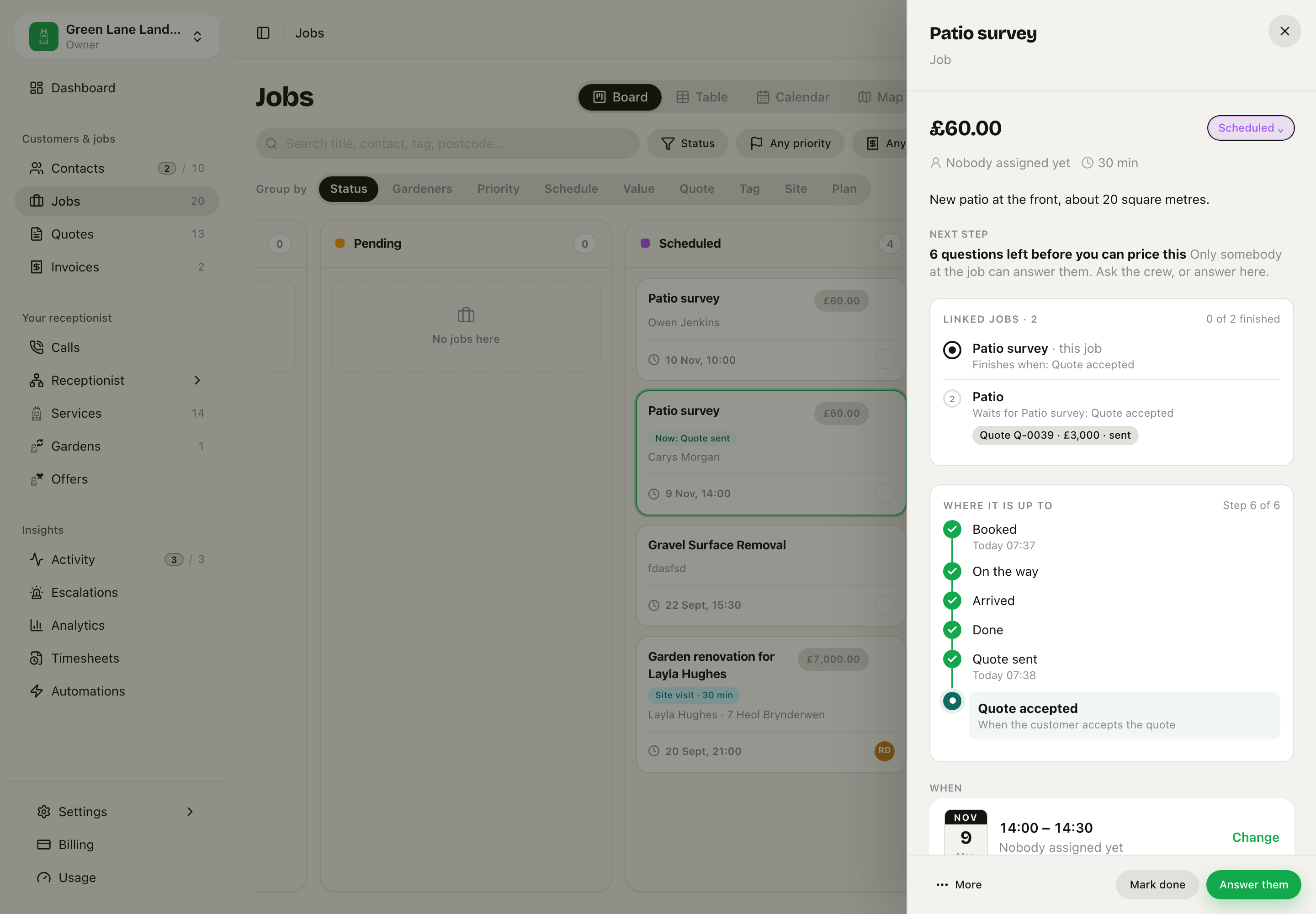 The quote is on the patio job. The survey shows it and waits for the customer.
- The customer says yes: the survey is finished, and the patio job asks you to Book the work. The Linked jobs card shows what the survey brought, for example £60 paid.
- The customer says no: the patio job closes as Did not go ahead, with the reason Price.
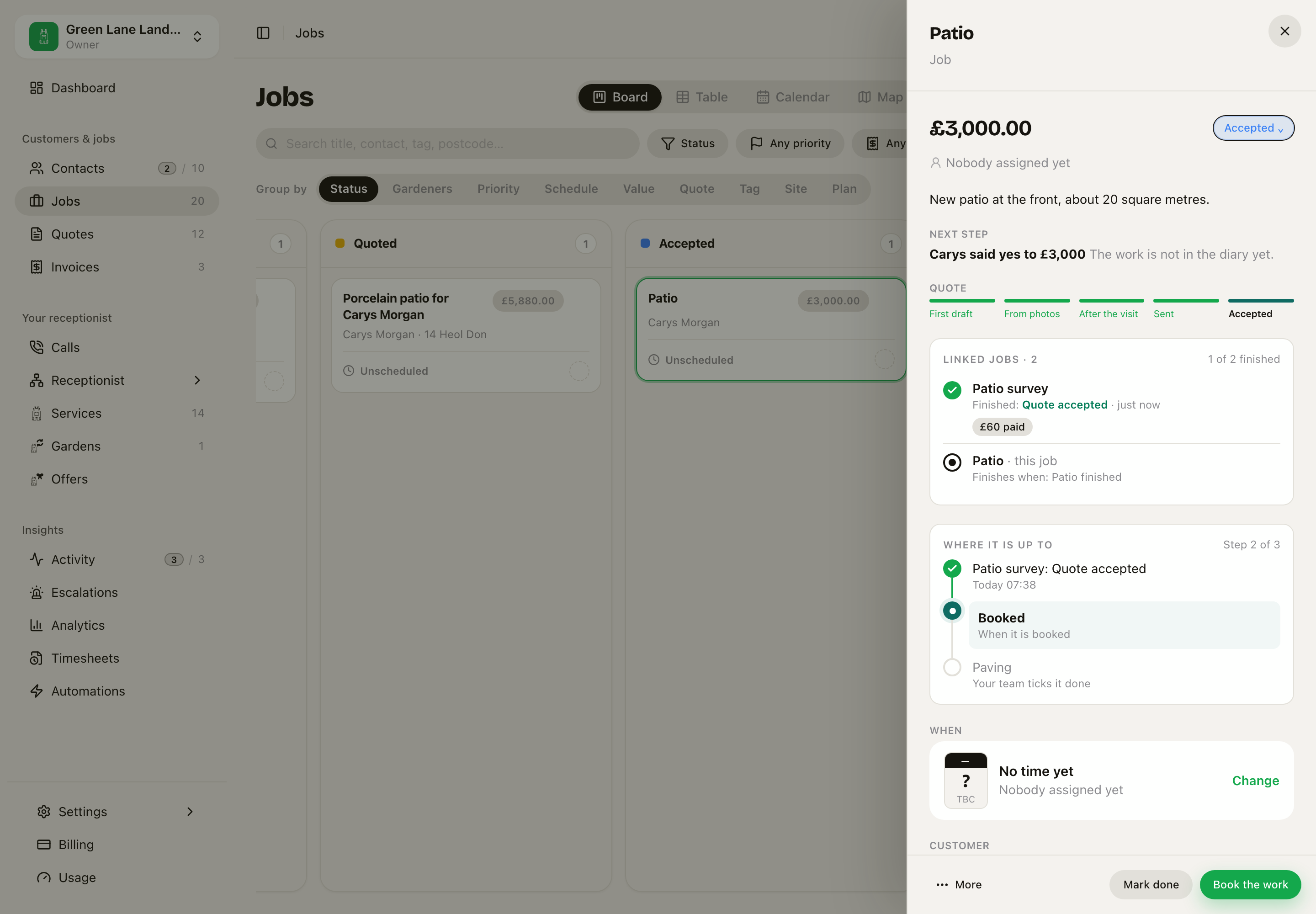 The survey is finished. The next step is Book the work.
One job can wait for another
A job also waits for another when Sarah books a plan on a call (see below). A job that waits:
- has a Linked jobs card, with each job in order. Each one says Finishes when or Waits for. It also shows what the other job brought: the quote, the photos, the answers and what was paid. These stay on the job where they happened.
- shows Waiting for: on its board card. Group by > Plan puts these jobs out of the way of today's work.
- starts its steps with the other job finishing. A partner's Delivered tick counts.
- can still take a time in the diary, and it still waits.
History on each job says Started from and Led to.
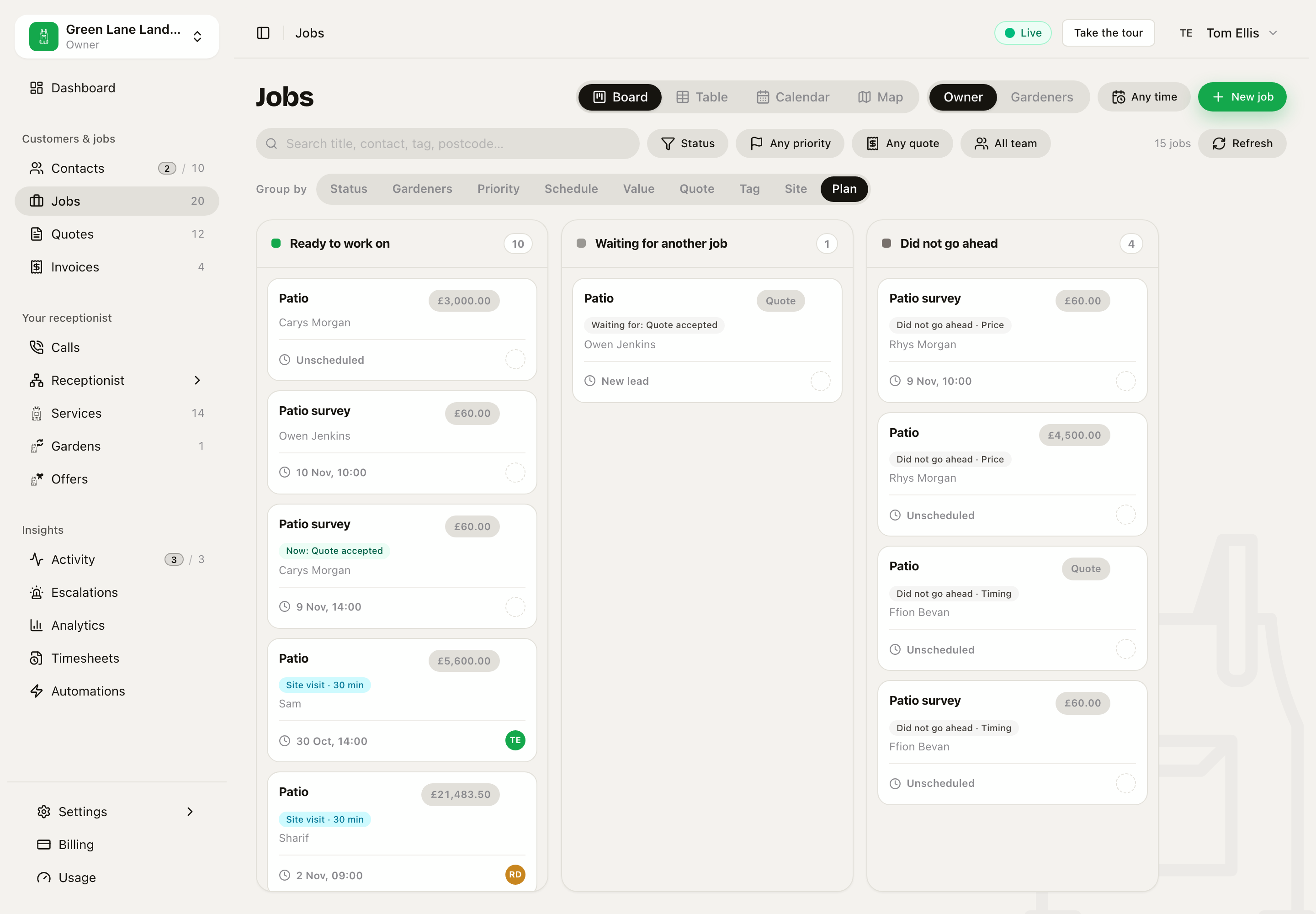 Group by Plan has three columns: Ready to work on, Waiting for another job, and Did not go ahead.
Group by > Plan has three columns: Ready to work on, Waiting for another job and Did not go ahead. It shows which jobs you can do today. It also shows which jobs wait for something else, and which jobs ended.
When a job does not go ahead
Open the job, press More, then Did not go ahead. On the phone, the link is at the bottom of the job.
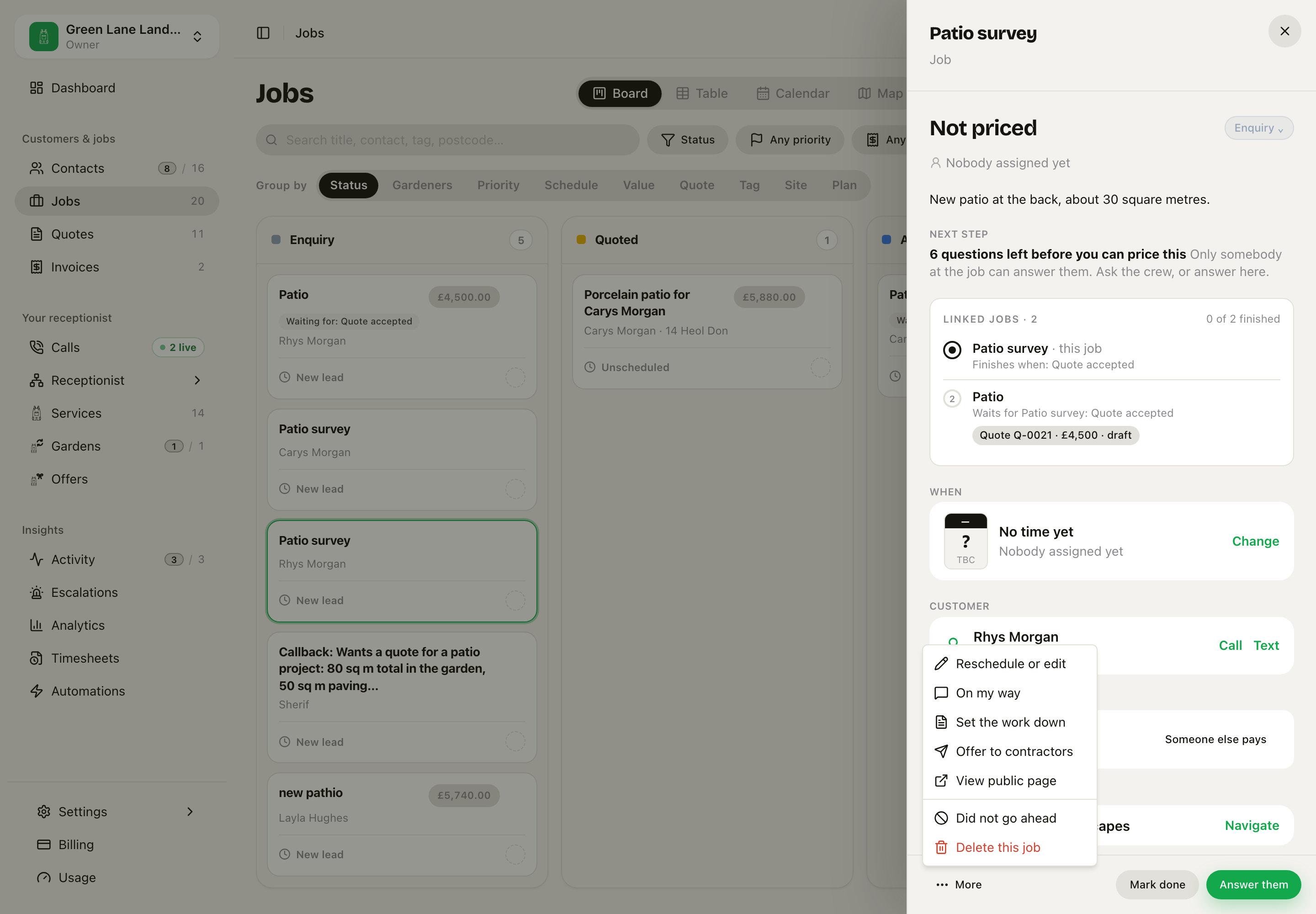 More, then Did not go ahead.
Pick why: Price, Went elsewhere, Timing, Could not reach them, Changed their mind or Other. You can add a note. Keep it to facts, because the customer can ask to see it. Then press Mark as did not go ahead. The job closes, and any job waiting behind it closes too. The dialog names those jobs first.
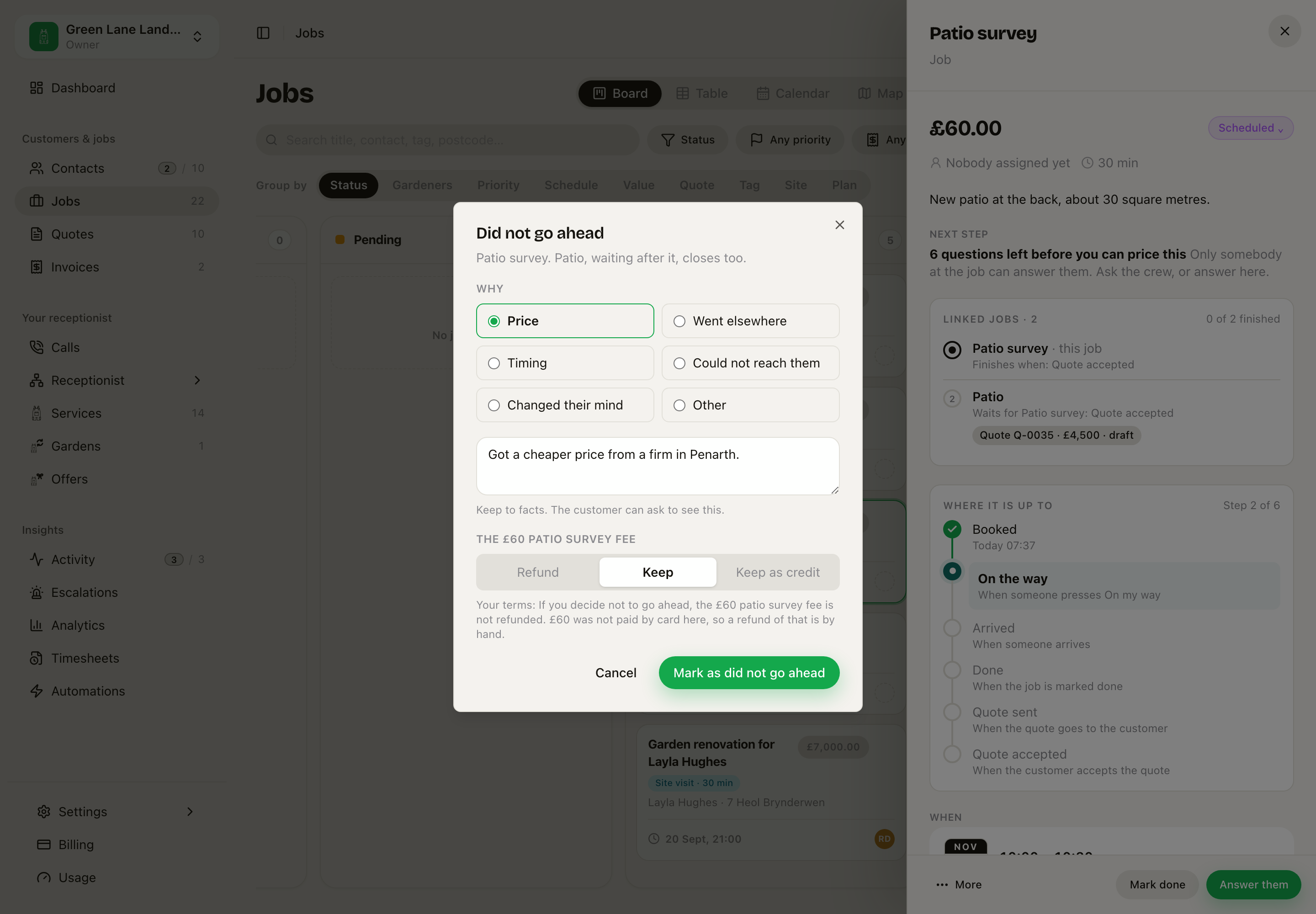 Why, a note, and what happens to the fee they paid.
A fixed list means the reasons can be counted. Analytics shows What followed: how many surveys became the work, and why the rest did not.
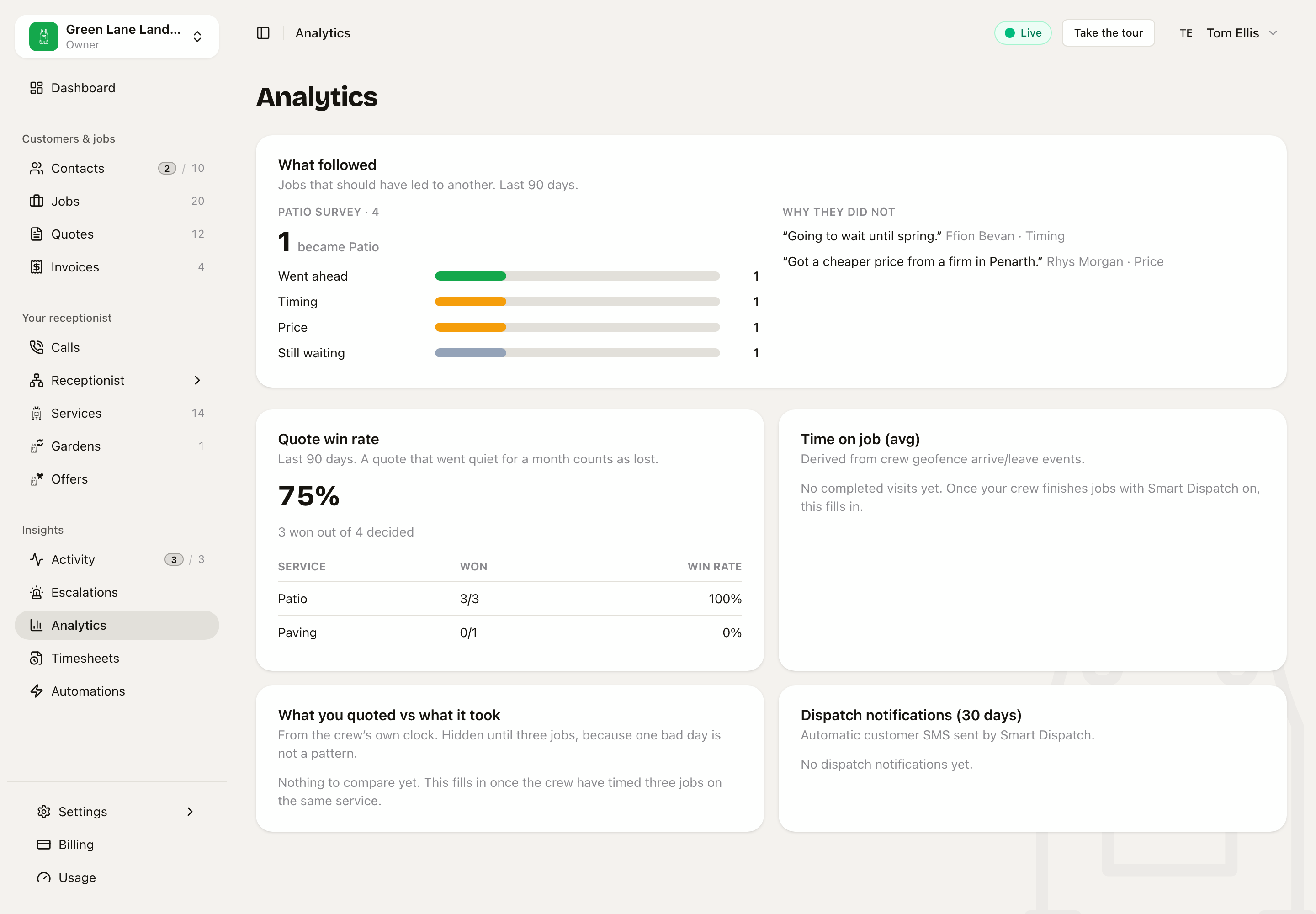 Jobs that should have led to another, counted.
The closed job says why at the top of its sheet. The buttons to mark it done and to start it are gone, because nothing is left to do.
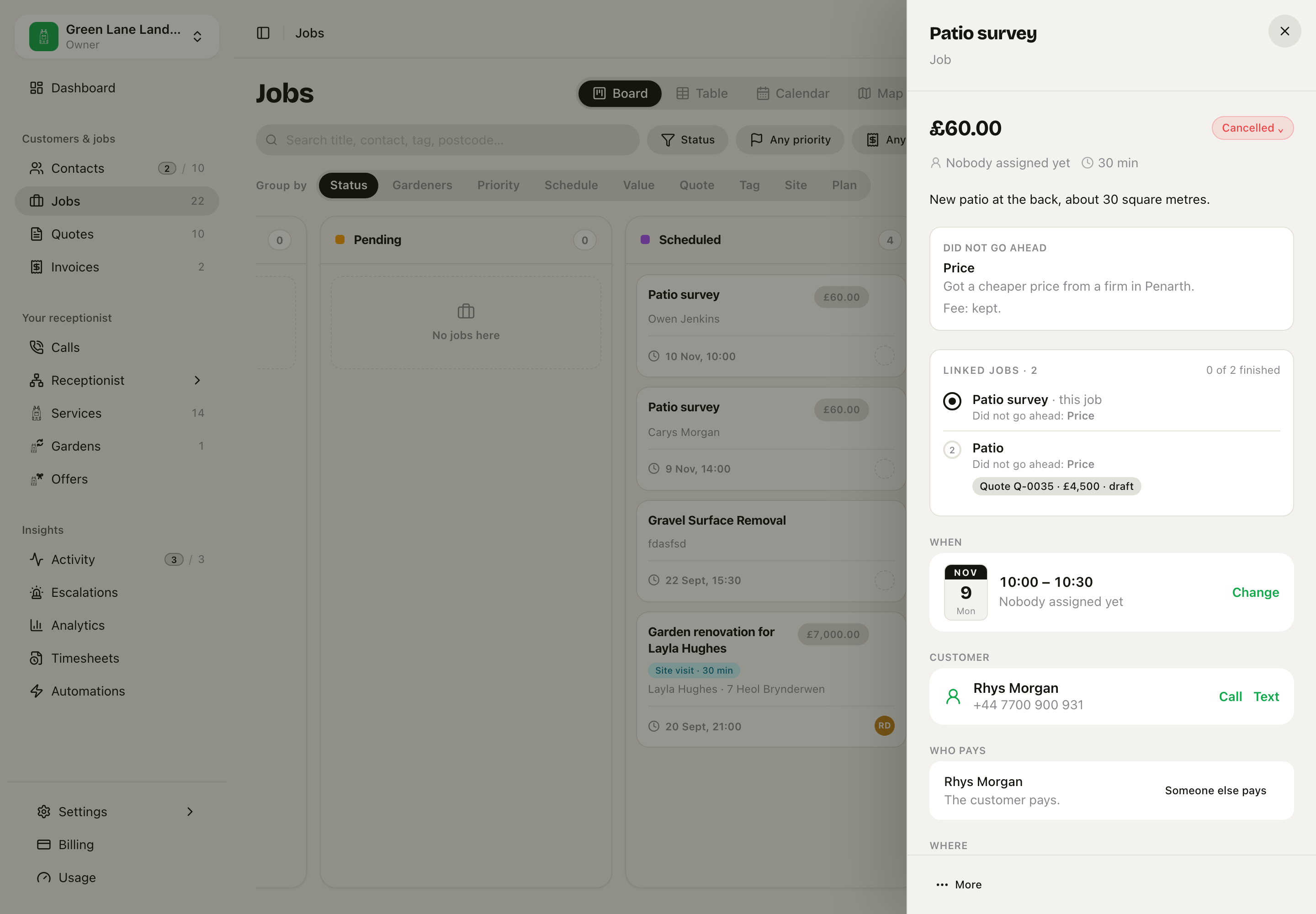 The reason, your note and what happened to the fee. Both linked jobs say it too.
Changed your mind? Move the job's status back. The reason goes away, because it is going ahead after all. Jobs that closed behind it stay closed, and money you already decided stays decided.
If they paid first
On a service paid up front, or a part ticked Own job, set If they do not go ahead, the fee is: Refunded, Kept or Kept as credit. You can also tick If they go ahead, it comes off the job that follows.
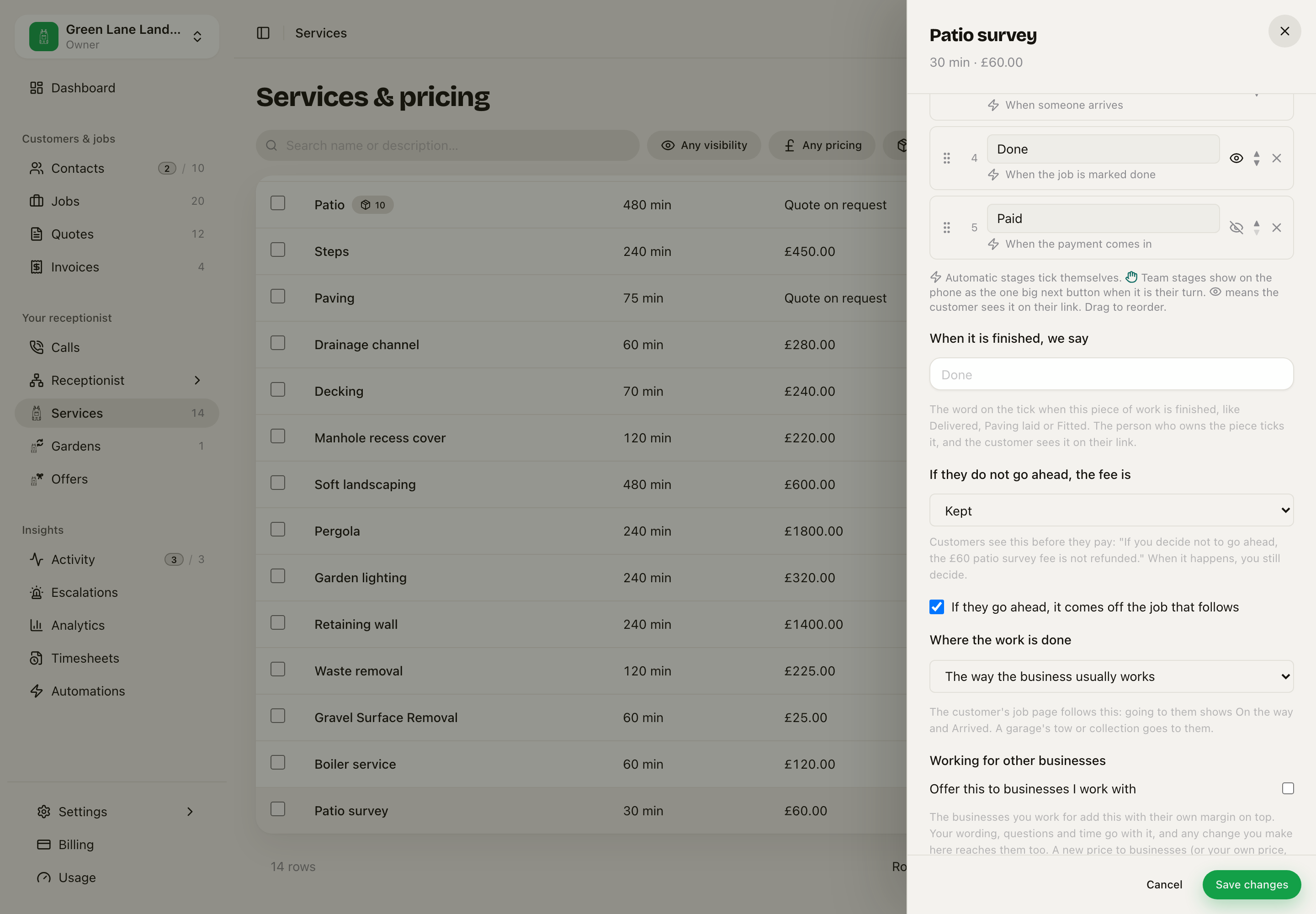 The sentence under the field is the sentence the customer reads.
The customer reads this on your booking page and on the invoice, before they pay.
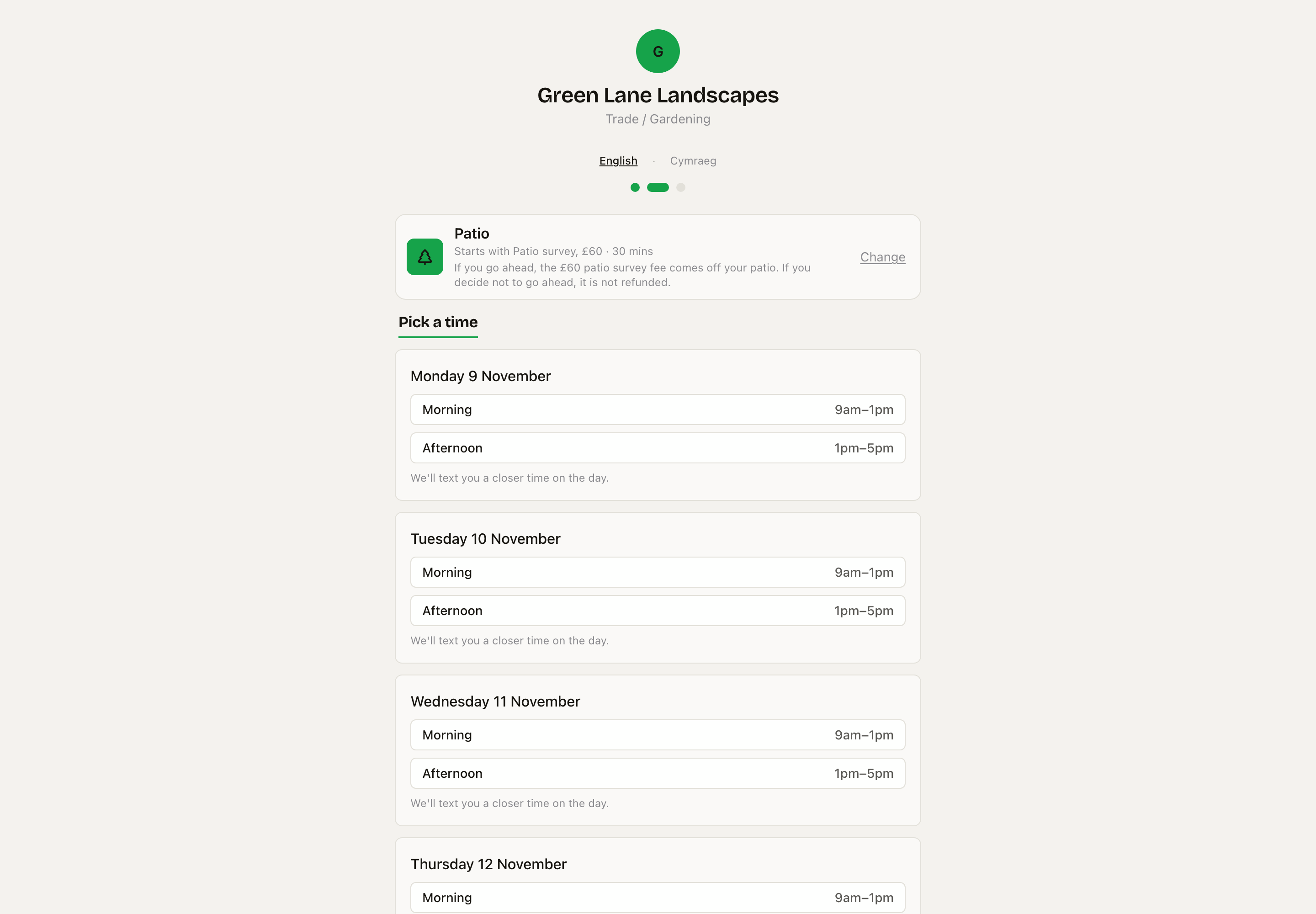 The customer picked Patio. The page says it starts with the survey, what it costs, and what happens to the fee.
If the customer goes ahead, the final invoice takes the fee off by itself. Credit from an earlier job comes off in the same way.
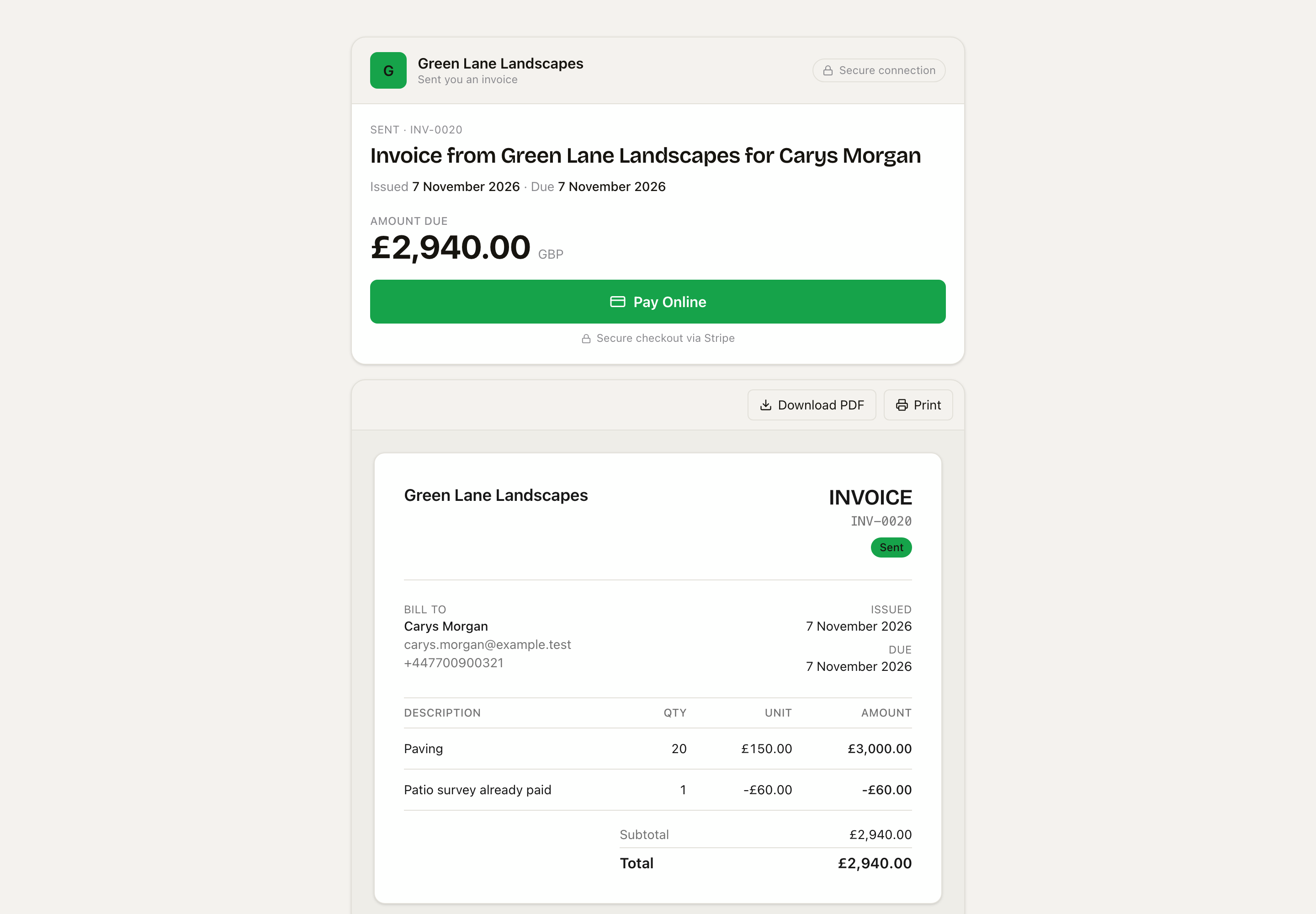 Paving £3,000, less the £60 survey already paid.
If a paid job does not go ahead, you decide what happens. Your terms are picked for you, and you can change the choice.
- Refund sends the money back through Stripe. If Stripe says no, nothing changes and you can try again. Money that was not paid by card here must go back by hand, and the app tells you so.
- Keep keeps it.
- Keep as credit comes off that customer's next bill, once.
The app never refunds by itself. Your choice goes in the job's history with your name, and if it differs from your terms the dialog tells you first. Crew do not see this money.
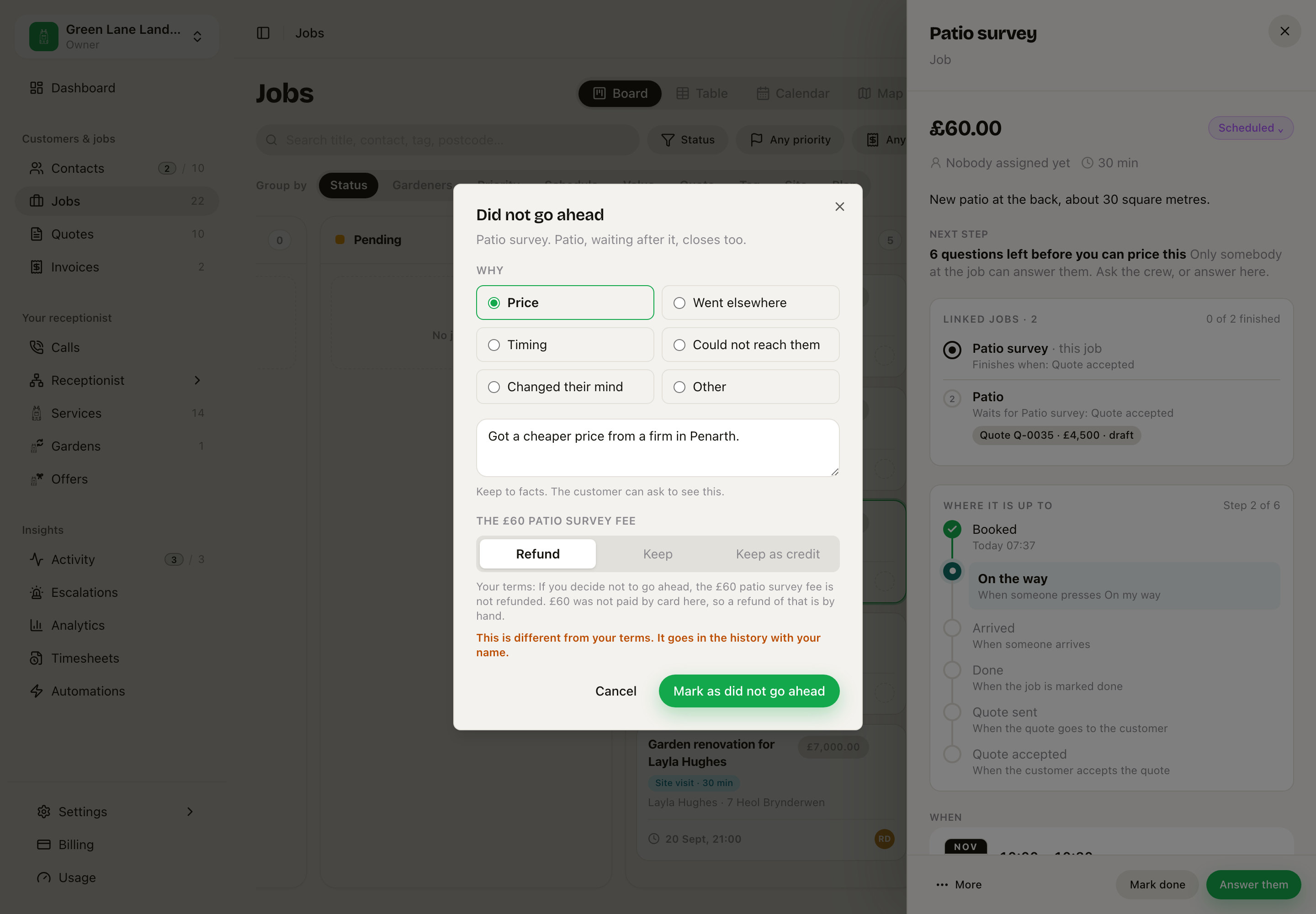 The terms say Kept, so the dialog warns you. This fee was not paid by card here, so it also says the refund is by hand.
You can decide only once. A second decision is refused, so nobody pays a refund twice.
The app does not take a fee up front on an NHS service, so it has no terms and no fee to decide.
Sarah books the whole plan
When a caller asks for two things that go in order, Sarah books them as one plan. She reads the plan back once, for example "the patio, then the fence when the patio is laid", and the caller says yes once. Each later piece becomes its own job that waits for the one before.
Sarah books only services you have. If the caller asks for something you do not do, she says so.
Only the current step on the phone
On the phone, a job shows a progress bar and only the step you are on now. The checks for that step are open. The other steps are folded below, so you can still open them.
On the desk, the check for the current step is first and open. The others are folded with their step name.
Linked jobs on the phone
The phone shows the same Linked jobs card, at the top of the job. Tap the other job to open it.
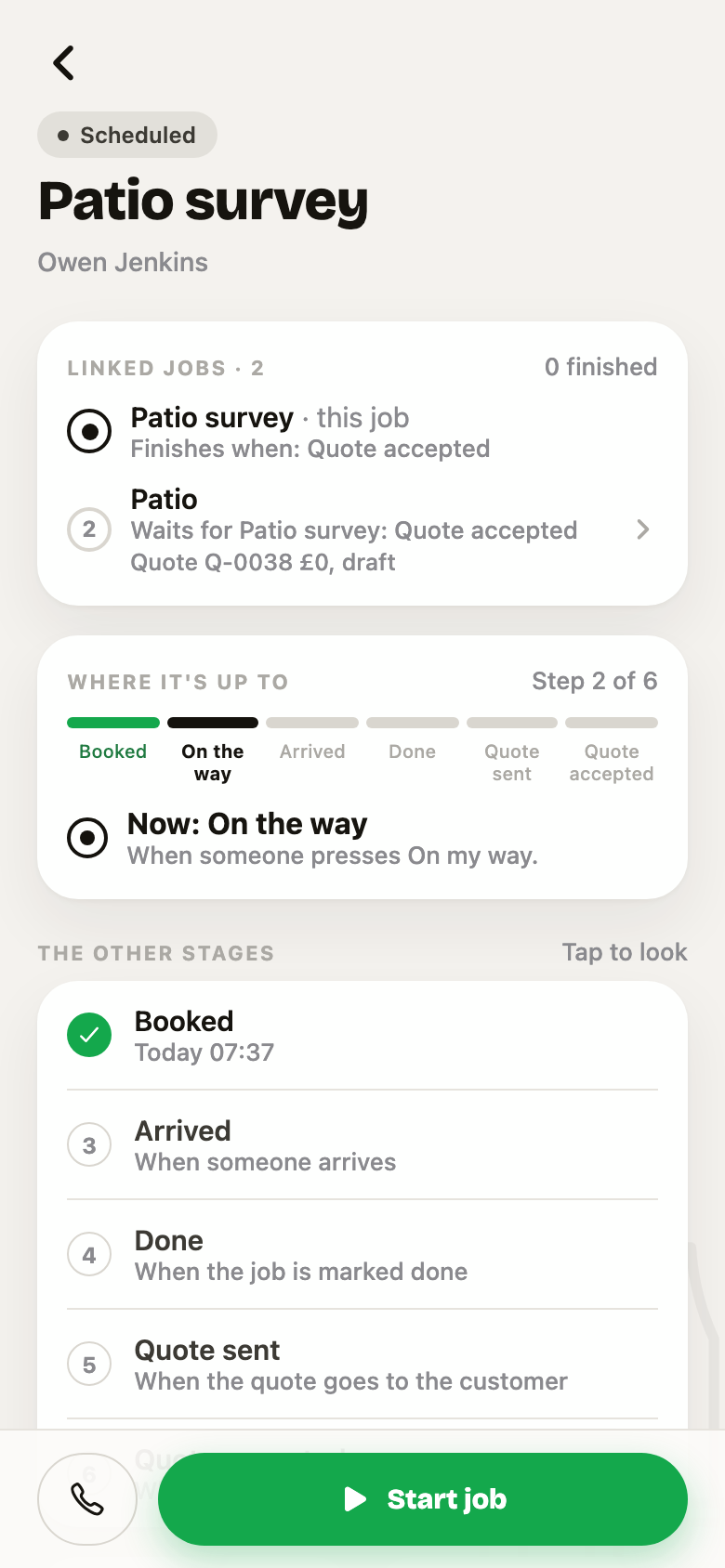 The survey, the patio waiting behind it, and where the survey is up to.
Did not go ahead is the link at the bottom of the job. The sheet asks why, and it names the job that closes behind this one.
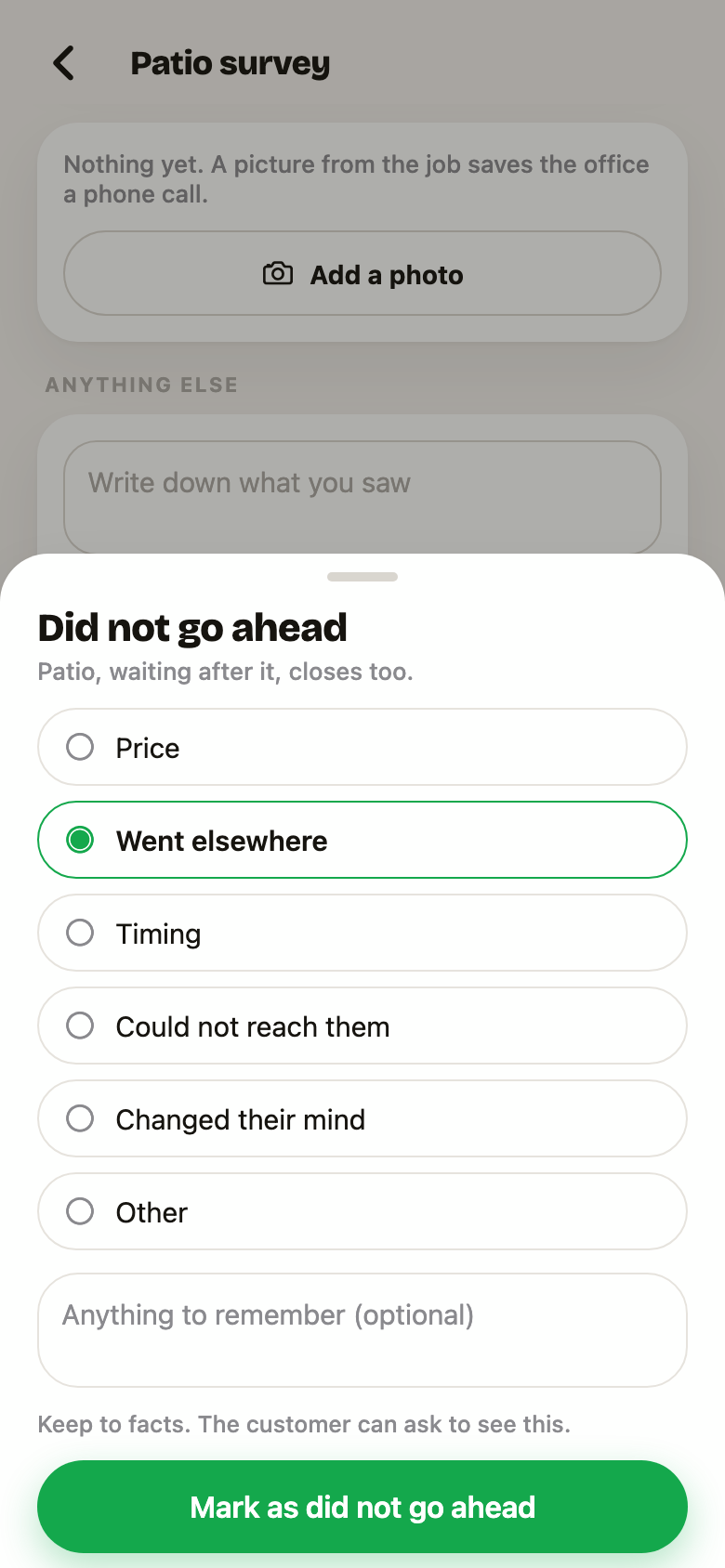 Pick why, add a note if it helps, then press the button.
The closed job says why at the top, and Start job goes away.
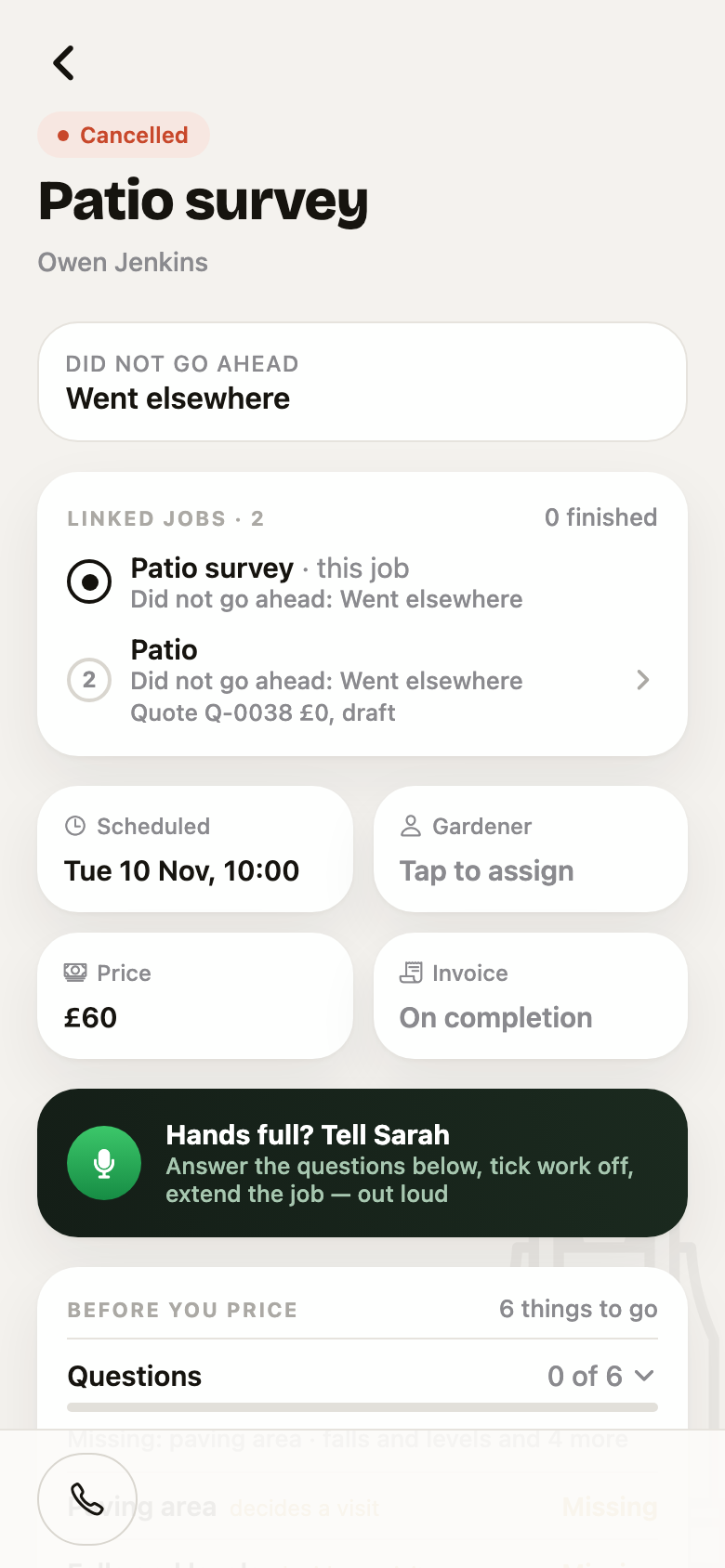 The reason at the top, on the job and on the job linked to it.
Related: Where it is up to, The Library, Checks and findings.