 Loyal Receptionist
Your dentist appointment is in your Google Calendar. Sarah could not see it, so she could book a customer right on top of it. Connect your calendar and that stops. She sees when you are busy and offers the caller another time.
It works the other way too. Every booking of yours appears in your Google Calendar, on your phone, next to the rest of your life. When a booking moves, it moves there. When it is cancelled, it leaves.
Each person connects their own
A calendar belongs to a person, not to the business. So everybody on the team connects their own, and nobody can connect somebody else's.
- Owners and admins: go to Settings → Integrations and open Google Calendar.
- Crew: go to Settings → Profile and find Your calendar.
 Crew connect their calendar from their own profile.
Connect it
- Open Google Calendar (or press Connect on Your calendar).
- Press Sign in with Google.
- Pick your Google account and tick both boxes Google shows you. Then press Continue.
- You come back to the app with the sheet open and your calendars listed.
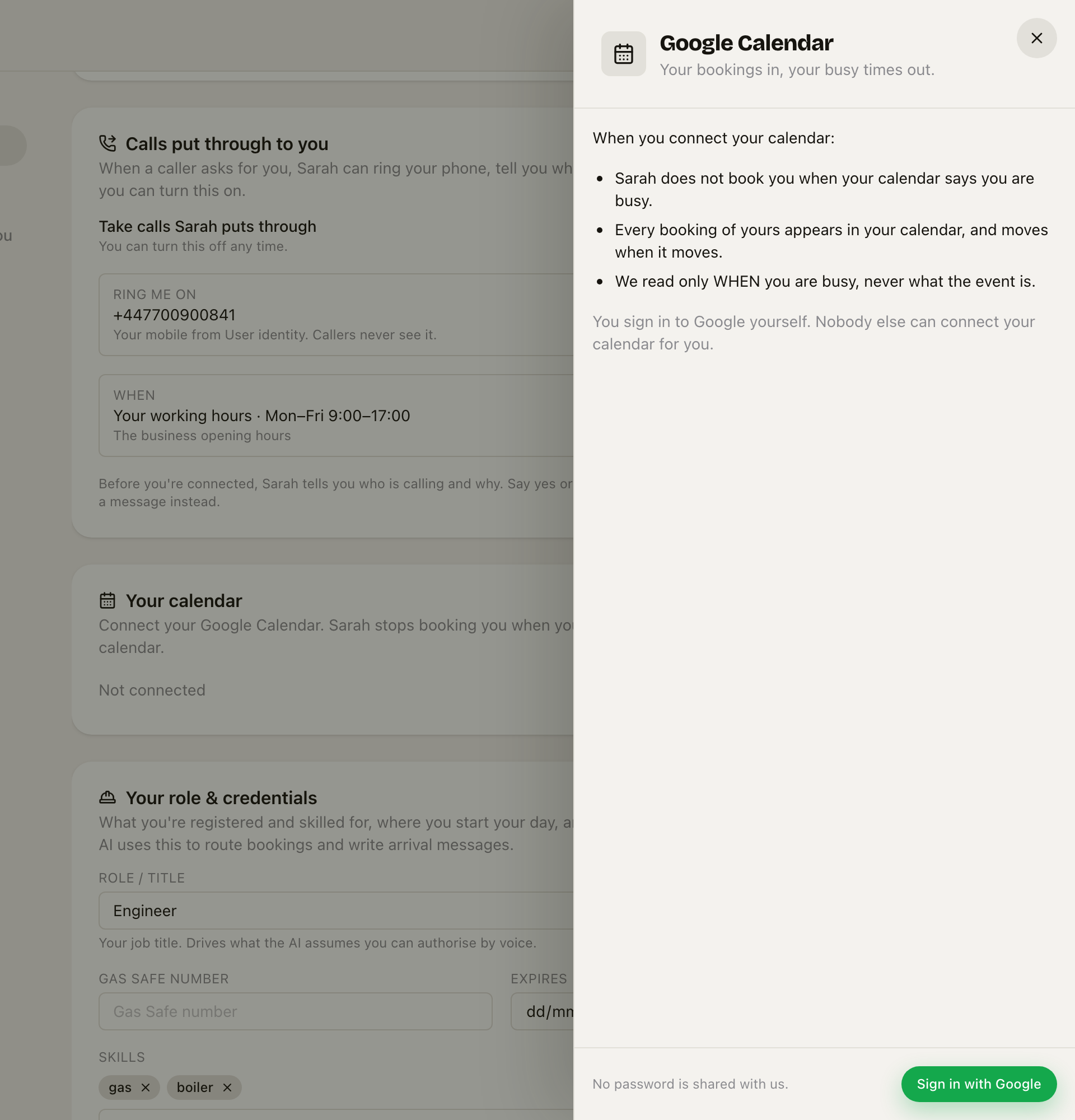 What connecting does, before you sign in. You type your password into Google, never into us.
If you untick one of Google's boxes, we cannot do half the job quietly. The app tells you so and asks you to connect again.
Pick what counts as busy
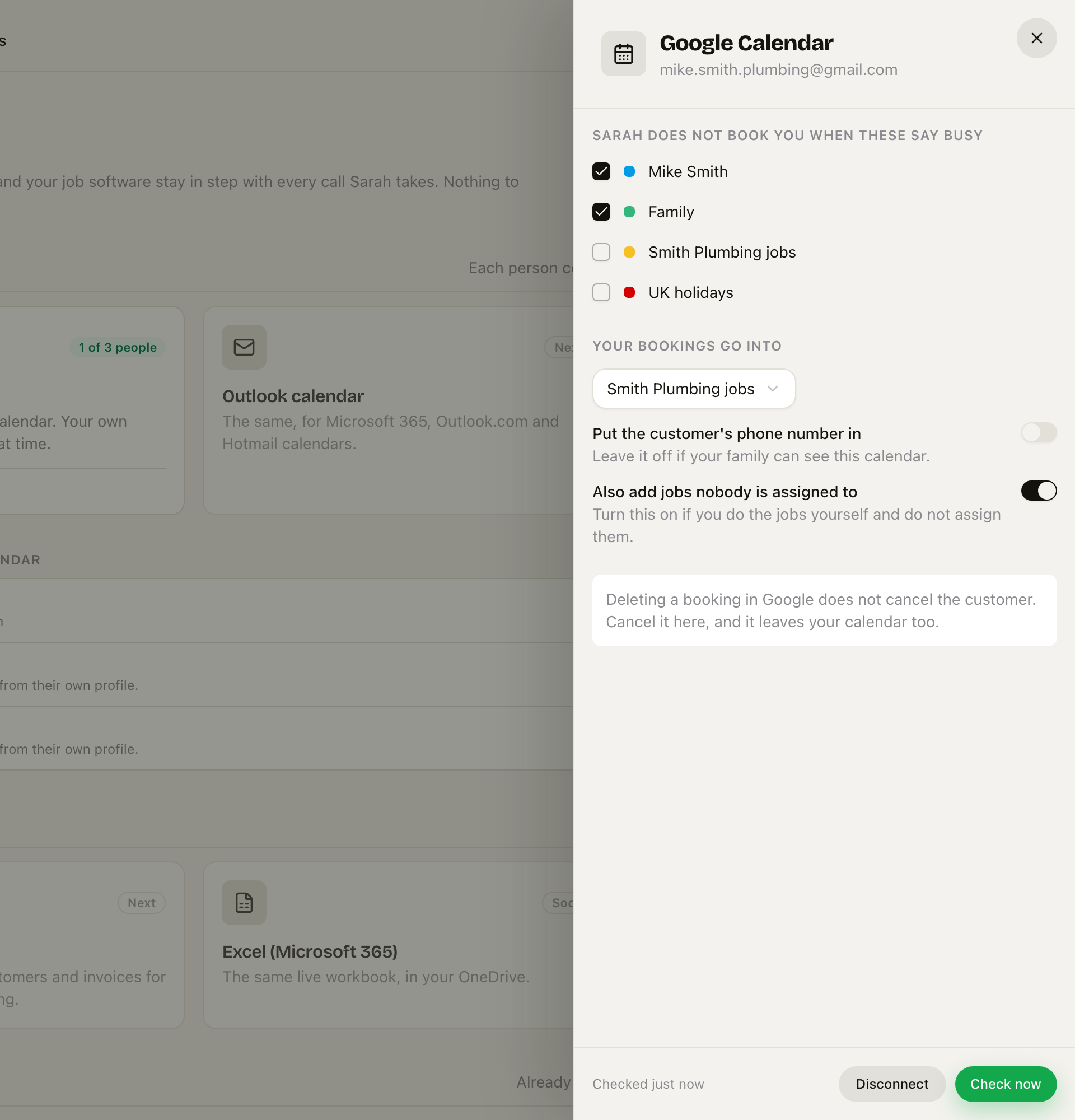 Tick the calendars that mean you are busy, and pick where your bookings go.
Sarah does not book you when these say busy. Tick the calendars that hold your own plans: your main calendar, the family one if school runs and holidays live there. Leave a calendar unticked if it is only for reference, like bank holidays.
Your bookings go into. Pick the calendar your bookings land in. Many people make a separate calendar for work (for example "Smith Plumbing jobs"), so they can show or hide it in one tap. Pick Nowhere (busy times only) if you only want Sarah to see when you are busy.
Put the customer's phone number in. Off by default. Leave it off if your family can see that calendar.
Also add jobs nobody is assigned to. Turn this on if you do the jobs yourself and do not assign them to anybody. It is on by default for the owner.
Every change saves straight away. When you first connect, your main calendar counts as busy and your bookings go into it.
What we read, and what we do not
- We read only when you are busy. Never the title, the place or who is coming.
- A busy time stops Sarah and your online booking page offering that slot to a customer.
- We check your calendar every five minutes. Press Check now if you just added something and want it to count at once.
What happens when things change
| You do this | This happens |
|---|---|
| Add an event in Google | That time stops being offered within five minutes |
| A customer books with you | It appears in your calendar |
| The booking moves or is cancelled here | Your calendar follows |
| You delete the booking in Google | The customer is not cancelled. Cancel it in the app, and it leaves your calendar too |
| You press Disconnect | Your busy times stop counting at once. Bookings already in your calendar stay there |
| You remove our access in your Google account | Same as Disconnect. The card asks you to connect again |
Who has connected
Owners and admins see a list under the Google Calendar card: everybody on the team, and whether their calendar is connected. You cannot connect it for them. They do it from their own profile.
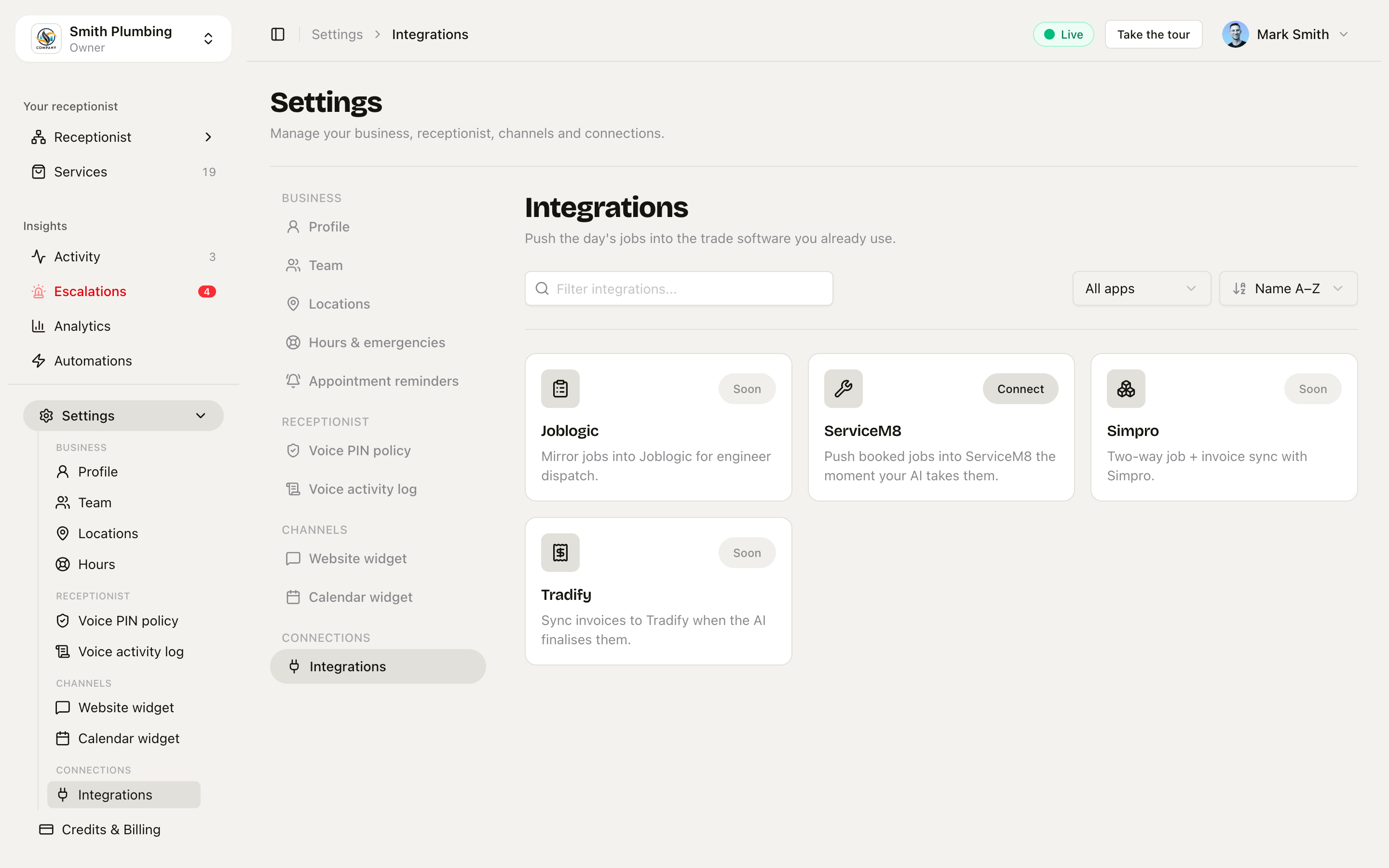 Who has connected a calendar, at a glance.
Outlook
Outlook, Microsoft 365 and Hotmail calendars are next. The card is on the page already, marked Next.