 Loyal Receptionist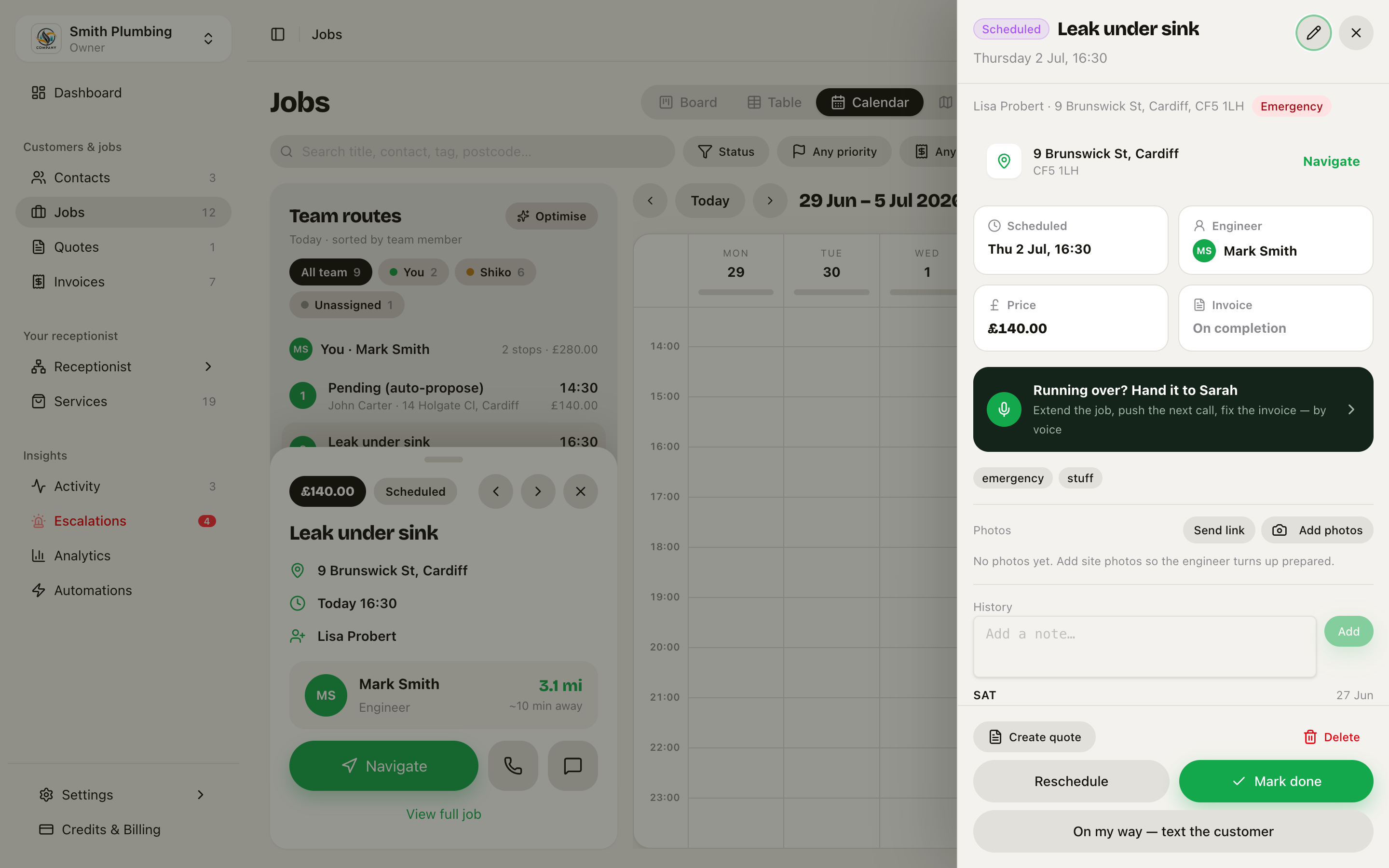
Time tracking & field invoicing
The end of a job is where trades lose money twice: the hour of extra work nobody wrote down, and the invoice that gets raised "later" and chased for weeks. This closes both. Your crew track time on the job as they work, the app works out whether the job ran over what the price covers, and the invoice — with the right extra on it, or deliberately without it — is sent before the van leaves the door.
One rule frames all of it: time never silently inflates a fixed price. A customer quoted £120 expects to pay £120. Extra money only appears when someone on your team explicitly decides it's genuine extra work — ideally agreed with the customer on site.
Tracking time on site
The crew app (the mobile app your field team signs into — see Team & roles) has a timer on every job. Tap Start when the work starts, Stop when it stops. Each Start–Stop is saved as a session against the job, so a day of "worked an hour, drove to the merchant, came back" is three honest sessions, not one guessed total. Sessions from different crew on the same job all count towards it.
On the tracker:
- Line item — optionally pick which service line the time bills to. Leave it unset and the time still counts against the job — useful for diagnosis or setup before you know which service it belongs to.
- Draft invoice — optionally attach the session to one of this job's draft invoices.
- Client — shown, not picked. On a job the customer is fixed; a session can't accidentally bill to someone else.
- Round to — your rounding step (e.g. 15 minutes). Rounding is applied once, to the final billable overage — never per session, so three short visits don't over-count.
The Today card shows real tracked time and its billable value from saved sessions — it reads zero until the first Stop, because we never show a made-up number.
The GPS arrival prompt
When a crew member reaches the job's address, the job screen shows a one-tap banner: "You've arrived — start the timer?" One tap and the session starts from that moment.
It never starts by itself. Arriving isn't working — a timer that starts on GPS alone over-bills and makes an overage charge indefensible. The prompt asks for location permission at most once, and if it's refused it simply stays silent — the manual Start button always works. Location follows the same privacy rules as the rest of the app: captured only during working hours, and the crew can pause it (see Smart Dispatch).
Minimum charge and included time
This is the standard UK call-out model, formalised: the base price of a service covers its first N minutes of labour, and time beyond that is billable at your hourly rate.
Set it per service on Services → edit a service → Labour & billing:
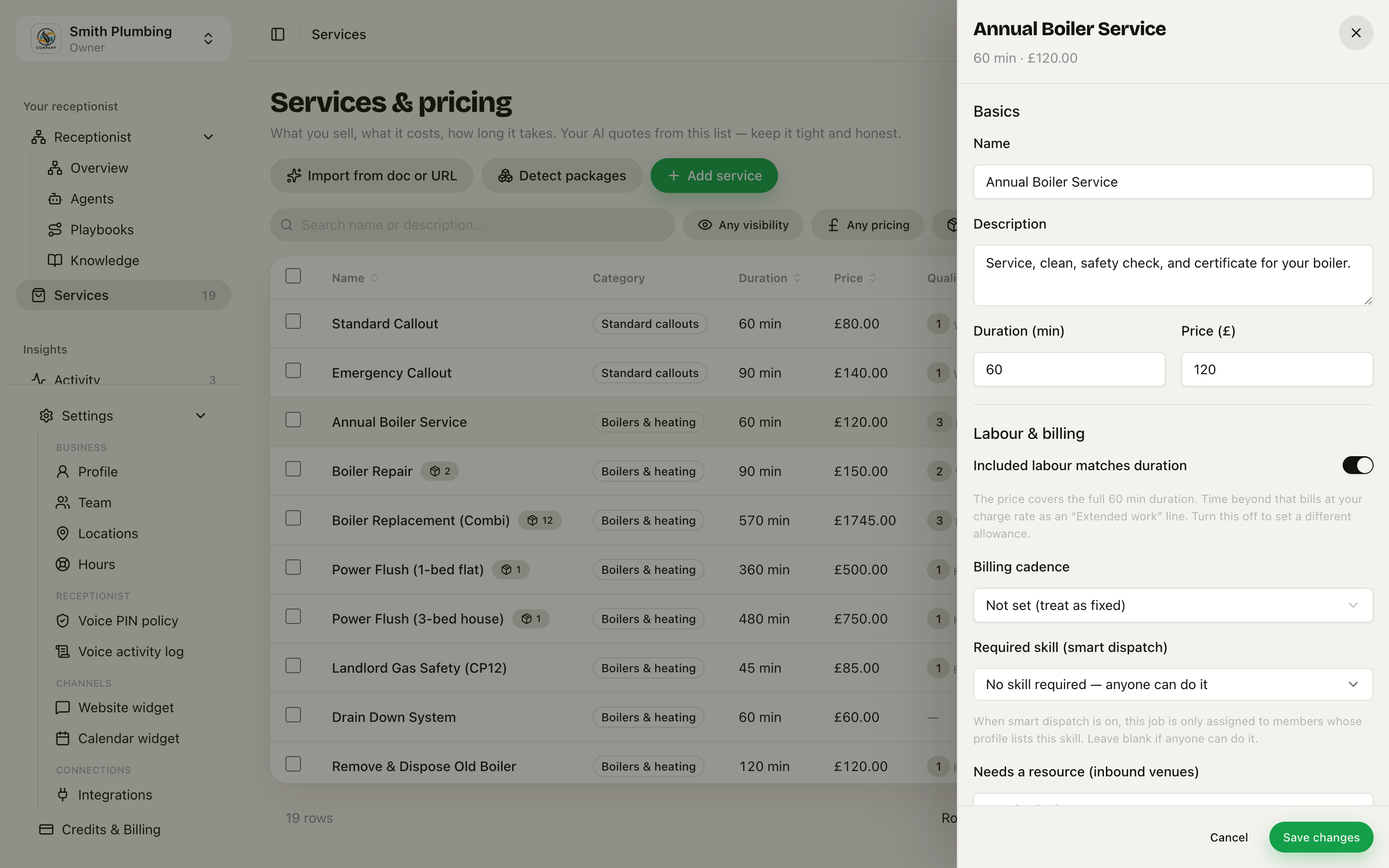 The Labour & billing section — Included labour matches duration by default; toggle off to set your own allowance.
- Included labour matches duration (the default) — a fixed-price 90-minute service includes 90 minutes of labour. Change the duration and the allowance follows.
- Toggle it off to set an explicit allowance — e.g. a £120 call-out that covers the first 60 minutes regardless of the booked duration.
- Set it to 0 for pure time-and-materials — every tracked minute bills from the start.
Fixed-price and time-and-materials jobs run on the same machine; the allowance is the only difference. On a multi-service job, each service brings its own allowance and they add up.
Setting your rates
Two rates, deliberately kept apart:
- Labour charge rate (£/hr) — what the customer pays for time beyond the allowance. Set it on the business identity card at Settings → Profile.
- Cost rate (per member) — what a team member costs you, for your own margin view. Set it on Settings → Team; it's owner-only and never shown to crew or used in anything customer-facing.
Bill it or waive it — the completion decision
When the crew mark a job complete and open the invoice, the app compares tracked time against the included allowance. If the job ran over, they see it plainly: "Tracked 95 min — the price covers 60 min. That's 45 min extra at £65/hr = £48.75." Then one choice:
- Bill it — an Extended work line is added to the invoice with the time and rate spelled out. It's idempotent: saving again never stacks a second copy.
- Waive it — the customer pays exactly the quoted price. The time isn't lost: the owner sees the margin hit as a note on the job ("priced 60, took 95"), so the next quote for that kind of work gets smarter.
Either way, the customer's total only ever changes through that explicit decision. There is no path where tracked time quietly rewrites a price.
Field invoicing — crew send their own invoices
Crew can create, edit and send invoices for jobs assigned to them — no more "the office will invoice you next week". Voiding and deleting invoices stay office-only, and a paid invoice is immutable (void and reissue if it's wrong).
On the mobile app, marking a job complete opens an Edit / Preview invoice screen:
- Edit shows the total due, the overage decision (above), and the lines — auto-drafted from the job's services.
- Preview renders the actual document — your business header, bill-to, issue and due dates, line table, subtotal, VAT and total. The share button exports it as a real PDF.
- Save persists the draft. Reopening the screen finds the same draft and updates it — it never creates duplicates.
Sending is always a deliberate tap. Send pay link texts (or emails, if there's no mobile on file) the customer a secure Stripe card-payment link — nothing goes to the customer automatically on completion.
Getting paid on the spot
The pay link is the universal path — it works whether or not the customer is standing there (landlords, commercial clients, "the office pays"). You get a ping the moment they pay, and the invoice flips to paid everywhere — see Billing & credits.
Tap to Pay on iPhone — the customer taps their card or phone on the crew's iPhone, paid before you've packed up — sits next to it as Take payment now on the invoice. Honest status: the plumbing is built, but taking a card on a phone needs a one-time device setup (including Apple's approval for the business), so until that's done the screen says so and offers the pay link instead. It will never show a fake "approved" — if it says paid, money moved.
What the customer sees
A text or email: "Your invoice from Smith Plumbing — £168.00" with a link to a card-payment page. If they've got their job link, the same invoice appears there as a Pay card — booking, photos, quote and payment all on the one page they already know.
FAQ
Does the timer track my crew's location? No. The timer records time, nothing else. The arrival prompt uses location only to offer a start — one tap, on the crew member's own phone, within the working-hours and pause rules above.
Can tracked time change a fixed price by itself? Never. Time is always recorded (it feeds your margin view), but it reaches the customer's bill only through the explicit bill-or-waive decision at completion.
How do allowances work on a multi-service job? Each service contributes its own included minutes and they compose — a job with a 60-minute service and a 30-minute service includes 90 minutes before anything counts as overage.
Related
- Tracking your time and Getting paid on site — the same flows written for the crew member holding the phone.
- Contacts & jobs — the job sheet the time and invoice land on.
- Job photos & the customer link — the customer-facing page the Pay card lives on.
- Arrival windows — the booking promise the on-my-way text keeps.
- Team & roles — what crew can and can't do, and the owner-only cost rate.