 Loyal Receptionist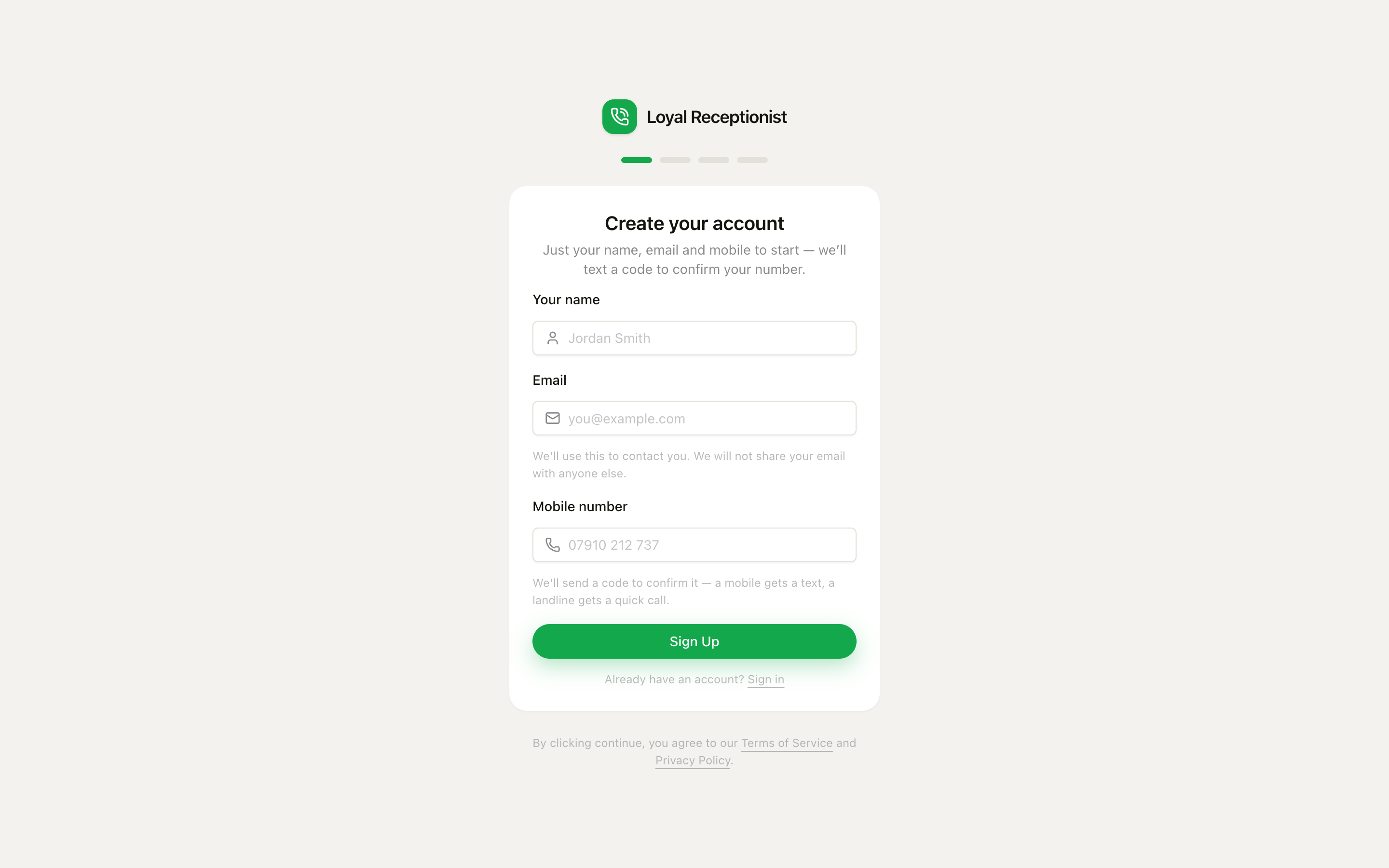
Getting started
This page walks you from "I just got the link" to "my AI is answering calls" in roughly 30 minutes.
1. Create your account
Open the admin app at http://localhost:3200 (or your production URL) and click Sign Up. Signup is four short steps:
- Your details — name, email, and your mobile number. We text a 6-digit code to confirm the number (a landline gets a quick automated call instead). The code lasts 10 minutes and allows 5 attempts; you can resend after 30 seconds, by text or by call.
- Confirm your number — type the code. That's your business phone verified before you've even created the account.
- Set your password — at least 8 characters, with one uppercase letter, one lowercase letter and one number.
- Your business — business name, a booking-page slug auto-set from the name (changeable later in settings), your trade, and an optional website — a website, Facebook page or Google listing all work.
If you gave us a website, we read it and build your account from it — you land on a build-progress screen at /setup/building while your services, knowledge and agent are pre-filled from the real site. No link? You land straight in the Setup wizard with a ready-made starter set for your trade.
There's also an agency signup variant (for reselling to trade clients) — same flow, agency name + slug instead of trade and website.
What your trade pre-sets
Picking a trade does more than seed a services list:
- Typical services with prices — e.g. for plumbing: callout, emergency callout, boiler service. Tweak to your real rates on
/servicesafter. - How customers book you — mobile trades that go out to customers default to two arrival windows (morning / afternoon), so callers book a band rather than a to-the-minute slot. Come-to-us businesses (salons, law firms, estate agents) stay on exact appointment times. Override any time in Settings — see Arrival windows.
- Your contact details — the org's contact email is seeded from your signup email, and your business phone is already stamped verified from the code you entered.
You'll land on the dashboard with 50 free credits already topped up. A 5-step in-app tour auto-runs the first time you sign in — three minutes of pointers at the right buttons. Click Take the tour in the top bar to replay it any time.
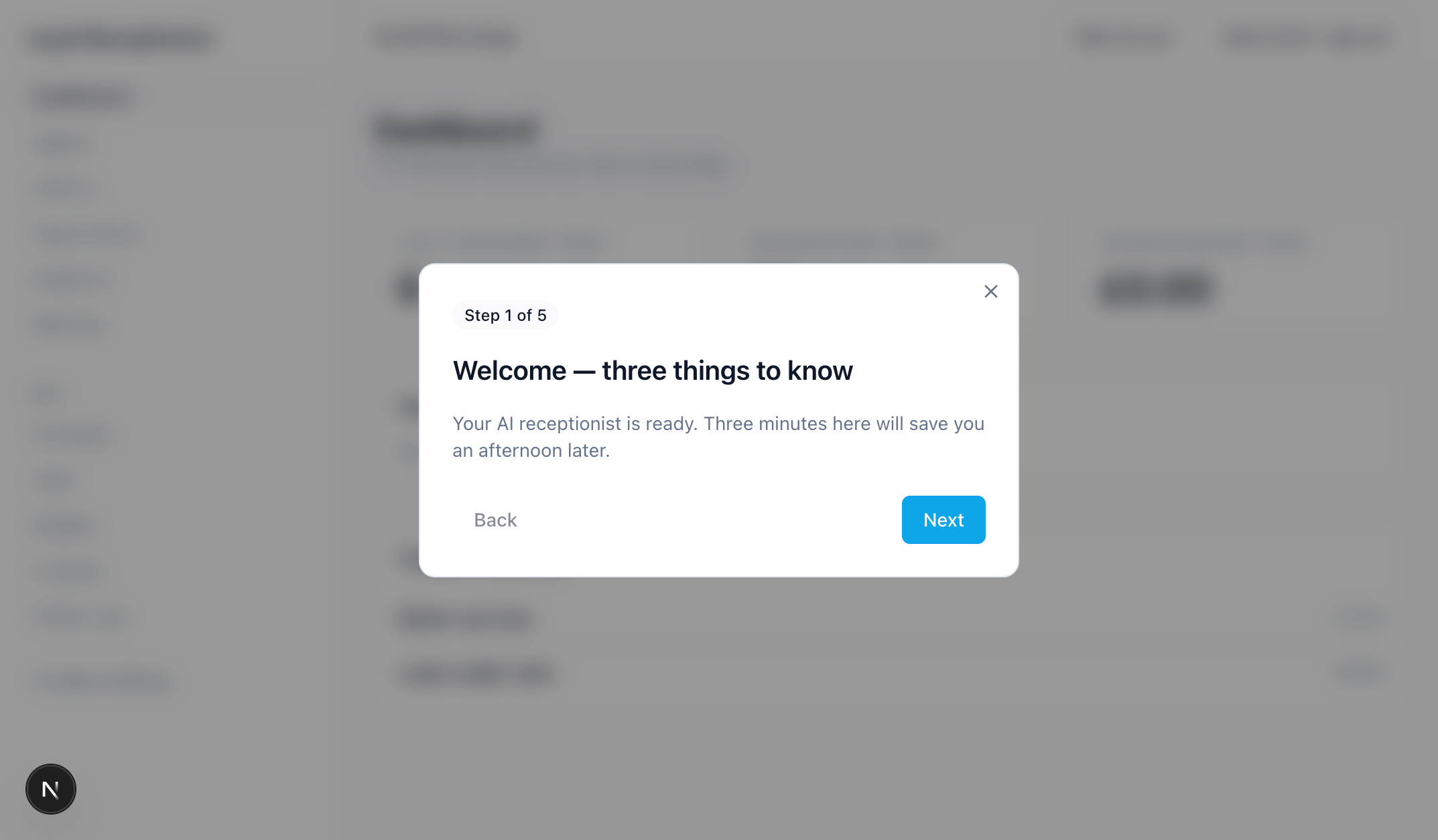 The onboarding tour — five steps, three minutes, dismissible. Re-launches from the top bar.
Signing in later
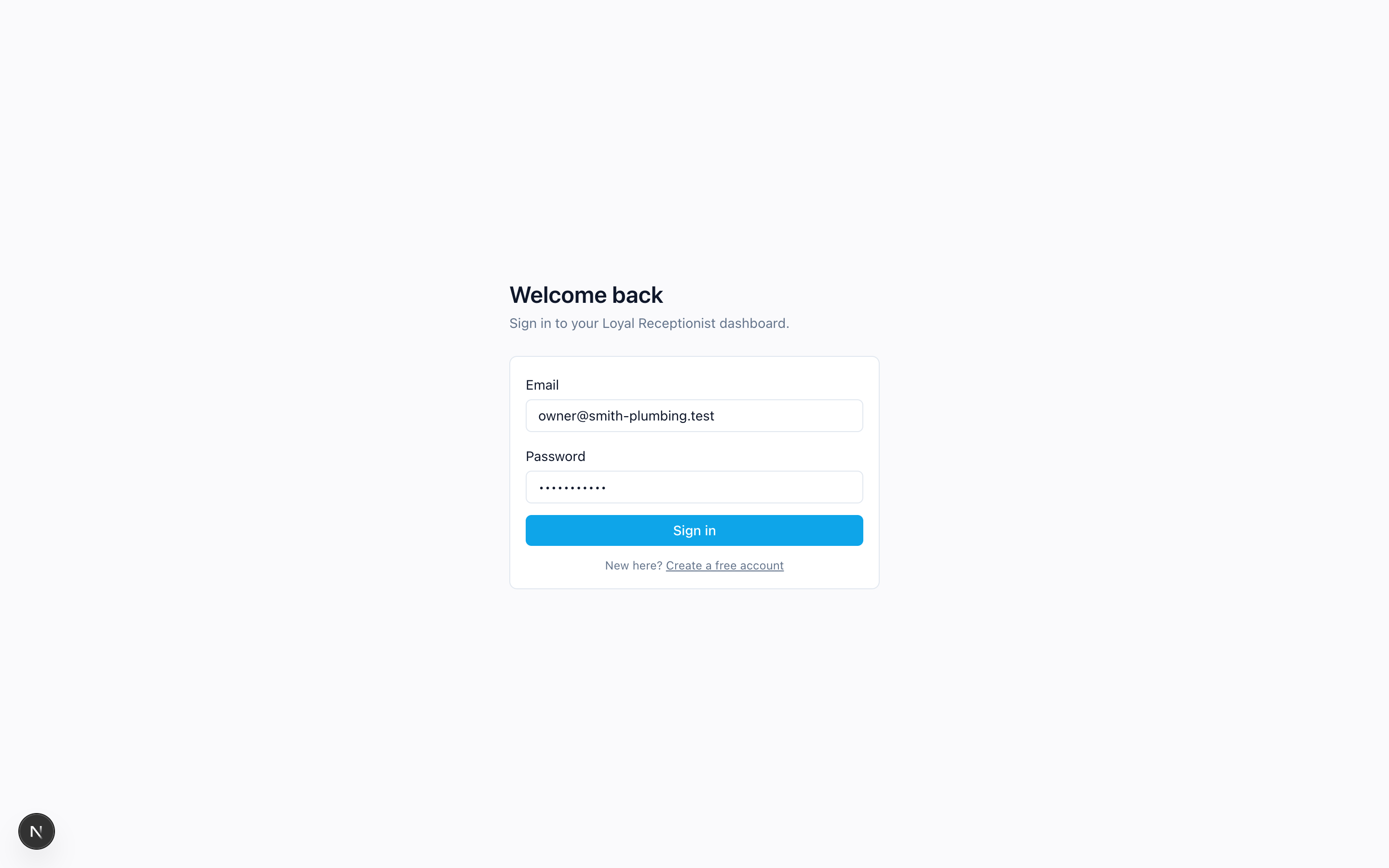 The sign-in screen — email + password, or sign in with your mobile.
Team members who joined via the SMS invite path (the path for engineers on the road — see Team & Roles) don't have a password to type. They tap "Sign in with your mobile instead →" on the sign-in page, enter their mobile, and a 6-digit code lands by SMS. Codes expire after 5 minutes.
2. Run the Setup wizard
Open Setup in the sidebar (or visit /setup directly). Six short steps, about fifteen minutes from cold to live:
| Step | What you do |
|---|---|
| Business basics | Name, trade, hours. Also your address, timezone, VAT rate, business contact email and phone, and an opening-hours editor. Lands on your quotes and invoices and shapes how your agent introduces itself. |
| Your agent | Voice + persona. Pick a character and an accent. Tone sliders live on the Agents page so you don't have to decide here. |
| Services | We pre-fill typical services for the trade you picked. One click adds them all — tweak prices to your real rates on /services after. |
| What you know | Four prompts: pricing, service area, what you don't do, out-of-hours policy. Each becomes a chunk in your knowledge base. |
| Your number | Meet your receptionist. A real number is assigned automatically the moment you land on this step — shown big, with Copy and Test call buttons. There's also a browser mic button to talk to her right there (best quality, with a live transcript), plus "Try asking her" suggested questions. |
| Call forwarding | Catch missed calls. Pick your mobile network and we generate the exact dial codes to divert busy, no-answer and unreachable calls to your receptionist — your phone still rings first (you choose the ring time). One code undoes it all. |
At the end, Go live flips your org from "pending" to "live": the topbar shows a green Live pill, and the dashboard shows a one-time "You're live" banner. See /docs/dashboard.
You can re-run any step at any time. Setup is not a one-shot.
What the wizard sets up — and what to tune later
The wizard gets you to "calls work". The polish lives in two places:
/docs/knowledge-base— add more facts (pricing detail, special-case rules, service-area exclusions). The org-wide knowledge base is where your agent quotes from./docs/agents-and-services— refine tone, change voices, edit per-agent behaviour like name pronunciations, edit your services list.
3. Your phone number
The wizard already gave you one. To buy another number or add an existing one, open your agent at /agents/[id] and use the Routing & channels tab — numbers are provisioned via Twilio and land on the agent the moment they're active. Each number can carry its own agent and playbook.
4. Set your voice PIN (operator mode)
If you want to ring your own line and run the business by voice:
- Go to Settings → Profile and find the Your voice PIN card
- Make sure your personal mobile number is on your profile (that's how the agent recognises it's you calling)
- Set a 4-digit voice PIN
The org-wide PIN policy (what needs a PIN, spending ceilings) lives at Settings → Voice PIN (/settings/voice-pin). Now when you ring the org's main number from your registered mobile, the agent recognises you, switches to operator mode, and greets you by name. See Voice PIN & operator mode.
5. Share your public booking page
Your booking URL is http://localhost:3200/book/<your-slug> (or book.loyalreceptionist.co.uk/<your-slug> in prod, or a vanity domain like book.smithplumbing.co.uk if you set one up in Settings).
Send the link in your AI's SMS replies, your Google Business profile, your website footer.
6. Go live
Once your agent has a name, voice, knowledge base, services, and a phone number, you're live. The first call that comes in will:
- Be answered within 12 seconds
- Get the right answer (within KB limits)
- Book a job if appropriate
- Land on your Jobs board as
scheduled
You'll see it in the Activity feed within seconds of the call ending.
What's next
/docs/dashboard— what to look at first thing in the morning/docs/knowledge-base— add facts your agent quotes from/docs/agents-and-services— tune voice, personality, services/docs/playbooks— same agent, different rules per situation/docs/arrival-windows— book the band, not the minute/docs/appointment-reminders— reminder texts with one-tap reschedule/docs/escalations— the queue for calls that needed a human, and how to stop the repeats/docs/public-booking— branding your booking page, Cymraeg toggle,.icscalendar attachment/docs/billing-and-credits— how credits work/docs/automations— install the four pre-built rules in a click/docs/integrations— push the day's jobs into ServiceM8/docs/smart-dispatch— Crew PWA + auto on-the-way SMS