 Loyal Receptionist
Packages & sub-tasks
Big jobs aren't one thing — they're a stack of smaller ones. A bathroom install is a strip-out, first-fix plumbing, tiling, a suite fit and a test. A package lets you say that once: a service built from other services, so when you quote it the breakdown and the price come from parts you already sell.
This is the deep dive on packages. The everyday Services page is where they live; this page is how to build them.
What a package is
A package (a "bill of materials") is a service whose price and scope come from its sub-tasks — other services in your catalogue. Mark "Bathroom install" as a package made of Strip-out, First-fix plumbing, Wall tiling, Suite fit and Test & commission, and two things follow:
- When you quote that job, Draft with AI expands the package into its component lines — the customer sees the breakdown, not one opaque number.
- The price is the sum of the parts, so a quote-only big job gets a real figure the moment its parts are priced.
Standalone visits — a callout, a single repair, a gas safety check — are not packages. They're the parts, not the whole.
A second use: bundles (one-off + recurring at a discount)
Packages aren't only for "bathroom-install"-shaped jobs. They're also how you build a bundle that wraps two priced services at a discount:
- Install + first month at a saved price — the parent's
pricePenceis the bundled value, the components keep their real prices, the agent quotes the saving on the call ("Pro go-live wraps your install and first month for £250 — saves you £48 vs paying them separately"). - Annual prepay — annual plan + 2 months free, materialised as a parent service whose components are 10× the monthly + 2 free.
- Service + add-on combo — a fixed-price job with an SMS sender-ID addon for the customer's first three months bundled in.
The agent reads the parent's price aloud, names the saving in plain language, and the booking lands on the parent. The components stay on service_components so future invoicing can break the bundle into separate lines on the customer's invoice without you re-typing them.
In the catalogue this typically looks like:
| Category | Examples |
|---|---|
| Install fees | One-off setup fees — "Sarah Pro install £149 one-off" |
| Subscriptions | Recurring monthly plans — "Sarah Pro plan £149/month" |
| Bundles | Parent services made of install + plan, priced under the sum — "Sarah Pro go-live £250" |
| Add-ons | Optional monthly extras — "Extra agent licence £29/month", "Welsh-language voice £19/month" |
Mark each service's billing cadence on the Services page so the prompt renders the price correctly. The bundles use One-off fee (the parent is paid once), the components use One-off fee or Monthly subscription as appropriate.
Two ways to build them
1. Detect packages with AI
The fastest way, and the best on day one. On the Services page, click Detect packages. The AI reads your whole catalogue and, for each big job it spots, shows you two grouped lists:
- Existing parts to add — the smaller services you already sell that fit the big job, with their saved prices.
- Suggested parts to add — the parts that are missing, proposed as new services with an editable name and a pre-filled price the AI estimates from typical UK trade rates. Each suggested row carries a tiny
aitag so you know which numbers came from the model.
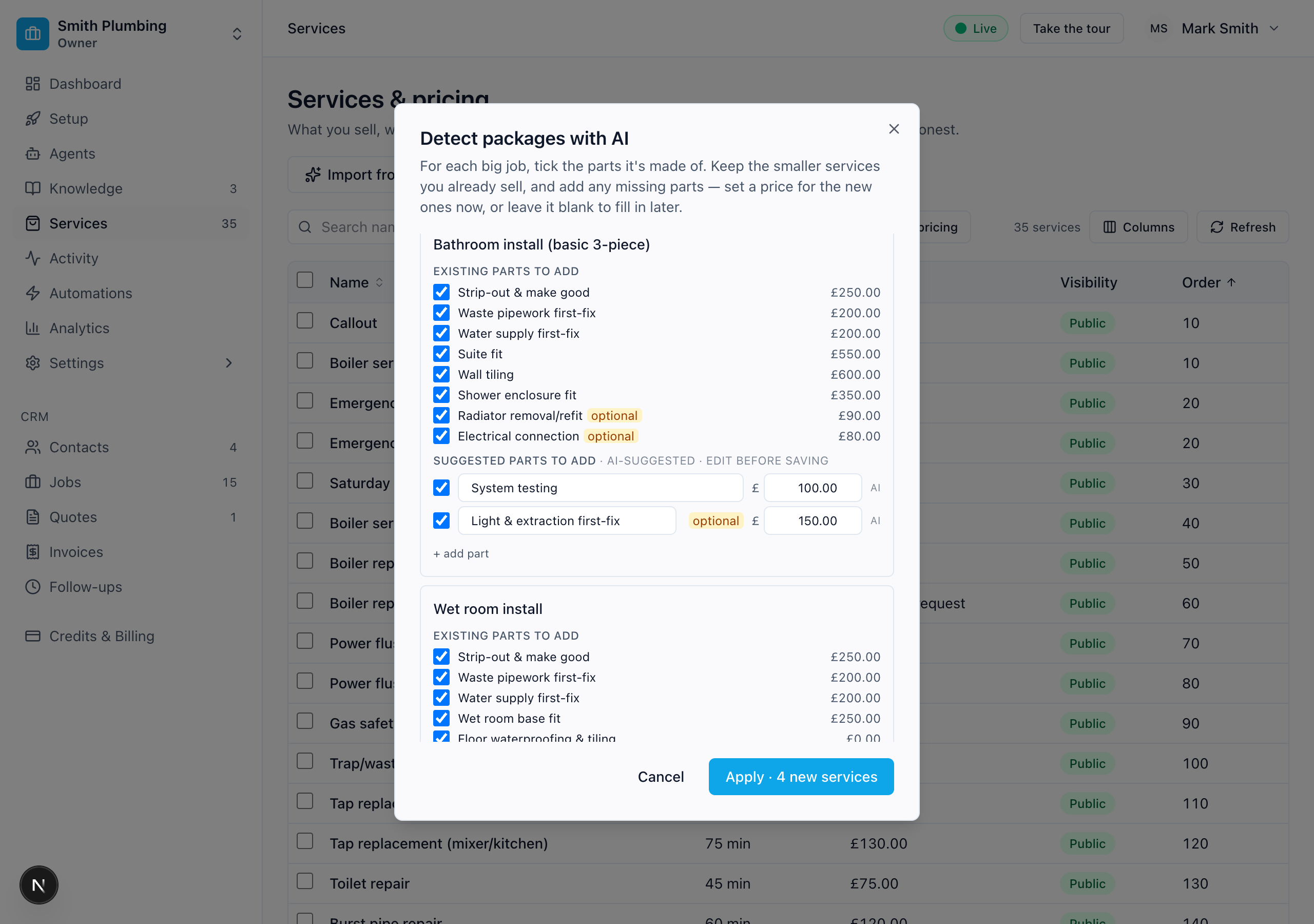 For each big job: existing parts to wire up, plus AI-suggested missing parts with editable name + pre-filled price + an 'ai' tag.
It reads your full list, so give it a few seconds — a spinner tells you it's working.
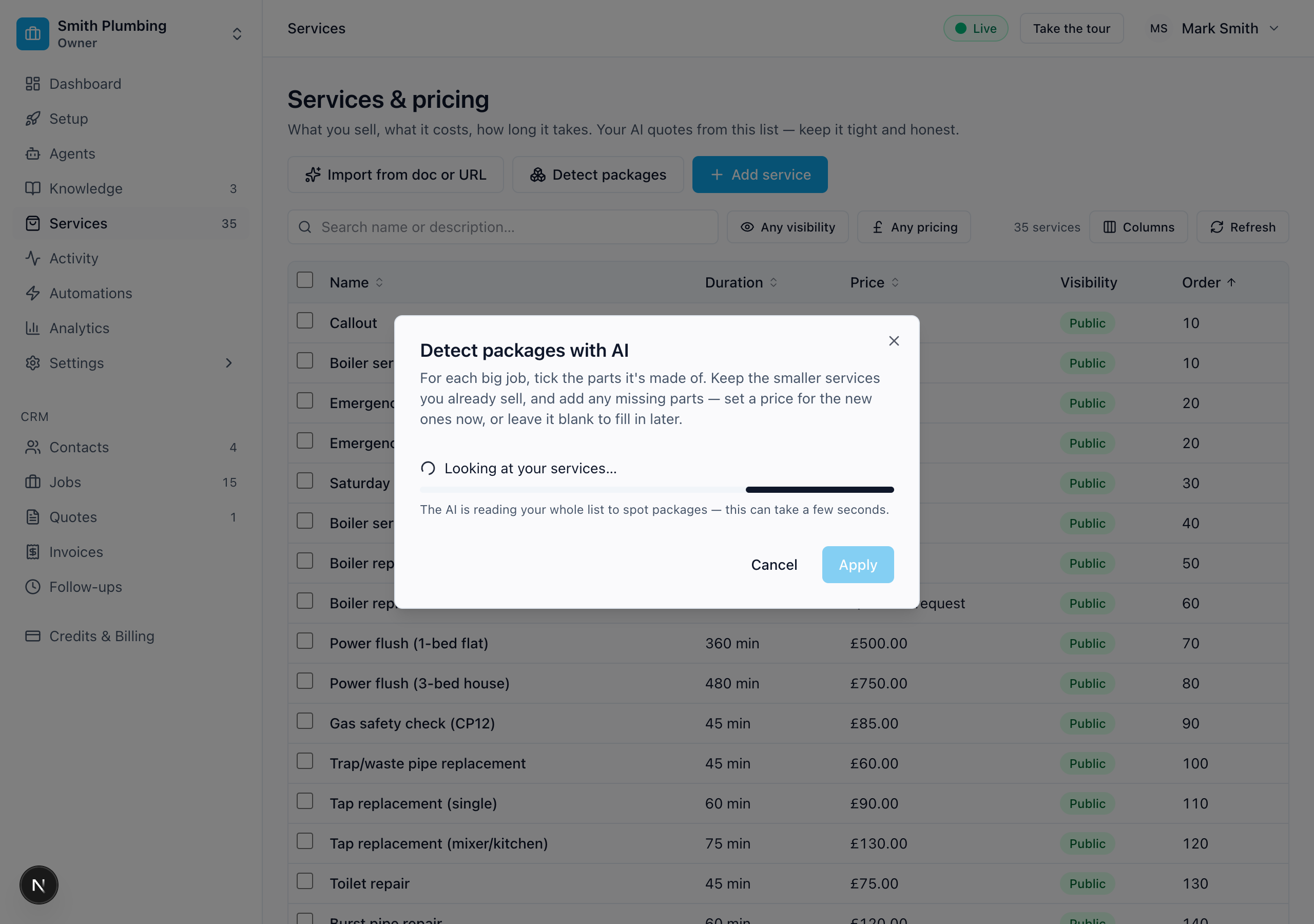 The AI reads your whole catalogue before proposing — a few seconds, not instant.
Everything is ticked by default. For the suggested rows, you can:
- Edit the name in place — rename "Strip-out & make good" to whatever phrasing reads natural for your business.
- Edit the price in place — accept the AI's number, change it on the fly, or clear it to blank if you'd rather price later.
- Untick anything that doesn't apply.
+ add partbelow each package adds an empty row of your own — name and price both blank, ready to type. Click✕to remove a row you added by mistake.
Then Apply. Nothing is saved until you do. A few things it handles for you:
- Item-first names — parts read "Old boiler removal", "Suite fitting", "Wall tiling", so they sort and scan sensibly next to your other services.
- Optional parts — stages only sometimes needed (a radiator move during a bathroom fit) are marked
optional. They're only pulled into a quote when the job's brief calls for them. - No duplicates — if a suggested part matches a service you already have, it reuses it rather than creating a second copy.
- Hidden by default on the booking page — new parts are created with the "Show on public booking page" toggle off, so the booking page stays clean. Sarah still knows about them and will quote them on a call — see the visibility split.
What the AI fills in silently
When the AI is confident, each new part is created with a description, an estimated duration, and a small set of qualifying questions Sarah should ask before the engineer arrives — all in addition to the name and price you can see in the dialog. The dialog doesn't show those fields up front (they'd crowd the row), so after you click Apply the dialog flips to a summary view listing exactly what landed:
✓ Strip-out & make good for Bathroom install ·
ai£250.00 · 240 min · description added · 3 qualifying questions
Click Done to close. Open any of the new services on the Services page to review the description, tweak the duration, or edit the qualifying questions before they go live with Sarah.
2. By hand
Any service can become a package from its own editor. Open a service on the Services page, click Edit, and tick This is a package (built from sub-tasks).
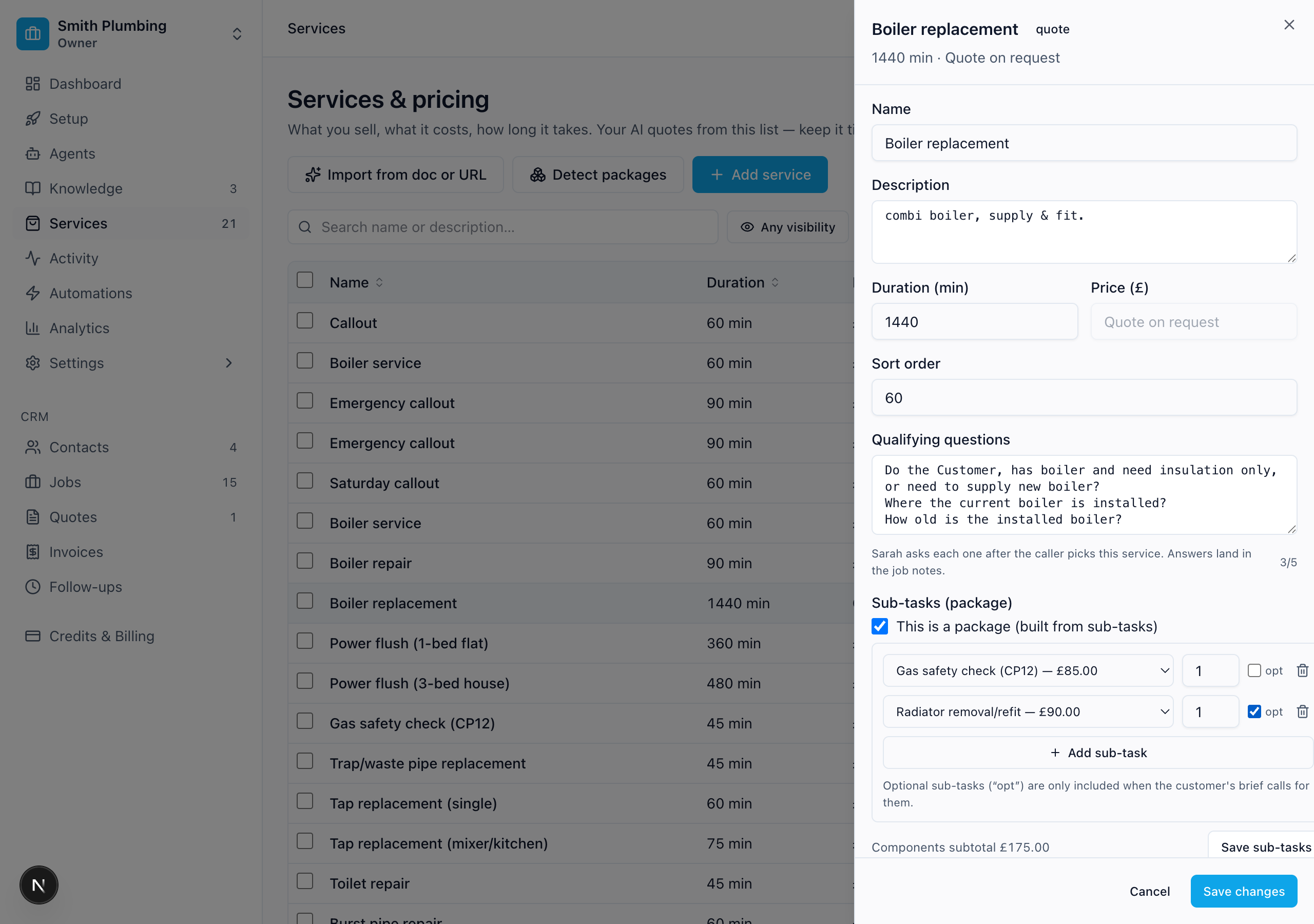 Pick each sub-task from your catalogue, set its quantity, mark it optional — the components subtotal updates live.
For each sub-task: pick the service, set a quantity, and tick opt if it's only sometimes needed. The components subtotal adds up as you go, so you can see the package's built-from-parts price before you save. Save sub-tasks wires it up.
How packages reach the customer
A package never goes out as the word "package". When the job is quoted, it lands on the quote as its individual lines — strip-out, first-fix, tiling, suite fit — each with its own price, optional parts included only when the brief warrants. The customer sees a clear breakdown they can trust; you quote a half-day job in a few clicks.
Where to look when something's off
| Symptom | First place to check |
|---|---|
| Detect packages found nothing | You may only have standalone services — add the big jobs, or build a package by hand |
| It suggested parts you already have | It reuses same-named services; check the part isn't spelled differently |
| New parts have no price | The AI left it blank because it wasn't confident — open each and set the rate. Manual + add part rows are also blank by design. |
| AI's suggested price feels wrong for your business | Edit it in place before clicking Apply, or open the new service afterwards and update — the field is just a starter. |
| A package isn't breaking down on a quote | Confirm This is a package is ticked and it has sub-tasks saved |
| New parts appearing on your public booking page | They're created with the booking-page toggle off; if one's showing, open the service and untick Show on public booking page. |
What's next
- Services — the catalogue packages are built from
- Quotes — where a package becomes a line-by-line customer quote
- Pricing & quotes — how Sarah quotes on calls