 Loyal Receptionist
Getting paid
When Sarah takes a payment from a customer, the money goes to your own Stripe account and then to your bank. You do not need Stripe to start. You connect it the first time money is involved: when you take payment on a call, or when you work with another business.
Connect your Stripe account
- Go to Settings › Getting paid.
- Press Connect a payout account. Stripe opens in the same window.
- Stripe asks for your details, one screen at a time. Have your business details, your bank account and a photo ID to hand. It usually takes a few minutes. The pictures below show each screen.
- When you finish, Stripe sends you back. The card shows Active once Stripe has checked your details. Sometimes it shows Under review first.
What Stripe asks for
These are Stripe's own screens, shown here with test details. Yours show your business name, and no test notice.
First, Stripe checks it is you with a code to your phone.
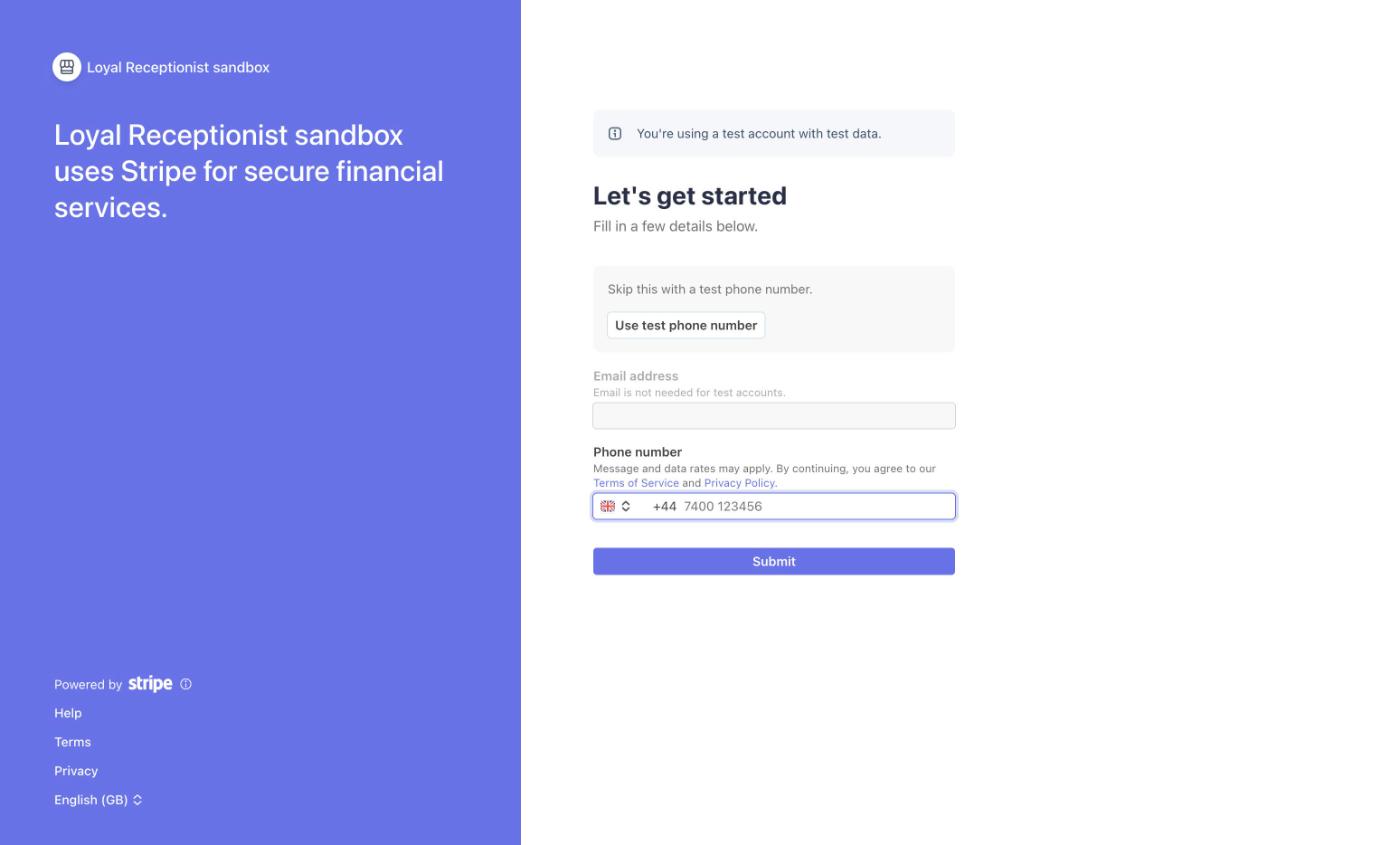 Stripe sends a code to this number.
Then pick your business type. If you have not registered a company, this is usually Individual / Sole Trader.
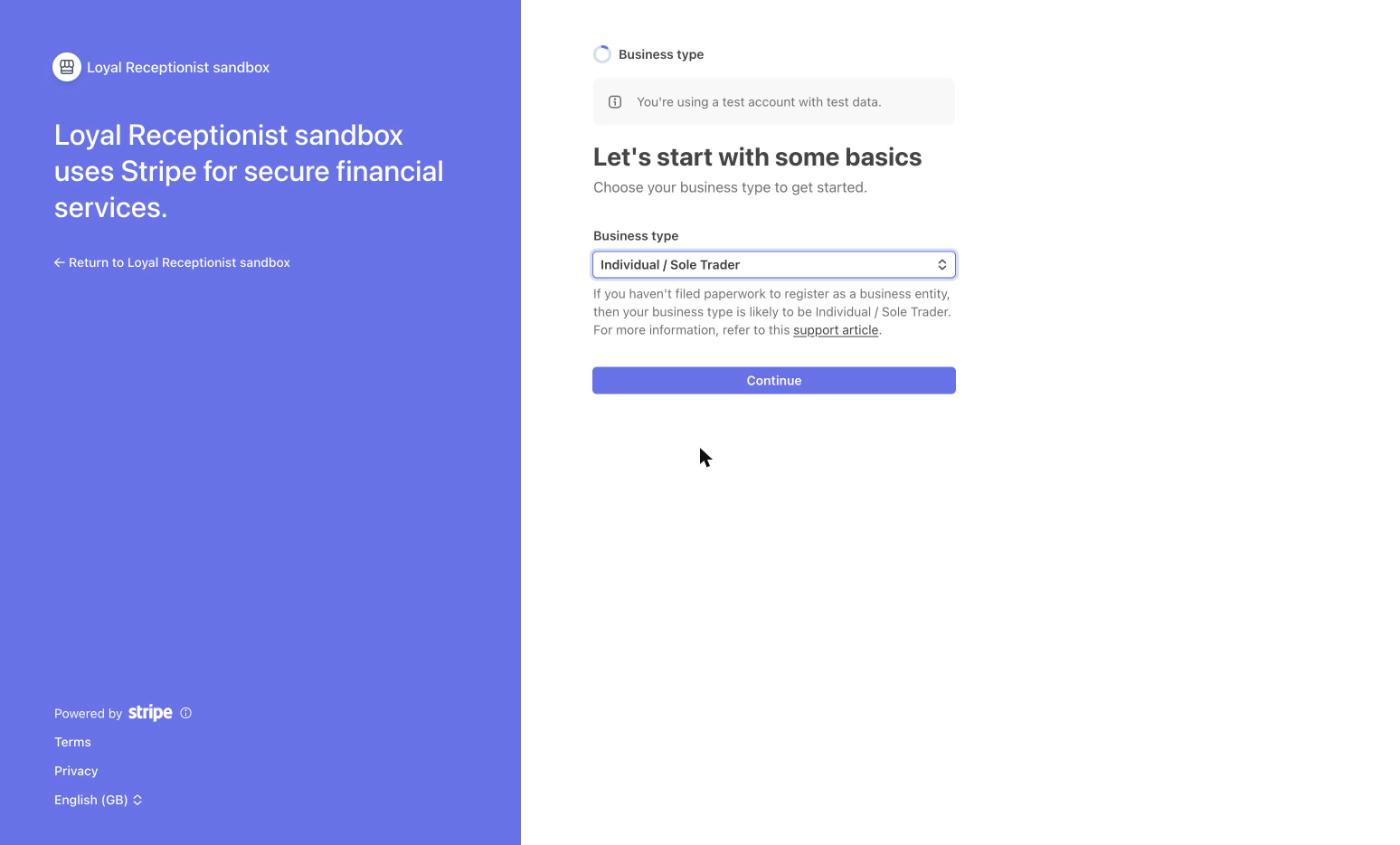 Let's start with some basics.
Add your name, date of birth and home address, as they are on your ID.
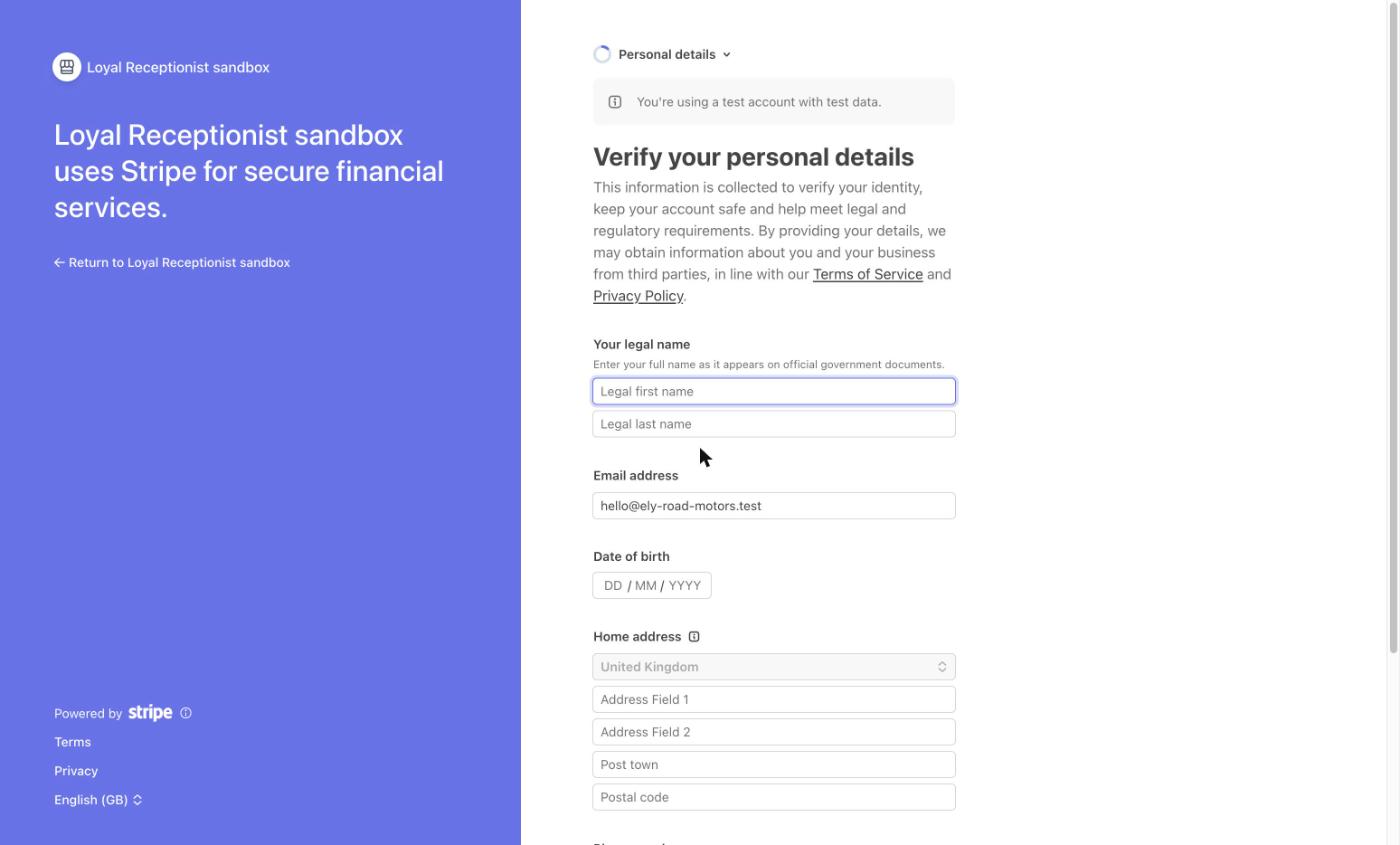 Verify your personal details.
Say what your business does.
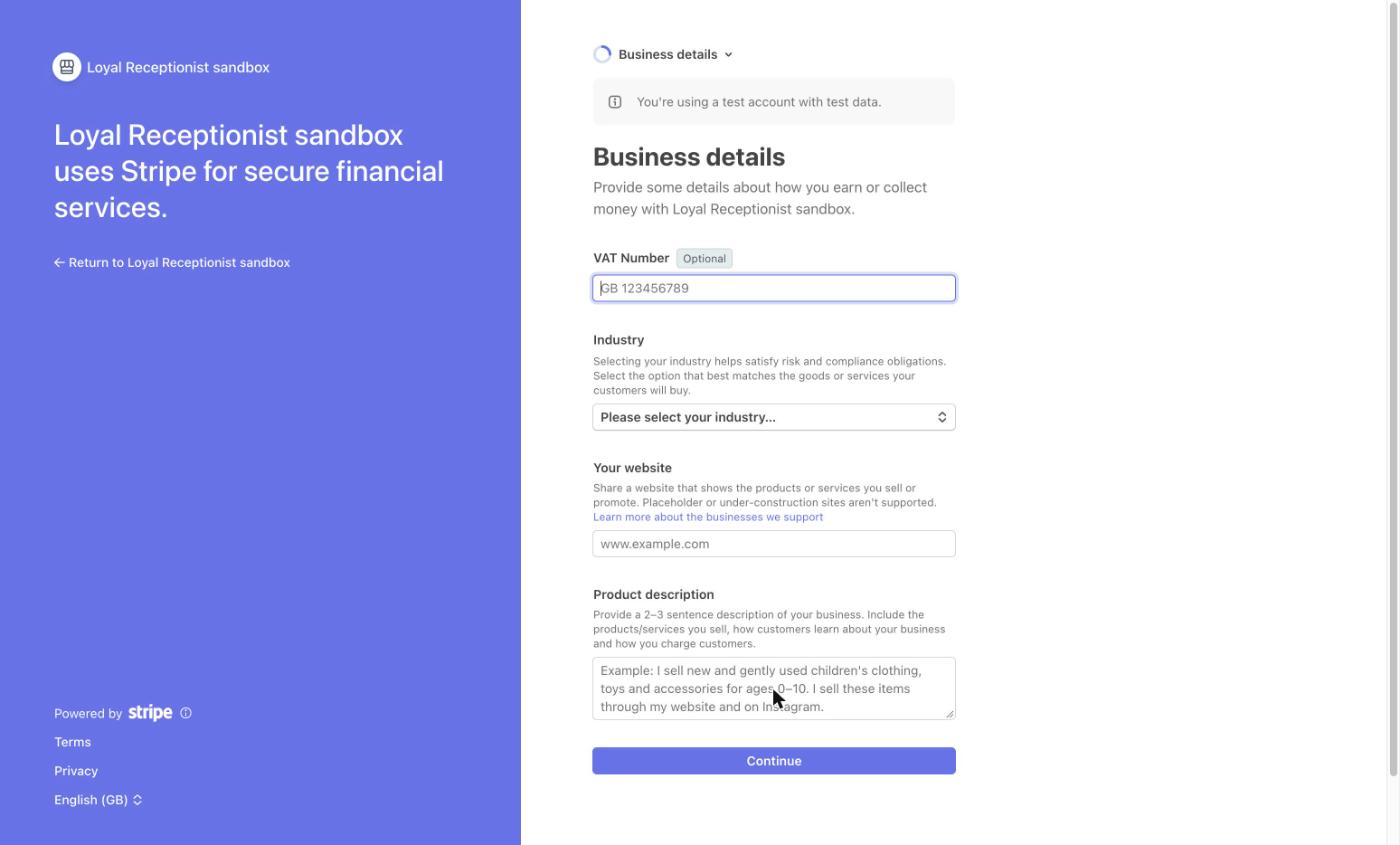 Business details. Stripe asks for your industry, your website and a short description.
Add your bank account. This is where your money lands.
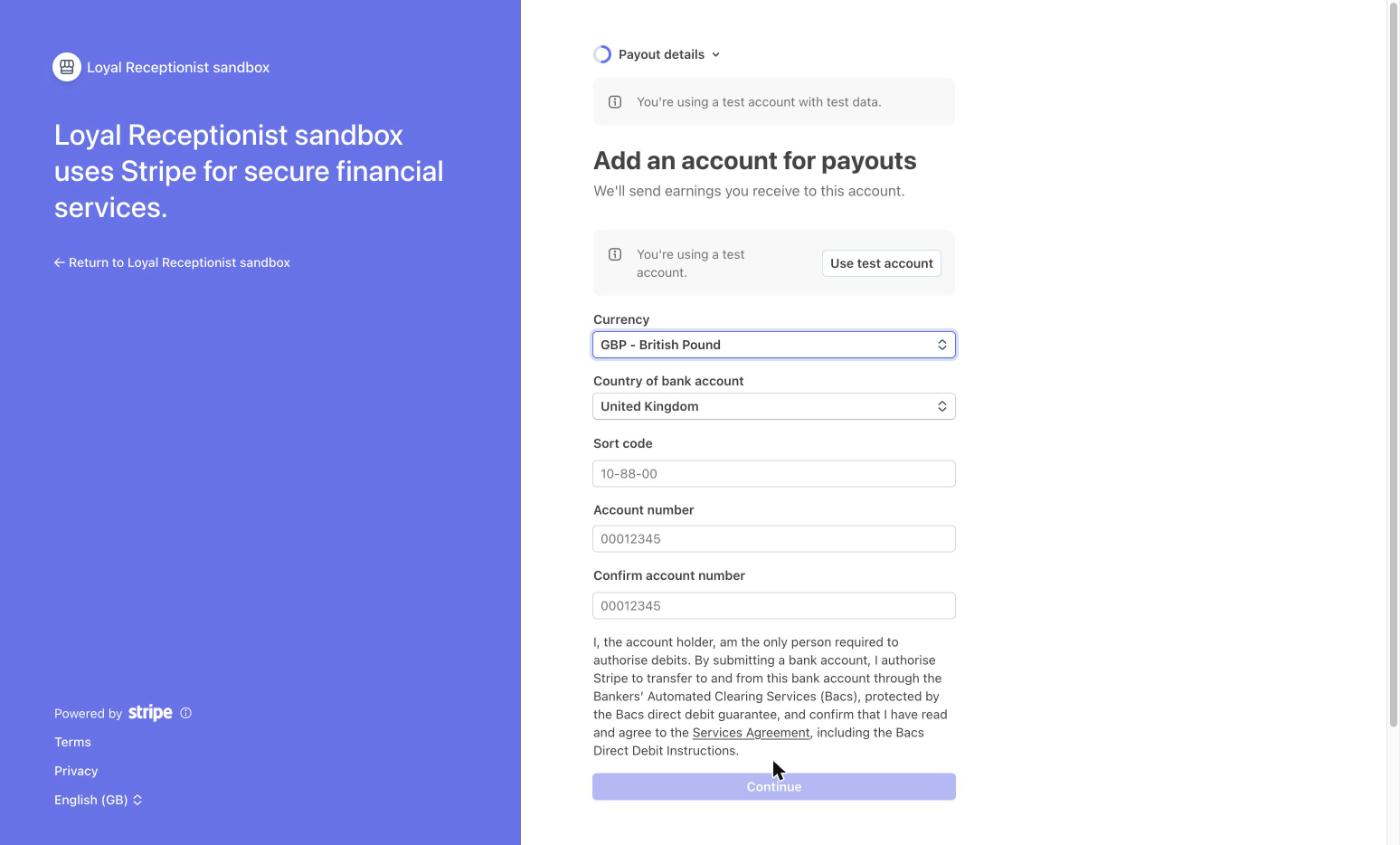 Add an account for payouts.
Check the name your customers see on their card statement. Then review your details and submit.
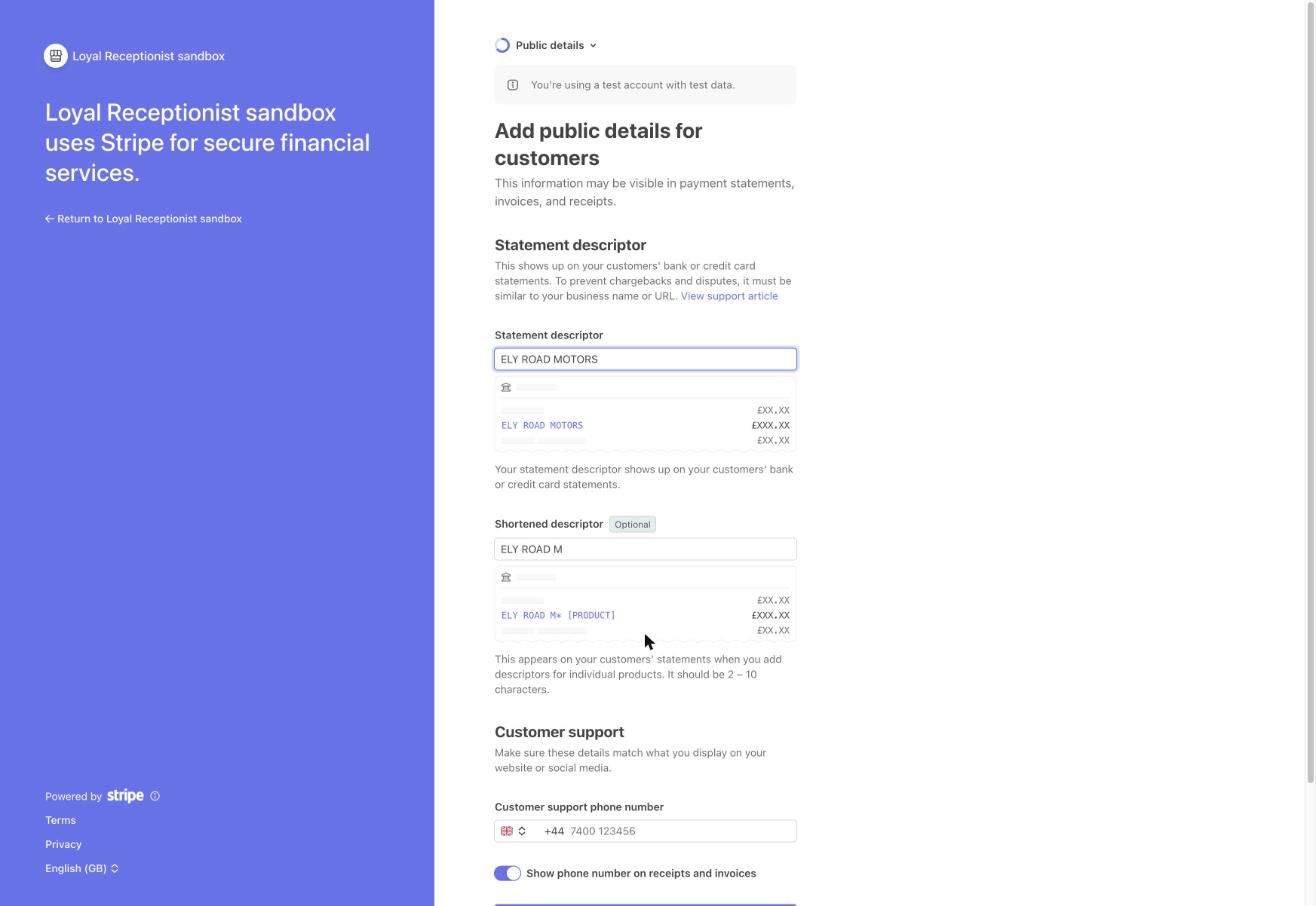 Add public details for customers.
Once it is Active, press Manage payouts & details to see your payments and change your bank account. That page is Stripe's own.
What it costs. Loyal Receptionist takes 1.6% of each payment Sarah collects. Stripe's own card fee applies on top. The rest is yours. The fee is shown on the card, and never added anywhere else.
When the money arrives. The customer pays at once. Stripe pays it into your bank on its own schedule, usually a few working days later. You can see each payout in Stripe.
Take payment on a call
On a service, tick Take payment when it is booked. When Sarah books that service, the customer gets a payment link with the confirmation, and the booking shows Paid when they pay.
Here is what the customer sees. Sarah says she has texted the link, and offers to wait on the line. The customer opens the text and pays on a secure Stripe page in your business name.
The secure Stripe page, from the text. Test card shown.
They come back to a page that says they are paid and booked. When they tell Sarah it is done, she checks with Stripe before she says so.
Back from Stripe: paid and booked. The receipt and confirmation are on the way.
- The payment is in your business name on the customer's card statement.
- Card disputes are between you and your customer, in your Stripe account. You make most refunds there too.
- When a paid job does not go ahead, you can press Refund on the job. It sends the money back through Stripe and writes it in the job's history.
- Sarah needs the customer's email address for a paid booking, so she asks for it.
See what has been paid
Settings › Getting paid lists your last 10 payments under Recent payments: paid bookings and paid invoices, newest first, with the customer and the amount. A payment shows as soon as the customer has paid. Only the owner sees this list.
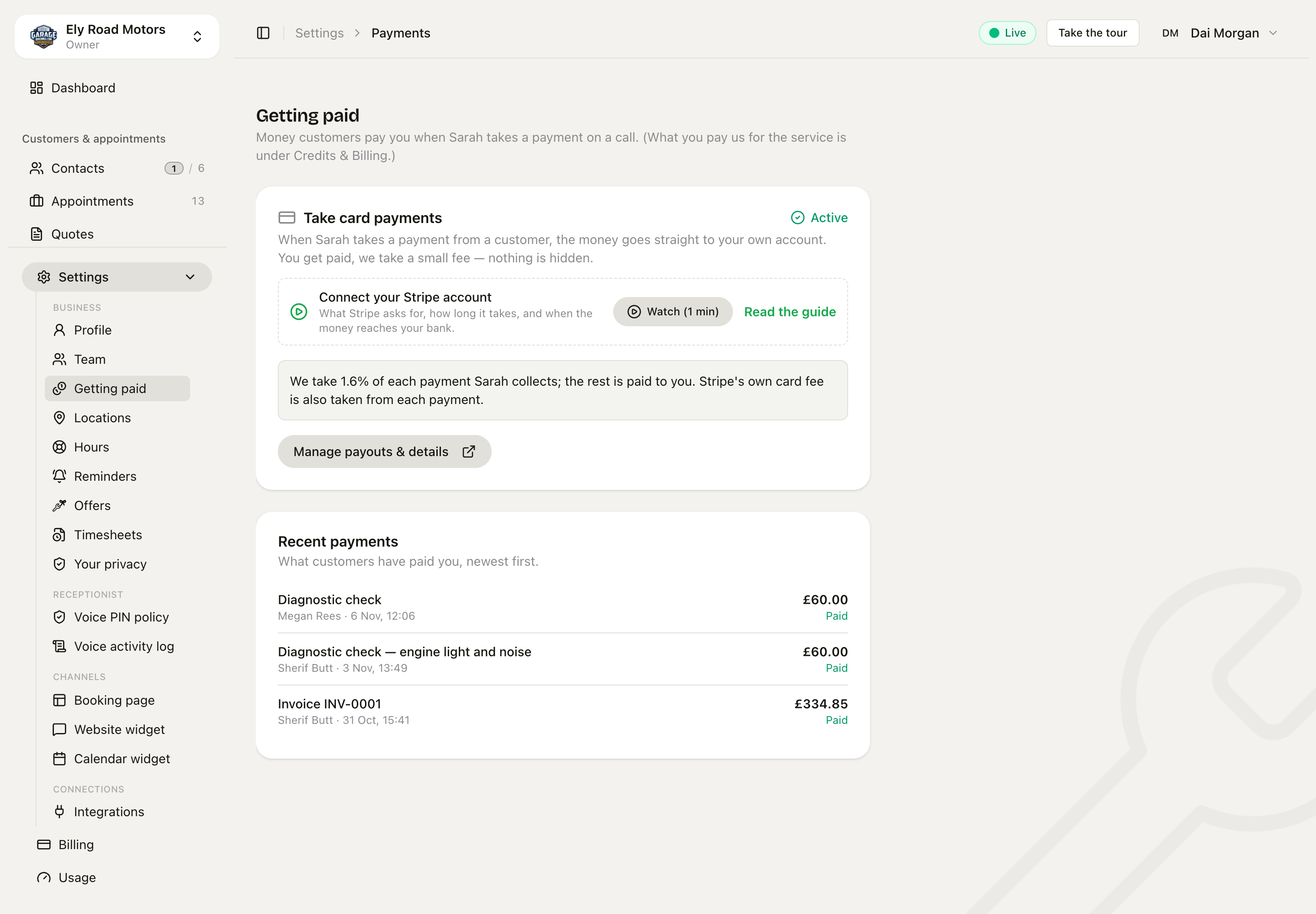 Settings › Getting paid. Stripe shows when each payment reaches your bank.
When you work with other businesses
When you hand work to a partner business, or take work from one (Settings › Team › Contractor network), each job is priced at the price you both agreed in your partner agreement.
- Every job done for another business is listed on the monthly statement: the date, the job, who went, and the agreed price. Open it from Statement beside the business.
- Today, the business that sent the work pays you its usual way. It then presses Mark paid on the statement, and you see it as paid on yours.
- Download CSV gives your accountant the same list.
A price change only applies when both businesses accept it. Until then, the old price stays.
For finding a partner, the agreement and every alert, see Work with contractors.