 Loyal Receptionist
A repair comes in at a managed flat. A car needs a tow. You do not do that work yourself, but you know who does. Today you ring round until somebody says yes.
Now you press one button, or Sarah does it on the call. The first to say yes gets the job. Nobody rings anybody.
Two ways to work together
| One person | A partner business | |
|---|---|---|
| Example | A self-employed plumber | A recovery company with five drivers |
| How you connect | You invite them by email or mobile | You find them, and both businesses say yes |
| Who you send work to | That person | The business. It picks who goes |
| Their account | A free business of their own is made when they join. A text link is still enough to do the work | They have their own Loyal Receptionist account |
| Their price | You set it, or they name it on each job | Written in an agreement you both accept |
| How you see them on your Team page | One row in Working together, the same as a partner business | One row in Working together. You never see their people |
Both ways end in the same place: a partner business. A self-employed plumber is a business of one. Pick the way in that fits. You can use both.
Work with one person
Staff and contractors
| Staff | Contractor | |
|---|---|---|
| Works | your hours | their own hours |
| Gets jobs | you give them | you offer them; they can say no |
| Sees | the jobs board, as you set it | their own jobs only |
| Customer details | as their role allows | first name only, no number, no email |
| Prices and invoices | as their role allows | none |
| Timesheets and payroll | yes | never |
| Pays you | n/a | nothing |
A contractor is still a member of your business. Sarah can put a caller through to them, and you can assign jobs to them.
Add a contractor
- Go to Settings › Team and press + Invite teammate.
- Type their email or UK mobile.
- Under How they work with you, pick Contractor.
- Press Send invite.
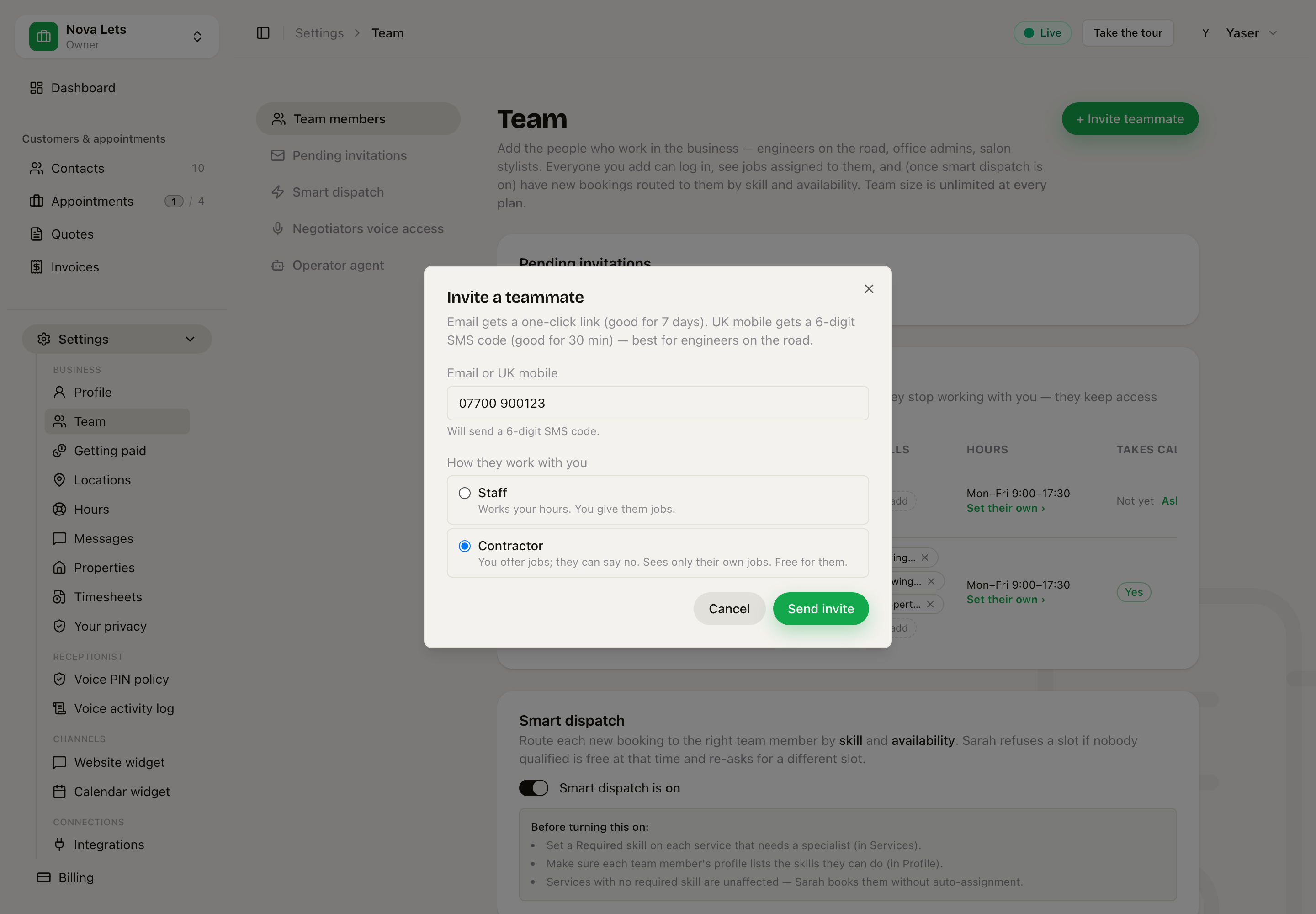 Settings › Team › + Invite teammate. Pick Contractor: they get a link or a code, the same as staff.
They join with the link or code, the same as staff.
When they join, they are linked as a business:
- They already run a business on Loyal Receptionist. Their business is linked to yours. Being an admin at somebody else's business does not count: only a business they own.
- They do not. They are asked for their business name, for example "Lewis Tiling". Leave it empty and their own name is used. A free business of one is made for them.
They show as one row under Working together, with Pay against your set prices and the skills they do for you.
What a business of one looks like
Signing in opens the business they work for, never their own. Their own business is a short page: the businesses they work for, their business name, and an optional Set up my receptionist. It costs nothing while they only work for others.
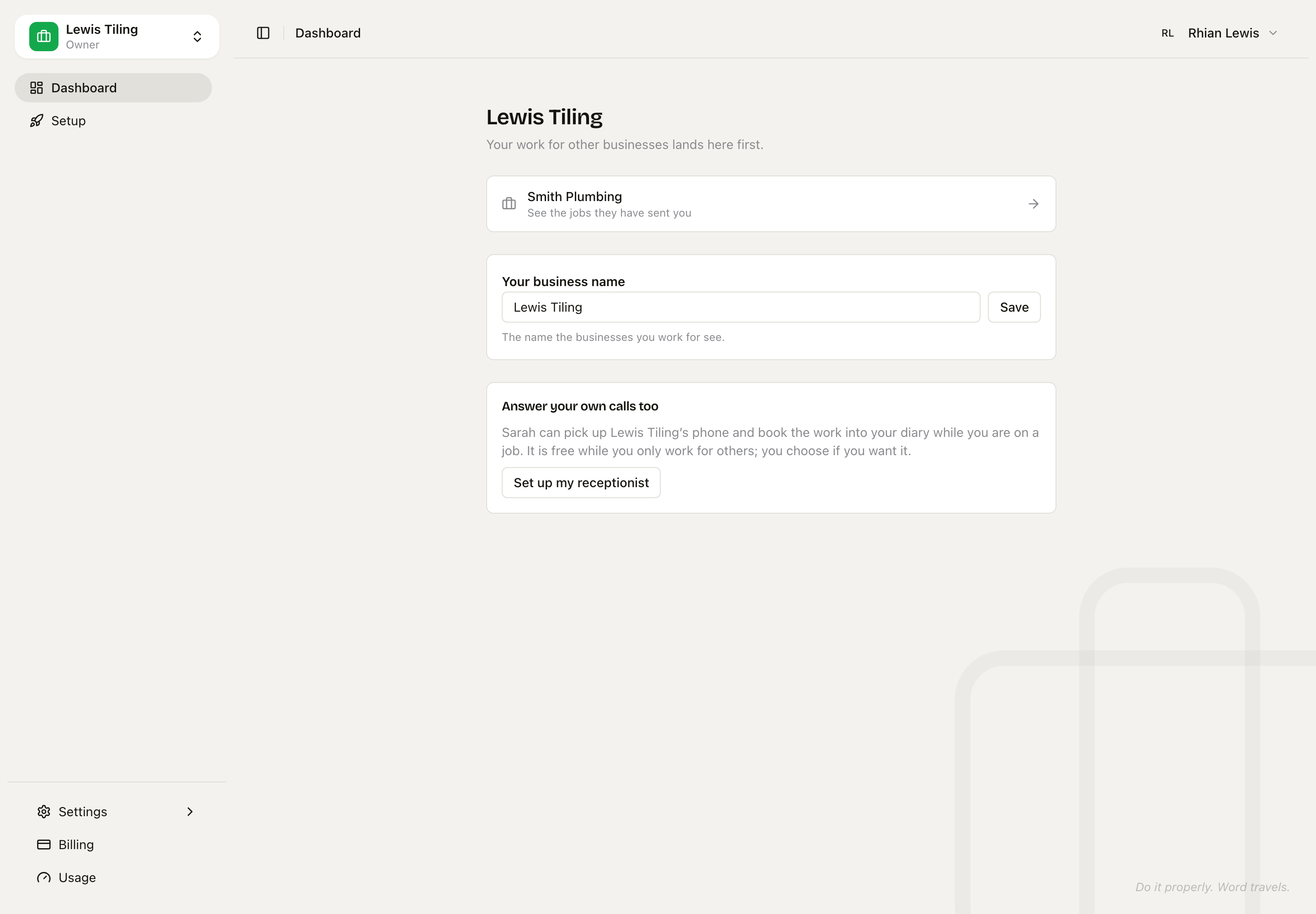 Their own business. One tap opens the jobs a business sent them. Example data.
Meet in person: show a code
You meet a contractor on a job and want to connect there and then. No email, no typing.
- Go to Settings › Team and press Connect in person.
- They point their phone camera at the code.
- They sign in, or make an account, and they are linked as a contractor.
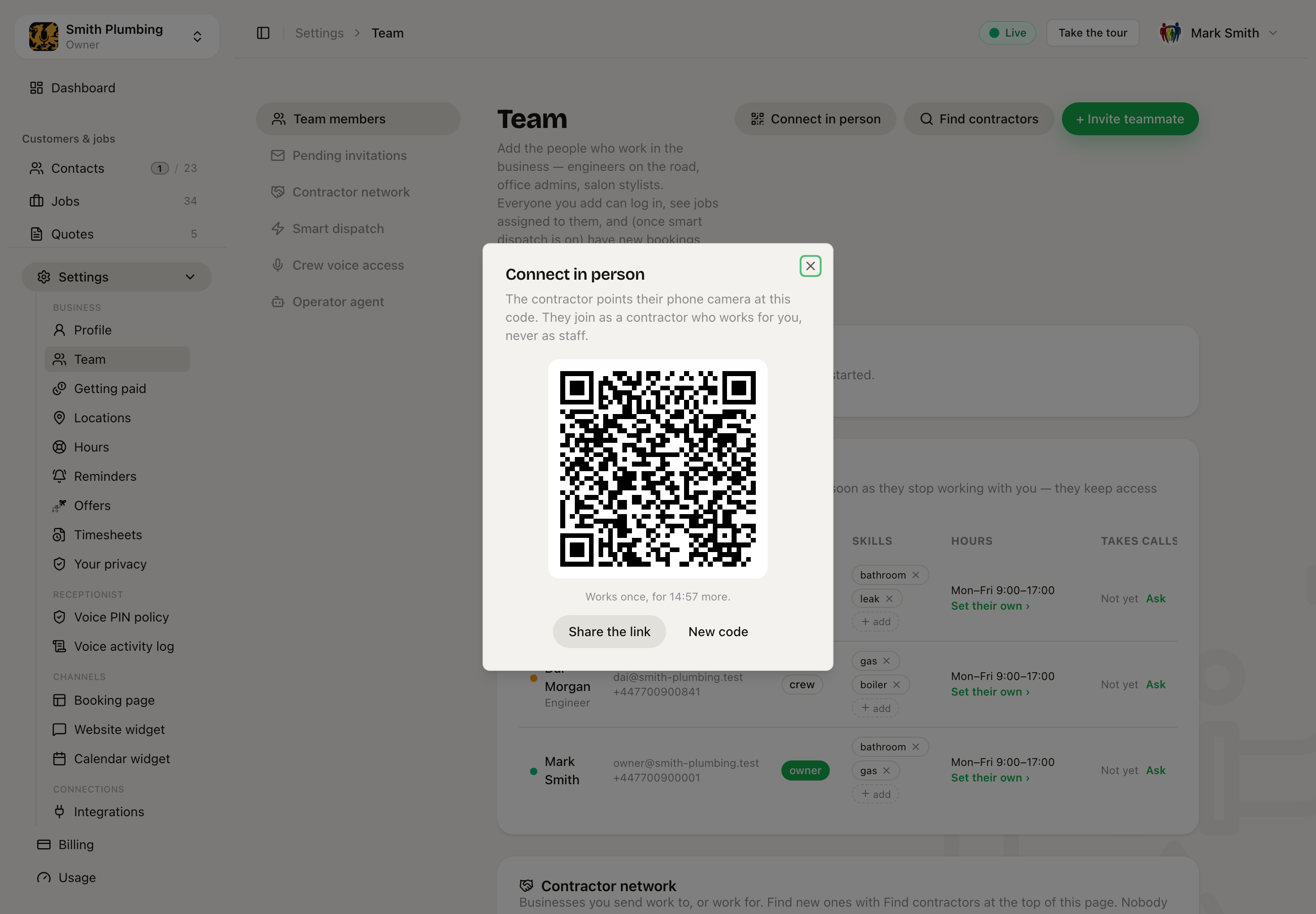 Settings › Team › Connect in person. The code works once, for 15 minutes. Share the link sends the same thing by message.
The code works once, for 15 minutes. Press New code for a fresh one. A code can only make a contractor, never staff. In the phone app it is under Settings › Connect in person.
Offer a job
- Open the job and press More at the bottom of the sheet, then Offer to contractors. You see this only when nobody holds the job yet.
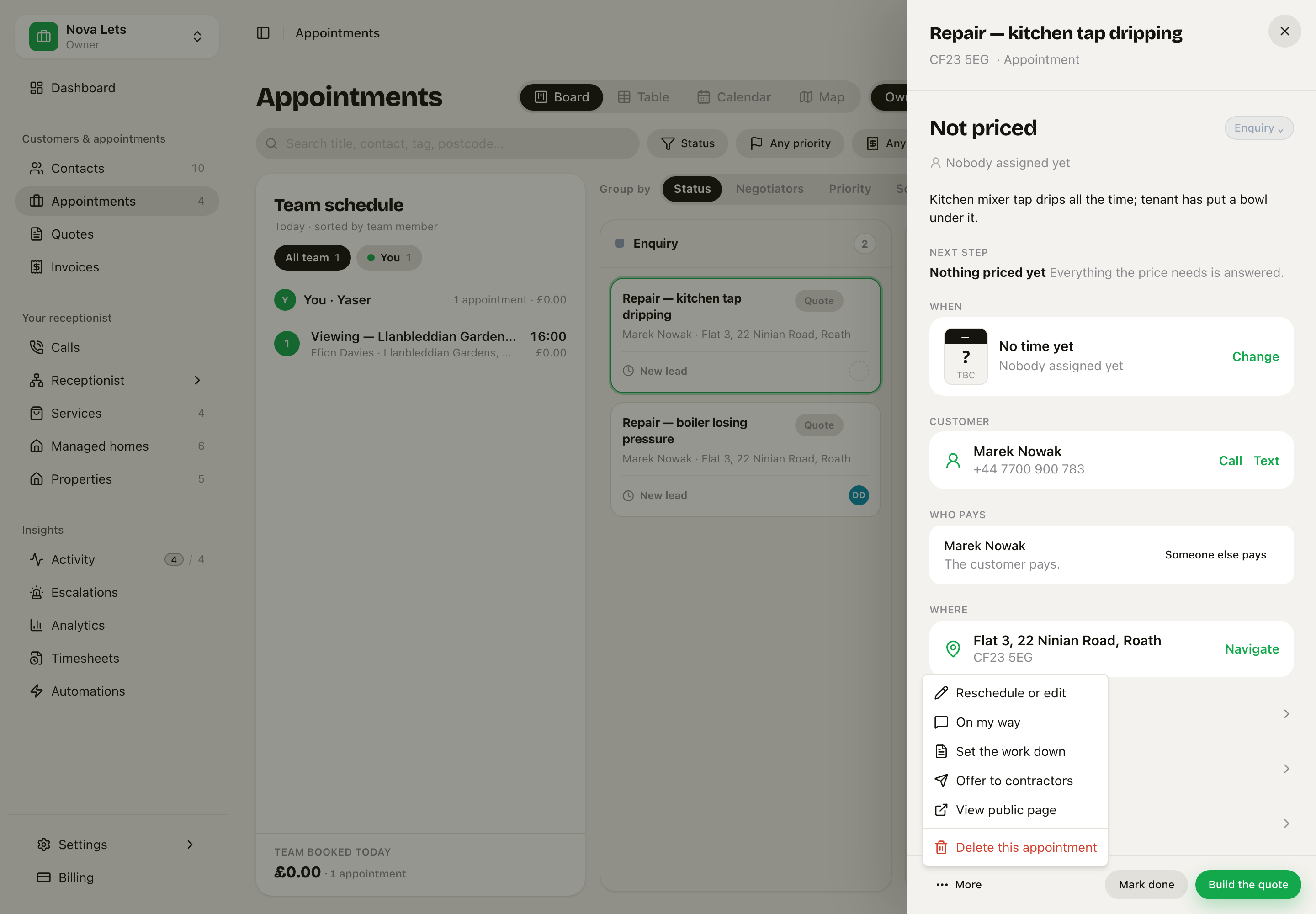 Appointments › open the job › More › Offer to contractors.
- The best few are ticked for you: the ones with the right skill, nearest first. Change the ticks if you want.
- Press Offer it.
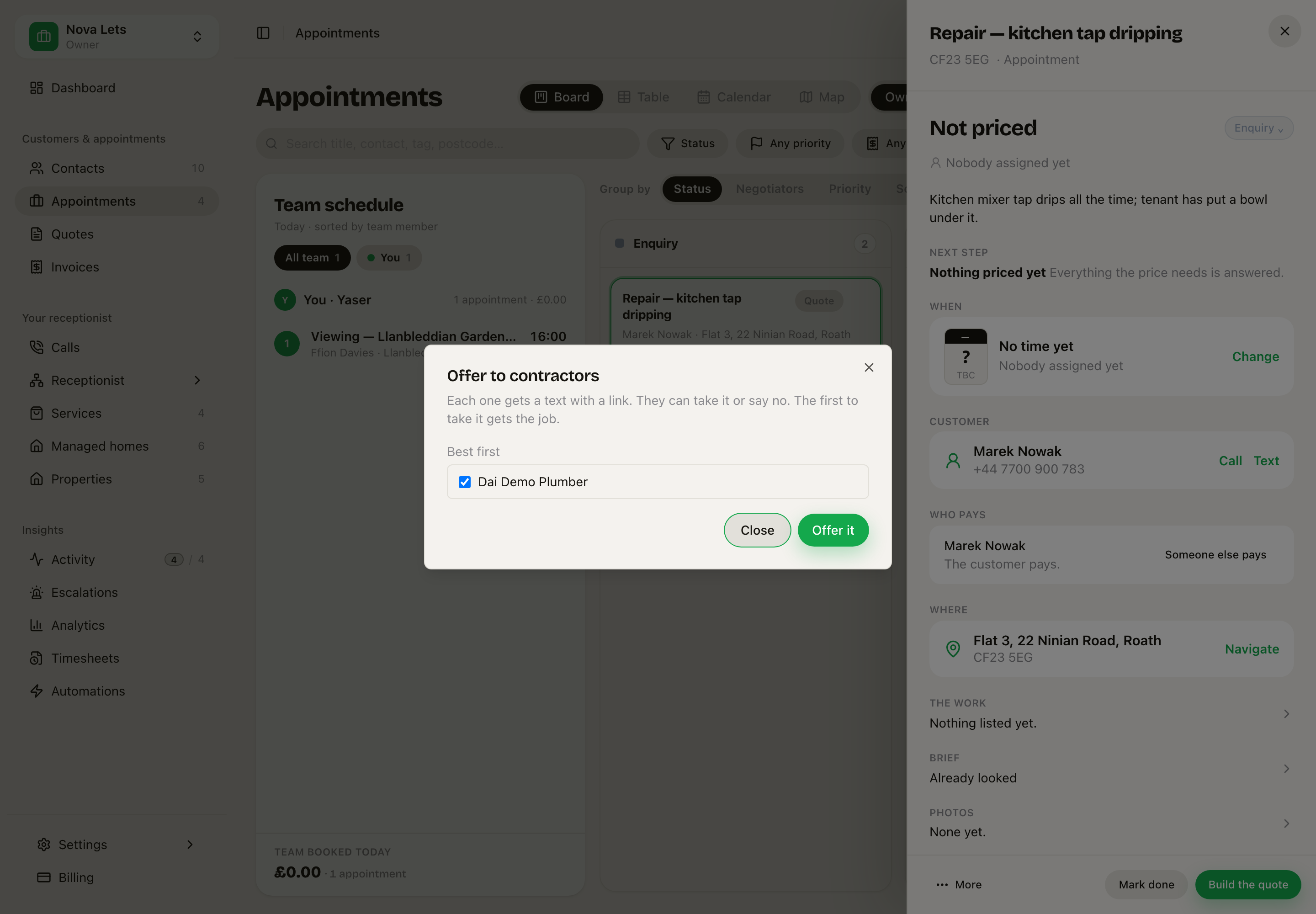 Dai is ticked. Offer it sends a text with a link.
Each one gets a text with a link. The first to take it gets the job. See Every alert, in order.
Partner businesses that do this work are in the same box. Ticking one hands the job to that business.
You can still give a job to someone by hand. Any offers still open on that job close.
No app needed
A contractor does not need to download anything. When a job is theirs, they get a text with a link to it. The link shows:
- the job, the address and the customer's first name;
- a button to add photos;
- a box to send you their price for the job;
- Mark the job done.
The customer's phone number is never on the page. It says to ring your office for access.
On a phone, from the text: the job, photos, their price and Done. No app, no password. Example data.
If they sign in to the phone app once, their jobs go there from then on.
What you pay them
Their price is what they charge you, not what your customer pays. It lands on the job's History as a note. You build the customer's quote from it, with your own margin.
There are two ways to pay for a job.
- You set the price. Open the service on Services and fill in Set price for a contractor, for example £85 for a plumbing repair. They see the figure in the offer before they take it. They do not send a price of their own.
- They name a price. Leave Set price for a contractor empty. They send you a price from the job.
Pay one contractor more or less
On Settings › Team › Working together, their row has Pay against your set prices. It takes one percentage and moves every set price for them.
- +10 pays 10% more: an £85 job is £93.50.
- -5 pays 5% less: an £85 job is £80.75.
- Empty pays the set price.
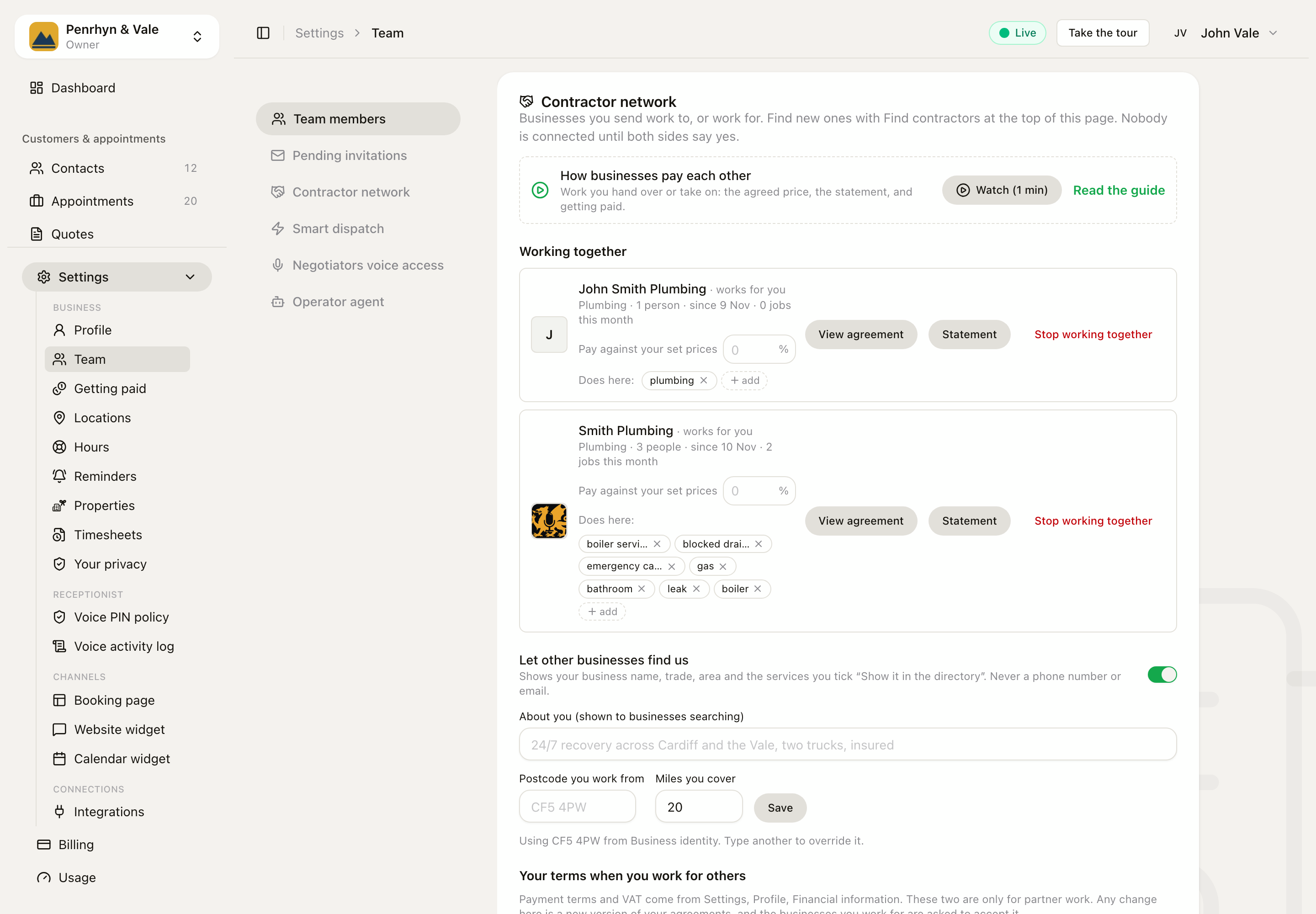 Settings › Team › Working together. Each business has its own pay box and the skills it does for you. Example data.
The pay is part of your agreement with them. A change is sent to them to accept. Until they say yes, the row says Waiting for them to accept and the old pay stays.
The Offer to contractors box shows each person's own figure before you send. When they take the job, the pay goes on the job's History, for example:
Dai Pritchard takes this at the set price of £93.50 (£85.00 +10%).
Repairs by type
Each kind of repair is a service, for example "Plumbing and water repair" or "Doors, windows and locks repair". Each one has a Required skill, and none of them is on your public booking page.
You do not need to make them by hand. At setup, the Services step asks one question:
- an estate agent: Do you manage homes for landlords?
- a builder: Do you send parts of a job to other trades?
Press Yes, add these and they are added for you. Already set up? Go to Services › Add service › Import a list › From template and tick the same question.
Then give each contractor their skills on Settings › Team. The skill list there already has the skills your repair types need.
When a tenant reports a repair, Sarah puts it on the right type. Then Offer to contractors ticks the people with that skill first.
When a contractor has logged time on the job, they see it beside the price box ("Your time on this job: 3h 10m"), and your note says it too:
Dai sent a price of £140.00 (3h 10m on the job): new valve
In the phone app the same box is on their job screen, under Your price.
Where they are, and their time
- Location. Their phone's location is kept only while they hold one of your jobs, from when they take it to when it is done, and only on the day it is booked or while it is under way. A job next week does not let you see where they are all week. Your working hours do not apply to them. Their pause switch still works.
- Time. Their logged time is never on your timesheets or in the payroll export. It is there to help them price the job.
Work with a partner business
A partner is a whole business with its own account, its own team and its own diary. You work with the business, and the business decides who goes. You never see or manage its people.
Find a business
Find contractors is at the top right of Settings › Team, beside + Invite teammate.
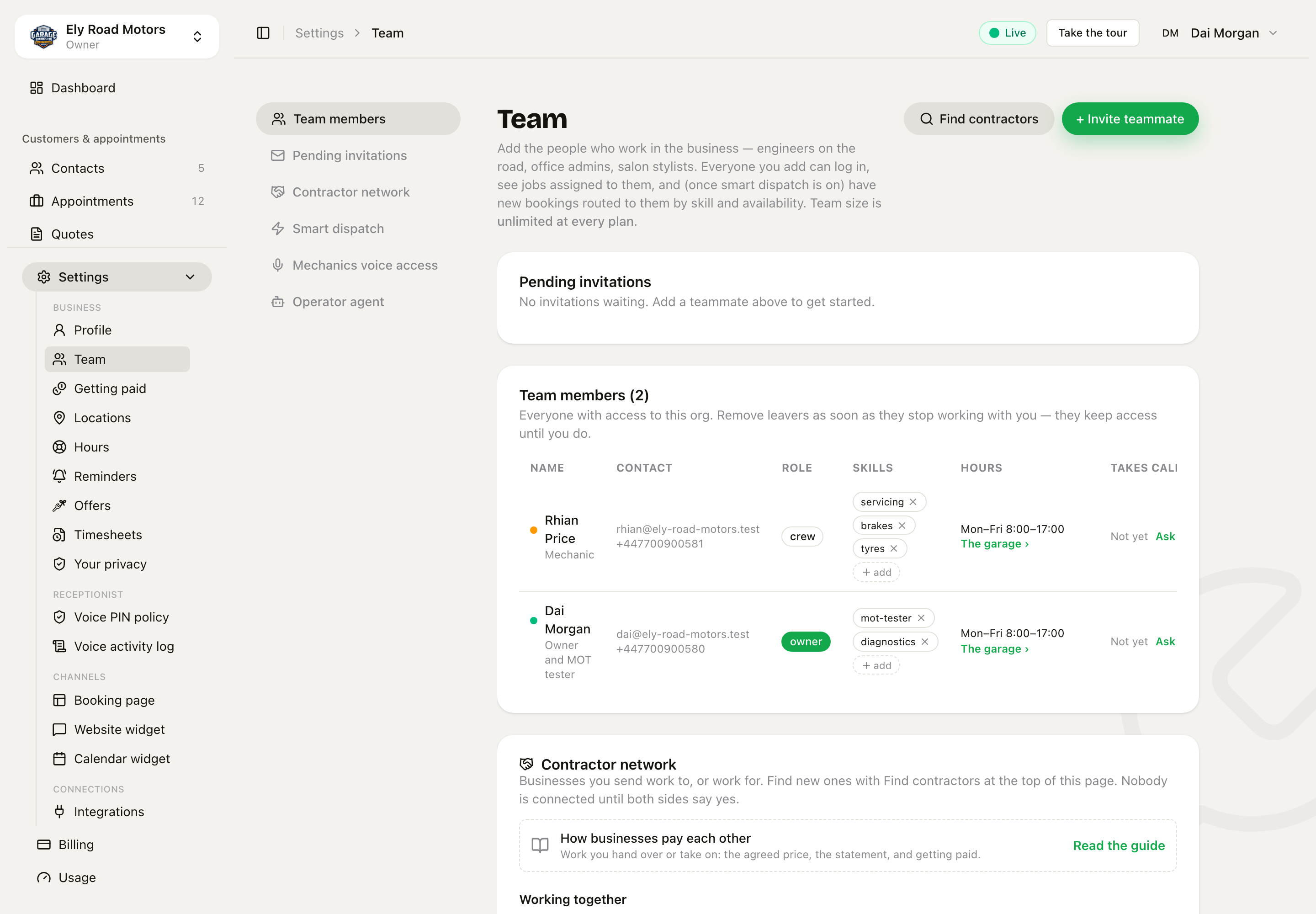 Settings › Team. Find contractors is at the top right. Contractor network is further down the same page.
- Press Find contractors.
- Type What work ("towing") and Near (a postcode). You can also pick a Business type.
- Press Search.
- Press the heart to save a business. Saved businesses come first, and Saved only shows just those.
- Press Send request, add a note if you want, and press Send.
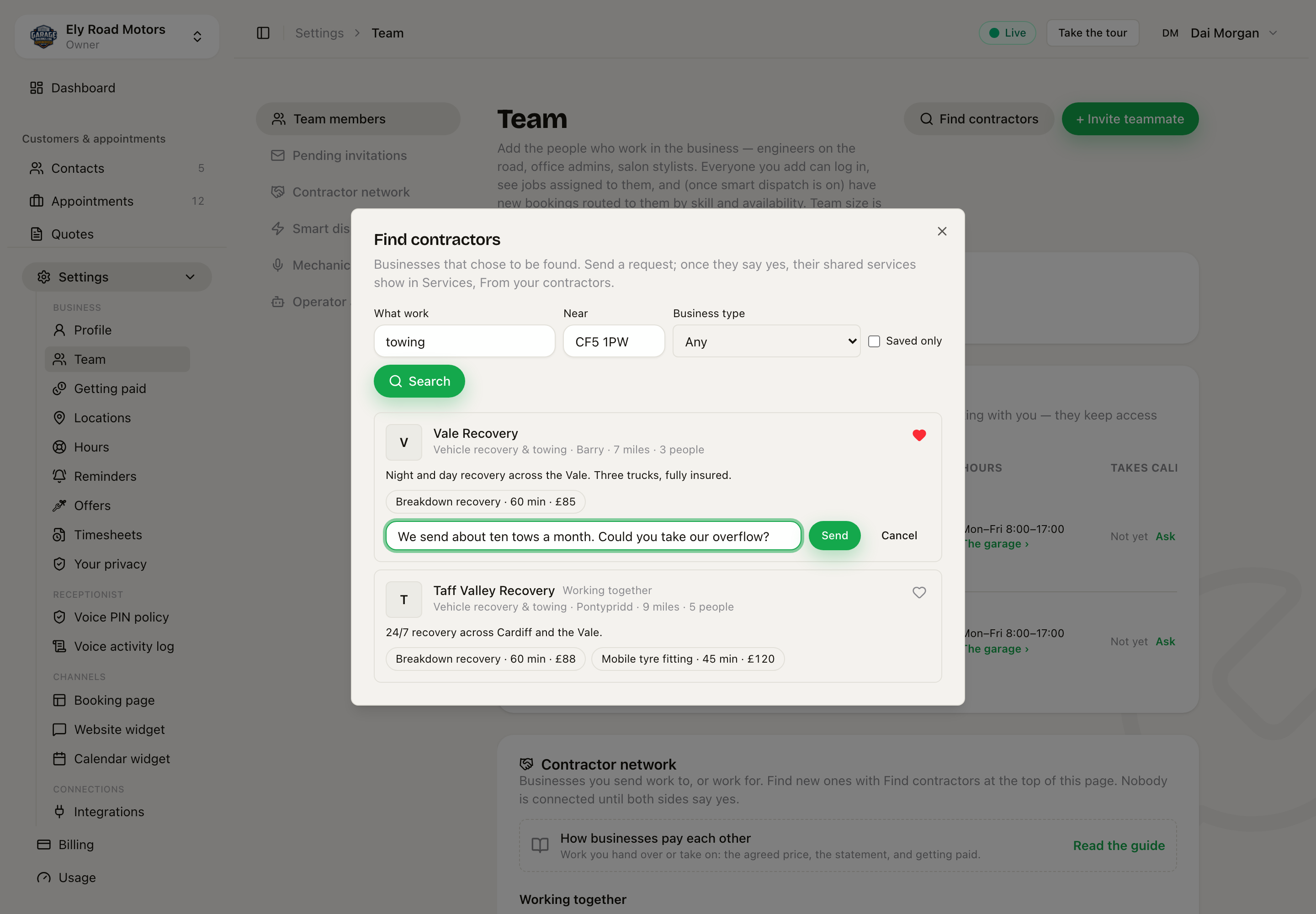 Each result shows the area, the distance, the team size and the shared services with their prices. Press a service to read its description. Example data.
You can send 10 requests a day. If a business says no, you can ask again after 30 days.
Let others find you
Nobody is listed unless they choose to be. To be found, go to Settings › Team › Contractor network.
- Turn on Let other businesses find us.
- Fill in About you, Postcode you work from and Miles you cover, and press Save.
Other businesses see your name, trade, area and the services you show. They never see a phone number or an email.
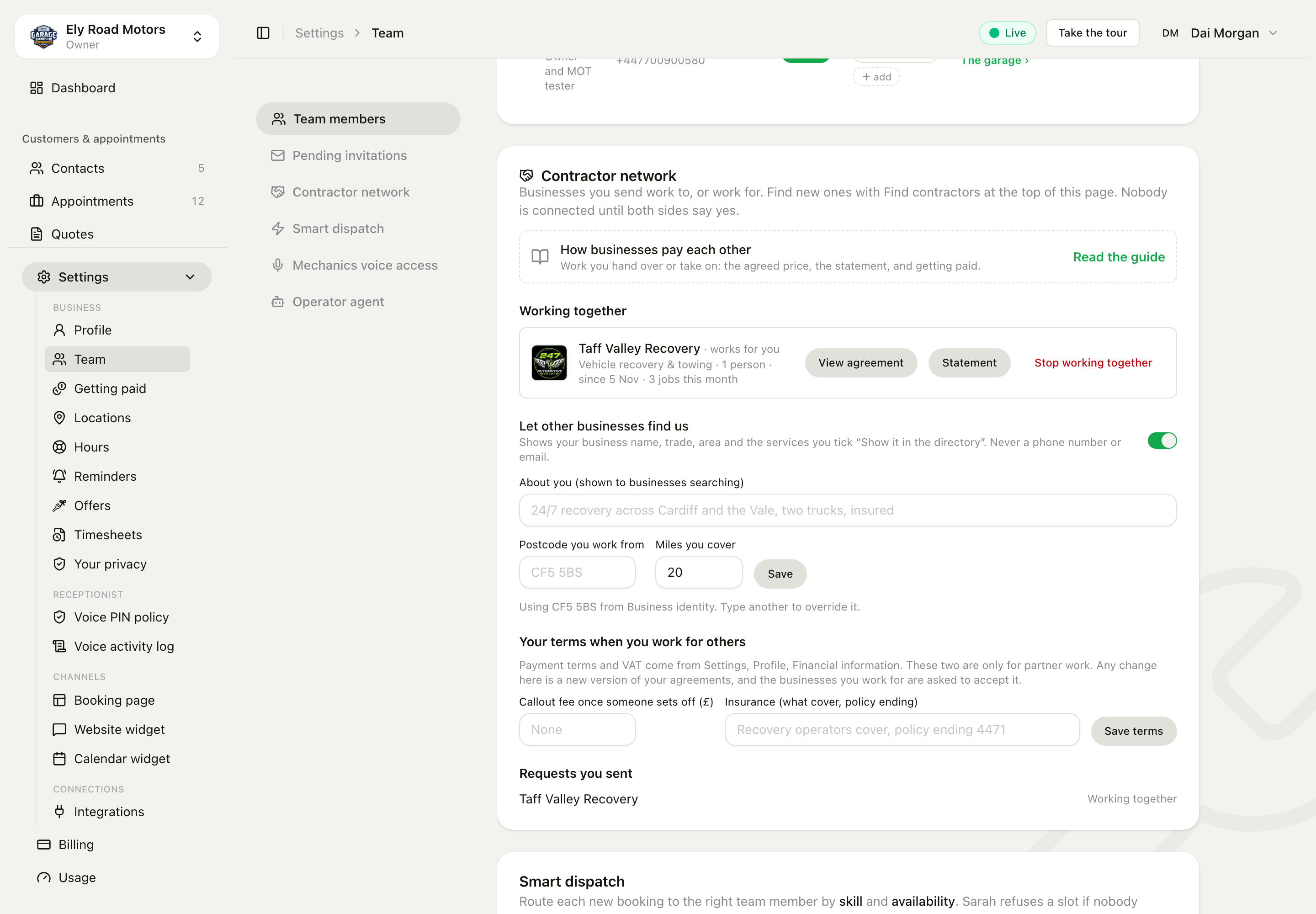 Settings › Team › Contractor network. Working together is at the top. Below it: how you are found, and your terms.
Share a service
A business can send you only the work you choose to share. Open the service on Services, press edit, and find Working for other businesses.
| Setting | What it does |
|---|---|
| Offer this to businesses I work with | Shares this service with businesses you work with |
| Show it in the directory | Shows it when others search in Find contractors |
| How I take this work | Ask me first: you say yes and set the time. Book my free time: their Sarah books straight into your diary |
| Offers go to | The office: an owner or admin says yes and picks who goes. Everyone who can do it: up to three free people with the skill, and the first yes wins |
| Least notice | The shortest notice you accept, in minutes |
| My price to businesses | What a business pays you. Empty means your normal price |
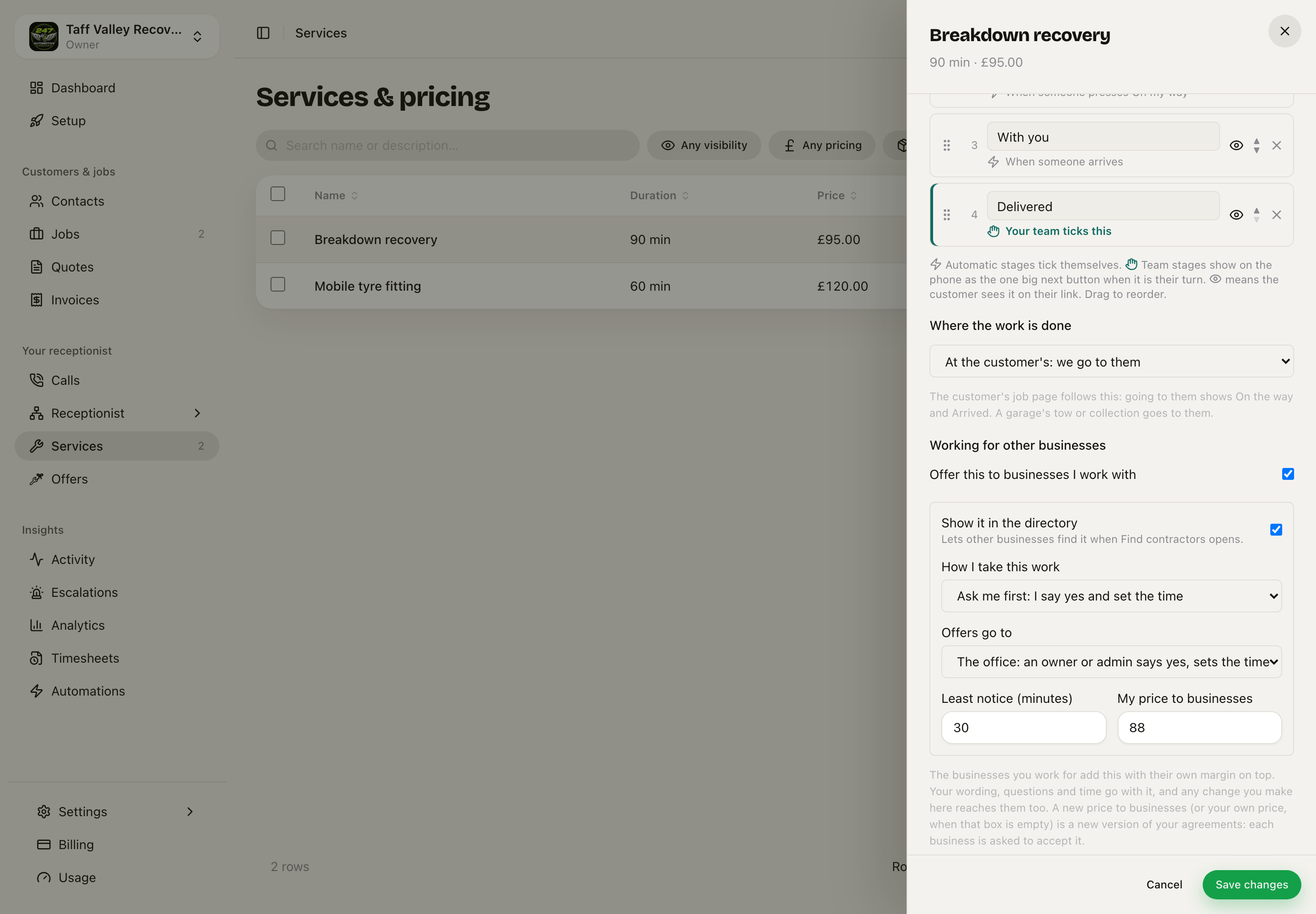 Services › open the service › edit. You own the wording, the questions, the time and the price.
Your terms when you work for others are on the Contractor network card: your Callout fee and Insurance. Payment terms and VAT come from Settings › Profile › Financial information.
Answer a request
The owners of the business get an email: "Ely Road Motors would like to work with you". The request also shows on Settings › Team › Contractor network, under Asking to work with you.
- Accept shows what you agree to. Press Accept and work together to connect. Your terms become version 1 of the agreement.
- Turn down says no.
- Block stops that business asking again. To them it reads as a plain no.
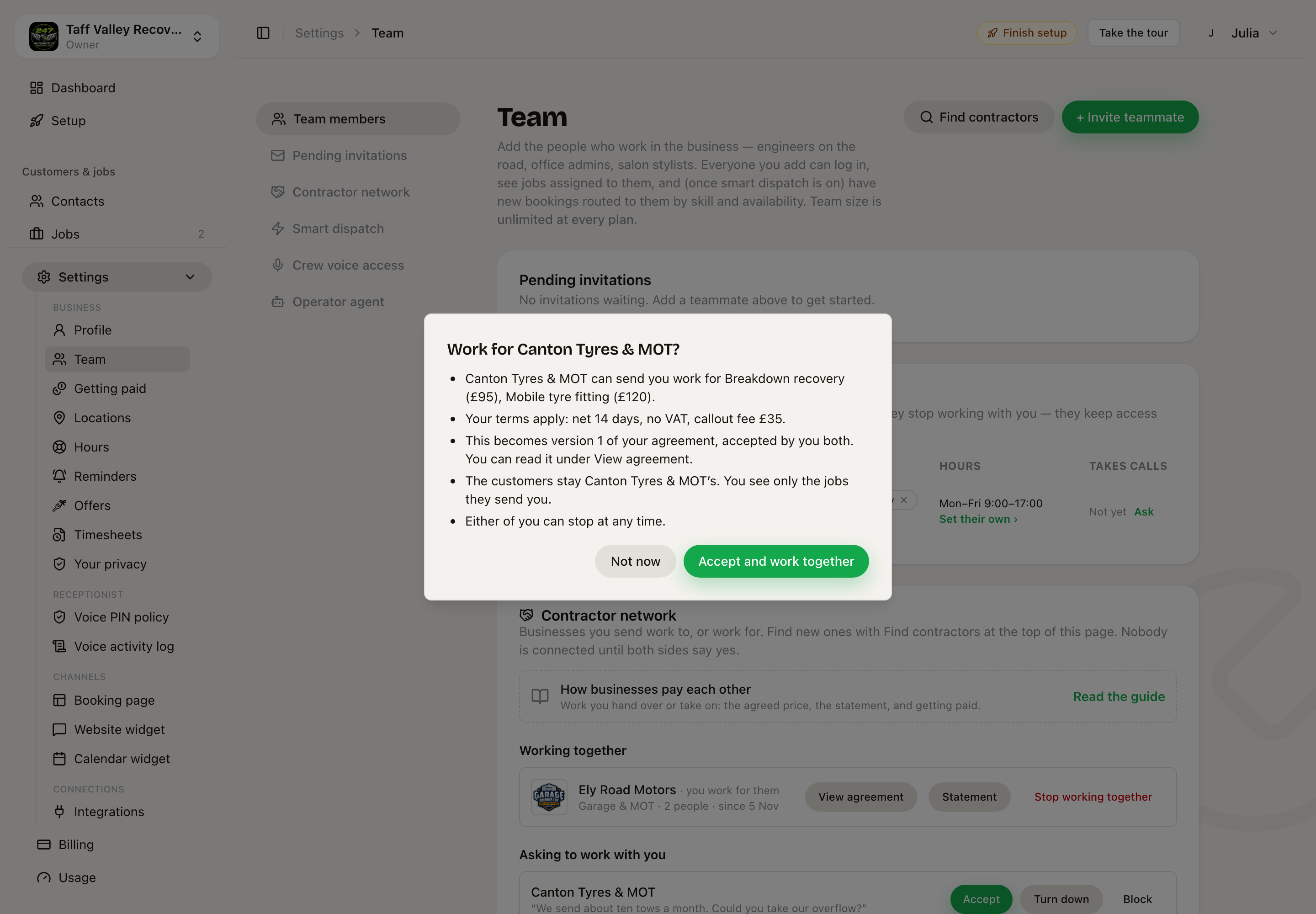 Before you accept, you see the work, the prices and the terms that become version 1. Example data.
Your request shows Waiting for an answer, Working together or Said no under Requests you sent. There is no email back, so check this list.
Add their service, with your margin
Once you work together, their shared services are ready for you to add.
- Go to Services › Add service › From your contractors.
- Tick the services you want. Search, or press a business's name to see only theirs. Compact and Detailed change how much each one shows.
- Type one Margin at the bottom and press Add.
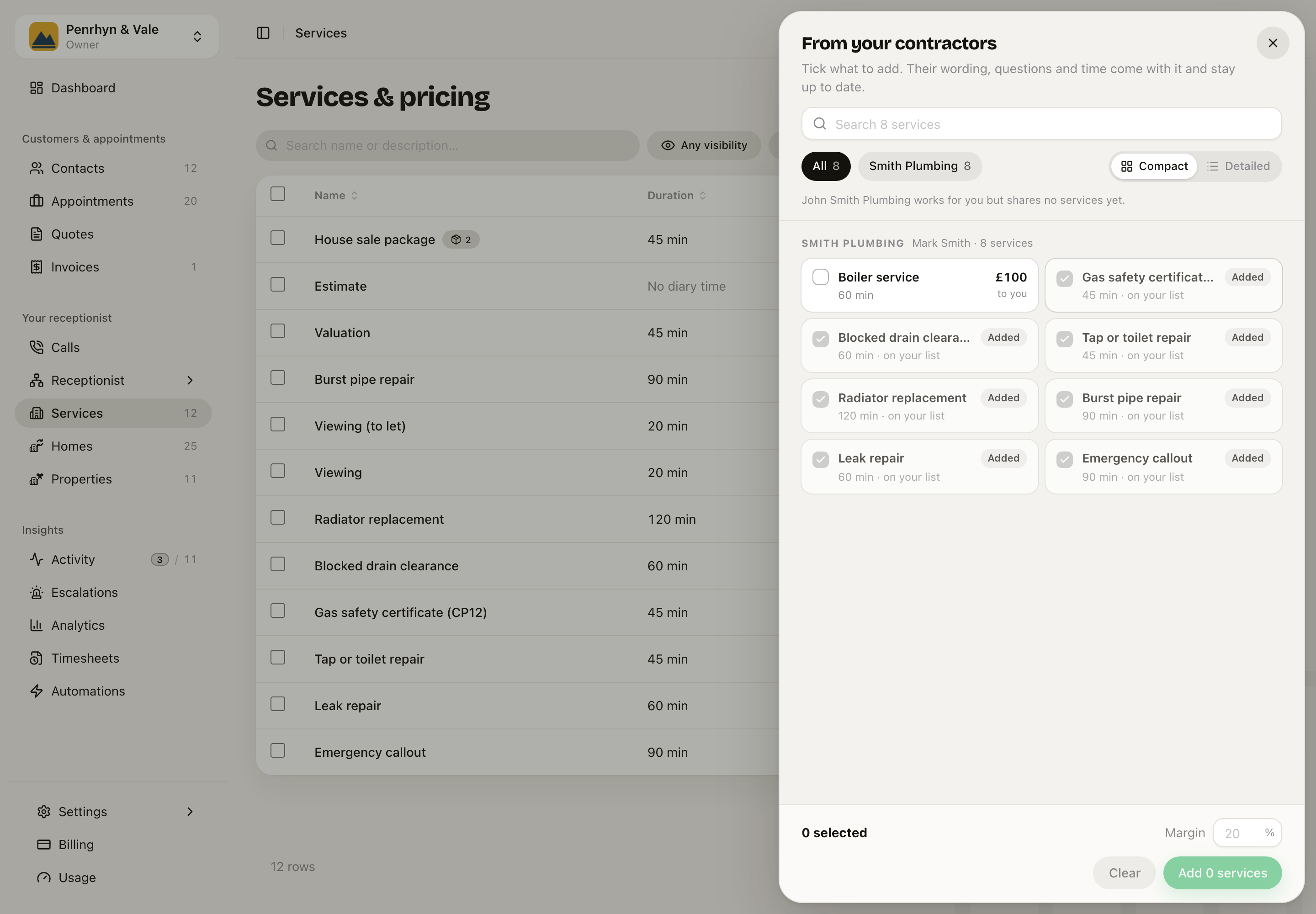 Services › Add service › From your contractors. The box ticks; the tile opens Details. Example data.
Press a service's name, not its box, to open Details: what Sarah asks, what the price does not cover, how they take the work, their terms, and a margin for that service only.
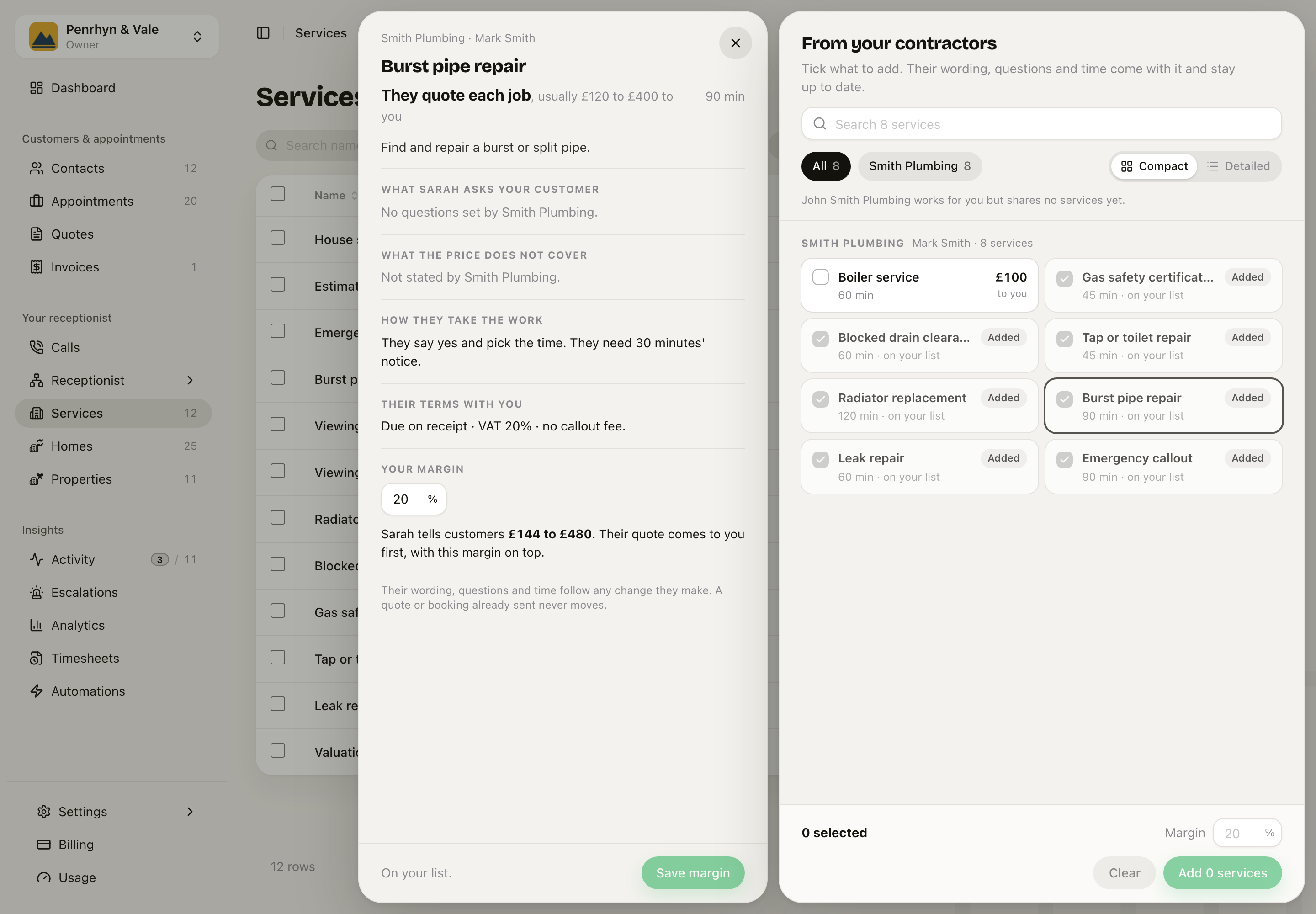 Details opens beside the list. A service priced by a quote shows their range and what Sarah tells customers with your margin.
Their wording, questions and time come with it, and stay up to date. You only own the margin. Sarah can now offer this service on a call. If a second business does the same work, Details asks whether it is a new service or a second business for the one you have.
More than one partner for the same work
Open your service and find When more than one partner does this.
- All at once: every partner gets it, and the first business to say yes wins.
- In my order: your first choice gets it. If they do not answer in Wait for each, or they say no, it moves to the next. The wait is 10 minutes unless you change it.
Urgent work, wanted within two hours, always goes to everybody at once.
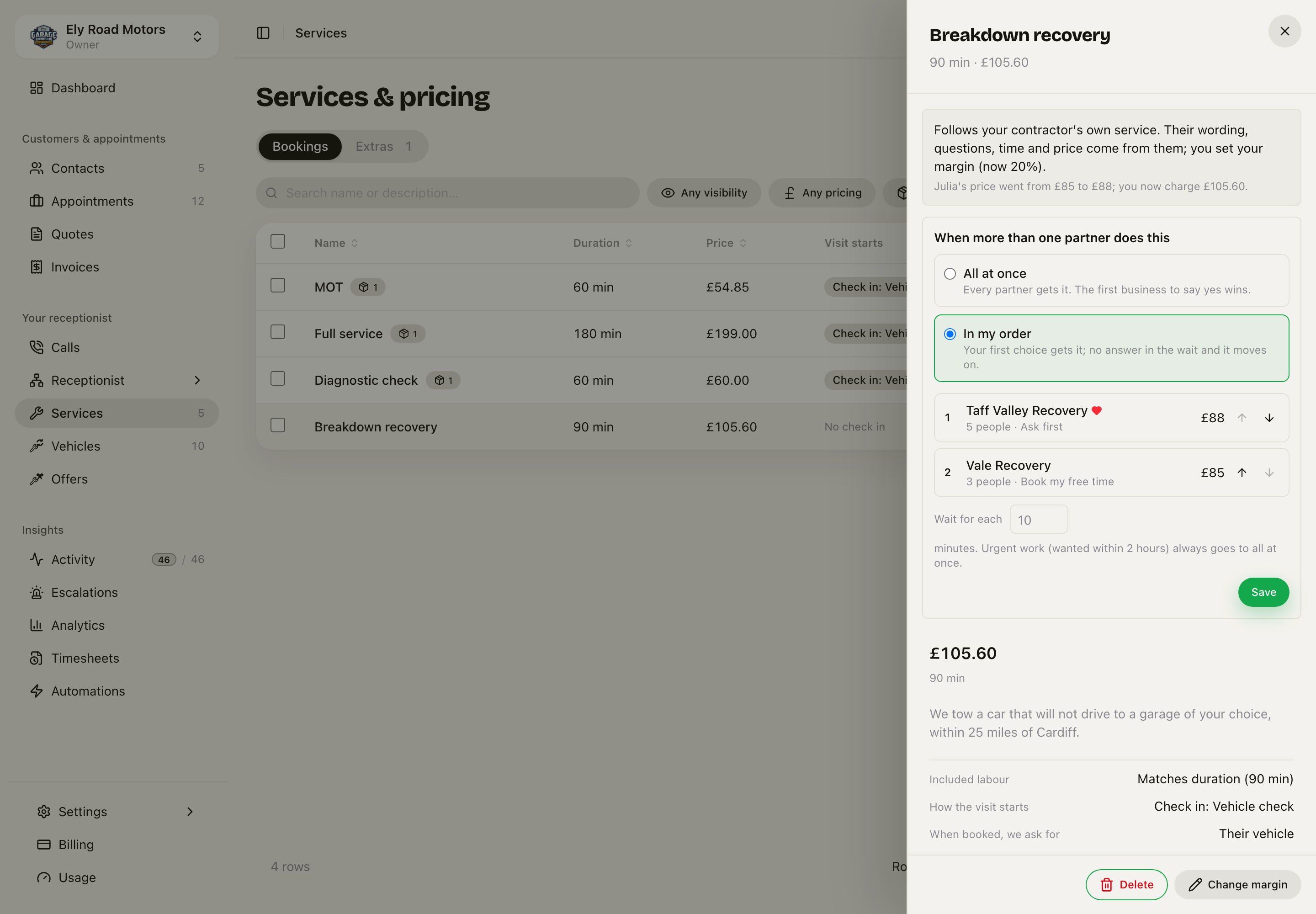 Open the service. Move a partner up or down with the arrows. Example data.
The agreement
Every partnership has a written agreement, built from your real settings. Press View agreement on the partner's row. It covers the work and price, payment, VAT, cancellation, insurance, who owns the customer, and how to end it.
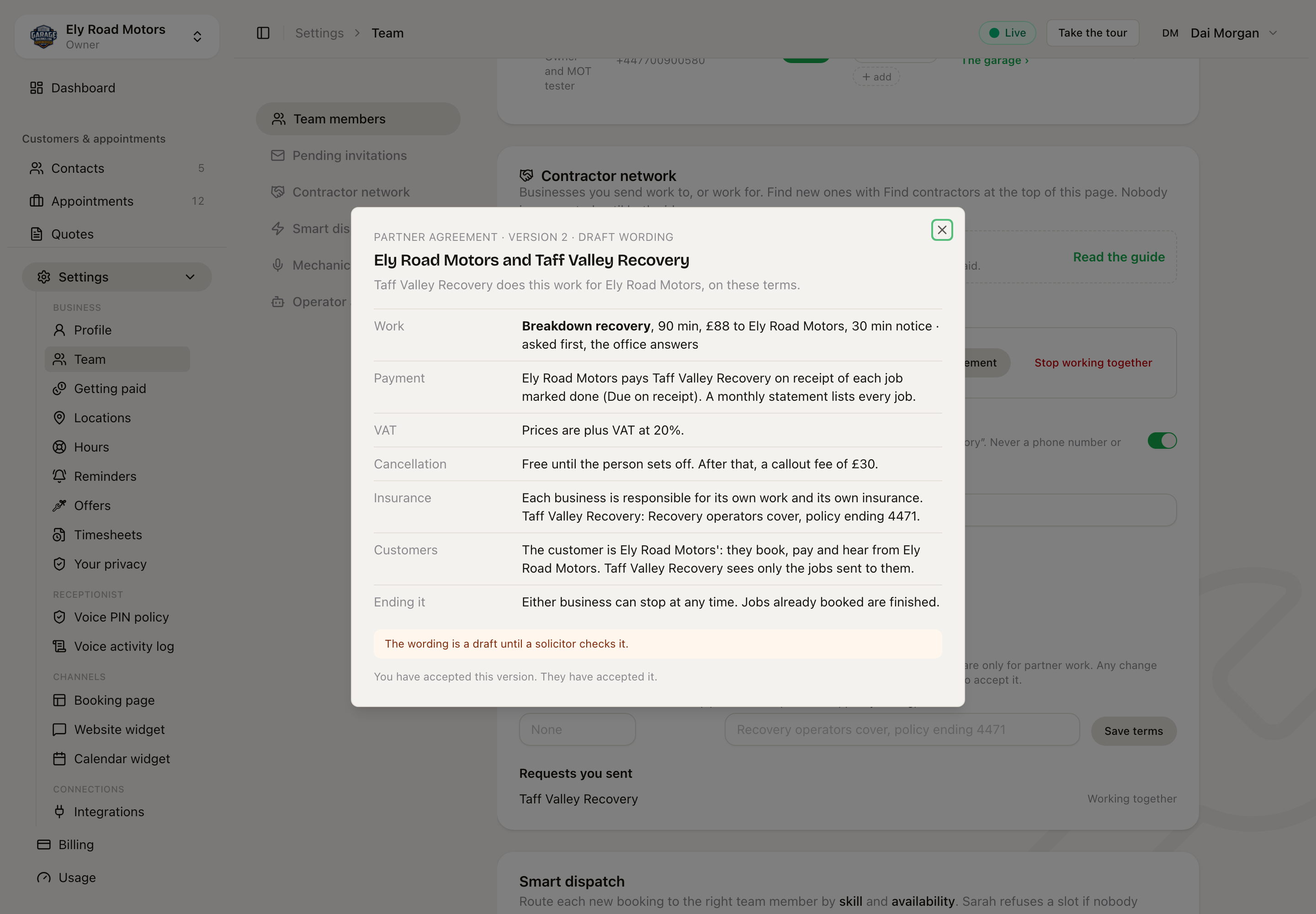 Contractor network › View agreement. Both businesses see the same version.
The wording is a draft until a solicitor has checked it. The screen says so.
When a partner changes their price
A price change applies only when both businesses accept it. Until then, the old price stays.
- The partner saves a new My price to businesses, callout fee or terms. The app first tells them that you must agree.
- You see an amber alert on your Dashboard. It stays until you answer.
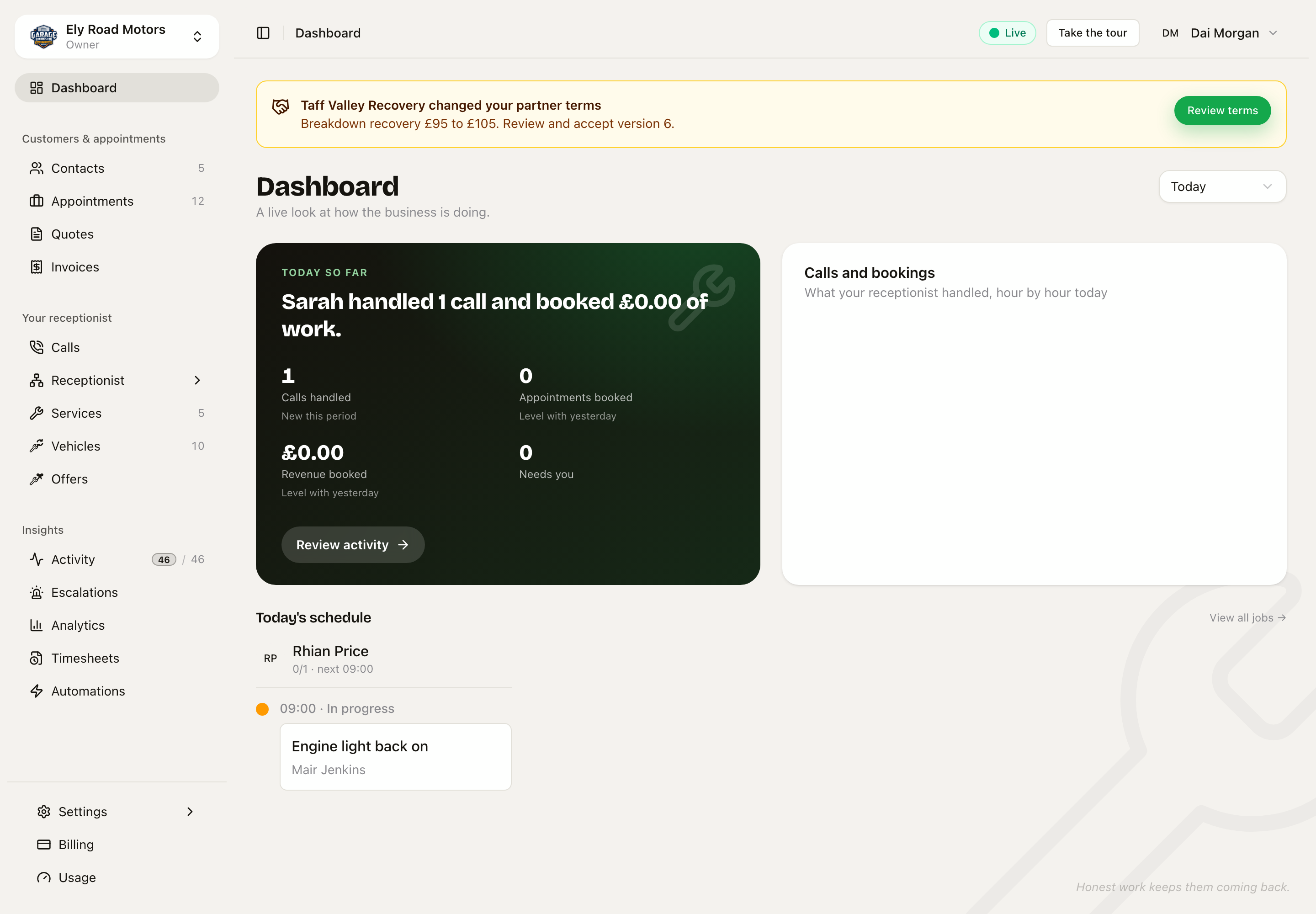 Your Dashboard. Only owners and admins see this. Example data.
- Press Review terms. You see what changed, what you would pay, and what your customers would pay with your margin.
- Press Accept version 6 (the number moves up each time), or Not now.
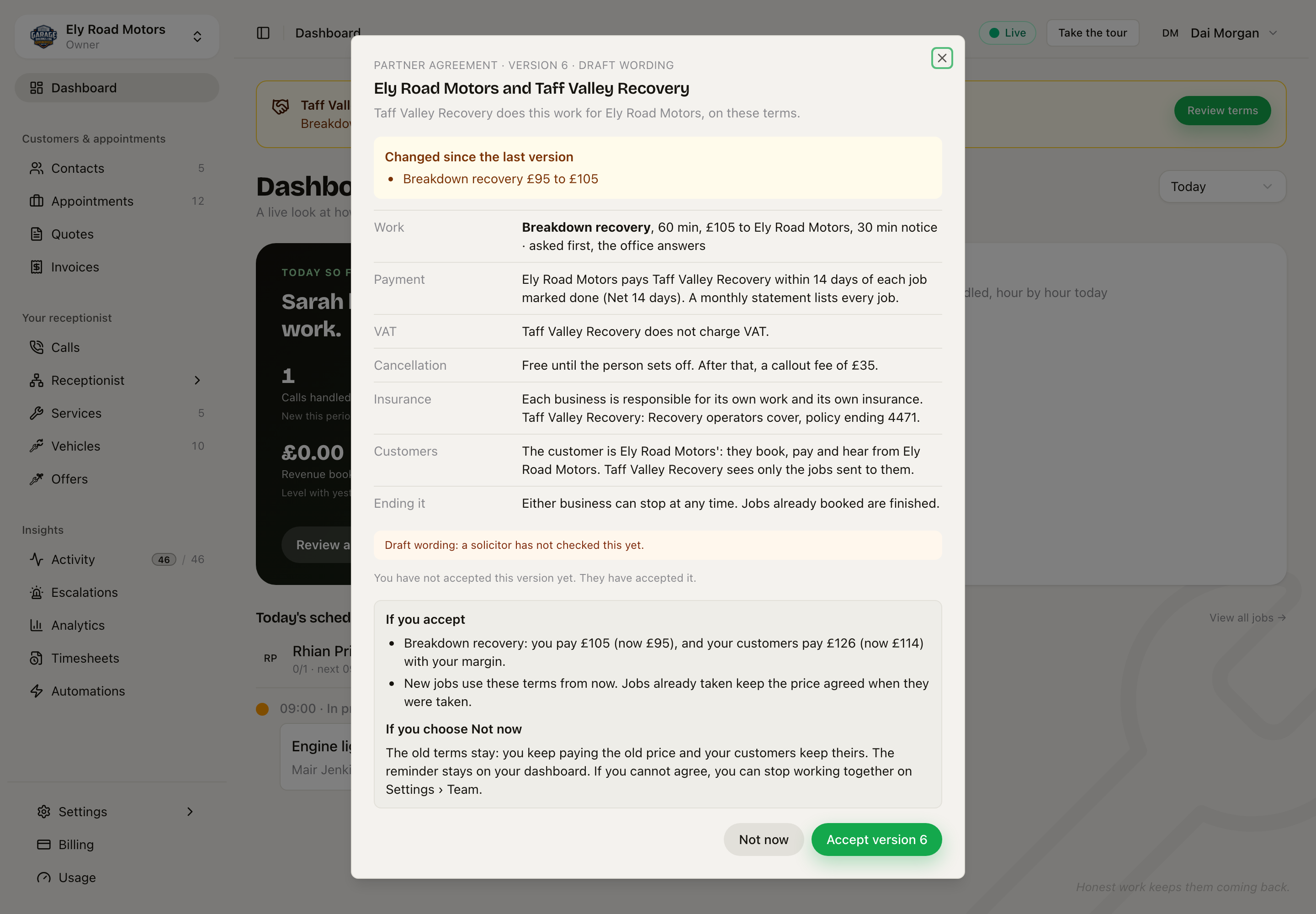 Accept: new jobs use the new price. Not now: the old price stays, and so does the alert. Example data.
Jobs already taken keep the price agreed when they were taken. If you cannot agree, you can stop working together.
The partner gets the job
With The office, the job waits at the top of the partner's Jobs page, under New work from a partner. The office picks who goes and when.
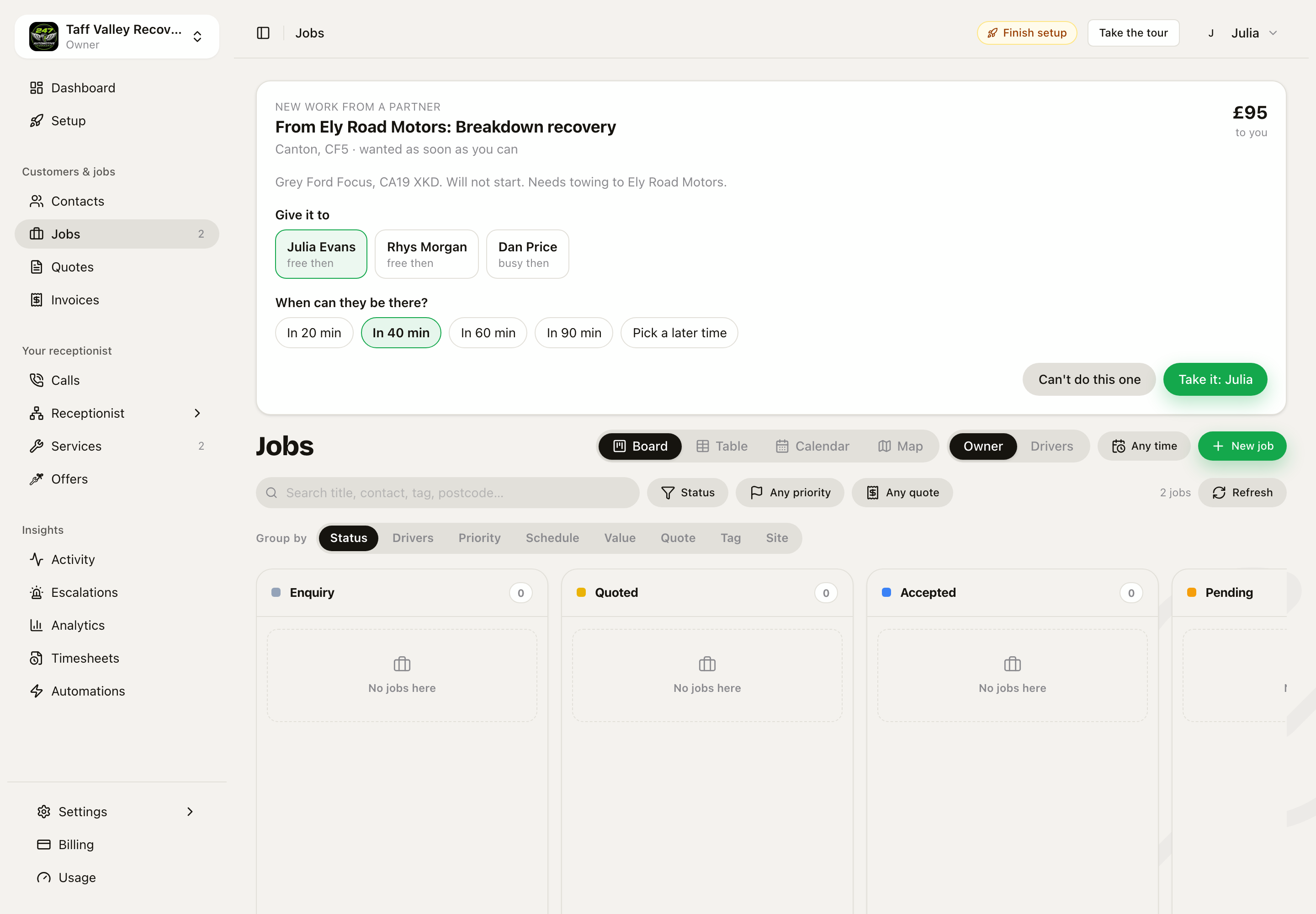 The partner's Jobs page. Free people are marked. Take it sends the job to that person. Example data.
The job lands in the partner's own diary. It shows only what they need: the job, the area, what the customer asked for and the price to them.
You see the person's name on your own job, and each stage as it happens.
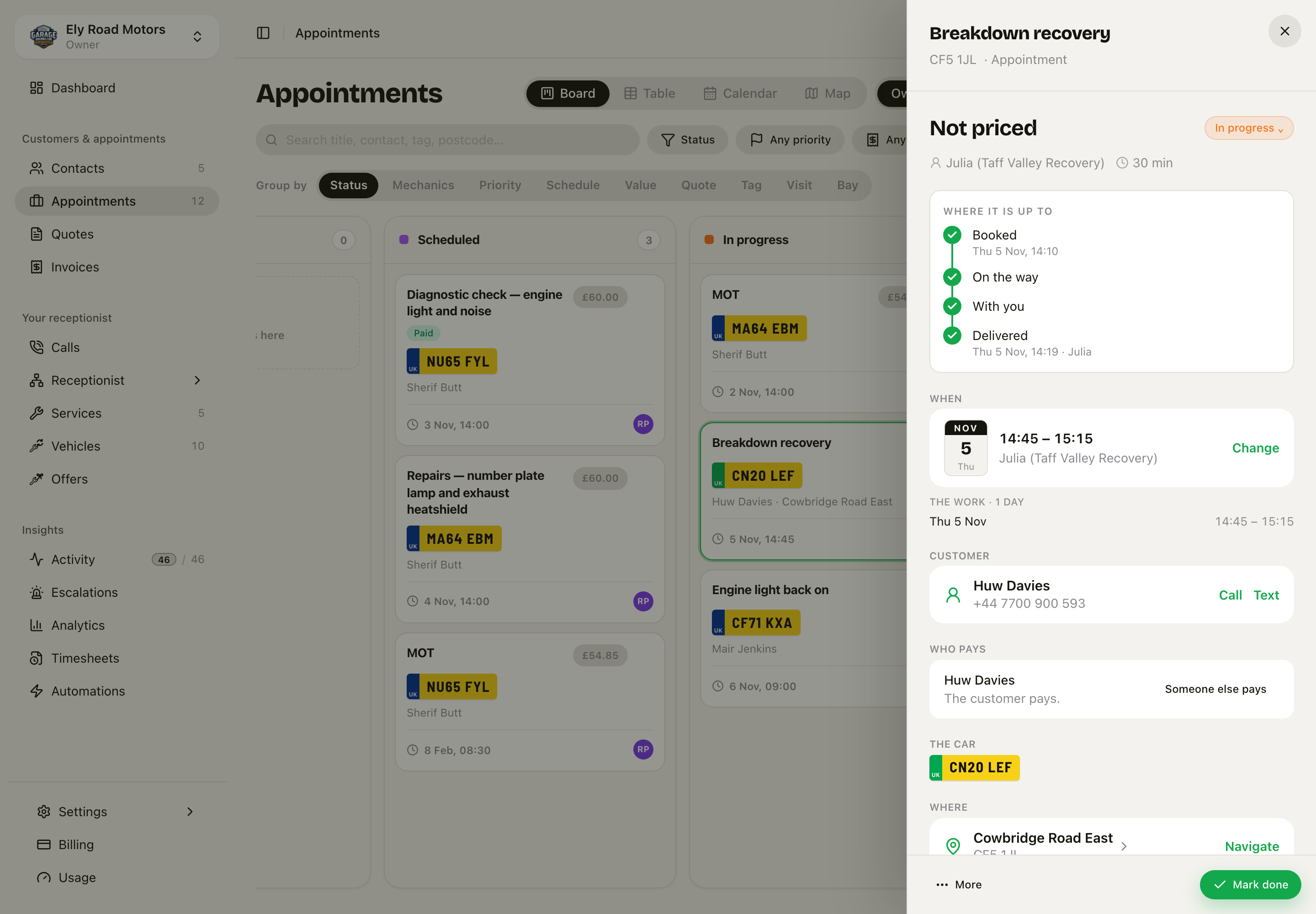 Your job sheet. The person, the time and the stages come back from the partner.
The customer stays yours. They book with you, pay you and hear from you.
The monthly statement
Press Statement on the partner's row. It lists every job done in the month: the date, the job, who went and the agreed price. A quote job shows the price your customer accepted from them. Work a contractor did inside your own diary is on it too, marked in your diary. Both businesses see the same list. Use the arrows to move between months.
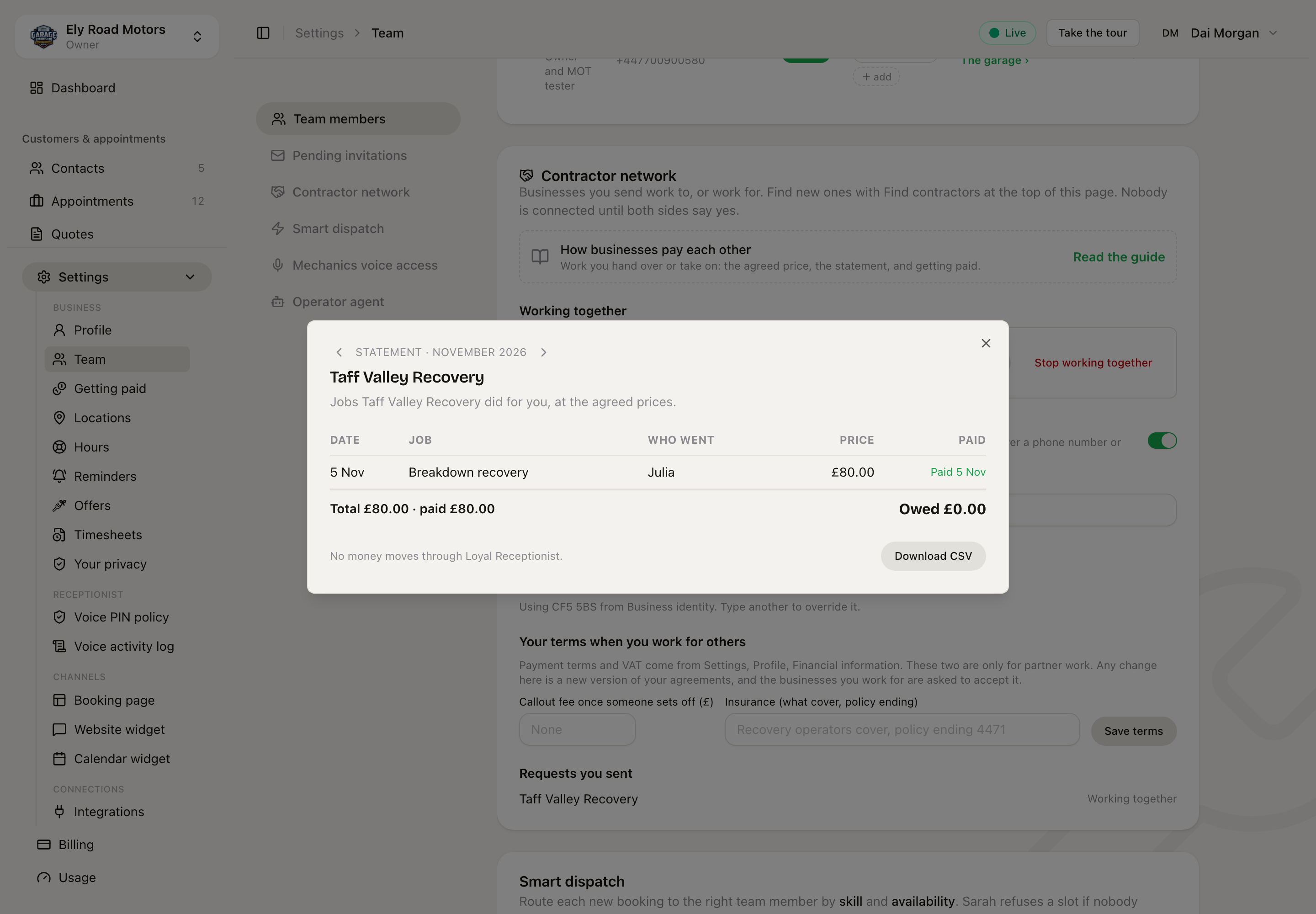 Contractor network › Statement. Download CSV gives your accountant the same list.
Today, you pay your partner your usual way. When the money has reached them, press Mark paid. They see it as paid on their statement. It cannot be undone. See Getting paid.
Work they price with a quote
Some work cannot have a set price. A leak can be one washer or a new pipe. The service says Quote after a look, and that does not change when somebody else does the work.
- On your list, the service is priced by a quote too. It shows their range plus your margin. Sarah tells the caller the range and books a look, never a figure.
- The offer says They quote instead of a price. The partner sees You quote it, after a look.
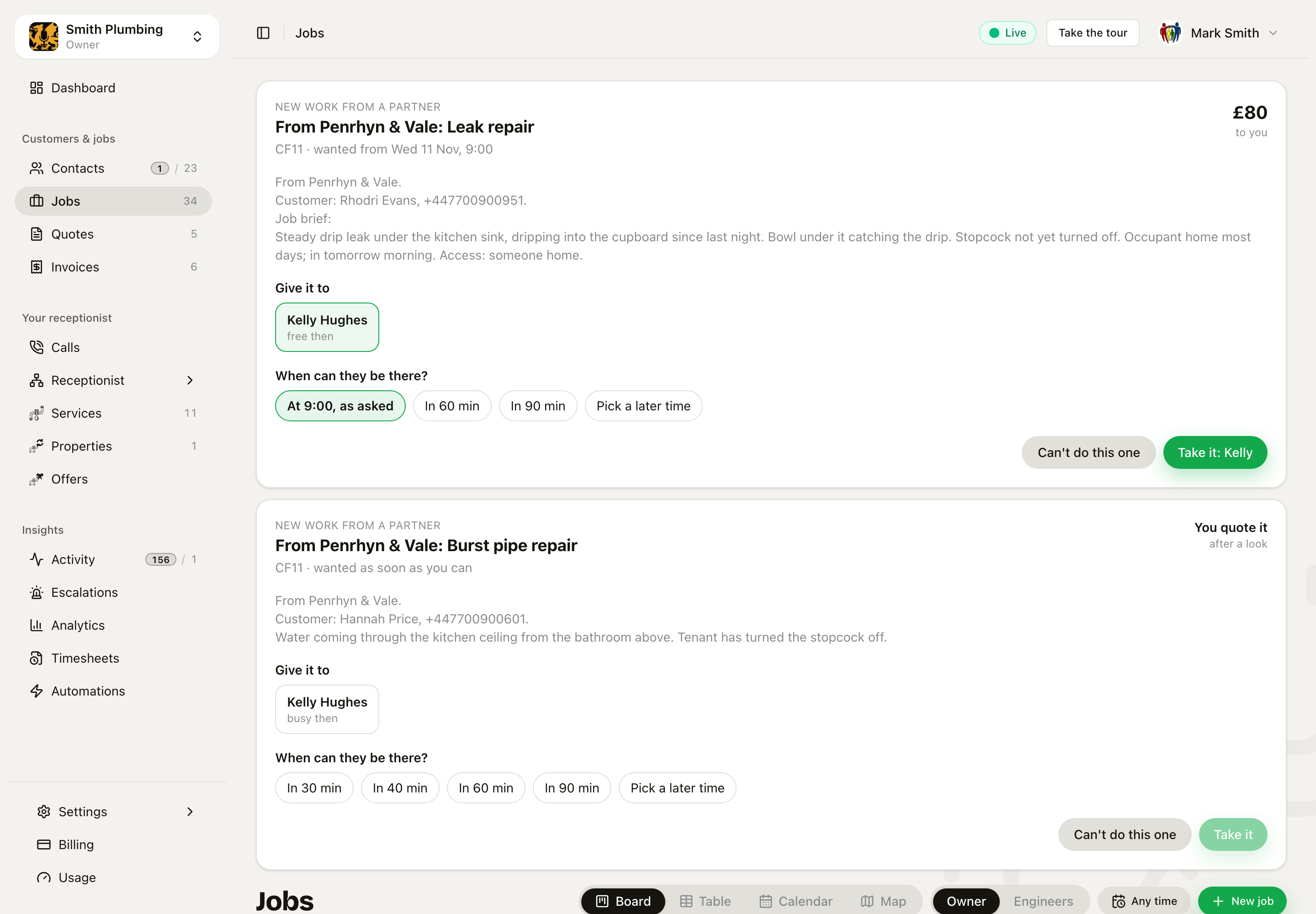 The partner's Jobs page. A set price shows the figure. A quote job shows You quote it. Example data.
- The partner looks, then quotes in their own quote builder. Their send button says Send to your business. Nothing goes to your customer from them.
- You get a draft quote on your job, with your margin on every line. Their figure is saved as your cost, and a note on the job says what they quoted.
- You check it and send it to your customer the normal way. Their look counts as yours, so you are not asked for one.
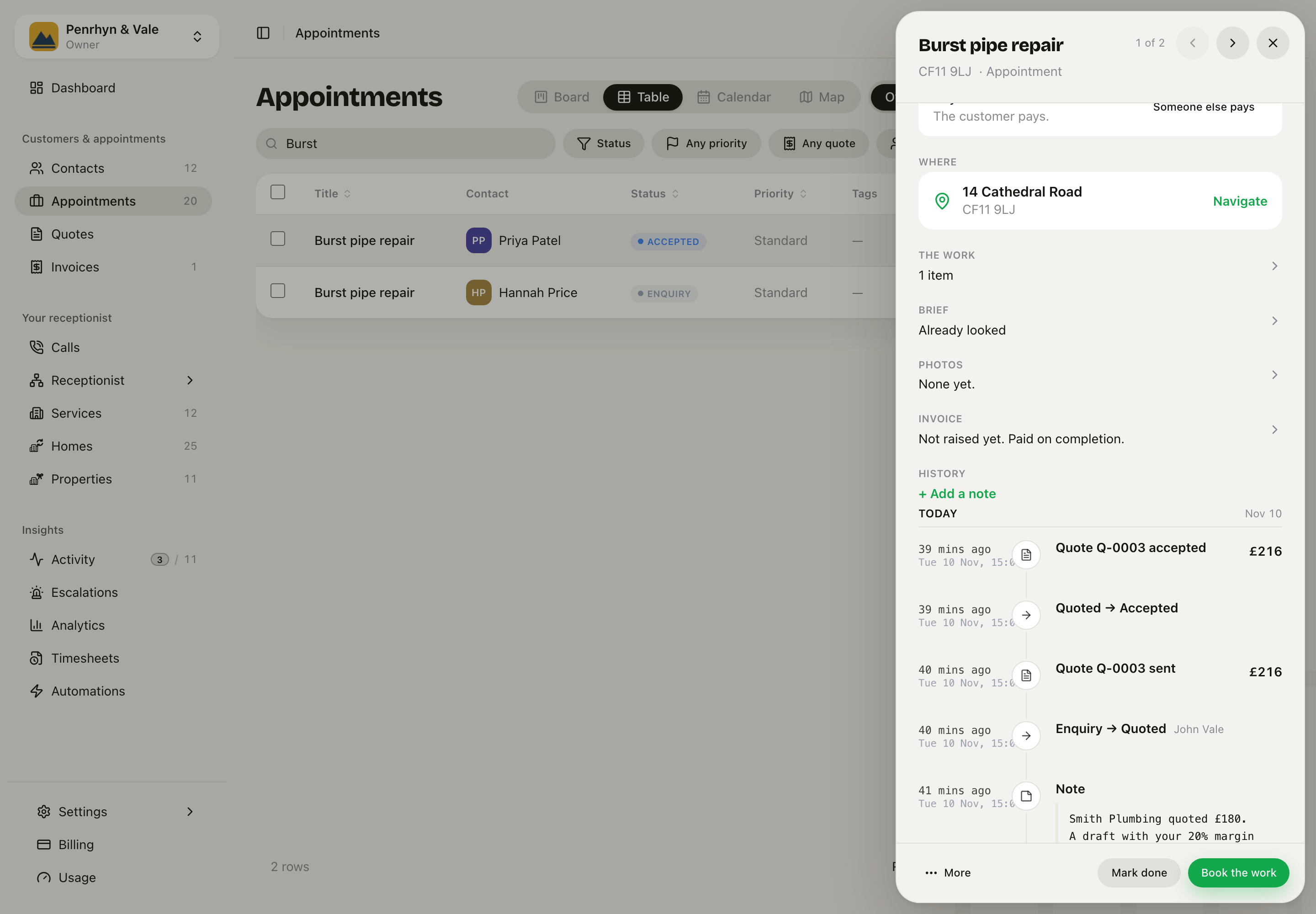 Your job sheet. The partner quoted £180; your customer accepted £216. Example data.
- Your customer accepts or declines. The partner's quote gets the same answer straight away. Accepted, it becomes their job's work and their price on the monthly statement: only what the customer ticked, never your margin.
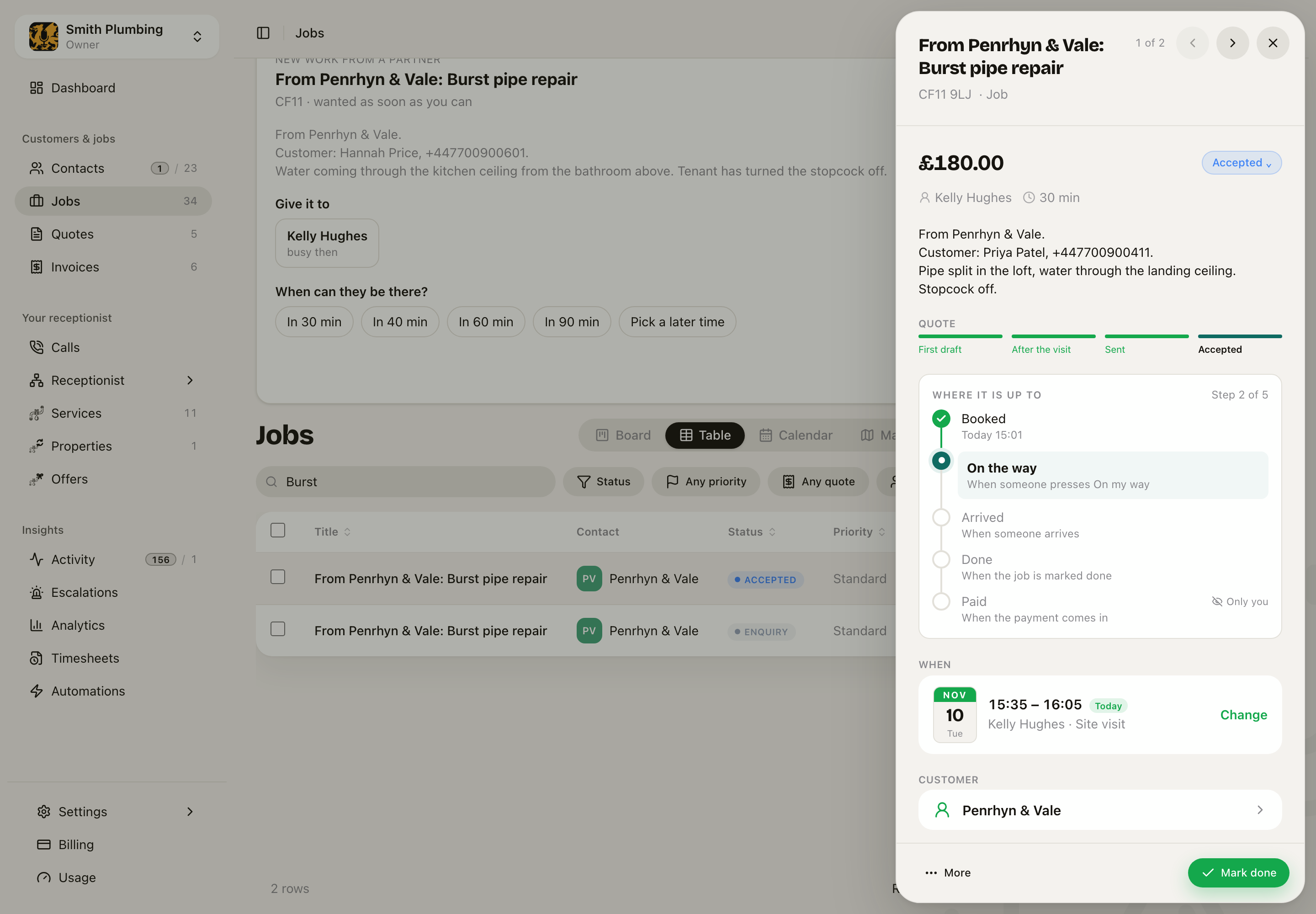 The partner's job sheet after your customer said yes. Example data.
A partner cannot send a quote before somebody has looked. The builder says so, and their quote waits as a draft.
Stop working together
Either business can stop at any time. You do not need the other's agreement. Press Stop working together on the partner's row. The box shows what it means for this partnership.
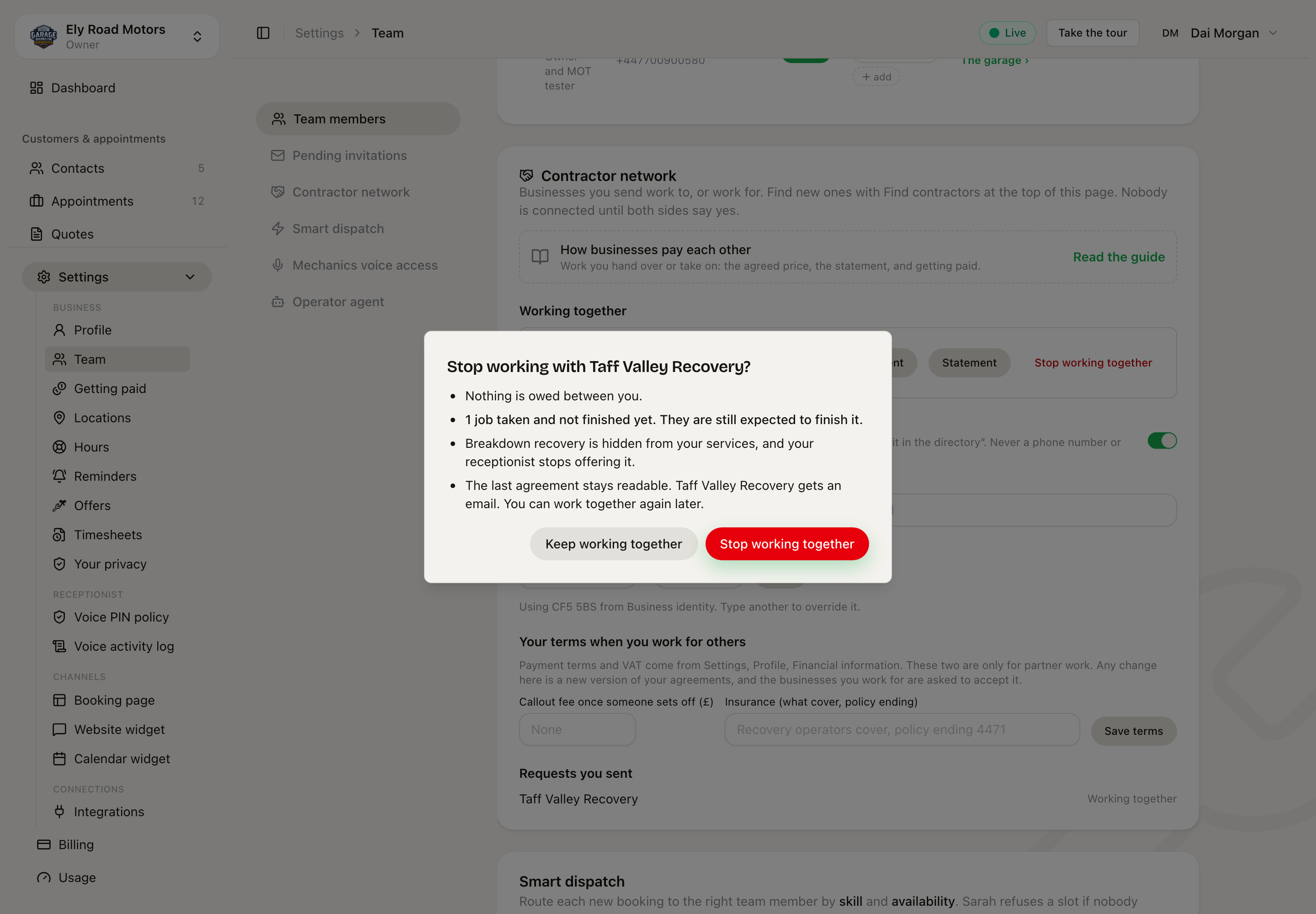 It shows what is owed, what is unfinished and which services are hidden, before you decide.
- Jobs already taken are still finished.
- Offers nobody has answered close, and go back to the business that sent them.
- Shared services are hidden, and Sarah stops offering them. Sharing again brings them back.
- The other business gets an email.
The partner moves to Worked together before, with its last agreement and statements. You can work together again later.
Every alert, in order
This is the whole cycle for one job that Sarah books and a contractor or partner does.
1. The offer goes out
| Who | How | What it says |
|---|---|---|
| A contractor | Text | Ely Road Motors is offering you a job at £95, wanted as soon as you can. Say when you can be there, or say no (first to accept gets it): link |
| A contractor, when the job already has a time | Text | Ely Road Motors is offering you a job at £95. Take it or say no here (first to accept gets it): link |
| A partner's owners and admins (The office) | Text, and a card on Jobs | Ely Road Motors sent you work: Breakdown recovery, wanted as soon as you can. Say who goes and when: link |
| Up to three free people at a partner (Everyone who can do it) | Text | The same text as a contractor |
| One person at a partner (Book my free time) | Text | Booked for you: Breakdown recovery, Thu 5 Nov at 2:45pm. It is in your diary on Loyal Receptionist. |
| A contractor you gave the job to by hand, who works by text | Text | Ely Road Motors has sent you a job at £95. Open it for the details, photos and Done: link |
| The customer, while nobody has said yes | Text | Ely Road Motors: thanks, we have your breakdown recovery. Our partner who does this will text you a time shortly. If nobody can make it, we will ring you. |
An offer also shows under Offered to you on the contractor's My day, on the web and in the phone app. These lists refresh every minute.
2. They answer
The text opens this page. No app, no password.
The offer, from the text. The address and the customer come with the job once it is theirs. Example data.
- When can you be there? They pick In 20 min, In 40 min, and so on, or Pick a later time. A choice is never sooner than their Least notice.
- Take it, or Can't do this one. When the job already has a time, the buttons are Take it and No thanks.
On My day, on the web and in the phone app, the card asks the same thing: Take it: I can be there in, then one tap on the time.
The first yes gets the job. Everyone else's offer closes. There is no text to tell them. If they open the link later, it says Somebody else has taken this one.
What the others see if they open the link later. Example data.
3. You and the customer hear back
| What happened | Who hears | How | What it says |
|---|---|---|---|
| A partner said yes | You | A note on the job | Taff Valley Recovery took it: Julia, today at 2:45pm. |
| A partner said no | You | A note on the job | Taff Valley Recovery could not do this one. |
| Somebody said yes and gave a time | The customer | Text | Ely Road Motors: your breakdown recovery is confirmed. Julia from Taff Valley Recovery will be there at about 2:45pm. |
| A contractor said no | You | Said no, in the Offer to contractors box |
4. If nobody answers
Sarah books work that only a contractor does with no time yet. If nobody has given a time, the app tells you once. It waits 15 minutes when the work is wanted within two hours, and 2 hours for other work.
| Who | How | What it says |
|---|---|---|
| Owners, and admins set to get urgent alerts | Text | Ely Road Motors: no contractor has taken "Breakdown recovery" yet. The customer is waiting for a time. Open it: link |
| You | A note on the job | No contractor has given a time for this job yet. Ring the customer, or give it to somebody by hand. |
| The customer | Text | Ely Road Motors: we are still arranging your breakdown recovery. Somebody will ring you shortly. |
5. The job happens
You see each stage on your own job sheet, as the partner's person moves through it. Your customer's texts still come from you.
6. After the job
The job goes on the Statement when it is done. There is no alert for a new statement or for a payment. Open Statement when you want it.
Alerts about the partnership
| What happened | Who hears | How |
|---|---|---|
| A business asks to work with you | Your owners | Email, and Asking to work with you on Team |
| They accept, turn down or block your request | You | No alert. It shows under Requests you sent |
| A partner changes a price or terms | Owners and admins on the other side | Amber alert on the Dashboard, until accepted |
| A business stops working with you | Your owners |
What does not alert you today
- No phone notifications. Offers reach people by text. In the app, they show on My day.
- No second text for the same offer. Nobody gets a reminder.
- On the phone app, a contractor can answer offers. The partner's card, requests, agreements and statements are on the web only.
What it costs
A contractor pays nothing to work for you. You pay for contractors who take a job in a month, not for names on your list. On the Team plan, five a month are included, and each one past five is £9 that month. An offer they say no to costs nothing. See Billing & Credits.
When you are about to go past five, the Offer to contractors box says so before you send.
Good to know
- Clinics: patients are booked into a clinician's own sessions, so jobs are never offered round at a practice.
- Night calls: a contractor can be on a night emergency line. They turn on taking calls themselves, on their own profile. See Put callers through to a person.
- Who pays: for a repair a landlord pays for, see Who pays.
- Money: to take card payments and see how businesses pay each other, see Getting paid.