 Loyal Receptionist
Contacts and Jobs
The CRM is the heart of the admin app. Two main screens: Contacts (the people) and Jobs (the work).
Contacts
Open Contacts in the sidebar.
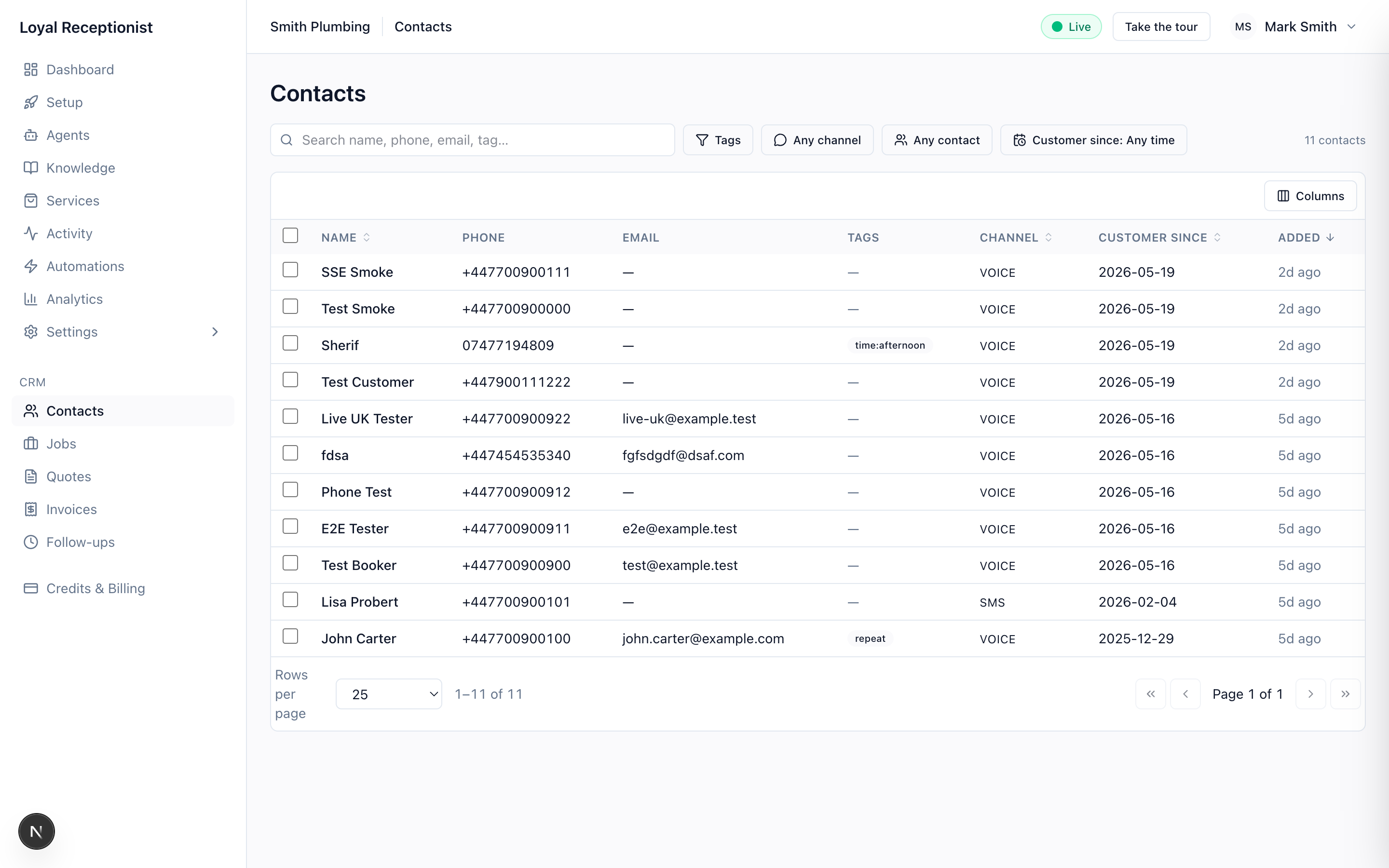 Contacts list — sortable, searchable, one row per customer.
The list view
Sortable table. Each row shows:
- Name, phone (E.164), email
- Tags (
repeat,vip,unpaid-invoice,dispute,do-not-contact, plus any custom tags) — including the AI-extracted ones inkey:valueform (time:afternoon,pet:dog,pay:card) that Sarah pulls out of conversations automatically - Primary channel (voice / SMS / WhatsApp / email)
- Customer since (the date their first conversation landed)
- "Added" relative time
Search by typing in the top bar — matches name, phone, email, or tag value. Filter chips above the table narrow by tag, channel, contact type, and customer-since date range.
AI-extracted tags
After every conversation, Sarah's summariser pulls structured facts out of the transcript and saves them as tags on the contact:
| Tag | What it captures |
|---|---|
time:morning / midday / afternoon / evening / any | When they prefer to be called or visited |
pet:dog / cat / … | Pet on the premises — useful for engineer briefing. Only written when there IS a pet — no tag means none mentioned. |
pay:cash / card / invoice | Preferred payment method |
access:rear-entrance / key-under-mat | Free-text access notes (kept short — long ones are trimmed) |
upsell:house_move | Upsell signals Sarah heard |
These appear automatically — you don't add them by hand. Use them in the search bar (time:afternoon) to find every customer who prefers afternoon visits.
The detail view
Click a contact to open the detail page.
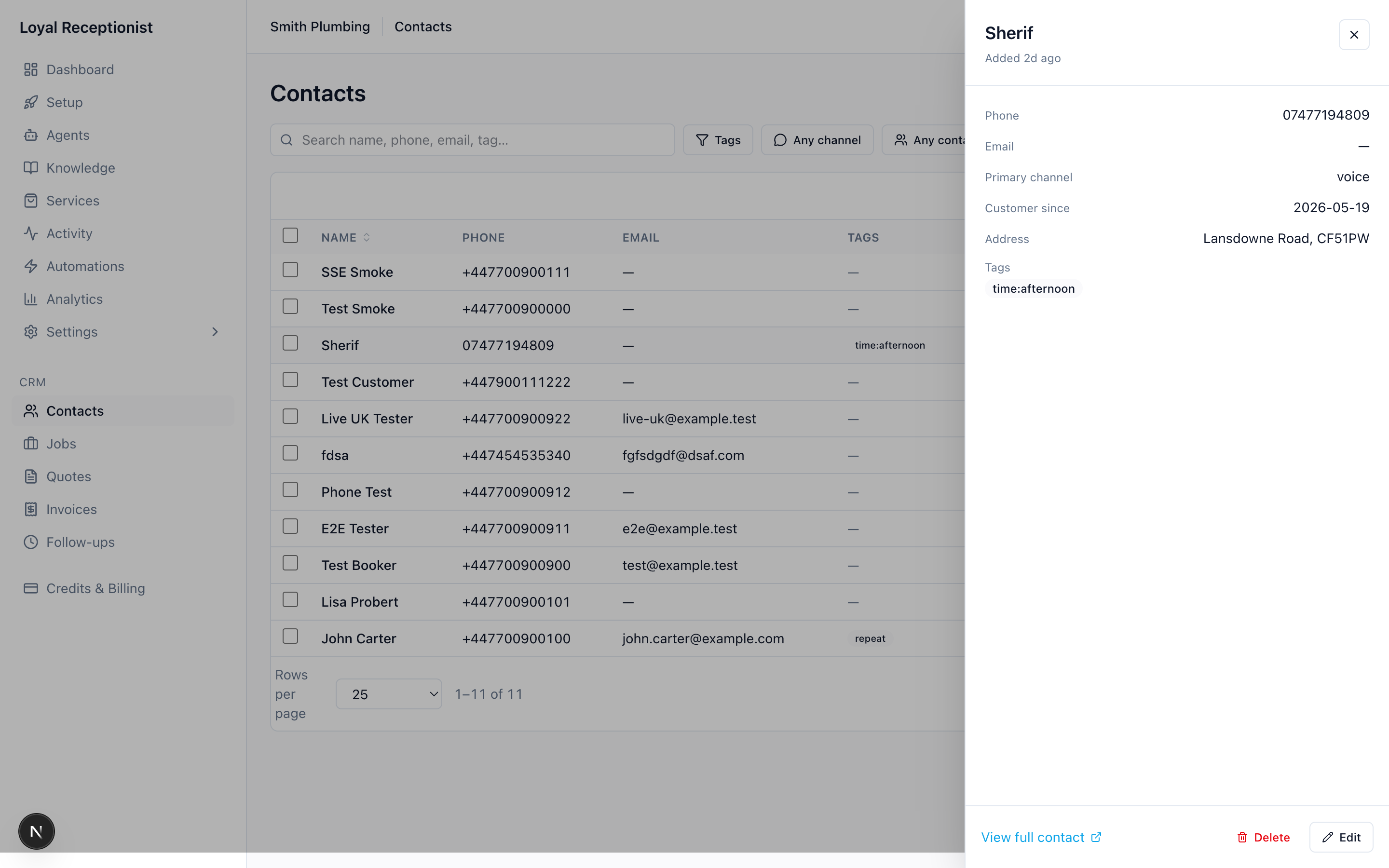 Contact detail — lifetime value, open job count, notes, tags, conversations and jobs all on one page.
Header shows their name, channel pill, and "Customer since …".
Four metric tiles along the top:
| Tile | What it counts |
|---|---|
| Estimated | At-booking-time list price across all their non-cancelled jobs — i.e. what Sarah quoted them, summed. Includes the pipeline (scheduled but not yet completed). |
| Realized | Sum of final_price across completed jobs — what they've actually paid you. |
| Jobs | Total job count, plus an "X open" hint if any are still in progress. |
| Last activity | Relative time since the most recent interaction (call, SMS, or job update). |
The gap between Estimated and Realized is your pipeline + write-offs on this customer — surfaced under the Estimated tile as e.g. "£260 in pipeline". Plain lifetime numbers hide scheduled value, so we show both.
Details panel has phone, email, address.
Notes — free-text against the contact. Change them via Edit (the notes field is on the edit form) and hit Save.
Activity timeline — every voice call, chat session, SMS thread, WhatsApp message, and job event linked to this contact, day-grouped and newest-first. Day separators read "Today", "Yesterday", "2 days ago", then absolute dates. Click any call/chat row to open the full transcript. Job events ("scheduled for 2026-05-22 09:00", "marked complete £130") render inline without a click-through.
Editing / deleting
Edit opens an inline form. Delete is a soft-delete — the row stays in the DB with deleted_at set, the contact disappears from lists, but their jobs and conversations remain for accounting.
Preferred team member
In the edit form, Preferred team member is a dropdown of your accepted team members. It only matters when Smart Dispatch is on (Settings → Team toggle). When set, new bookings for this contact are auto-assigned to that person — as long as they have the right skill for the service and a free slot at the time. If they don't, regular routing decides instead and you'll see who actually got it on the job detail.
The salon use case: "Marta always sees Sarah for her colour." The trades equivalent: "Mr Hughes always wants Mark for his boiler." Set the preference once and Sarah remembers forever.
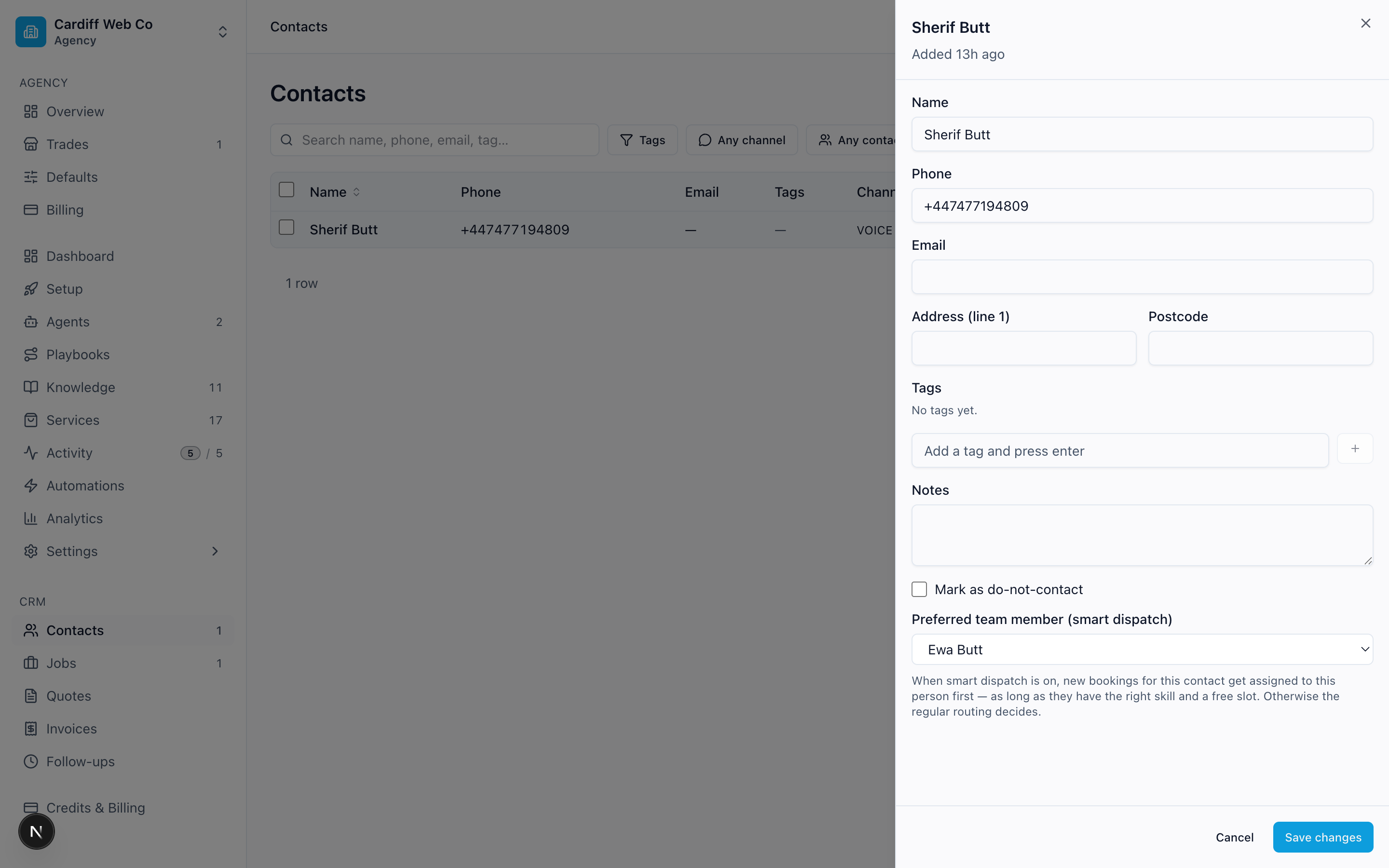 Preferred team member picker on the contact edit drawer — sourced from your accepted team.
Jobs
Open Jobs in the sidebar. The same set of jobs is shown through four views — switch with the toggle top-right. They share two things so you never lose your place: a Team routes rail down the left, and a single job peek card.
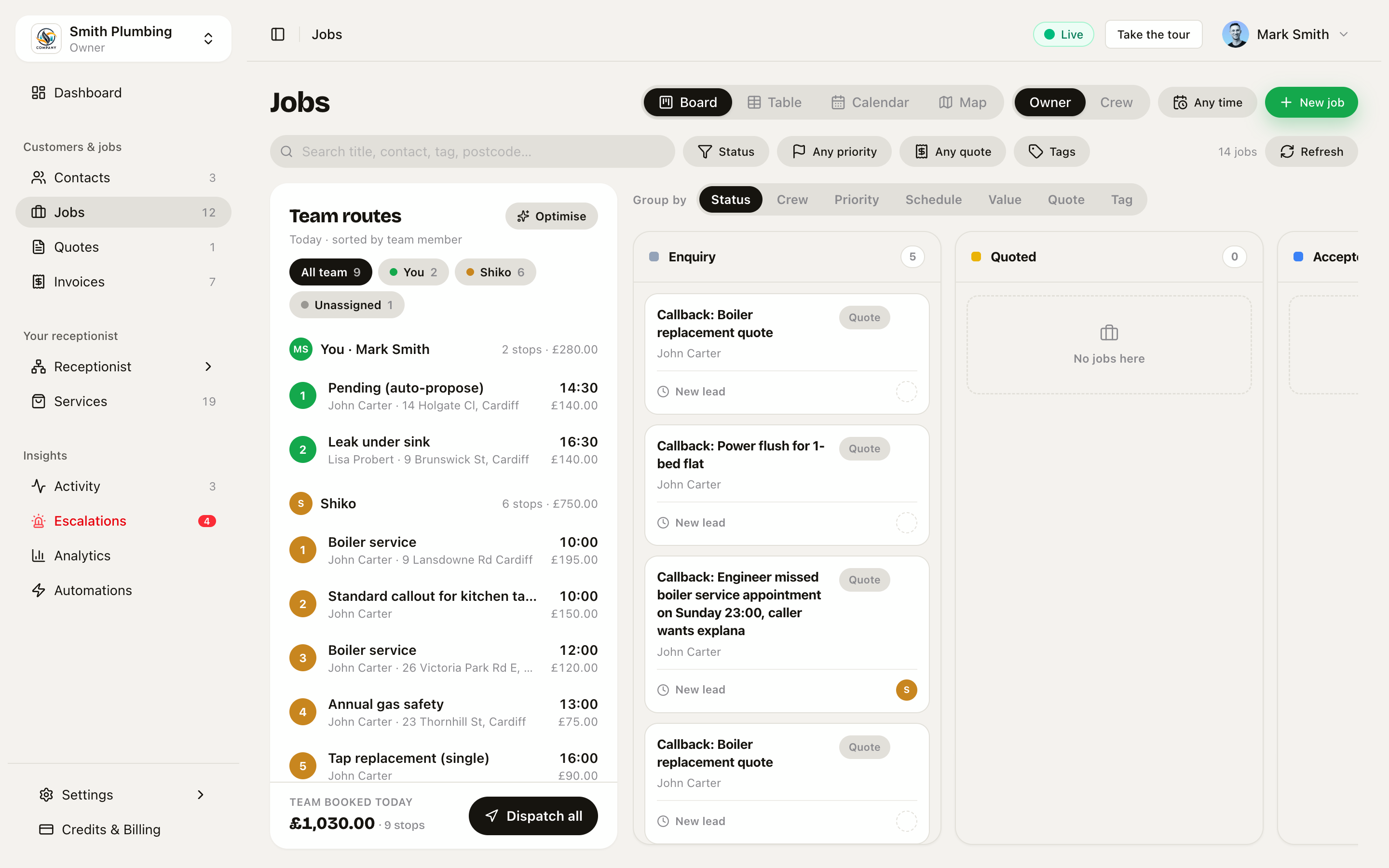 Board view — every job moves left-to-right across its lifecycle.
The four views
| View | What it's for |
|---|---|
| Board | The Kanban. Drag cards between columns to change their state. |
| Table | Sortable, paginated list — pick the columns you want. |
| Calendar | Day / week / month. Drag events to reschedule; see who's booked and who's free. |
| Map | Today's jobs plotted on a map, one route per engineer. |
The Owner / Crew toggle and the time filter (next to "+ New job") apply to every view. Crew members see a "my jobs" focused version.
The Team routes rail
The left-hand Team routes panel rides every view. It lists today's stops grouped by team member, with each person's booked total, and a member filter. It's the same component on the map and the other views, so it always reads the same. Click any stop to select that job.
The job peek — one card, everywhere
Click a job anywhere — a board card, a table row, a calendar event, a map pin, or a route-rail stop — and a compact peek card slides up. It shows the price, address, time, assigned engineer, and (on the map / where a route is known) the distance and drive time from the previous stop. Buttons: Navigate, call, message, and View full job.
Two deliberate rules:
- Clicking a job opens the peek, not the full detail sheet. The full sheet is behind View full job.
- The selection follows you between views. Pick a job on the board, switch to the calendar, and the same job is highlighted and centred — with the peek still open. It's one continuous "what am I looking at" across every lens.
Board: group by anything
The board doesn't only split by status. Use Group by to cut the columns by Status, Crew, Priority, Schedule, Value, Quote, or Tag. Dragging a card to another column applies the matching change — drag to a crew column to reassign, to a schedule column to re-date, to a tag column to move the tag, and so on. Empty columns show a "No jobs here" placeholder.
Default status columns, left to right:
| Column | Meaning |
|---|---|
| Enquiry | Captured but not yet quoted |
| Quoted | Quote sent, awaiting acceptance |
| Accepted | Customer accepted, not yet scheduled |
| Pending | The website chat created a slot but the customer hasn't acknowledged it yet — auto-cancels after a few minutes if they never do |
| Scheduled | On the calendar |
| In progress | Engineer on-site or working |
| Completed | Done; invoice may or may not be raised |
Cancelled jobs don't get a column — they drop off the board (they're still in the Table view).
Each card shows the title, a price (or a Quote chip when there's no price yet), the customer and address, the status/time (or New lead for enquiries), and the assigned engineer's avatar. A red Emergency pill flags priority work.
One drag has a deliberate intercept: dragging a card into Quoted with no quote sent opens the AI quote builder. A job only reaches Quoted via a sent quote — the column name and the customer's inbox stay in sync. See Pricing & quotes and Quotes for the builder itself.
Calendar: capacity at a glance
The calendar drags to reschedule and shows how full each day is:
- Day view splits into a column per engineer. Each header has a utilisation bar and a
2.5h booked · 5.5h freeline, so you can see capacity and gaps before you book. Unassigned work sits in its own tray ("N to dispatch") — it is not treated as a crew member. - Week + month views show a team-load bar per day. The solid part is committed (assigned) work; a hatched part after it is unassigned work waiting to be dispatched. The bar turns amber as a day fills and red when it's overbooked — so slammed days jump out.
Capacity comes from your real team and their working hours (Settings → Team / your business hours), not a fixed guess. Office-only admins aren't counted as field capacity.
Map: routes and clusters
The map plots today's scheduled jobs as numbered, coloured pins — one colour and one route line per engineer — with the job value above each pin. Click a pin (or a stop in the rail) to open the peek with the drive distance and time from the previous stop. Filter to one engineer to see just their day.
The full job sheet
View full job on the peek opens the detail sheet — everything about one job in one place:
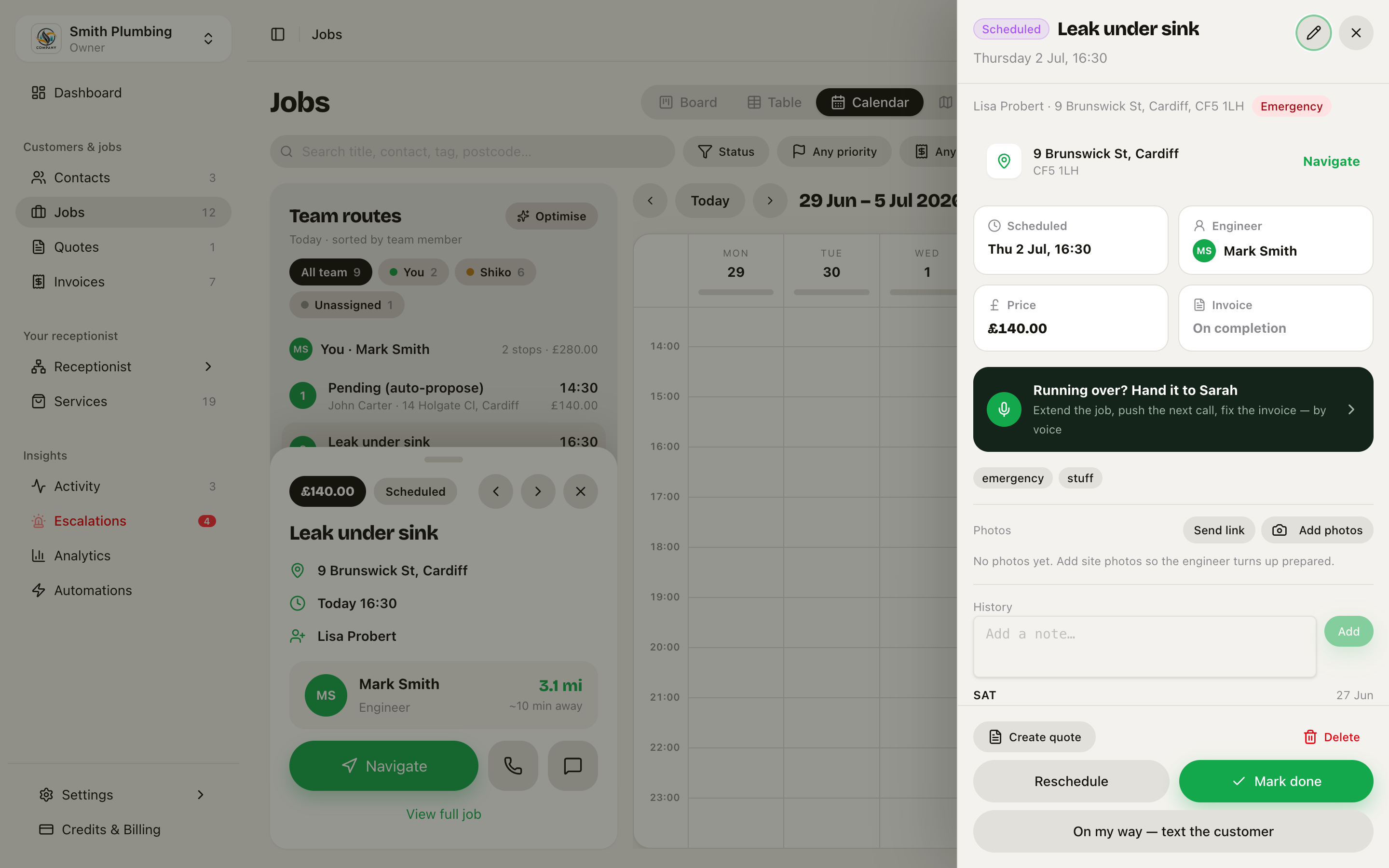 The full job sheet — schedule, engineer, photos, payment and history for one job.
- On my way — text the customer. One click texts them a real driving ETA (calculated from your engineer's position and the actual route, not a guess) plus a tracking link. It's the narrowing half of the arrival-window promise — the customer booked "Friday morning"; this is the "about 20 minutes" that keeps it honest.
- Engineer card — who the job is assigned to. On Smart Dispatch orgs this shows who the routing actually picked.
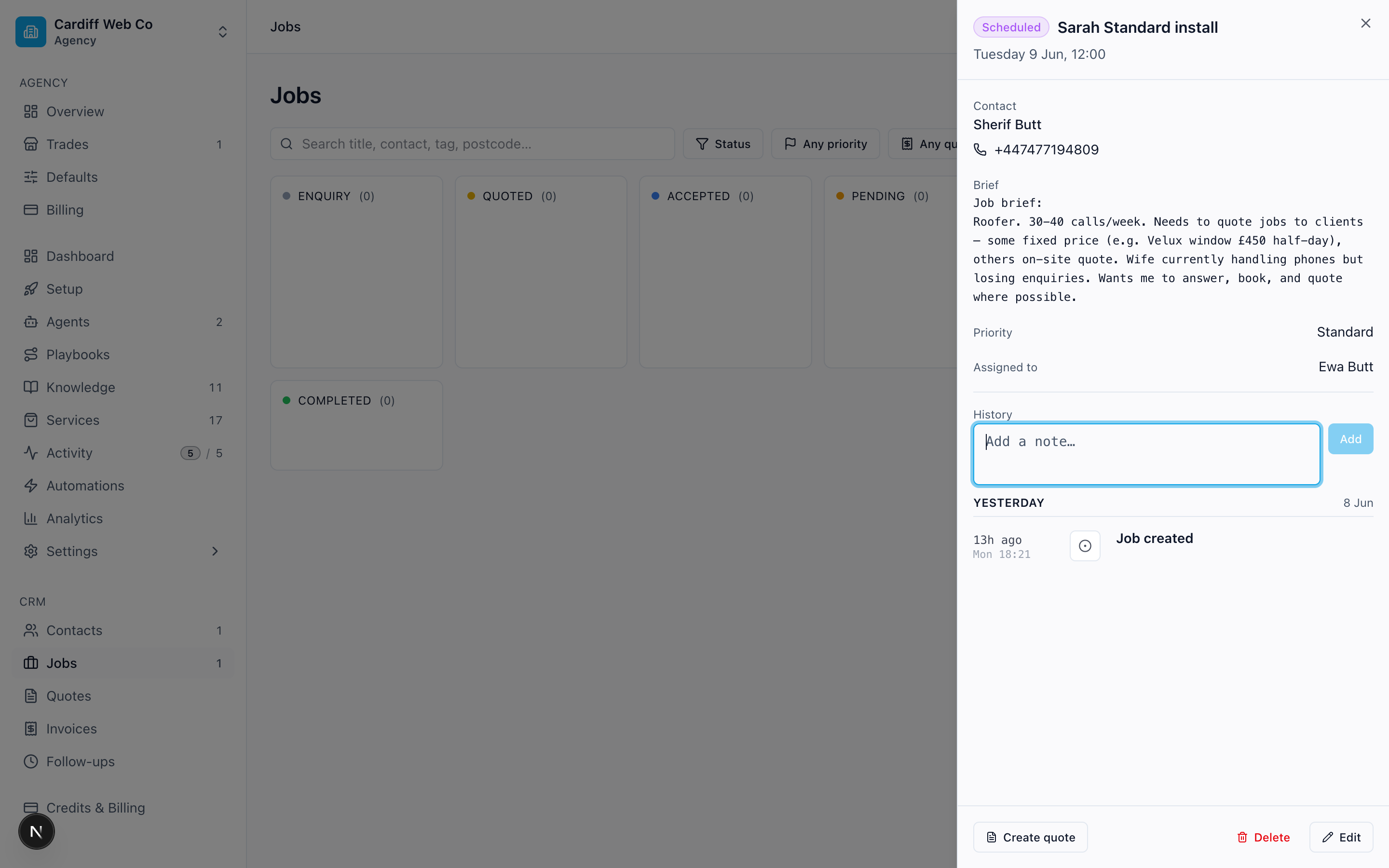 The Engineer card — who's on the job.
- Photos section — customer-sent site photos with the AI read, plus the Send link button. Covered in full in Job photos & the customer link.
- Confirmation buttons — booking confirmations are email-first (the email carries a calendar attachment and, for paid services, a pay link; an SMS is no longer fired automatically). The sheet has Resend email as the primary action and Resend SMS as the fallback for customers without an email on file.
Creating a job manually
Click + New job in the top right. The slide-over asks for:
- Title and brief
- Contact — "Link a contact (optional)" picks an existing one
- Services (multi-select — pulls duration + price)
- Date, time and duration
- Address line 1 + postcode
- Priority (standard / emergency / vip)
- Assigned to
- Tags
- Agreed total (£) — leave blank to use the services total
Hitting Save drops the job into enquiry (or scheduled if you set a time).
Where jobs come from
Most jobs aren't created manually. They land via:
- Public booking page —
created_via: 'public_booking' - Voice call —
created_via: 'voice', withsource_call_idset - SMS —
created_via: 'sms', withsource_conversation_idset - Manual — when you create one in the admin app
The search bar matches title, contact name, tags, address line 1 and postcode.