 Loyal Receptionist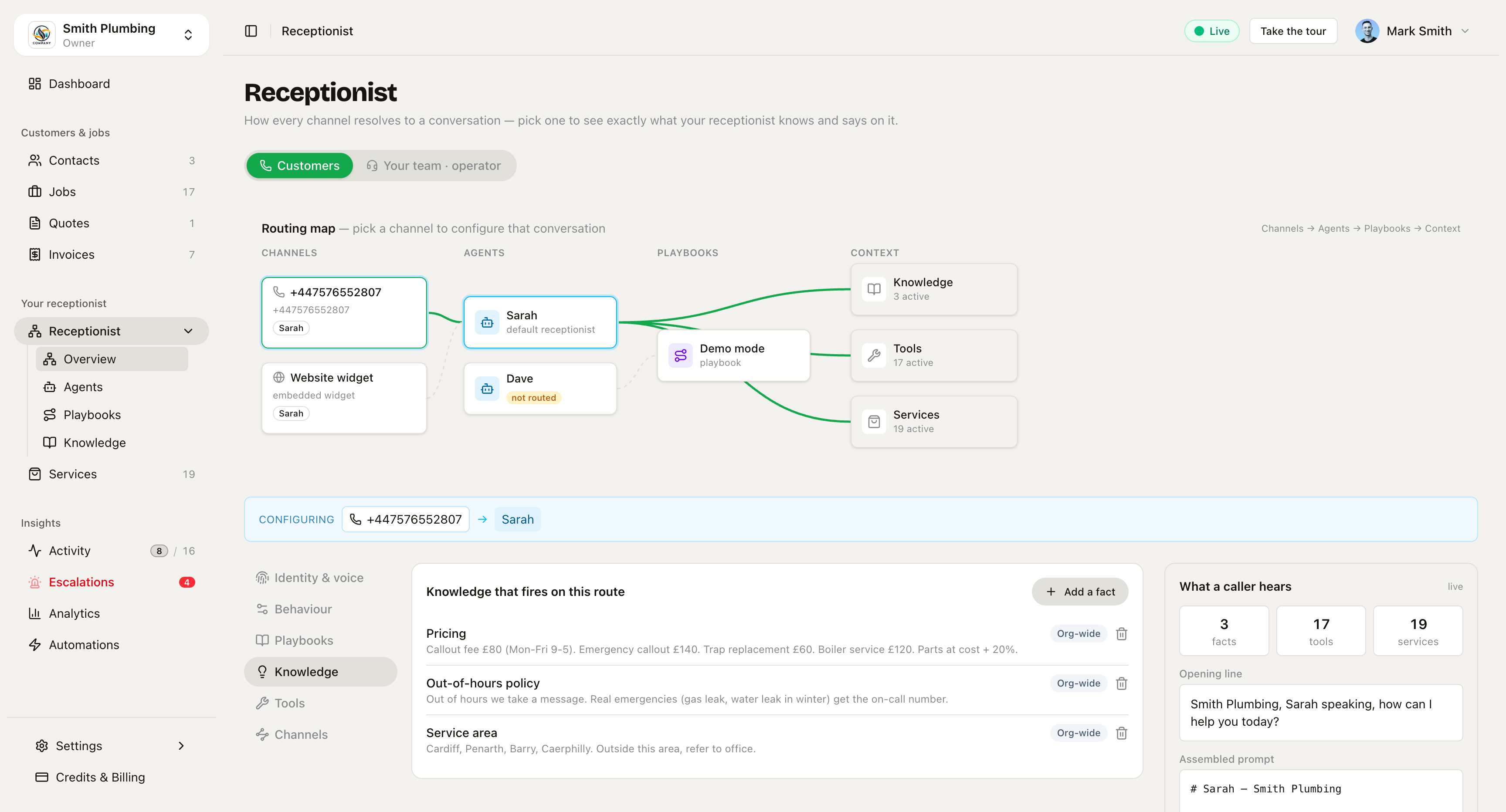
Receptionist overview
Receptionist → Overview is the front door to everything your AI says and knows. The deep editors each have their own page — Agents & services, Playbooks, Knowledge — but this is the screen that ties them together: pick any channel a customer can arrive on, and see exactly which agent answers, which playbook shapes the conversation, what knowledge fires, and the very prompt the AI will be given. Then talk to it, in the browser, on precisely that route.
When something sounds wrong on a call, start here. It answers "who picked up and why did they say that?" in one glance, without opening four pages.
Two lenses: customers and your team
The toggle at the top swaps the whole screen between the two kinds of caller:
- Customers — routed by channel: which number they dialled, or which page mounted the website widget.
- Your team · operator — routed by caller-ID: a teammate calling from their registered mobile gets operator mode, whatever number they dial.
The routing map
Across the top of the customer lens: Channels → Agents → Playbooks → Context. Every phone number and the website widget on the left; the agents they route to; any playbook layered on top; and live counts of the knowledge, tools and services that end up in the conversation. An agent nobody routes to wears a not routed badge — the quickest way to spot a persona you configured but never wired up.
Click a channel and the blue Configuring bar spells out the route in
words — for example +44 7576 552 807 → Sarah → Demo mode. Everything below
the bar now belongs to that route.
The studio — edit the route you're looking at
Six tabs, editing the same data as the dedicated pages, scoped to the route you picked:
- Identity & voice and Behaviour — the agent's persona, the same
fields as
/agents. - Playbooks — the situation layered on this channel, the same records as
/intents. - Knowledge — "Knowledge that fires on this route": exactly the chunks
this conversation will load, org-wide facts badged as such, with Add a
fact right there. Same store as
/knowledge— a fact added here appears there, and vice versa. - Tools — what the agent is allowed to do on this route (playbooks can narrow the set; ending the call is always kept as a safety floor).
- Channels — the numbers and widget mounts pointing at this agent.
The hub and the dedicated pages are two doors to the same rooms. Use the dedicated pages for heavy editing sessions; use the hub when you're reasoning about one route.
What a caller hears — the live preview
The right-hand panel assembles the route for real, as the AI will receive it:
- facts / tools / services counts — if a fact you just added doesn't move the counter, it isn't firing on this route (check its agent or playbook scope).
- Opening line — the greeting, with any playbook template applied.
- Assembled prompt — the actual system prompt, scrollable. This is the ground truth when you're debugging "why did she say that?".
- Test this route — an in-browser voice call on exactly this channel/agent/playbook combination, same as the website widget's machinery. What you hear is what a caller on that channel gets.
The operator lens
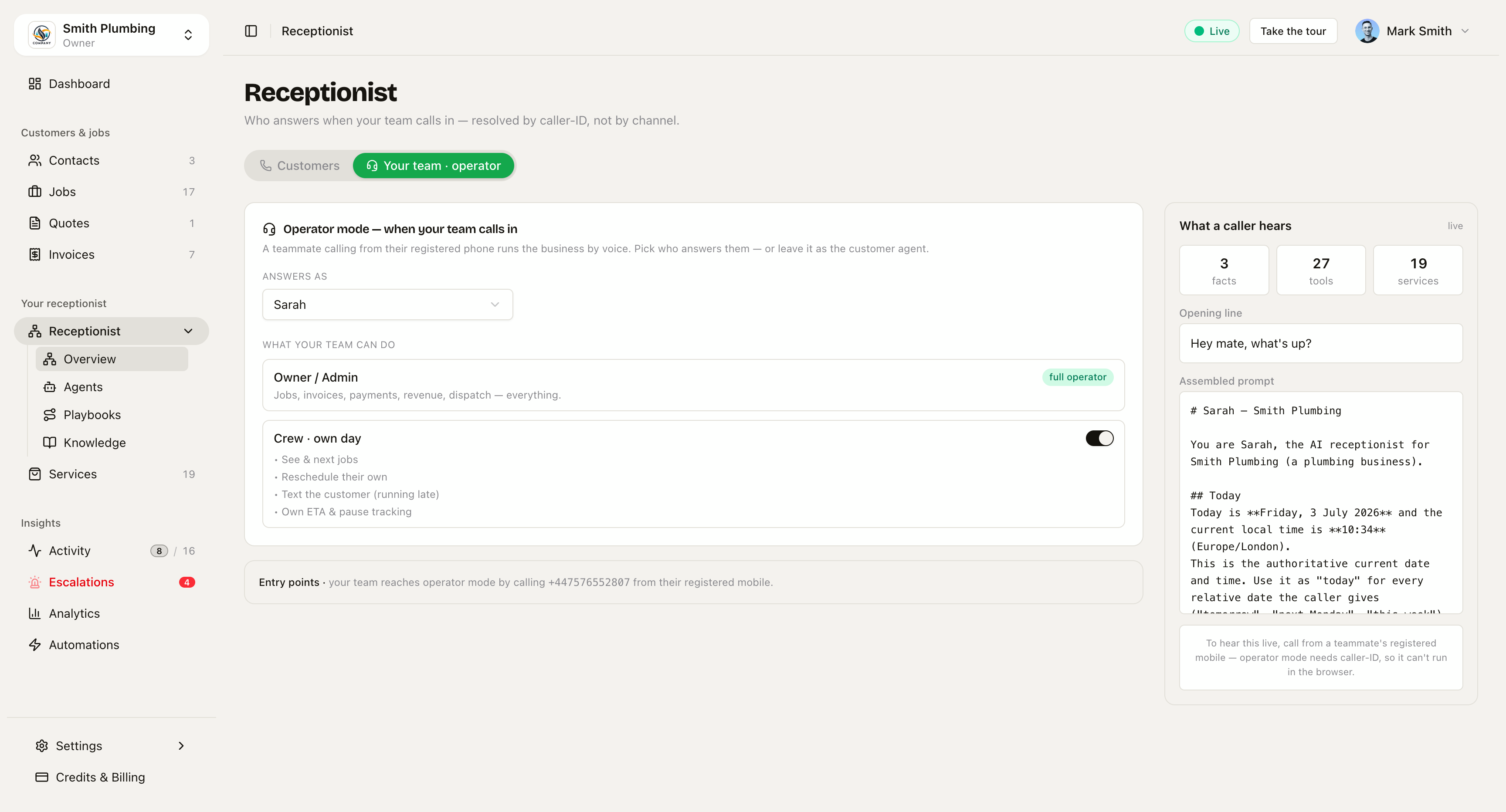 Who answers your team, what each role can do by voice, and the numbers that reach it.
Switch to Your team · operator and the map disappears — operator mode is resolved by caller-ID, not by channel. Instead you get:
- Answers as — which agent picks up for staff. Leave it as the customer agent, or give the team their own persona. (Same setting as the "Operator agent" card on Settings → Team.)
- What your team can do — owner/admin get full operator (jobs, invoices, payments, revenue, dispatch); the Crew · own day switch is the same "crew voice access" control as Settings → Team — off means crew calling in are treated as customers, on means they can run their own day by voice with no money tools and no teammates' jobs.
- Entry points — the numbers your team can dial to reach it.
The preview still assembles the real operator prompt — but there's no test button here: operator mode needs caller-ID, so the only live test is a real call from a registered mobile.
Related
- Agents & services — the full agent editor and the services catalogue the AI quotes from.
- Playbooks — situations: same agent, different rules per channel.
- Knowledge base — the facts, and how scoping decides what fires where.
- Voice PIN & operator mode — what the team can do by voice, and how it's protected.
- Website widget — the widget channel that appears in the routing map.