 Loyal Receptionist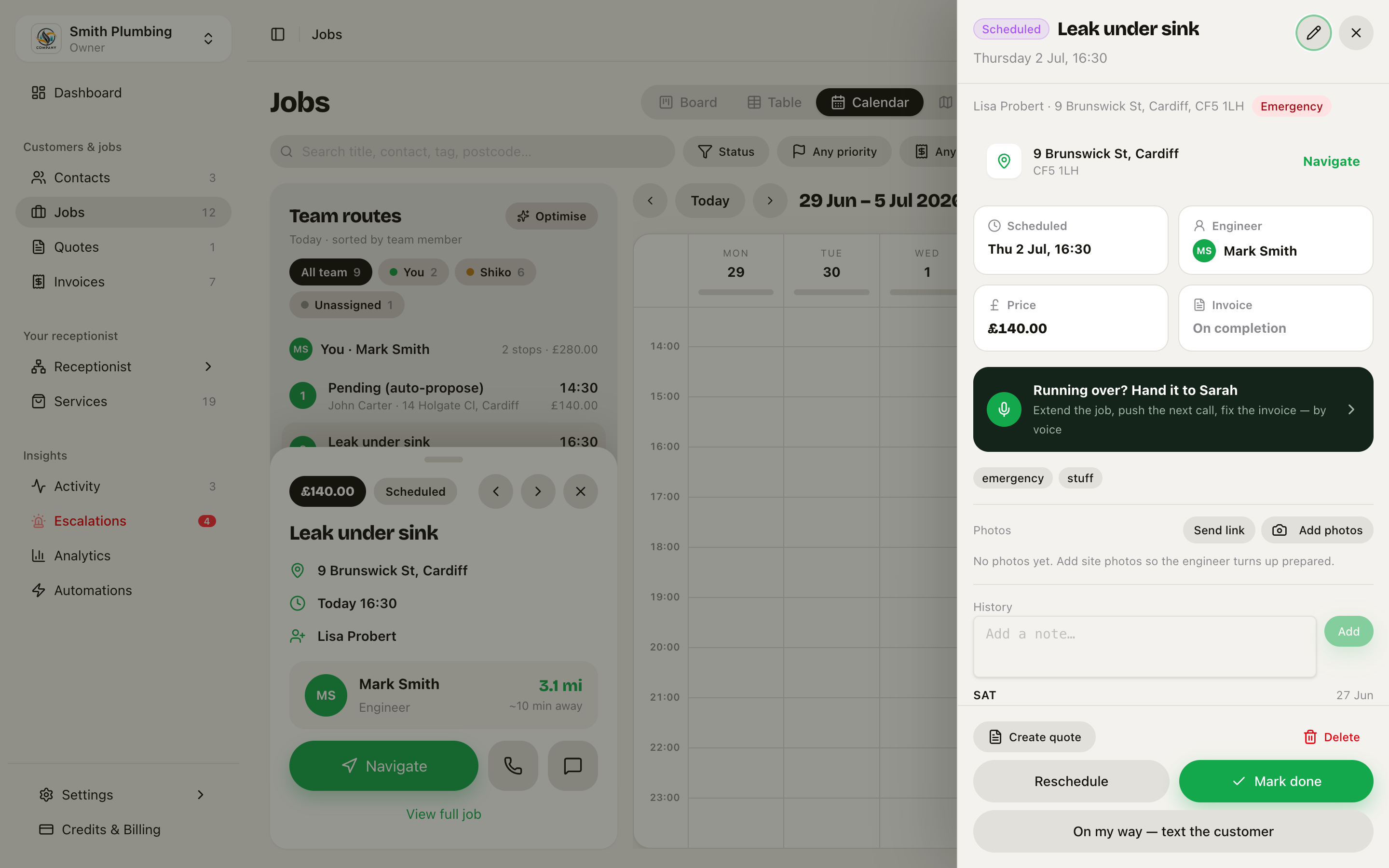
Before you price
Some things you cannot know from the phone. How deep the existing base is. How far the carry is from where the van can park. Whether the ground falls the right way.
You already write those questions down once, per service, on the Services page. This page is about answering them.
The short version
The questions live on the job, not on the quote. So the answers survive the quote being redrawn, the customer going quiet, and you pricing the same place again next year.
There are three ways to answer, and they all land in the same place:
| Way | Who uses it | Where |
|---|---|---|
| Out loud | Whoever is standing there | Ring Sarah, or tap Tell Sarah in the app |
| A photo | Whoever is standing there | The job screen on the phone |
| Typing | Anyone, anywhere | The job, or the quote builder |
Writing the questions
Open Services, pick any service, and find Before you price — your checklist under On the day. It is on every service, not only the ones you price after a look — a fixed-price job can still need somebody to look first.
An empty checklist shows one line: + Add item. Press it when you have something to write down.
Each item has three parts.
- The question. Short. "Sub-base depth", not a paragraph.
- A note to yourself. Optional. Shows only to you and your crew.
- What to photograph. Optional. This is the one that changes the job.
Tick Needs a site visit if unknown on the ones that decide whether somebody has to go out. Those are asked first, everywhere.
Sarah never reads any of this to a customer. It is yours.
Or have it written for you
Two ways, and both leave the last word with you.
A starter set arrives on its own. Create a service with Requires a quote ticked and your trade's usual list is already in it — for groundwork trades that is falls and levels, base depth, spoil volume, finish detail and access, with the first two already marked as needing a look.
Or ask. Tick a service on the list, press Fill with AI, and choose Before you price. It reads your whole catalogue and writes a list for that service:
Retaining wall
  Height and length          needs a look
  Type of material
  Ground conditions          needs a look
  Access                     needs a look
It sets needs a look only on the ones nobody could answer down a phone line. Accept them, edit the wording, or skip any of it — nothing is written until you press Apply.
The overrun nudge
The list also grows from what actually bit you. When two or more jobs in 90 days run over for the same reason, that reason appears above the checklist with a one-tap Add. You are not guessing at what to check; you are writing down what already cost you.
Answering out loud
The person at the job rings Sarah, or taps Tell Sarah on the job screen. They do not say a job number. Sarah works out which job they are on.
She reads back what is still outstanding, hardest question first, one at a time. Their reply is stored in their own words. Nothing is tidied, rounded, or converted.
"About a foot down, maybe a bit more."
That is a better answer than a number nobody said.
If they cannot tell, Sarah records could not tell. That is a real answer, and it is different from nobody having looked. It is the one that justifies sending somebody out.
Turning this on: it is off for every business by default. Ask us to enable it, or switch it on for your crew under Settings.
Answering with a camera
On the phone, each question is a picture to take, not a box to fill in.
Tap Take a photo. The camera opens with your own words for what to point at. Take the shot and it sends.
The read comes back as a question, not an answer:
about two skips worth — right?
Tap Yes, that's it and it is stored. Tap No, let me say and you type over it.
Nothing is ever stored without somebody tapping. If the picture does not show the answer, it says so rather than guessing at a number.
You can still type, and you can still talk. The camera is just the one most people reach for with wet hands.
If a photo does not go through
A picture that fails to send is removed, so you never end up looking at a broken tile. If one does get stuck, it stops saying Scanning after five minutes and says Didn't finish instead. Bin it with the small cross in the corner and take another.
Deleting a photo deletes the picture itself, not just the record of it, and it goes from the office at the same time.
Answering at the desk
Open a job and you will see Before you price with the answers already there, each showing who gave it and how. A small microphone means somebody said it out loud. A camera means it came off a photo. A pencil means somebody typed it.
Anything still missing has an Answer button. Filling one in here fills in the job, so the crew see it on their phone too.
When the crew photograph a question, the suggested answer appears here too, as a question with Yes, that's it and No, let me say. You do not need to refresh; it arrives on its own a few seconds after the shot.
The same panel appears in the quote builder. It is the same panel writing to the same place, so answering while you are there and answering at the desk are one act, not two.
How hard is this one
Below the questions is a rung: Standard, Awkward, and so on, from your own ladder.
This belongs to the place, not to the quote. Set it once and pricing the same place again starts from what you already know. It uplifts your labour only. Materials and anything bought in stay at cost, and the customer never sees it.
Ticking work off
The list of what you are fitting now saves when you tick it. The office can see what has gone in without ringing.
A tick records progress and nothing else. It never changes what the customer is charged.
What happens next
Once a job has learned something new, any quote already written for it says so. See Keeping a quote up to date.