 Loyal Receptionist
Conversations and Activity
The Activity feed is the one place where everything the AI did shows up — voice calls, web-chat sessions, SMS, WhatsApp and email. There's no separate "Conversations" page anymore: the old /conversations URL now redirects to Activity with the chat channel pre-selected.
Activity feed
Open Activity in the sidebar. It's one timeline of everything across the business — voice calls, web-chat and SMS threads, and the job and quote events they produce: a quote drafted, sent, opened or accepted; a job booked, scheduled or cancelled. The chat rows are what the old /conversations page was — same data, same layout, now inside the unified feed.
You can also land here from a deep link: /activity?channel=chat opens the feed pre-filtered to web-chat sessions, which is what the sidebar's old "Conversations" entry now points at.
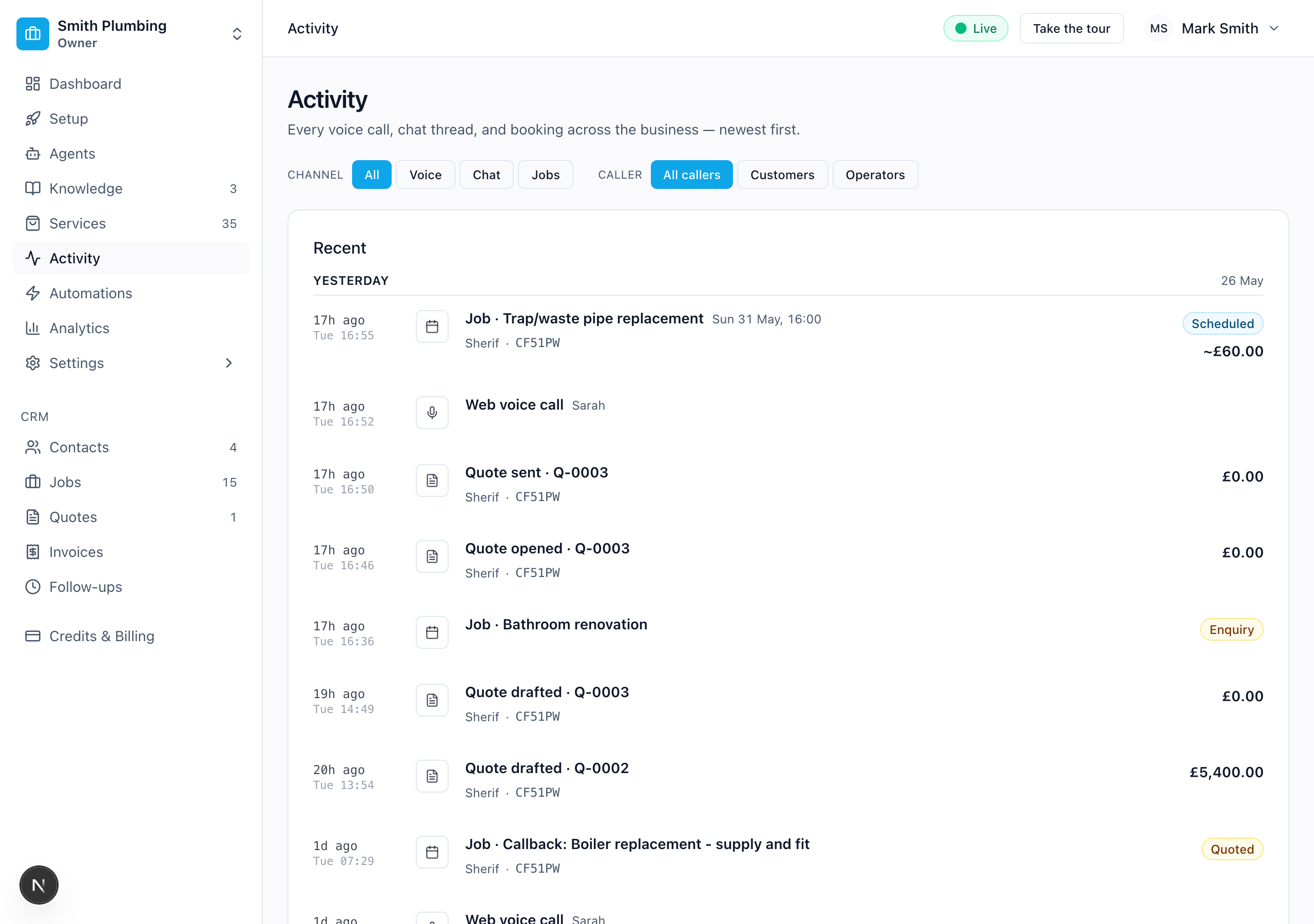 One timeline — calls, chats, jobs and quotes, newest first. Click a row to expand its transcript, summary and credits.
Filters
A search box and four dropdowns sit above the list. Combine them freely; Clear resets everything.
- Search — matches the summary, contact name and postcode.
- Channel — Any channel / Voice / Chat / Jobs. "Jobs" surfaces the booking + quote events; "Voice" is every call (phone and web-widget).
- Caller — All callers / Customers / Operators. Toggles between calls from customers and calls from you ringing your own line (operator mode). The pill on each row shows which mode the call was in.
- Outcome — Any outcome / Booked / Escalated / Hung up / No action. The fastest way to answer "what did she actually book this week?" or "which calls went wrong?"
- Sentiment — Any sentiment / Positive / Neutral / Negative. Filter to the calls that left the caller unhappy and read the transcripts.
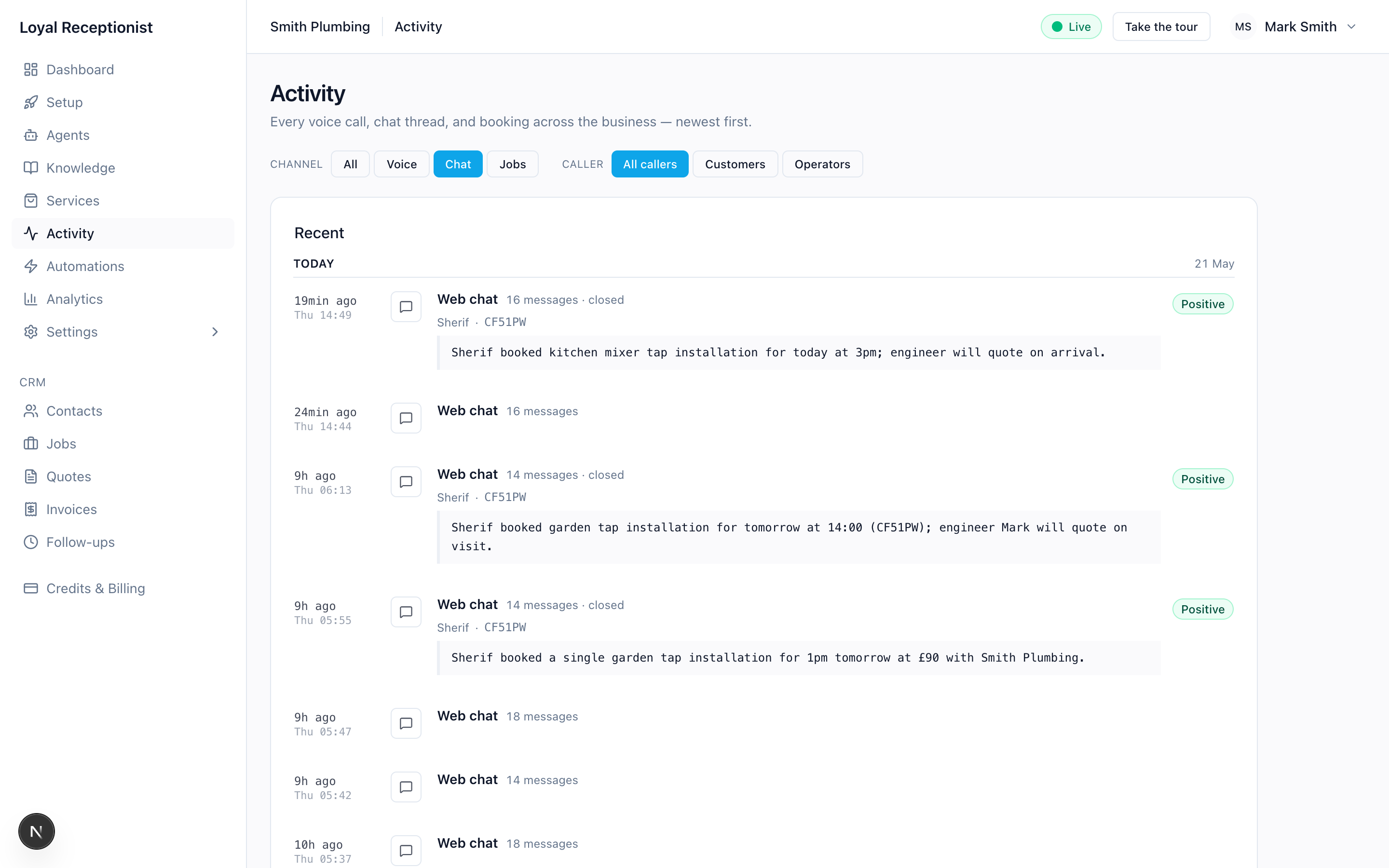 The same feed narrowed with the dropdowns — e.g. chat sessions only.
Call rows
Each row shows:
- Caller — contact name (if matched), otherwise raw number. For WebRTC widget calls without a matched contact, falls back to
Web visitor. - Escalated pill (red) — present when the call hit
escalate_to_human. The expanded detail explains who was notified. - Mode pill —
CUSTOMER(sky) orOPERATOR(amber) - Agent name — uppercased (
DAVE) - Sentiment — a face icon from the post-call sentiment classifier (positive / neutral / negative)
- Duration (
1m 04s) - Credits (
14 cr) - Started — relative time
- Status —
completed,voicemail,failed,transferred, etc.
Click a row to expand inline.
If the call was escalated, an amber callout under the summary tells you the owner has been notified by SMS and email and to ring the caller back within 10 minutes. Escalating also files a durable item in the Escalations queue — with an AI-proposed fix attached so the same call type stops dead-ending. The default is never escalate — see Emergency handling & service area to configure why she'd ever fall back to escalation.
Expanded row
- AI Summary — one-sentence summary generated post-call: "Jamie booked a boiler service for Thursday 30 Apr at 10:30am."
- Sentiment — same face icon as the row header, derived from the last few customer turns.
- AI-extracted tags — small pills showing the structured facts the summariser pulled out:
time:afternoon,pet:dog,payment:bank-transfer,interested:boiler-upgrade. These are written back to the contact as tags automatically — see Contacts & jobs. - Credits Cost — big number with "2 MIN BILLED" sub-label, matching the per-minute rate.
- Live Transcript — alternating Agent / Caller turns. Auto-scrolls during a live call, static after.
- Audio player — plays the call recording from a 15-minute signed URL. Logged to the audit log.
- Linked job — if the call resulted in a booking, link to the job card.
Returning callers — Sarah already knows them
When a number rings in that's already in your CRM (the caller's from_number matches a contact's phone), Sarah opens the call already knowing who they are. She doesn't ask for their name or phone — she opens with it and references whatever's on their record:
"Hi Mark — calling about your boiler service on Tuesday at 10:00?"
What she sees before saying hello:
- Contact name + phone + tags (e.g.
repeat,vip) - Any active bookings (up to 3, sorted soonest first)
- Total completed jobs (a loyalty signal — "you've booked with us six times")
- The summary of your last call together, if it was within the last 90 days
This kicks in automatically for phone calls when the caller's mobile is on file. For widget calls it kicks in when the visitor's session pre-fills a contact id (e.g. when you mount the widget on a logged-in customer page). Anonymous callers see no change — Sarah opens with the normal greeting and asks for their name as before.
The drill-down on the call row shows whether Sarah went into the call with identity on file — the Contact field will be linked to the contact record from turn 1, not "(captured mid-call)".
Web-chat rows
A chat session looks almost identical to a call row, with three differences:
- Channel pill says
CHAT(slate) and the duration is the elapsed time from first user turn to last system turn. - No audio player — chat is text-only.
- End-state reason is shown in the expanded row:
done(Sarah finished cleanly with a booking or callback),expired(caller went idle), orescalated(handed off to a human).
Thread viewer (SMS / WhatsApp / email / chat)
Open a message thread from a contact or from its row in the Activity feed. It's a deliberately simple, read-only view of the conversation:
- Channel in the title, with a status pill (
active,closed,needs human) - Customer messages on one side, agent messages on the other, with relative timestamps
There's no reply box here — the AI handles the thread, and your outbound replies go through the normal channels (ring them, or text from the job). If you want to check what the AI promised a customer, this is where you read it back.
Voice call timeline
When a call is in progress, the row pulses green and the transcript streams in live. Once it ends, the row collapses to a static record and the audio + summary populate within a few seconds.
What "Needs human" means
The receptionist flags a thread needs human when it escalates the conversation to a person — it's told the caller someone will ring them back, and it's paged you by SMS and email. Each of those hand-offs also lands as an item in the Escalations queue, where you claim it, resolve it, and read the AI's suggestion for stopping it happening again.
How long transcripts are kept
Transcripts are customer data, so they don't live forever. A nightly job purges them:
- 30 days for routine calls
- 90 days for escalated calls (so you have longer to review the ones that went wrong)
The call row, summary, duration and credits stay — only the word-for-word transcript is removed.