 Loyal Receptionist
How your customer pays
You've sent the quote or raised the invoice. This page is the other half — what the customer does next, on their own phone, and how the money lands back with you without a single "did that go through?" call.
There's no app to download and no account to make. The customer taps a link, sees your business name, and pays on a card screen. You get pinged the moment they do.
The two ways a pay link reaches them
There are two front doors, and they lead to the same card screen.
| From a quote | From an invoice |
|---|---|
| You press Send to client on a quote. The customer gets a branded web page (emailed and texted) with Accept and pay £X deposit when you've set a deposit. See Quotes. | You press Send pay link on an invoice — from the desk or from the van. The customer gets a branded invoice page with a Pay Online button. See Money on the move and Time tracking & field invoicing. |
Both links are private and passwordless. Anyone with the link can pay; nobody has to sign in.
What the customer sees
Step 1 — your page, not ours. The link opens a clean page with your business name at the top, the lines, and the total. A quote shows how long the price is held and your terms; an invoice shows what's owed. Under the amount, a small line reads Secure checkout via Stripe with a padlock — so they know the card part is handled by a name they trust.
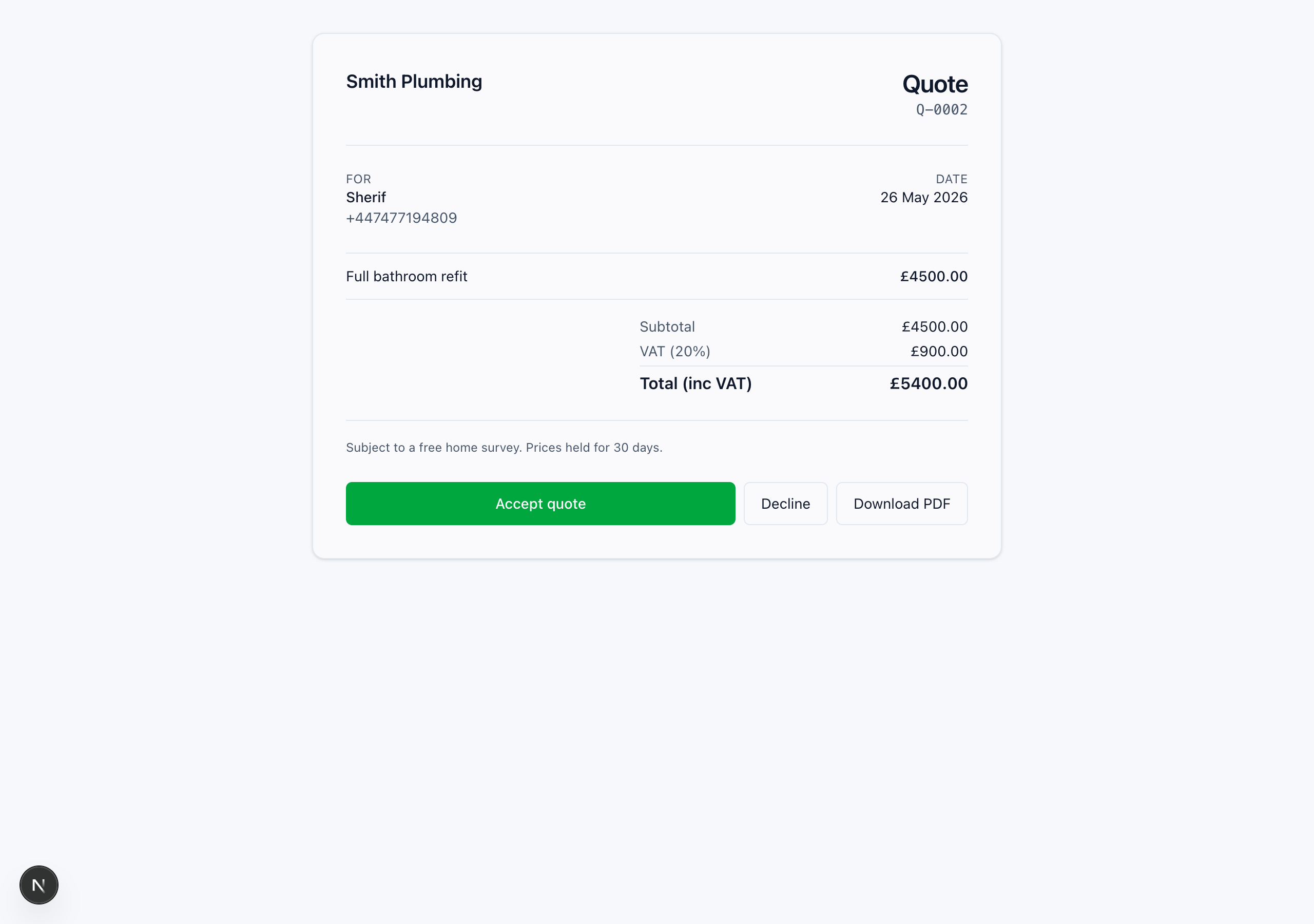 The customer's quote — your name, the breakdown, the total, and one green button that both accepts and opens the card screen.
Step 2 — the card screen. Tapping the green button (Accept and pay £X deposit on a quote, Pay Online on an invoice) opens the card page. This is Stripe's own secure screen. The customer types their card number, expiry and the short code on the back — or uses Apple Pay / Google Pay if their phone offers it. We never see or store the card details; Stripe does that part.
Step 3 — done. When the payment clears, the customer sees a confirmation, and control comes straight back to you.
What happens on your side — automatically
This is the part that saves the phone calls:
- The invoice flips to Paid — everywhere. The desk, the Jobs list and the crew app all show Paid at the same moment. Nobody marks it by hand.
- You get a ping the second the money clears.
- On a quote deposit, the deposit is recorded against the quote, and the final invoice later carries a "Deposit received" line so the customer is only ever asked for the rest.
Paid can't be faked. The Paid status is set by Stripe telling us the money actually moved — not by anyone tapping a button in the app. If it says Paid, the money is on its way to your account.
Tap to Pay — the card in your hand
For a customer standing right in front of the crew, there's Take payment now on the invoice — they tap their card or phone on the crew's iPhone and it's paid before you've packed up.
Honest status: the plumbing is built, but taking a card in person needs one more approval from Apple for your business. Until that's switched on, the screen says so and offers the pay link instead — which always works, whether the customer is there or not.
Paying for a booking on the call
Some services are paid up front (a private appointment, or a visit fee for a price-shopper). When Sarah books one, she does not just text a link silently — she says it: what it costs, that a link is on the way, and that she can wait on the line while they pay. The slot is held for 15 minutes.
- Paid in the window — the booking confirms itself. Nothing for you to do.
- Not paid in 15 minutes — the slot is released so it does not sit blocked. The job shows a Cancelled · No payment badge (on the job, the board and the peek), and its History says "Reservation released — no payment", so you can see exactly why it went.
Resending the link. Open the job and use Resend SMS or Resend email. Each resend mints a fresh link — an old Stripe link expires after a while, so resending the same dead one would just show the customer a "this checkout timed out" page. A fresh one always works.
A fee paid first, and what happens to it
If you take a fee first, the customer reads your terms before paying: for example, the fee comes off the work if they go ahead, and it is not refunded if they do not.
When they go ahead, the final invoice takes the fee off by itself.
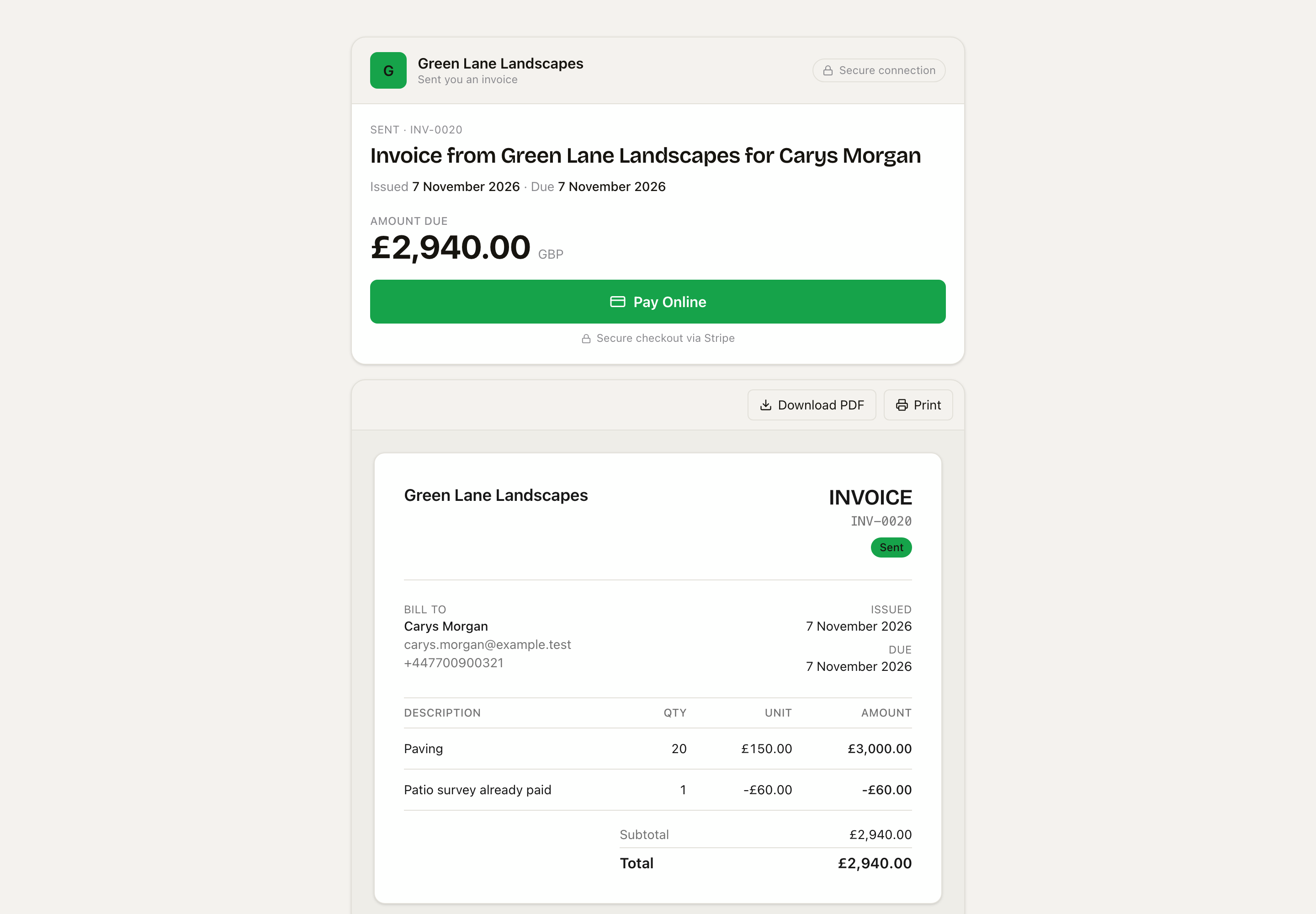 The customer pays the work, less the fee they already paid.
When they do not go ahead, you decide: Refund, Keep or Keep as credit. See If they paid first.
When it can't be paid
- No deposit set — a quote shows Accept quote on its own; no card screen, nothing to pay yet.
- Invoice is a draft or void — there's no live pay link, so the page says to contact you.
- Expired quote — the page won't accept until you Revise it with a fresh date. See Quotes.
Related
- Quotes — building and sending the written quote
- Money on the move — sending pay links and reading who owes you what
- Time tracking & field invoicing — raising and sending the invoice from site
- Pay link — the one-line definition